This is the full developer documentation for Integr8
# Advertisers
> Manage advertiser accounts and product feeds in Integr8. Every offer belongs to an advertiser; the section also handles catalogue distribution.
Advertisers are the brands and merchants whose campaigns you manage on Integr8. Every offer belongs to an advertiser. The Advertisers section is where you create those accounts and where you upload product catalogues for publishers to consume.
## Why it matters
[Section titled “Why it matters”](#why-it-matters)
The advertiser is the unit of trust and accounting in the platform. It groups related offers, applies shared settings, and gives you a clean reporting dimension. Without at least one advertiser, you cannot create an offer.
## How the section is organized
[Section titled “How the section is organized”](#how-the-section-is-organized)
1. [Advertiser setup](/docs/advertisers/advertiser-setup/) creates the account. Required before you can build any offer.
2. [Product feeds](/docs/advertisers/product-feeds/) distribute structured product data to publishers via CSV upload, with API access for approved publishers.
## Common pitfalls
[Section titled “Common pitfalls”](#common-pitfalls)
* Creating one advertiser per offer instead of grouping by brand. The reporting view becomes noisy fast.
* Deactivating an advertiser to pause traffic. Deactivation does not pause offers; pause individual offers separately.
* Skipping the postback security token. Without it, inbound conversion postbacks cannot be authenticated.
## Related
[Section titled “Related”](#related)
* [Create your first offer](/docs/offers/create-an-offer/) once the advertiser exists.
* [Configure conversion tracking](/docs/offers/conversion-tracking/) to wire the advertiser’s postbacks into Integr8.
# Advertiser setup
> Create an advertiser account in Integr8 before setting up offers, using General, Contact Details, and Postback Settings tabs with optional secure code and IP restrictions.
Every offer in Integr8 belongs to an advertiser. Create at least one advertiser before you create your first offer. Advertisers can be true brand accounts (one per client) or grouping categories for related offers. Targeting rules, fraud filters, and payouts can later be configured at the advertiser level and inherited by all offers under it.
## Before you begin
[Section titled “Before you begin”](#before-you-begin)
* Have the advertiser’s company name, website, and contact email ready.
* Decide whether you need separate advertisers per client, or a single advertiser as a catch-all bucket.
* Confirm you have write access to **Advertisers**. Users without write access can view advertisers but cannot create them.
## Create an advertiser
[Section titled “Create an advertiser”](#create-an-advertiser)
The create flow has three steps: **General**, **Contact Details**, and **Postback Settings**.
### Step 1: General
[Section titled “Step 1: General”](#step-1-general)
1. Go to **Partners > Advertisers Management** and click **Create**. 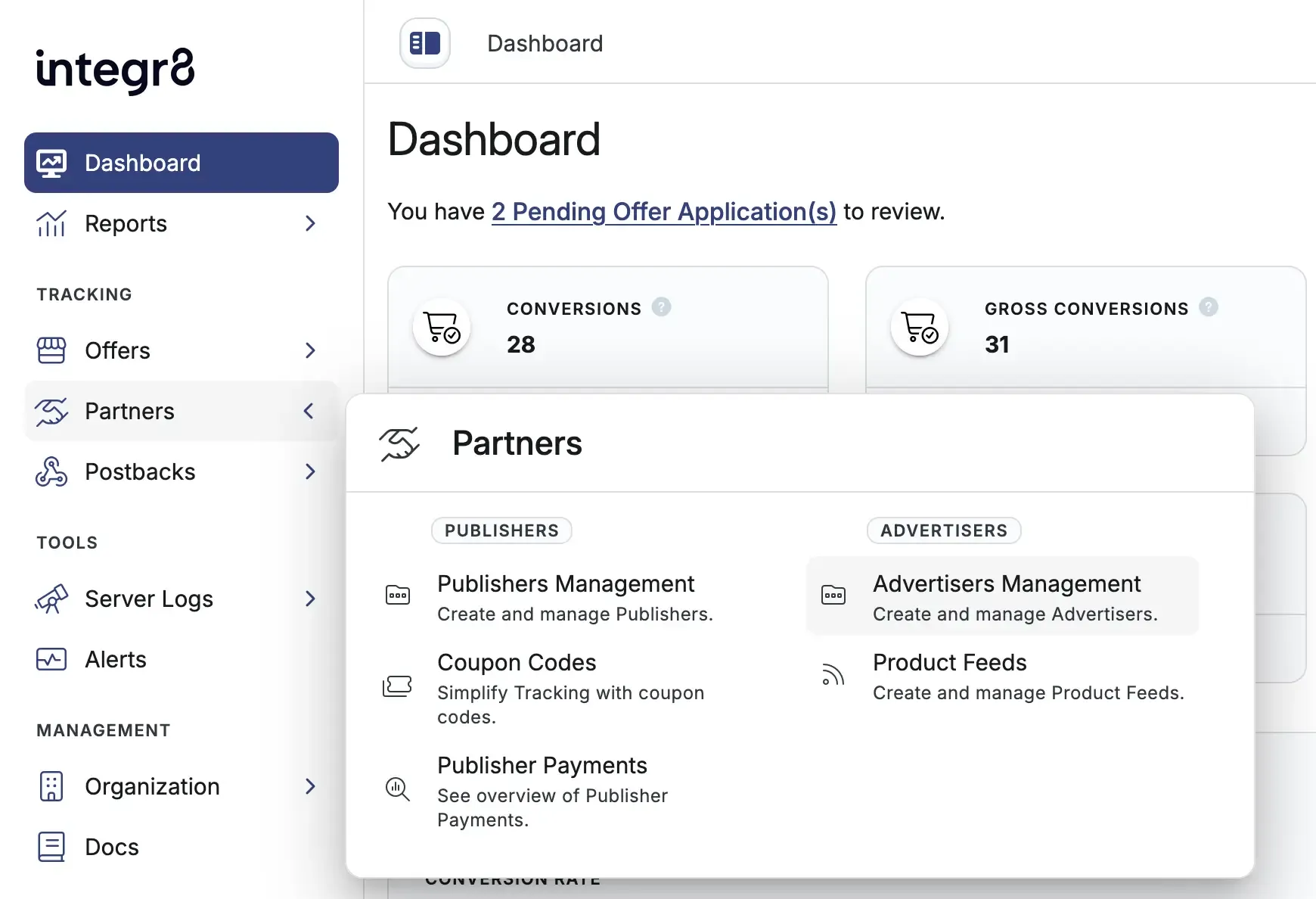
2. Fill in the advertiser details:
* **Name**: internal label for the advertiser. Required.
* **Description**: optional notes about the advertiser.
* **Account Manager**: assign a user with the Account Manager role to manage this advertiser. Hidden if you are logged in as an account manager.
* **Tags**: optional labels for filtering and grouping this advertiser in reports.
You can move between **General**, **Contact Details**, and **Postback Settings** using the sidebar navigation. **Name** must be valid before you can switch tabs.
Click **Edit Contact Details**.
### Step 2: Contact Details
[Section titled “Step 2: Contact Details”](#step-2-contact-details)
Add account and contact information:
* **First name** and **Last name**
* **Company Name**: the advertiser company name.
* **Country**
* **Website**: the advertiser’s main domain.
* **Email**: used for login and account correspondence. Must be a valid email address if provided.
Click **Edit Postback Settings**.
### Step 3: Postback Settings
[Section titled “Step 3: Postback Settings”](#step-3-postback-settings)
Configure how conversion and event tracking is secured for this advertiser:
* **Advertiser Level Secure Code**: when enabled, this secure code authenticates conversions for this advertiser. When disabled, the offer secure code or global secure code is used instead.
* **Only Allow Event from known Server IPs**: when enabled, only incoming conversions and events from known platform IPs or approved server IPs you add are accepted.
Click **Create Advertiser** to create the advertiser.
Choose **To Advertiser Overview** to open the new advertiser page, or **Back** to return to Advertisers Management.
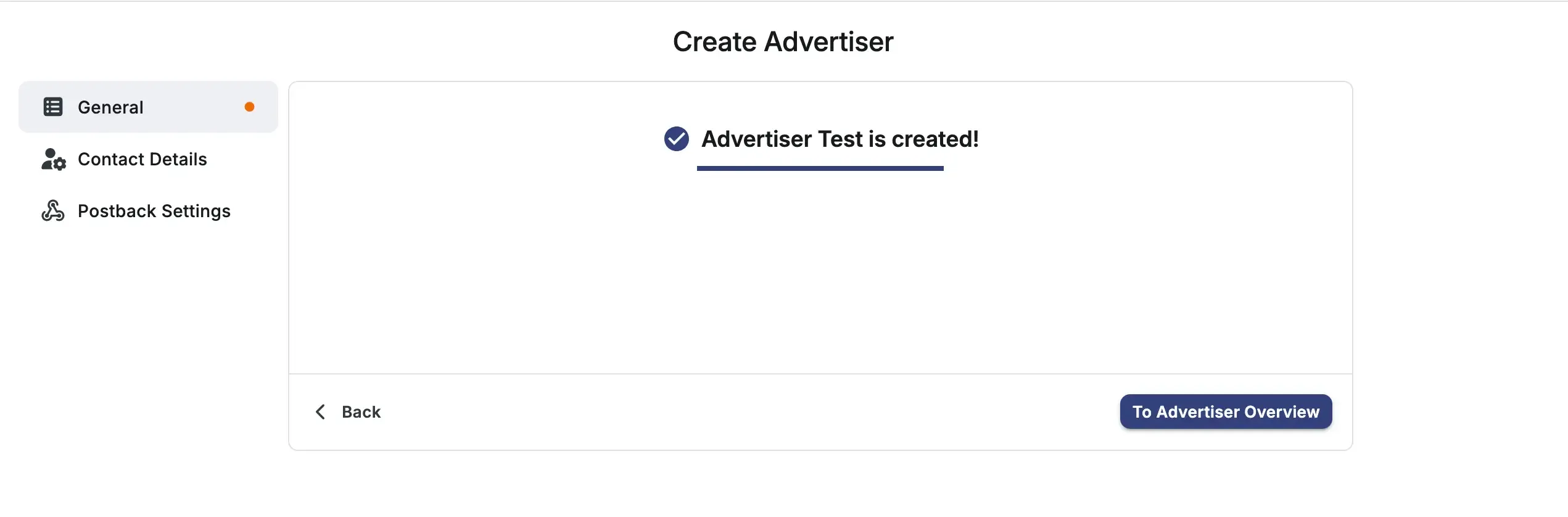
If all your offers belong to one brand, a single advertiser is sufficient. Add more advertisers when you need separate rule sets, reporting views, or client separation.
## Field reference
[Section titled “Field reference”](#field-reference)
### General
[Section titled “General”](#general)
| Field | Required | Description |
| --------------- | -------- | ---------------------------------------------------------------------------------------------------------------------------------------------------------------------------------------- |
| Name | Yes | Internal label for the advertiser |
| Description | No | Optional notes about the advertiser |
| Account Manager | No | User that manages this advertiser. On report pages, use the Account Manager filter to group performance data for multiple advertisers. Hidden if you are logged in as an account manager |
| Tags | No | Labels used to quickly find data related to this advertiser in reports and tables |
### Contact Details
[Section titled “Contact Details”](#contact-details)
| Field | Required | Description |
| ------------ | -------- | ----------------------------------------------------------------- |
| First name | No | Contact first name |
| Last name | No | Contact last name |
| Company Name | No | The advertiser company name |
| Country | No | Advertiser country |
| Website | No | Advertiser’s main domain |
| Email | No | Login and account correspondence email. Must be valid if provided |
### Postback Settings
[Section titled “Postback Settings”](#postback-settings)
| Field | Required | Description |
| -------------------------------------- | -------- | -------------------------------------------------------------------------------------------------------------------------------------------------------- |
| Advertiser Level Secure Code | No | When enabled, this secure code authenticates conversions for this advertiser. When disabled, the offer secure code or global secure code is used instead |
| Only Allow Event from known Server IPs | No | When enabled, only incoming conversions and events from known platform IPs or approved server IPs you add are accepted |
## Next steps
[Section titled “Next steps”](#next-steps)
* [Create your first offer](/docs/offers/create-an-offer/) under this advertiser.
* [Add a product feed](/docs/advertisers/product-feeds/) so publishers can build storefronts from the advertiser’s catalogue.
* Open **Settings** on the advertiser details page to update general, contact, or danger zone options after creation.
# Product feeds
> Distribute advertiser product catalogue data to publishers in Integr8 via CSV upload, with JSON, XML, and CSV API access for approved publishers.
Product feeds let advertisers share structured product data with publishers. Publishers can use the feed data to build affiliate storefronts, display product listings, or run targeted campaigns without scraping the advertiser’s website. Each feed is uploaded as a CSV and tied to a single offer.
## Before you begin
[Section titled “Before you begin”](#before-you-begin)
* [Create the offer](/docs/offers/create-an-offer/) the feed will belong to.
* Prepare a CSV file with one product per row and consistent column headers.
## Add a product feed
[Section titled “Add a product feed”](#add-a-product-feed)
1. Go to **Partners > Product Feeds**.
2. Click **Create**.
3. Fill in the fields:
* **Product Feed Name**: a descriptive label for internal tracking.
* **Offer**: the offer this feed belongs to.
* **Start Date** and **End Date**: optional. The feed is inactive outside this window.
4. Upload the CSV file with the product data.
5. Click **Save**.
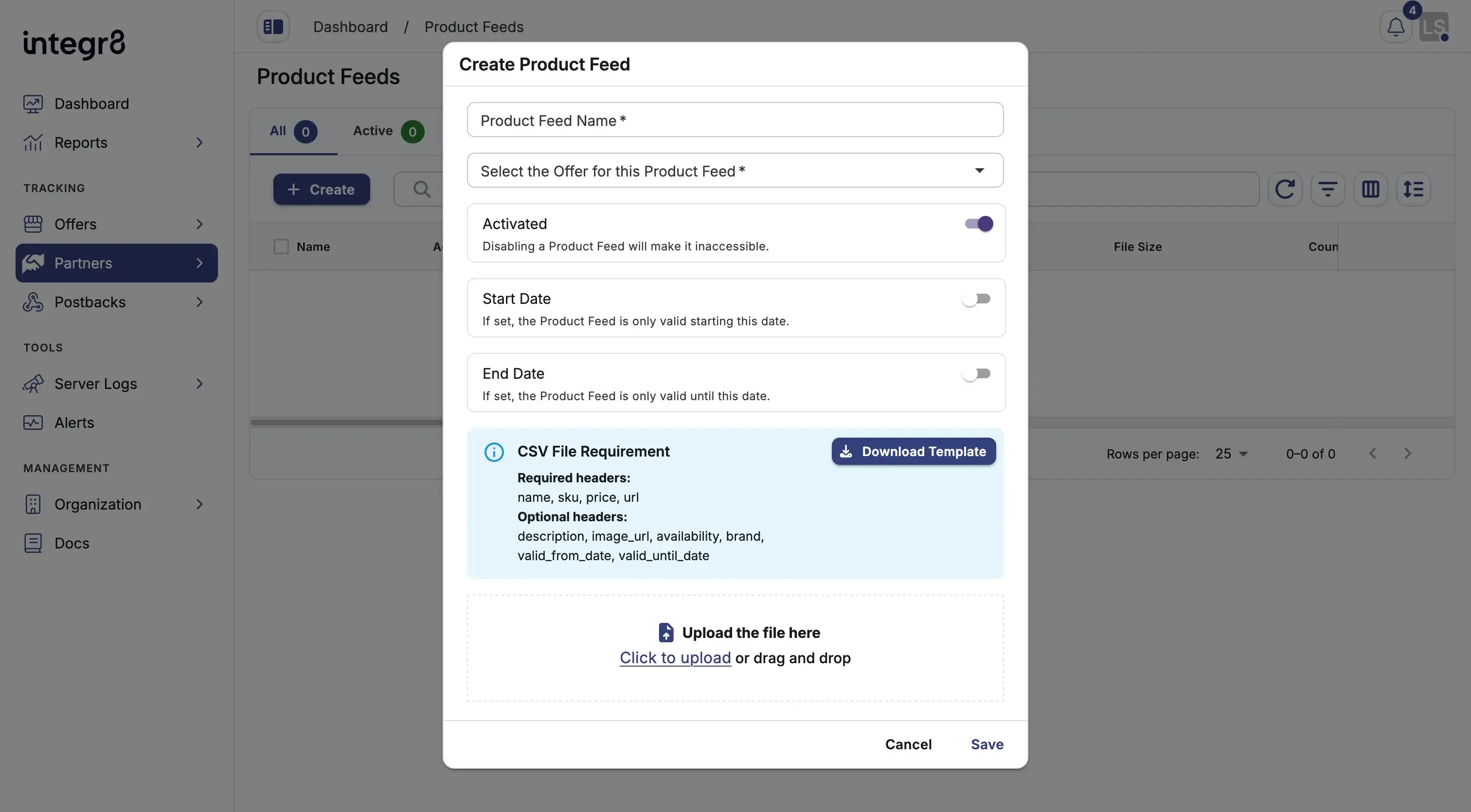
The CSV is stored in cloud storage and linked to the offer. Only publishers approved to run traffic on the offer can access the feed.
## Publisher access via API
[Section titled “Publisher access via API”](#publisher-access-via-api)
Approved publishers can retrieve feed data programmatically in three formats. Replace `{offer_id}` and `{feed_id}` with the actual IDs from your Integr8 account.
**JSON:**
```bash
curl -X GET 'https://api.app.integr8.co/api/v2/offers/{offer_id}/product-feeds/{feed_id}/json' \
-H 'API-KEY: YOUR_API_KEY' \
-H 'Content-Type: application/json'
```
**XML:**
```bash
curl -X GET 'https://api.app.integr8.co/api/v2/offers/{offer_id}/product-feeds/{feed_id}/xml' \
-H 'API-KEY: YOUR_API_KEY'
```
**CSV:**
```bash
curl -X GET 'https://api.app.integr8.co/api/v2/offers/{offer_id}/product-feeds/{feed_id}/csv' \
-H 'API-KEY: YOUR_API_KEY'
```
## CSV format
[Section titled “CSV format”](#csv-format)
The CSV should include one product per row with consistent column headers. There is no enforced schema; column names are flexible. Define a structure that fits your catalogue and document it for your publishers.
**Recommended columns:**
| Column | Description |
| ------------- | ------------------------- |
| `product_id` | Unique product identifier |
| `name` | Product name |
| `description` | Short description |
| `price` | Current price |
| `currency` | Price currency code |
| `url` | Product page URL |
| `image_url` | Product image URL |
| `category` | Product category |
## Next steps
[Section titled “Next steps”](#next-steps)
* [Create the advertiser](/docs/advertisers/advertiser-setup/) if it does not exist yet.
* [Add publishers](/docs/publishers/publisher-setup/) and grant access to the offer so they can pull the feed.
# API
> Integrate with Integr8 via REST API. Covers authentication, core endpoints, and webhook configuration.
Integrate with Integr8 via REST API. Covers authentication, core endpoints, and webhook configuration.
The Integr8 REST API lets you automate campaign management, query performance data, and configure conversion tracking programmatically. All requests require an API key.
The full interactive endpoint reference is hosted externally on Scalar. You can explore endpoints, test live requests, and view response schemas at [api.integr8.co/docs](https://api.integr8.co/docs).
## Authentication
[Section titled “Authentication”](#authentication)
All API requests require an API key passed in the `Authorization` header:
```http
Authorization: Bearer YOUR_API_KEY
```
To find your API key:
1. Log in to your Integr8 dashboard at [app.integr8.co](https://app.integr8.co).
2. Navigate to **Organization Settings** > **API Keys**.
3. Copy your key or generate a new one.
Treat your API key like a password. Do not expose it in client-side code or public repositories. Rotate it immediately if it is ever compromised.
## Base URL
[Section titled “Base URL”](#base-url)
All API endpoints use the following base URL:
```plaintext
https://api.integr8.co/v1
```
Requests and responses use JSON (`Content-Type: application/json`).
## What the API covers
[Section titled “What the API covers”](#what-the-api-covers)
The Integr8 API provides programmatic access to the following areas:
| Area | Description |
| -------------------- | --------------------------------------------------------------------------------- |
| Campaigns | Create, update, and query offers, publishers, and advertisers |
| Conversion Tracking | Submit conversions and query conversion status |
| Reports | Pull performance data — clicks, conversions, events — by date range and dimension |
| Fraud Prevention | Read and update fraud filter group settings |
| Postbacks / Webhooks | Configure and test postback URLs for real-time conversion delivery |
## Postbacks and webhooks
[Section titled “Postbacks and webhooks”](#postbacks-and-webhooks)
Integr8 sends real-time postback notifications when conversions are recorded, approved, or rejected. Configure postback URLs at the offer level to receive these events in your advertiser system or custom webhook endpoint.
Postback parameters include: `click_id`, `conversion_id`, `status`, `payout`, `revenue`, `fraud_reason`, and any custom parameters you define.
See the [affiliate postback setup guide](/docs/postbacks/affiliate-postback-setup/) for configuration instructions.
## Rate limits
[Section titled “Rate limits”](#rate-limits)
The API enforces rate limits per API key. Exceeding the limit returns `429 Too Many Requests`. The response includes a `Retry-After` header indicating when you can resume requests.
## Full API reference
[Section titled “Full API reference”](#full-api-reference)
For the complete list of endpoints, request parameters, and example responses, use the interactive reference:
**[api.integr8.co/docs](https://api.integr8.co/docs)** — explore all endpoints, authenticate with your API key, and test live requests in the browser.
# Fraud Prevention
> Detect and block invalid traffic across click fraud, conversion fraud, traffic quality, and device fraud categories.
Detect and block invalid traffic across four fraud categories. Each category has its own detection rules and thresholds.
* [Click Fraud](/docs/fraud-prevention/click-fraud/)
* [Conversion Fraud](/docs/fraud-prevention/conversion-fraud/)
* [Traffic Quality](/docs/fraud-prevention/traffic-quality/)
* [Device Fraud](/docs/fraud-prevention/device-fraud/)
# Click Fraud
> Detect click flooding and click spam patterns that inflate attribution credit through fake click generation.
Click fraud covers techniques that generate fake clicks to manipulate attribution. Integr8 detects both high-volume flooding attacks and background click spam patterns.
* [Click Flooding](/docs/fraud-prevention/click-fraud/click-flooding/)
* [Click Spam](/docs/fraud-prevention/click-fraud/click-spam/)
# Click Flooding
> Detect and block mass click generation attacks where bots generate high click volumes to hijack last-click attribution.
## What it detects
[Section titled “What it detects”](#what-it-detects)
Click flooding occurs when bots or compromised apps generate massive click volumes from a single source. The goal is to flood the attribution window so that a fraudulent click is the last recorded before a legitimate conversion — hijacking credit for organic installs.
## How it works
[Section titled “How it works”](#how-it-works)
Integr8 monitors click velocity per source over a sliding time window. When the click volume from a single IP, sub ID, or publisher exceeds the configured threshold within the time window, subsequent clicks from that source are blocked in real time.
The filter also evaluates Click-To-Install Time (CTIT). Abnormally high volumes combined with long CTIT distributions are a strong signal of flooding rather than legitimate user behavior.
## Configuration
[Section titled “Configuration”](#configuration)
Navigate to **Offers** > **Fraud Detection Groups** > select a filter group > **Click Flooding**.
| Parameter | Default | Description |
| ---------------------------------------- | ------------- | ---------------------------------------------------------------------------------- |
| `max_duplicate_ip` | 4 | Maximum clicks allowed from the same IP within the lookback window before blocking |
| `expires_in_seconds` | 3,600 (1 h) | Rolling lookback window in seconds for counting duplicate IPs |
| `extra_expires_in_seconds_when_rejected` | 43,200 (12 h) | How long a blocked IP stays blocked after the threshold is exceeded |
| `properties.has_offer` | false | Include the offer ID in the deduplication key |
| `properties.has_publisher` | true | Include the publisher ID in the deduplication key |
| `properties.has_sub_id` | false | Include the sub ID in the deduplication key |
| `properties.has_user_agent` | true | Include the user agent in the deduplication key |
These settings are managed by administrators. Contact your account admin to review or update the configuration.
## What happens when triggered
[Section titled “What happens when triggered”](#what-happens-when-triggered)
When the click threshold is exceeded:
* **Block mode**: Integr8 rejects the click with HTTP 403. No attribution is recorded.
* **Flag mode**: The click is recorded with a `fraud_reason: click_flooding` tag. Conversions from flagged clicks are still tracked but marked as suspect.
You can review blocked clicks in **Reports** > **Click Reports** using the `fraud_reason` filter.
## Related filters
[Section titled “Related filters”](#related-filters)
* [Click Spam](/docs/fraud-prevention/click-fraud/click-spam/) — detects background click injection from malicious apps
* [Sub-ID Validity Check](/docs/fraud-prevention/traffic-quality/sub-id-validity-check/) — validates sub IDs used to segment click volume
# Click Spam
> Identify and block background click injection and invisible iframe patterns used to generate fake attribution clicks.
## What it detects
[Section titled “What it detects”](#what-it-detects)
Click spam is a broad-based fraud technique where malicious apps or websites generate clicks in the background without user interaction. Common methods include invisible iframes, background processes, and cookie dropping — all designed to place a click before an organic conversion occurs.
## How it works
[Section titled “How it works”](#how-it-works)
Integr8 analyzes session characteristics to identify click spam signals:
* **Zero or near-zero session time**: Clicks recorded with no measurable user session indicate automated generation.
* **Abnormal CTIT distribution**: Legitimate install times cluster within predictable ranges. Click spam produces a flat or bimodal CTIT distribution spread across hours or days.
* **Click-to-conversion ratio**: A high ratio of clicks from a source with few matching conversions flags that source as a spam generator.
The filter evaluates these signals in combination. A single signal may not trigger a block, but multiple concurrent signals raise the fraud score above the block threshold.
## Configuration
[Section titled “Configuration”](#configuration)
Navigate to **Offers** > **Fraud Detection Groups** > select a filter group > **Click Spam**.
Each lookback period (12 h, 24 h, 96 h, 720 h) can be enabled independently. Per-period fields:
| Parameter | Default | Description |
| -------------------------- | ----------- | --------------------------------------------------------------------------- |
| `max_session_time_seconds` | 3,600 (1 h) | Conversions with a session time above this are counted as high session time |
| `threshold_percentage` | 50% | Percentage of high-session-time conversions before the source is blocked |
| `minimum_request_count` | 50 | Minimum conversions required before the threshold check runs |
| `check_by_sub_id` | false | Calculate threshold at sub ID level instead of publisher level |
These settings are managed by administrators. Contact your account admin to review or update the configuration.
## What happens when triggered
[Section titled “What happens when triggered”](#what-happens-when-triggered)
When a click source is identified as spam:
* **Block mode**: Subsequent clicks from that source are rejected. Conversions that arrive after a blocked click do not receive attribution.
* **Flag mode**: Clicks are recorded with `fraud_reason: click_spam`. You can audit flagged traffic in **Reports** > **Click Reports**.
Start with **Flag mode** for at least a week before switching to **Block mode**. Review flagged traffic to confirm the filter is not catching legitimate publisher traffic with naturally long session times.
## Related filters
[Section titled “Related filters”](#related-filters)
* [Click Flooding](/docs/fraud-prevention/click-fraud/click-flooding/) — detects high-volume click attacks from single sources
* [Low Session Time Anomaly](/docs/fraud-prevention/traffic-quality/low-session-time-anomaly/) — flags sessions with abnormally short engagement time
# Conversion Fraud
> Filter suspicious conversion rates, thresholds, and install timing.
Conversion fraud filters block suspicious conversions based on publisher conversion rates, rejection thresholds, and install timing anomalies that indicate SDK spoofing or fraudulent attribution.
## In this section
[Section titled “In this section”](#in-this-section)
* [Conversion Rate Filter](/docs/fraud-prevention/conversion-fraud/conversion-rate-filter/)
* [Conversion Rejection Threshold](/docs/fraud-prevention/conversion-fraud/conversion-rejection-threshold/)
* [Wrong Install Time](/docs/fraud-prevention/conversion-fraud/wrong-install-time/)
# Conversion Rate Filter
> Automatically reject conversions when a publisher's conversion rate falls outside configured minimum and maximum thresholds.
## What it detects
[Section titled “What it detects”](#what-it-detects)
Publishers generating fake or incentivized conversions often produce conversion rates that sit far outside what legitimate traffic delivers. A rate that is too high suggests fabricated conversions; a rate that is too low suggests click fraud inflating the denominator. The Conversion Rate Filter blocks conversions from any publisher or sub ID whose rate drifts outside your configured bounds.
## How it works
[Section titled “How it works”](#how-it-works)
Integr8 calculates the conversion rate for each publisher (and optionally each sub ID) over the selected time interval. When the rate falls below the minimum or exceeds the maximum threshold — and the minimum click and conversion counts are met — the filter rejects new conversions from that source and optionally blocks further clicks.
Evaluation runs continuously. A source that recovers within bounds during the next time window is unblocked automatically.
## Configuration
[Section titled “Configuration”](#configuration)
Navigate to **Offers** > **Fraud Detection Groups** > select a filter group > **Conversion Rate**.
Enable one or more lookback periods. Each period evaluates independently; a source that breaches any enabled period is rejected.
| Parameter | Default | Description |
| ---------------------- | ------- | --------------------------------------------------------------------- |
| `max_conversion_rate` | 20% | Reject when the CR for that period is above this percentage |
| `min_conversion_rate` | 0.2% | Reject when the CR for that period is below this percentage |
| `min_conversion_count` | 30 | Minimum conversions required before the CR check runs for that period |
| `min_click_count` | 400 | Minimum clicks required before the CR check runs for that period |
The above four fields are configured per period. Available periods: **Hourly**, **Daily**, **Weekly**, **Monthly** (all enabled by default).
| Parameter | Default | Options | Description |
| ----------------- | ------- | ----------- | ----------------------------------------------------------- |
| `check_by_sub_id` | true | true, false | Calculate CR at sub ID level instead of publisher level |
| `block_clicks` | false | true, false | Also block clicks from sources that breach the CR threshold |
## What happens when triggered
[Section titled “What happens when triggered”](#what-happens-when-triggered)
When a publisher’s conversion rate exceeds the configured bounds:
* Conversions from that source are rejected with a `fraud_reason: cr_filter` tag.
* If `block_clicks` is enabled, further clicks from that publisher or sub ID are also blocked.
* The block lifts automatically when the rate returns within bounds in the next evaluation window.
Review blocked sources in **Reports** > **Conversion and Events Report** using the `fraud_reason` filter.
## Example
[Section titled “Example”](#example)
With `low_cr: 1%`, `high_cr: 5%`, `min_clicks: 100`, `min_conversions: 2`:
* Publisher with 150 clicks, 1 conversion (0.67% CR) — conversions rejected (below minimum)
* Publisher with 200 clicks, 12 conversions (6% CR) — conversions rejected (above maximum)
* Publisher with 120 clicks, 3 conversions (2.5% CR) — passes the filter
## Related filters
[Section titled “Related filters”](#related-filters)
* [Conversion Rejection Threshold](/docs/fraud-prevention/conversion-fraud/conversion-rejection-threshold/) — blocks sub IDs with high rates of rejected conversions
* [Wrong Install Time](/docs/fraud-prevention/conversion-fraud/wrong-install-time/) — detects SDK spoofing via invalid install timestamps
# Conversion Rejection Threshold
> Block clicks at the sub ID level when the percentage of rejected conversions exceeds a configured limit.
## What it detects
[Section titled “What it detects”](#what-it-detects)
When a sub ID accumulates a high proportion of rejected conversions — due to duplicate IPs, VPN usage, device fraud, or other active rules — it signals that the source is generating low-quality or fraudulent traffic. The Conversion Rejection Threshold filter blocks further clicks from that sub ID once the rejection rate exceeds your configured limit.
## How it works
[Section titled “How it works”](#how-it-works)
Integr8 calculates the rejection rate for each sub ID over the lookback window using this formula:
```plaintext
rejection_rate = (total_rejected / total_conversions) * 100
```
When the rejection rate exceeds `max_rejection_percentage` and the minimum conversion count is met, Integr8 blocks clicks from that sub ID. This prevents additional fraudulent traffic from reaching the advertiser while the source is under review.
## Configuration
[Section titled “Configuration”](#configuration)
Navigate to **Offers** > **Fraud Detection Groups** > select a filter group > **Conversion Rejection Threshold**.
| Parameter | Default | Options | Description |
| ---------------- | ------- | --------------- | ------------------------------------------------------------------- |
| `threshold` | 60% | 0–100% | Rejection rate percentage above which the sub ID is blocked |
| `minimum_total` | 30 | 0+ | Minimum total conversions required before the filter evaluates |
| `lookback_hours` | 12 | 12, 24, 96, 720 | Lookback window in hours for calculating the rejection rate |
| `by_sub_id` | false | true, false | Calculate rejection rate at sub ID level instead of publisher level |
## What happens when triggered
[Section titled “What happens when triggered”](#what-happens-when-triggered)
When the rejection threshold is exceeded:
* Clicks from the offending sub ID are blocked with `fraud_reason: rejection_threshold`.
* The block applies at the sub ID level — other sub IDs from the same publisher continue to operate normally.
* The block remains in effect until the rejection rate drops below the threshold within a new lookback window, or you manually clear it.
Review blocked sub IDs in **Reports** > **Click Reports** filtered by `fraud_reason: rejection_threshold`.
Setting `max_rejection_percentage` too low (under 20%) may block legitimate sub IDs during campaign ramp-up when conversion volumes are small. Use `min_conversions` to prevent premature blocking.
## Related filters
[Section titled “Related filters”](#related-filters)
* [Conversion Rate Filter](/docs/fraud-prevention/conversion-fraud/conversion-rate-filter/) — rejects conversions when overall publisher CR falls outside bounds
* [Sub-ID Validity Check](/docs/fraud-prevention/traffic-quality/sub-id-validity-check/) — validates sub ID format before traffic is attributed
# Wrong Install Time
> Detect SDK spoofing and time-based fraud by validating the logical sequence of install timestamps in mobile app campaigns.
## What it detects
[Section titled “What it detects”](#what-it-detects)
SDK spoofing attacks fabricate conversion events by replaying valid-looking install sequences. One reliable signal is impossible or illogical timestamp ordering — for example, an install that finishes before it started, or a click that occurs after the install. The Wrong Install Time filter validates the full time sequence of each install event and rejects conversions where the order is invalid.
This filter applies exclusively to mobile app install campaigns.
## How it works
[Section titled “How it works”](#how-it-works)
Integr8 validates four timestamp ordering rules for every conversion:
1. **Begin before finish**: `begin_install_time` must occur before `finish_install_time + tolerance`
2. **Landing page before install start**: `landing_page_time` must occur before `begin_install_time + tolerance`
3. **Install finish before conversion**: `finish_install_time` must occur before `conversion_time + tolerance`
4. **Click before landing page**: `click_time` must occur before `landing_page_time + tolerance`
If any rule fails, the conversion is rejected with `fraud_reason: wrong_install_time`.
A configurable tolerance value accounts for device clock drift, SDK latency, and network delays without opening the filter to manipulation.
## Configuration
[Section titled “Configuration”](#configuration)
Navigate to **Offers** > **Fraud Detection Groups** > select a filter group > **Wrong Install Time**.
| Parameter | Default | Range | Description |
| ----------- | ------- | --------- | ---------------------------------------------------------- |
| `tolerance` | — | 5–999 sec | Maximum allowed time discrepancy between sequential events |
## Timestamp parameters
[Section titled “Timestamp parameters”](#timestamp-parameters)
Pass these parameters in your conversion postback or SDK integration:
| Parameter | Description |
| --------------------- | ----------------------------------------------------------- |
| `begin_install_time` | Timestamp when app install started (Unix epoch or ISO 8601) |
| `finish_install_time` | Timestamp when app install completed |
| `landing_page_time` | Timestamp when landing page was shown to the user |
| `conversion_time` | Timestamp when the conversion event occurred |
| `click_time` | Timestamp when the ad click was recorded |
If you integrate with Adjust, these timestamps are mapped automatically from Adjust’s postback parameters. Manual mapping is required for other attribution providers.
## What happens when triggered
[Section titled “What happens when triggered”](#what-happens-when-triggered)
When a timestamp sequence fails validation:
* The conversion is rejected with `fraud_reason: wrong_install_time`.
* The click that originated the install is not attributed.
* The event is logged and visible in **Reports** > **Server Logs** for debugging.
## Related filters
[Section titled “Related filters”](#related-filters)
* [Conversion Rate Filter](/docs/fraud-prevention/conversion-fraud/conversion-rate-filter/) — rejects conversions based on publisher-level rate anomalies
* [Device ID Check](/docs/fraud-prevention/device-fraud/device-id-check/) — validates device IDs accompanying install events
# Device Fraud
> Identify device anomalies, emulators, and duplicate users.
Device fraud detection identifies non-human traffic from outdated devices, emulators, bots, and repeated user IDs that indicate fraudulent attribution.
## In this section
[Section titled “In this section”](#in-this-section)
* [Device Anomaly Detection](/docs/fraud-prevention/device-fraud/device-anomaly-detection/)
* [Device ID Check](/docs/fraud-prevention/device-fraud/device-id-check/)
* [Emulator and Bots](/docs/fraud-prevention/device-fraud/emulator-and-bots/)
* [Duplicate User Detection](/docs/fraud-prevention/device-fraud/duplicate-user-detection/)
# Device Anomaly Detection
> Block traffic from outdated operating systems and browsers that exceed a configured threshold of your total traffic volume.
## What it detects
[Section titled “What it detects”](#what-it-detects)
Fraudulent traffic farms often use old, unpatched devices or emulate outdated OS versions to avoid detection. When a disproportionate share of your traffic comes from devices with outdated OS or browser versions — versions rarely seen in legitimate user populations — it indicates bot or device farm activity. Device Anomaly Detection blocks this traffic once it crosses a configurable threshold.
## How it works
[Section titled “How it works”](#how-it-works)
Integr8 tracks the distribution of OS and browser versions in your traffic. When the percentage of traffic from devices below your configured minimum version exceeds the threshold within the lookback window, clicks from those devices are blocked.
The filter operates at publisher or sub ID level, so a single fraudulent source doesn’t affect your other publishers.
## Configuration
[Section titled “Configuration”](#configuration)
Navigate to **Offers** > **Fraud Detection Groups** > select a filter group > **Device Anomaly**.
| Parameter | Default | Range | Description |
| ----------------------- | -------------------------------------------- | ----------------- | ---------------------------------------------------------------- |
| `threshold_percentage` | 65% | 1–100% | Percentage of traffic from old devices before blocking activates |
| `minimum_request_count` | 50 | 1–100,000 | Minimum clicks before threshold is evaluated |
| `lookback_hours` | 12 h | 12, 24, 96, 720 h | Time window for measuring device distribution |
| `min_os_version` | Android 10, iOS 15, macOS 13, Windows 10 | — | Minimum acceptable OS version per platform |
| `min_browser_version` | Chrome 105, Firefox 105, Safari 14, Edge 105 | — | Minimum acceptable browser version |
The sub ID-level evaluation option (`check_by_sub_id`) is managed by administrators. Contact your account admin to review or update that setting.
## What happens when triggered
[Section titled “What happens when triggered”](#what-happens-when-triggered)
When the threshold is exceeded:
* Clicks from devices below the minimum version requirement are rejected with `fraud_reason: device_anomaly`.
* The filter auto-recovers when the traffic distribution returns within bounds.
Review blocked traffic in **Reports** > **Click Reports** filtered by `fraud_reason: device_anomaly`.
## Related filters
[Section titled “Related filters”](#related-filters)
* [Emulator and Bots](/docs/fraud-prevention/device-fraud/emulator-and-bots/) — detects traffic from emulators and automated tools
* [Device ID Check](/docs/fraud-prevention/device-fraud/device-id-check/) — validates device ID format on incoming requests
# Device ID Check
> Reject requests with device IDs that do not match the standard UUID format, blocking bots and emulators that submit fake identifiers.
## What it detects
[Section titled “What it detects”](#what-it-detects)
Bots, emulators, and SDK spoofing tools frequently submit malformed, missing, or fake device IDs — either because they cannot generate a real device fingerprint or because they use programmatically generated values that don’t follow standard formats. The Device ID Check validates that every device ID conforms to the standard UUID format and rejects non-conforming requests.
## How it works
[Section titled “How it works”](#how-it-works)
Integr8 validates the device ID parameter on each request against the UUID format:
```plaintext
36 characters: 8-4-4-4-12
Example: 68753A44-4D6F-1226-9C60-0050E4C00067
```
Any ID that deviates from this structure — wrong length, missing hyphens, incorrect character grouping, or empty value — triggers a rejection.
## Configuration
[Section titled “Configuration”](#configuration)
Navigate to **Offers** > **Fraud Detection Groups** > select a filter group > **Device ID Check**.
| Parameter | Default | Options | Description |
| -------------------- | ------- | ----------- | ------------------------------------------------- |
| `reject_empty_value` | false | true, false | Reject requests with a missing or empty device ID |
## What happens when triggered
[Section titled “What happens when triggered”](#what-happens-when-triggered)
When a device ID fails UUID format validation:
* The request is rejected with `fraud_reason: invalid_device_id`.
* No attribution is recorded.
* The event is visible in **Reports** > **Click Reports** with the fraud reason tag.
This filter applies to mobile app install campaigns that pass device IDs (IDFA on iOS, GAID on Android). It is not applicable to web campaigns where device IDs are not collected.
## Related filters
[Section titled “Related filters”](#related-filters)
* [Device Anomaly Detection](/docs/fraud-prevention/device-fraud/device-anomaly-detection/) — blocks traffic from outdated device OS/browser versions
* [Emulator and Bots](/docs/fraud-prevention/device-fraud/emulator-and-bots/) — detects non-human traffic signals beyond device ID
* [Wrong Install Time](/docs/fraud-prevention/conversion-fraud/wrong-install-time/) — detects SDK spoofing via invalid install timestamps
# Duplicate User Detection
> Identify and block repeated clicks or conversions from the same user within a configurable lookback window, using IP, device ID, or fingerprint matching.
## What it detects
[Section titled “What it detects”](#what-it-detects)
Duplicate traffic occurs when the same user — or the same bot — generates multiple clicks or conversions for the same offer within a short time window. This inflates click counts, creates false conversion signals, and misattributes revenue. The Duplicate User Detection filter blocks repeated events from the same user based on the data points you choose.
## How it works
[Section titled “How it works”](#how-it-works)
Integr8 maintains a short-term record of user identifiers within the lookback window. When a new click or conversion arrives, it is checked against the stored identifiers. If a match is found and the allowed duplicate count is exceeded, the event is rejected.
You configure which data points are used for identity matching:
| Data point | Description |
| ----------- | -------------------------------------------------------------------------------- |
| IP address | IPv4 and IPv6 addresses |
| UUID | Unique user identifier passed in the tracking link |
| Device ID | Mobile device identifier (IDFA/GAID) |
| User agent | Browser and operating system string |
| Fingerprint | Composite identifier from multiple device signals (requires JavaScript tracking) |
Multiple data points can be active simultaneously. A match on any single selected data point is enough to trigger the duplicate check.
## Configuration
[Section titled “Configuration”](#configuration)
Navigate to **Offers** > **Fraud Detection Groups** > select a filter group > **Duplicate User Detection**.
Up to 3 independent duplicate-user rules can be configured per filter group. Each rule defines its own scope and identifier set.
| Parameter | Default | Range | Description |
| ------------------------------ | ------------- | ----------- | ------------------------------------------------------------------------ |
| `max_duplicates` | 3 | 1+ | Maximum allowed repeat events before the duplicate is rejected |
| `expires_in_seconds` | 43,200 (12 h) | 1+ | Window in seconds for tracking duplicate identifiers |
| `has_offer` | true | true, false | Include the offer ID in the deduplication scope |
| `has_publisher` | false | true, false | Include the publisher ID in the deduplication scope |
| `has_user_agent` | true | true, false | Include the user agent in the deduplication scope |
| `enable_duplicate_ip` | true | true, false | Deduplicate by IPv4 address |
| `enable_duplicate_ipv6` | false | true, false | Deduplicate by IPv6 address |
| `enable_duplicate_device_id` | false | true, false | Deduplicate by mobile device ID (IDFA/GAID) |
| `enable_duplicate_uuid` | false | true, false | Deduplicate by UUID passed in the tracking link |
| `enable_duplicate_fingerprint` | false | true, false | Deduplicate by browser/device fingerprint (requires JavaScript tracking) |
At least one of `enable_duplicate_ip`, `enable_duplicate_device_id`, `enable_duplicate_fingerprint`, or `enable_duplicate_uuid` must be enabled per rule.
The `has_sub_id` scope option (Include Sub ID under Publisher level) is managed by administrators. Contact your account admin to review or update that setting.
## What happens when triggered
[Section titled “What happens when triggered”](#what-happens-when-triggered)
When a duplicate is detected beyond the allowed count:
* The click or conversion is rejected with `fraud_reason: duplicate_user`.
* No attribution is recorded.
* The event is logged in **Reports** > **Click Reports** or **Conversion and Events Report**.
Fingerprint-based deduplication requires the [JavaScript tracking link](/docs/offers/tracking-links/) to be implemented. Without it, fingerprint data is unavailable and the filter falls back to other selected data points.
## Related filters
[Section titled “Related filters”](#related-filters)
* [Emulator and Bots](/docs/fraud-prevention/device-fraud/emulator-and-bots/) — detects automated traffic generating the duplicates
* [Device ID Check](/docs/fraud-prevention/device-fraud/device-id-check/) — validates device ID format before deduplication
# Emulator and Bots
> Detect and block non-human traffic from emulators, headless browsers, click farms, and automation tools using multi-signal device analysis.
## What it detects
[Section titled “What it detects”](#what-it-detects)
Emulators, headless browsers, and click farm automation tools generate traffic that mimics real user sessions but lacks the behavioral and hardware characteristics of a genuine device. This filter applies multi-signal analysis to identify and block non-human traffic before it reaches attribution.
## How it works
[Section titled “How it works”](#how-it-works)
Integr8 evaluates multiple signals on each incoming request to determine whether the traffic originates from a real device:
* **User agent anomalies**: Identifies spoofed or implausible user agent strings common to automation frameworks (Selenium, Puppeteer, headless Chrome, etc.)
* **IP frequency analysis**: Flags IP addresses with unnaturally high request rates or access patterns inconsistent with human behavior
* **Device behavior profiling**: Detects device characteristics that contradict what the user agent claims — for example, an Android user agent with no gyroscope or touch events
Traffic that matches emulator or bot signatures is rejected immediately.
## Configuration
[Section titled “Configuration”](#configuration)
Navigate to **Offers** > **Fraud Detection Groups** > select a filter group > **Emulator & Bots**.
| Parameter | Default | Options | Description |
| ------------------------------- | ------- | ----------- | ------------------------------------------------------------- |
| `reject_empty_browser_language` | false | true, false | Reject requests that do not include a browser language header |
## What happens when triggered
[Section titled “What happens when triggered”](#what-happens-when-triggered)
When a request is identified as emulator or bot traffic:
* **Block mode**: The request is rejected with `fraud_reason: emulator_bot`.
* **Flag mode**: The request is recorded with the fraud tag for audit without blocking.
Review flagged or blocked traffic in **Reports** > **Click Reports** filtered by `fraud_reason: emulator_bot`.
Enable **Flag mode** first to assess the volume of bot traffic on your campaigns. If the flagged volume is consistently high and concentrated on specific publishers, those publishers are likely operating fraudulent traffic sources.
## Related filters
[Section titled “Related filters”](#related-filters)
* [Device Anomaly Detection](/docs/fraud-prevention/device-fraud/device-anomaly-detection/) — blocks traffic from outdated device OS versions
* [Device ID Check](/docs/fraud-prevention/device-fraud/device-id-check/) — validates device ID UUID format
* [Duplicate User Detection](/docs/fraud-prevention/device-fraud/duplicate-user-detection/) — identifies repeated user IDs across multiple conversions
# Traffic Quality
> Screen ISPs, VPNs, proxies, session times, and sub-ID patterns.
Traffic quality filters screen incoming traffic based on network characteristics, session behavior, and sub-ID patterns to block low-quality or fraudulent sources before they impact your data.
## In this section
[Section titled “In this section”](#in-this-section)
* [ISP Filter](/docs/fraud-prevention/traffic-quality/isp-filter/)
* [Keyword Filter](/docs/fraud-prevention/traffic-quality/keyword-filter/)
* [VPN and Residential Proxy Detection](/docs/fraud-prevention/traffic-quality/vpn-and-residential-proxy-detection/)
* [Low Session Time Anomaly](/docs/fraud-prevention/traffic-quality/low-session-time-anomaly/)
* [Session Time Filter](/docs/fraud-prevention/traffic-quality/session-time-filter/)
* [Sub-ID Validity Check](/docs/fraud-prevention/traffic-quality/sub-id-validity-check/)
* [Third-Party Rejection](/docs/fraud-prevention/traffic-quality/third-party-rejection/)
* [Compliance Checks](/docs/fraud-prevention/traffic-quality/compliance-checks/)
* [Data Validation](/docs/fraud-prevention/traffic-quality/data-validation/)
# Compliance Checks
> Automatically reject traffic from non-compliant referrer domains using AI-powered content categorization and keyword matching.
## What it detects
[Section titled “What it detects”](#what-it-detects)
Some traffic sources violate partner agreements, legal requirements, or brand safety standards — for example, traffic from adult sites, gambling domains, or illegal streaming platforms. The Compliance Checks filter scans the referrer URL of each request and rejects traffic from domains that match blocked content categories or keyword patterns.
## How it works
[Section titled “How it works”](#how-it-works)
Integr8 evaluates the referrer domain on each incoming request using two methods:
1. **AI-powered category classification**: An automated crawler analyzes domain content and assigns it to categories (adult, fraud, drugs, hate speech, P2P/streaming). Traffic from domains in your blocked categories is rejected.
2. **Keyword matching**: You define keywords that, when found in the referrer URL, trigger a rejection. Partial matches apply — adding `casino` blocks `free-casino-games.net`.
Both methods can be used simultaneously.
## Configuration
[Section titled “Configuration”](#configuration)
Navigate to **Offers** > **Fraud Detection Groups** > select a filter group > **Compliance Checks**.
| Parameter | Default | Options | Description |
| ------------ | ------- | ----------- | -------------------------------------------------------------------- |
| `enabled` | false | true, false | Enable compliance checks (referrer category and keyword filtering) |
| `block_mode` | Block | Block, Flag | Action taken when the referrer matches a blocked category or keyword |
### Block by referrer category
[Section titled “Block by referrer category”](#block-by-referrer-category)
| Category | Internal value | Description |
| ------------- | -------------- | -------------------------------------------------- |
| Fraud | `fraud` | Domains associated with known fraud operations |
| Drugs | `drugs` | Pharmaceutical or drug-related content |
| Torrent / P2P | `torrent` | Torrent sites and unauthorized streaming platforms |
| Proxy | `proxy` | Domains operating as open web proxies |
| Adult | `porn` | Adult content sites |
Enable any category to block all traffic from domains classified in that category.
### Block by keyword
[Section titled “Block by keyword”](#block-by-keyword)
Add keywords to match against referrer URLs. Each match rejects the click with `fraud_reason: compliance_checks`. Up to 100 keywords can be added directly.
**Example:** Adding `torrent` blocks traffic from `https://mytorrentdomain.com`.
### Block using keyword groups
[Section titled “Block using keyword groups”](#block-using-keyword-groups)
For large-scale campaigns or multiple geos, use keyword groups:
* Each group holds up to 10,000 keywords (one per line, TXT upload supported)
* Up to 10 groups can be active simultaneously
* Groups are managed centrally and can be reused across filter groups
## What happens when triggered
[Section titled “What happens when triggered”](#what-happens-when-triggered)
When a request’s referrer matches a blocked category or keyword:
* The request is rejected with `fraud_reason: compliance_checks`.
* No attribution is recorded.
* The event is logged in **Reports** > **Click Reports**.
## Related filters
[Section titled “Related filters”](#related-filters)
* [Keyword Filter](/docs/fraud-prevention/traffic-quality/keyword-filter/) — blocks traffic based on the `&keyword=` search parameter, not the referrer
* [ISP Filter](/docs/fraud-prevention/traffic-quality/isp-filter/) — blocks traffic from specific ISPs regardless of referrer
# Data Validation
> Validate incoming request parameters against allowlists and blocklists before recording clicks or conversions.
## What it detects
[Section titled “What it detects”](#what-it-detects)
Invalid or unexpected parameter values in tracking requests — unknown advertiser IDs, unauthorized publisher IDs, missing sub IDs, or malformed offer references — indicate either misconfigured tracking links or fraudulent traffic injection. The Data Validation filter checks core request parameters against your defined allowed and blocked values before any attribution occurs.
## How it works
[Section titled “How it works”](#how-it-works)
When a click or conversion arrives, Integr8 evaluates the configured parameters against your rules:
* **Allowlist (whitelist)**: Only requests with values in the allowed list are accepted. All other values are rejected.
* **Blocklist (blacklist)**: Requests with values in the blocked list are rejected. All other values pass.
* **Empty value handling**: You can configure whether empty values for each parameter are accepted or rejected.
Rules are evaluated per parameter independently. You can configure any combination of parameters.
## Configuration
[Section titled “Configuration”](#configuration)
Navigate to **Offers** > **Fraud Detection Groups** > select a filter group > **Data Validation**.
### Supported parameters
[Section titled “Supported parameters”](#supported-parameters)
| Parameter | Description |
| ---------- | ------------------------------------------------- |
| Advertiser | The advertiser ID passed in the tracking request |
| Publisher | The publisher ID associated with the click |
| Offer | The offer ID the click was generated for |
| Sub ID | The sub source identifier passed by the publisher |
For each parameter, configure:
| Setting | Description |
| ------------------ | --------------------------------------------------------------------------------------- |
| Allowed values | Comma-separated list of valid values. Only these values pass. Leave empty to allow all. |
| Blocked values | Comma-separated list of rejected values. These values are always rejected. |
| Reject empty value | When enabled, requests with a missing or empty value for this parameter are rejected. |
## What happens when triggered
[Section titled “What happens when triggered”](#what-happens-when-triggered)
When a request fails validation:
* The request is rejected with `fraud_reason: data_validation`.
* No attribution is recorded.
* The event is logged in **Reports** > **Click Reports** or **Conversion and Events Report** depending on the event type.
Use allowlisting (whitelist mode) when you want to restrict tracking to a known, finite set of sources. Use blocklisting when you want to reject specific known-bad values while allowing everything else.
## Related filters
[Section titled “Related filters”](#related-filters)
* [Sub-ID Validity Check](/docs/fraud-prevention/traffic-quality/sub-id-validity-check/) — enforces format and uniqueness rules on sub ID values
* [ISP Filter](/docs/fraud-prevention/traffic-quality/isp-filter/) — blocks traffic based on network-level ISP identity
# ISP Filter
> Block traffic from data centers and suspicious ISPs by maintaining a blocklist of known fraudulent internet service providers.
## What it detects
[Section titled “What it detects”](#what-it-detects)
Data center traffic and traffic from ISPs with known histories of bot and fraud activity appear as legitimate clicks but deliver no real user intent. The ISP Filter lets you block clicks and conversions from specific internet service providers by name.
## How it works
[Section titled “How it works”](#how-it-works)
Integr8 resolves the ISP for each incoming request using IP intelligence data. If the resolved ISP matches any entry in your blocklist, the request is rejected in real time before attribution occurs.
The blocklist is per-filter-group, so you can apply different ISP rules to different offers or campaigns.
## Configuration
[Section titled “Configuration”](#configuration)
Navigate to **Offers** > **Fraud Detection Groups** > select a filter group > **ISP Filter**.
1. Open the **ISP Filter** settings within your filter group.
2. Search for the ISP name you want to block. The list includes all major ISPs and known hosting/data center providers.
3. Select the ISP and click **Add to Blocklist**.
4. Repeat for each ISP you want to block, then click **Save**.
Blocking large ISPs that also serve legitimate residential customers (such as major telecoms) will block genuine users from those providers. Target data center and hosting ISPs first.
## What happens when triggered
[Section titled “What happens when triggered”](#what-happens-when-triggered)
When a click or conversion arrives from a blocklisted ISP:
* The request is rejected with `fraud_reason: isp_filter`.
* No attribution is recorded.
* The event is visible in **Reports** > **Click Reports** with the fraud reason tag.
## Related filters
[Section titled “Related filters”](#related-filters)
* [VPN and Residential Proxy Detection](/docs/fraud-prevention/traffic-quality/vpn-and-residential-proxy-detection/) — blocks traffic from users hiding their true IP via VPN or proxy
* [Data Validation](/docs/fraud-prevention/traffic-quality/data-validation/) — validates request parameters before attribution
# Keyword Filter
> Block traffic based on keyword patterns in URL parameters, primarily for search campaigns where the keyword parameter is passed.
## What it detects
[Section titled “What it detects”](#what-it-detects)
Search traffic campaigns pass the user’s search query via a `&keyword=` parameter. The Keyword Filter lets you block clicks and conversions where the keyword matches banned terms — useful for stopping brand bidding violations, competitor keyword targeting, or known fraud-related search terms.
## How it works
[Section titled “How it works”](#how-it-works)
When a request arrives with a `&keyword=VALUE` parameter, Integr8 checks the value against your blocklist. Full and partial matches are both supported. If the keyword matches, the request is rejected before attribution.
This filter only evaluates traffic that includes the `&keyword=` parameter. Requests without this parameter are not affected.
## Configuration
[Section titled “Configuration”](#configuration)
Navigate to **Offers** > **Fraud Detection Groups** > select a filter group > **Keyword Filter**.
| Parameter | Description |
| ---------------- | -------------------------------------------------------------------------------------------- |
| Blocked keywords | List of keywords or partial terms to block (e.g., `free`, `trial`, `cheap`) |
| Max duplicates | Maximum allowed duplicate keyword appearances before blocking the source |
| Lookback time | Time window in hours for counting duplicates (max 24 h) |
| Target level | **Offer**, **Publisher**, or **Offer and Publisher** — sets the scope for duplicate counting |
The **Include Sub ID** sub-option within the Publisher target level is managed by administrators. Contact your account admin to review or update that setting.
**Example URL that would be evaluated:**
```plaintext
https://yourtrackingdomain.com/click?offer_id=123&keyword=free+trial
```
If `free` or `free trial` is in your blocklist, this click is rejected.
## What happens when triggered
[Section titled “What happens when triggered”](#what-happens-when-triggered)
When a blocked keyword is matched:
* The request is rejected with `fraud_reason: keyword_filter`.
* No attribution is recorded.
* The event is logged in **Reports** > **Click Reports**.
Use partial keyword matching to catch variations. Adding `free` blocks `free trial`, `free download`, and `get it free`.
## Related filters
[Section titled “Related filters”](#related-filters)
* [Compliance Checks](/docs/fraud-prevention/traffic-quality/compliance-checks/) — scans referrer domains for content category violations
* [Sub-ID Validity Check](/docs/fraud-prevention/traffic-quality/sub-id-validity-check/) — validates sub ID format on incoming traffic
# Low Session Time Anomaly
> Automatically detect and block publishers or sub IDs generating a statistically abnormal proportion of ultra-short sessions.
## What it detects
[Section titled “What it detects”](#what-it-detects)
Bot traffic and automated click injection produce conversions with near-zero session times — the gap between click and conversion is too short to represent a real user completing an action. The Low Session Time Anomaly filter monitors traffic distributions and blocks sources where short-session conversions exceed a statistically normal threshold.
## How it works
[Section titled “How it works”](#how-it-works)
Unlike the [Session Time Filter](/docs/fraud-prevention/traffic-quality/session-time-filter/) which applies a fixed cutoff to every conversion, this filter uses dynamic thresholds based on observed traffic patterns. It analyzes the distribution of session times per sub ID and flags sources where the proportion of abnormally short sessions is a statistical outlier compared to your baseline traffic.
The system handles threshold calculation automatically. You enable the filter — no manual tuning is required.
Key behaviors:
* Evaluates at sub ID granularity for precision
* Adapts as traffic patterns change over time
* Does not block sources based on a single short session — requires a pattern
## Configuration
[Section titled “Configuration”](#configuration)
Navigate to **Offers** > **Fraud Detection Groups** > select a filter group > **Low Session Time Anomaly**.
Each lookback period (12 h, 24 h, 96 h, 720 h) can be enabled independently. Per-period fields:
| Parameter | Default | Description |
| -------------------------- | ---------- | -------------------------------------------------------------------------- |
| `min_session_time_seconds` | 60 (1 min) | Conversions with a session time below this are counted as low session time |
| `threshold_percentage` | 50% | Percentage of low-session-time conversions before the source is blocked |
| `minimum_request_count` | 5 | Minimum conversions required before the threshold check runs |
| `check_by_sub_id` | false | Calculate threshold at sub ID level instead of publisher level |
These settings are managed by administrators. Contact your account admin to review or update the configuration.
## What happens when triggered
[Section titled “What happens when triggered”](#what-happens-when-triggered)
When a sub ID’s session time distribution crosses the anomaly threshold:
* **Block mode**: Conversions from that sub ID are rejected with `fraud_reason: low_session_anomaly`.
* **Flag mode**: Conversions are recorded but tagged for audit.
The filter auto-recovers: when the sub ID’s session time distribution returns to normal bounds, blocking stops automatically.
Use **Flag mode** initially to observe which sub IDs are flagged before enabling blocking. This helps verify the filter is targeting genuine fraud, not publishers with fast-converting offer types.
## Related filters
[Section titled “Related filters”](#related-filters)
* [Session Time Filter](/docs/fraud-prevention/traffic-quality/session-time-filter/) — applies a fixed minimum/maximum session time to all conversions
* [Click Spam](/docs/fraud-prevention/click-fraud/click-spam/) — detects background click generation patterns including short-session signals
# Session Time Filter
> Block conversions where the time between click and conversion falls outside a configured minimum or maximum threshold.
## What it detects
[Section titled “What it detects”](#what-it-detects)
Conversions that happen nearly instantly after a click suggest automated injection. Conversions that arrive days or weeks after a click suggest cookie stuffing. The Session Time Filter rejects both patterns by enforcing a valid time window between click and conversion.
## How it works
[Section titled “How it works”](#how-it-works)
Integr8 measures the session time — the duration between the recorded click timestamp and the conversion timestamp. If the session time falls below `min_session_time` or above `max_session_time`, the conversion is rejected.
The filter applies to conversions only. Clicks are not evaluated.
## Configuration
[Section titled “Configuration”](#configuration)
Navigate to **Offers** > **Fraud Detection Groups** > select a filter group > **Session Time**.
| Parameter | Default | Range | Description |
| ------------------ | ------- | ------------- | ------------------------------------------------- |
| `min_session_time` | 15 sec | 0 sec–24 h | Minimum allowed time between click and conversion |
| `max_session_time` | 24 h | 1 min–90 days | Maximum allowed time between click and conversion |
Both thresholds can be set in days, hours, minutes, and seconds.
## What happens when triggered
[Section titled “What happens when triggered”](#what-happens-when-triggered)
When a conversion falls outside the configured window:
* The conversion is rejected with `fraud_reason: session_time_filter`.
* The originating click is not attributed.
* The event is logged and visible in **Reports** > **Conversion and Events Report**.
Set `min_session_time` based on realistic user behavior for your offer type. A lead generation form might convert in under 60 seconds legitimately; a mobile app install typically takes 2–5 minutes. Too aggressive a minimum will block real conversions.
## Related filters
[Section titled “Related filters”](#related-filters)
* [Low Session Time Anomaly](/docs/fraud-prevention/traffic-quality/low-session-time-anomaly/) — dynamically detects publishers with abnormal proportions of short sessions
* [Click Spam](/docs/fraud-prevention/click-fraud/click-spam/) — detects cookie dropping and long-session fraud at the publisher level
# Sub-ID Validity Check
> Validate sub ID format and enforce limits on unique sub ID count to block invalid or excessively fragmented traffic sources.
## What it detects
[Section titled “What it detects”](#what-it-detects)
Fraudulent publishers sometimes pass malformed, missing, or excessively unique sub IDs to obscure traffic origin or game attribution. The Sub-ID Validity Check enforces format rules and uniqueness limits, blocking clicks and conversions that fail to meet your sub ID standards.
## How it works
[Section titled “How it works”](#how-it-works)
Integr8 validates the `sub_id` parameter on each incoming request against the rules you configure:
* **Format rules**: You can require numeric-only sub IDs and enforce minimum/maximum length constraints.
* **Uniqueness limit**: You can cap the number of unique sub IDs allowed per publisher. Sub IDs beyond the limit are grouped under a unified placeholder value, and the original sub ID is stored in `invalid_sub_id`.
The filter applies to both clicks and conversions.
## Configuration
[Section titled “Configuration”](#configuration)
Navigate to **Offers** > **Fraud Detection Groups** > select a filter group > **Sub-ID Validity Check**.
| Parameter | Default | Description |
| --------------------- | ------- | ------------------------------------------------------------------------ |
| `accept_only_numbers` | false | When enabled, only numeric sub IDs are accepted |
| `min_length` | 1 | Minimum character length for a valid sub ID |
| `max_length` | 50 | Maximum character length for a valid sub ID. Hard limit is 50 characters |
| `max_unique_sub_ids` | 500 | Maximum number of unique sub IDs per publisher. Set to 0 to disable |
| `unified_sub_id_name` | (empty) | Replacement sub ID value used when max unique sub IDs is exceeded |
Setting `max_unique_sub_ids` to a non-zero value enables the uniqueness cap. The value must be either `0` (disabled) or greater than `20`; values between `1` and `20` are rejected by the API. Sub IDs beyond the limit are renamed to `unified_sub_id_name` in reports. The original value is preserved in `invalid_sub_id` for auditing.
## What happens when triggered
[Section titled “What happens when triggered”](#what-happens-when-triggered)
When a sub ID fails format validation:
* The click or conversion is rejected with `fraud_reason: invalid_sub_id`.
When the unique sub ID cap is exceeded:
* The click is still attributed, but the sub ID is replaced with the unified placeholder value.
* The original sub ID is stored in `invalid_sub_id` for review in reports.
## Related filters
[Section titled “Related filters”](#related-filters)
* [Conversion Rejection Threshold](/docs/fraud-prevention/conversion-fraud/conversion-rejection-threshold/) — blocks sub IDs with high rejection rates
* [Data Validation](/docs/fraud-prevention/traffic-quality/data-validation/) — validates other request parameters including publisher and offer IDs
# Third-Party Rejection
> Automatically reject conversions flagged by external fraud tools, CRMs, or advertiser QA systems via postback parameters.
## What it detects
[Section titled “What it detects”](#what-it-detects)
Advertisers and third-party fraud platforms sometimes identify invalid conversions — bots, duplicate installs, chargebacks — after the fact. The Third-Party Rejection filter lets those external systems pass rejection reasons back to Integr8 via postback, automatically marking conversions as rejected and attributing them with the reason provided.
## How it works
[Section titled “How it works”](#how-it-works)
When an external system identifies a conversion as invalid, it sends the rejection reason back to Integr8 by appending `&third_party_rejected_reason=VALUE` to the postback URL. Integr8 receives this signal, marks the conversion as rejected, and logs the reason for reporting and publisher accountability.
The filter must be enabled in your filter group settings before Integr8 processes the parameter.
## Configuration
[Section titled “Configuration”](#configuration)
### Step 1: Add the rejection parameter to your postback URL
[Section titled “Step 1: Add the rejection parameter to your postback URL”](#step-1-add-the-rejection-parameter-to-your-postback-url)
In your offer or global postback URL, append the rejection reason parameter using the macro from your third-party system:
```plaintext
&third_party_rejected_reason={rejection_reason}
```
Replace `{rejection_reason}` with the actual macro your third-party system provides. For example, if your fraud vendor uses `{fraud_signal}`:
```plaintext
&third_party_rejected_reason={fraud_signal}
```
### Step 2: Enable the filter in Integr8
[Section titled “Step 2: Enable the filter in Integr8”](#step-2-enable-the-filter-in-integr8)
1. Navigate to **Offers** > **Fraud Detection Groups**.
2. Select the filter group you want to configure.
3. Go to the **Conversion** tab within the filter group settings.
4. Enable **Third-Party Rejection**.
5. Click **Save**.
## What happens when triggered
[Section titled “What happens when triggered”](#what-happens-when-triggered)
When a postback arrives with a non-empty `third_party_rejected_reason` value:
* The conversion is marked as rejected with `fraud_reason: third_party_rejection`.
* The rejection reason string is stored and visible in **Reports** > **Conversion and Events Report**.
* Publisher payouts for rejected conversions are not issued.
Standardize rejection reason values with your third-party system before going live. Consistent naming makes it easier to filter and group rejections in reports.
## Related filters
[Section titled “Related filters”](#related-filters)
* [Conversion Rate Filter](/docs/fraud-prevention/conversion-fraud/conversion-rate-filter/) — automatically rejects publishers with abnormal conversion rates
* [Conversion Rejection Threshold](/docs/fraud-prevention/conversion-fraud/conversion-rejection-threshold/) — blocks sub IDs where rejection rate exceeds a threshold
# VPN and Residential Proxy Detection
> Detect and block traffic from VPNs, data center proxies, and residential proxy networks to prevent geo spoofing and fraudulent signups.
## What it detects
[Section titled “What it detects”](#what-it-detects)
VPNs and proxy networks allow fraudsters to mask their real IP address, spoof geographic location, and automate fake signups or installs. This filter identifies and blocks traffic from known VPN exit nodes, data center proxies, and residential proxy networks.
## How it works
[Section titled “How it works”](#how-it-works)
Integr8 cross-references each incoming IP against a continuously updated database of:
* **Known VPN providers** — commercial VPN services commonly used to mask identity
* **Data center IPs** — hosting providers and cloud infrastructure not associated with residential users
* **Residential proxies** — IP addresses belonging to real consumer devices that have been conscripted into proxy networks
Residential proxy detection is more conservative than standard VPN detection. It activates only after a threshold of proxy-associated traffic is observed for a specific Offer + Publisher combination, reducing false positives on legitimate traffic from shared ISPs.
## Configuration
[Section titled “Configuration”](#configuration)
Navigate to **Offers** > **Fraud Detection Groups** > select a filter group > **VPN / Proxy**.
| Parameter | Default | Options | Description |
| ----------------------- | ------- | --------------- | ----------------------------------------------------------------------------------------------------------------------------------------- |
| `residential_vpn_check` | true | true, false | Block residential proxy IP addresses in addition to commercial VPNs and data center IPs |
| `threshold_percentage` | 0 | 0–100% | Percentage of non-proxy vs. proxy/VPN traffic required before blocking activates. Set to `0` to block immediately with no threshold check |
| `minimum_request_count` | 0 | 0+ | Minimum number of requests before the threshold is evaluated |
| `lookback_hours` | 12 | 12, 24, 96, 720 | Lookback window in hours for measuring the VPN traffic ratio |
| `check_by_sub_id` | false | true, false | Calculate at sub ID level instead of publisher level |
Residential proxy blocking is disabled by default. Enable it only for campaigns where geo accuracy is critical, as it may block a small percentage of legitimate mobile users on shared ISP pools.
`threshold_percentage`, `minimum_request_count`, `lookback_hours`, and `check_by_sub_id` are managed by administrators. Contact your account admin to review or update those parameters.
## What happens when triggered
[Section titled “What happens when triggered”](#what-happens-when-triggered)
When a request is detected as VPN or proxy traffic:
* **Block mode**: The request is rejected with `fraud_reason: vpn_proxy`.
* **Flag mode**: The request is recorded with the fraud tag for audit, but attribution proceeds.
Review flagged or blocked traffic in **Reports** > **Click Reports** filtered by `fraud_reason: vpn_proxy`.
## Related filters
[Section titled “Related filters”](#related-filters)
* [ISP Filter](/docs/fraud-prevention/traffic-quality/isp-filter/) — blocks traffic from specific ISPs by name
* [Data Validation](/docs/fraud-prevention/traffic-quality/data-validation/) — validates other request parameters before attribution
# Get Started
> Set up your Integr8 account and run your first campaign.
Set up your Integr8 account and run your first campaign. Follow the steps in order — each builds on the last.
* [Organization](/docs/organization/organization/)
* [Organization Billing](/docs/organization/organization-billing/)
* [User Management](/docs/organization/user-management/)
* [Advertiser Setup](/docs/advertisers/advertiser-setup/)
* [Global Tracking Settings](/docs/organization/global-tracking-settings/)
* [Data Privacy](/docs/organization/data-privacy/)
* [White-Label Dashboard](/docs/organization/white-label-dashboard/)
* [Server Uptime](/docs/getting-started/server-uptime/)
* [How to Reach Support](/docs/getting-started/how-to-reach-support/)
# How to Reach Support
> Support channels, response times, and how to submit a support request to the Integr8 team.
Integr8 offers several support channels depending on your plan and the urgency of your issue.
## Support channels
[Section titled “Support channels”](#support-channels)
| Channel | Available to | Response time |
| ------------------------- | --------------------------------- | ------------------------------------ |
| Email | All accounts | Within 24 hours (business days) |
| Slack (dedicated channel) | Onboarding and Enterprise clients | Near real-time during business hours |
## Email support
[Section titled “Email support”](#email-support)
Send your request to . Include:
* Your account name or organization ID
* A description of the issue with steps to reproduce
* Any relevant offer IDs, publisher IDs, or transaction IDs
* Screenshots or error messages if applicable
## Slack community
[Section titled “Slack community”](#slack-community)
Request an invite to the [Integr8 Slack community](https://24metricscommunity.slack.com/) for direct communication with the support team and other Integr8 users.
Onboarding and Enterprise clients receive a dedicated private Slack channel with direct access to the support team.
## Escalation
[Section titled “Escalation”](#escalation)
If your issue is urgent and not resolved through the above channels, reply to any open support email with “URGENT” in the subject line to flag it for priority handling.
# Server Uptime
> Integr8 infrastructure uptime guarantees, global server locations, and status monitoring.
Integr8 operates a distributed infrastructure designed for high-volume affiliate tracking with sub-20ms click processing in most regions.
## Infrastructure overview
[Section titled “Infrastructure overview”](#infrastructure-overview)
| Metric | Value |
| ------------------------ | ------------------------- |
| Uptime SLA | 99.99% |
| Click processing latency | Sub-25ms (most regions) |
| Health check frequency | Every 30 seconds |
| Failover type | Automatic region failover |
## Server locations
[Section titled “Server locations”](#server-locations)
Integr8 operates data centers across three major regions to minimize latency for your traffic sources:
* **Europe (EU)** — primary region for EU-origin traffic
* **North America** — primary region for US/CA-origin traffic
* **Asia** — primary region for APAC-origin traffic
Traffic is automatically routed to the nearest region based on the origin IP.
## Automatic region failover
[Section titled “Automatic region failover”](#automatic-region-failover)
If a region becomes unavailable, traffic is rerouted to the next available region automatically — no manual intervention required. Tracking continues uninterrupted during regional outages.
## Status page
[Section titled “Status page”](#status-page)
Check real-time platform status and historical uptime at the Integr8 status page. If you experience issues not reflected there, contact .
## Infrastructure security
[Section titled “Infrastructure security”](#infrastructure-security)
The platform includes several layers of protection that also contribute to uptime stability:
* DDoS mitigation
* Web Application Firewall (WAF)
* Rate limiting and abuse detection
* Geo-fencing and bot filtering
# Offers
> Create and configure affiliate offers, smart links, integration settings, and tracking infrastructure in Integr8 from the Offers section.
Offers are the campaigns publishers promote. The Offers section is where you create offers, configure payouts and targeting, set up smart links for multi-offer routing, manage integration settings, and control tracking domains and postback infrastructure.
## Why it matters
[Section titled “Why it matters”](#why-it-matters)
A misconfigured offer breaks attribution before traffic even starts. Redirect URLs, conversion definitions, and tracking links must be correct on day one. Integration settings and custom domains affect every offer in your account, so get those right during setup rather than debugging silent conversion loss later.
## How the section is organized
[Section titled “How the section is organized”](#how-the-section-is-organized)
The docs mirror the Integr8 app menu under **Offers**:
1. **[Offers management](/docs/offers/create-an-offer/)** covers creating offers and configuring per-offer settings: tracking links, conversion and event tracking, revenue and payouts, caps, targeting, landing pages, and fraud detection.
2. **[Smart links](/docs/offers/smart-links/)** routes traffic across multiple offers from a single URL.
3. **[Global settings](/docs/offers/integration-settings/)** holds account-wide defaults on the Integration Settings page.
4. **[Global Tracking](/docs/offers/conversion-tracking/)** covers custom domains, JavaScript tracking, global postback URLs, and the offer URL parser.
## Common pitfalls
[Section titled “Common pitfalls”](#common-pitfalls)
* Creating an offer before the advertiser exists. Assign every offer to an advertiser so reporting and billing stay clean.
* Mixing global and offer-level postbacks for the same integration. Pick one path to avoid duplicate conversions.
* Skipping the `{transaction_id}` macro in the redirect URL. Without it, conversions cannot be attributed to clicks.
* Configuring a custom tracking domain but generating links before DNS verification completes.
## Related
[Section titled “Related”](#related)
* [Publisher setup](/docs/publishers/publisher-setup/) to onboard traffic sources for your offers.
* [Affiliate postback setup](/docs/postbacks/affiliate-postback-setup/) to fire conversion data to publisher tracking systems.
* [Global tracking settings](/docs/organization/global-tracking-settings/) for account-wide tracking defaults on the Integration Settings **Settings** tab.
# Conversion tracking
> Understand how Integr8 matches clicks to conversions, and choose between S2S postbacks, image pixels, and clickless postbacks for your offers.
A conversion is recorded when a `transaction_id` from a click is matched to a postback or pixel fire from the advertiser. Integr8 supports three methods: server-to-server postback, image pixel, and clickless postback. This page explains how matching works and helps you pick the right method.
## Why it matters
[Section titled “Why it matters”](#why-it-matters)
Accurate conversion tracking is the foundation of every payout, every fraud signal, and every report. A misconfigured method silently loses revenue and erodes trust with publishers.
## How conversion matching works
[Section titled “How conversion matching works”](#how-conversion-matching-works)
1. A user clicks your tracking link. Integr8 generates a unique `transaction_id`.
2. The `transaction_id` is passed to the advertiser’s destination URL, for example `?clickid={transaction_id}`.
3. When the user converts, the advertiser fires a postback to Integr8 with the same `transaction_id`.
4. Integr8 matches the postback to the original click and records the conversion.
## When to use which method
[Section titled “When to use which method”](#when-to-use-which-method)
| Method | Use when | Trade-off |
| ------------------ | ----------------------------------------------------------------------------------------- | --------------------------------------------------------------------- |
| S2S postback | The advertiser’s system can fire a server-side request on conversion. | Most reliable. Recommended default. |
| Image pixel | S2S is not available and the advertiser controls the thank-you page HTML. | Requires a custom tracking domain. Vulnerable to ad blockers. |
| Clickless postback | Conversions have no associated click, for example direct app installs attributed by IDFA. | Loses click-to-conversion attribution. Use only when no click exists. |
## S2S postback (server-to-server)
[Section titled “S2S postback (server-to-server)”](#s2s-postback-server-to-server)
The advertiser’s server sends a `GET` request to your Integr8 postback URL when a conversion occurs. Two URL forms are available.
**Global postback URL** works with all offers on your account:
1. Go to **Offers > Global Tracking**.
2. Expand the **Conversion Global Postback** card.
3. Select the offer and copy the **Server Side** postback URL.
4. Send the URL to the advertiser to fire on each conversion.
**Offer-level postback URL** is tied to a single offer:
1. Go to **Offers > Offers Management** and open the offer.
2. On the **General** tab, expand the **Conversion Tracking** card.
3. Copy the postback URL and send it to the advertiser.
The URL format:
```text
https://your.domain.com/?secure=YOUR_TOKEN&transaction_id=REPLACE
```
Replace `REPLACE` with the placeholder your advertiser uses for the click ID they received.
## Image pixel
[Section titled “Image pixel”](#image-pixel)
Use a 1x1 transparent image tag on the thank-you page when S2S is not available. Requires a [custom tracking domain](/docs/offers/custom-tracking-domain/) to be configured first.
```html
 ```
Generate the exact pixel URL from the **Image Pixel** tab in the Conversion Tracking card or from **Global Tracking**.
## Clickless postback
[Section titled “Clickless postback”](#clickless-postback)
For conversions with no associated click, use the clickless postback endpoint. Include the publisher and attribution data directly in the request:
| Parameter | Description |
| ------------------------- | ------------------------ |
| `publisher` | Publisher ID |
| `sub_id` | Sub-publisher ID |
| `session_time` | Timestamp of the session |
| `conversion_ip` | User IP at conversion |
| `user_agent` | User agent string |
| `revenue` | Revenue amount |
| `payout` | Publisher payout amount |
| `external_transaction_id` | Publisher’s click ID |
| `user_email` | Hashed or raw user email |
## Common pitfalls
[Section titled “Common pitfalls”](#common-pitfalls)
* Forgetting to include `{transaction_id}` in the offer redirect URL. Without it, the advertiser has nothing to pass back.
* Hardcoding the `secure` token in publisher-shared URLs. The token belongs in postback URLs only.
* Mixing global and offer-level postbacks for the same integration. Pick one path to avoid duplicate conversions.
## Related
[Section titled “Related”](#related)
* [Tracking links](/docs/offers/tracking-links/) for the click side of the flow.
* [Affiliate postback setup](/docs/postbacks/affiliate-postback-setup/) for forwarding conversions to publishers.
* [Conversion rejection](/docs/postbacks/conversion-rejection/) for marking previously-recorded conversions as rejected.
# Create an offer
> Create an affiliate offer in Integr8 using the Create Offer form. Set redirect URLs, default payout, publisher access, tracking, and fraud options.
An offer is the core unit of a campaign in Integr8. It defines the product being promoted, the tracking link structure, and the payout rules for publishers.
## Before you begin
[Section titled “Before you begin”](#before-you-begin)
* Create the advertiser the offer belongs to. See [Create an advertiser](/docs/advertisers/advertiser-setup/).
* Have the destination URL ready, including the macro your advertiser uses to receive the click ID.
## Quick start
[Section titled “Quick start”](#quick-start)
The fastest path to a working offer. Only the **General** section is required — every other section keeps sensible defaults, so you can create the offer and refine it later.
1. Go to **Offers > Offers Management** and click **Create**.
2. In **General**, enter a **Name**, pick the **Advertiser**, and set the **Redirect URL** (include `{transaction_id}`).
3. *(Optional)* In **Conversions**, set the **Currency**, **Revenue**, and **Payout**.
4. *(Optional)* In **Publishers**, choose the visibility: `Public`, `Private`, or `Public + Requires Approval`.
5. Click **Create Offer**.
Always include `{transaction_id}` in the redirect URL. The advertiser’s system passes this value back on conversion, and Integr8 uses it to match the click to the conversion.
The rest of this page is a reference for every section of the Create Offer form. You can fill the sections in any order using the left-hand navigation.
## General (required)
[Section titled “General (required)”](#general-required)
This is the only section with required fields.
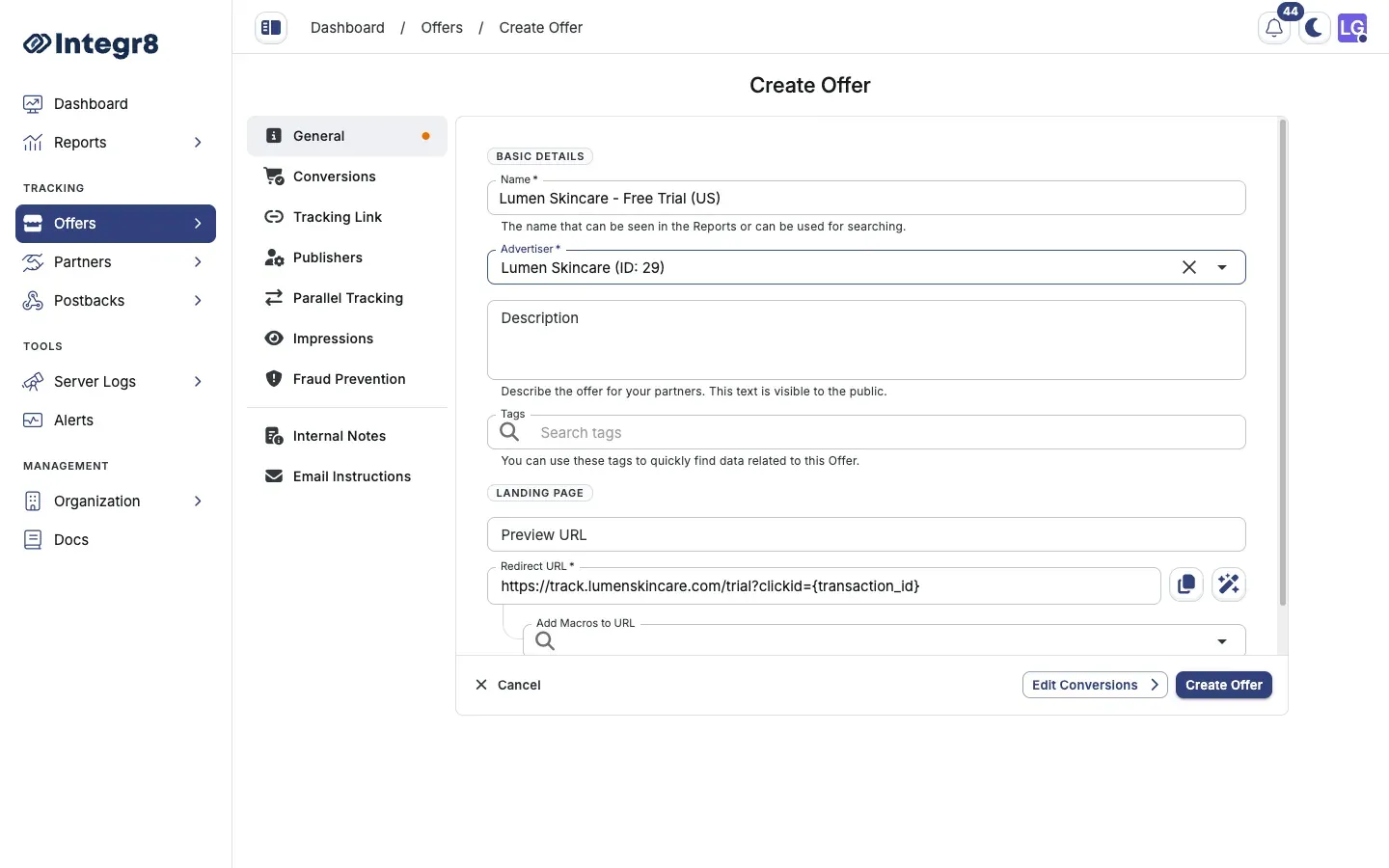
### Basic details
[Section titled “Basic details”](#basic-details)
| Field | Required | Notes |
| ----------- | -------- | ----------------------------------------------------------- |
| Name | Yes | Internal label used in reports and search |
| Advertiser | Yes | Select from the dropdown |
| Description | No | Visible to the public. Describe the offer for your partners |
| Tags | No | Filter and group offers in tables and reports |
### Landing page
[Section titled “Landing page”](#landing-page)
| Field | Required | Notes |
| ------------ | -------- | ---------------------------------------------------- |
| Preview URL | No | Non-tracked preview of the landing page |
| Redirect URL | Yes | Tracked destination. Must include `{transaction_id}` |
Example redirect URL:
```text
https://example.com/lp?clickid={transaction_id}
```
### Add macros to the redirect URL
[Section titled “Add macros to the redirect URL”](#add-macros-to-the-redirect-url)
Use the **Add Macros to URL** picker below the **Redirect URL** field to insert Integr8 macros into the destination URL, so the advertiser receives the click ID and any other values you pass. Map the advertiser’s click ID parameter to `{transaction_id}`.
| Integr8 macro | Description |
| ------------------ | --------------------------------------- |
| `{transaction_id}` | Unique click ID |
| `{publisher}` | Integr8 publisher ID |
| `{offer}` | Integr8 offer ID |
| `{sub_id}` | Sub-publisher ID from the tracking link |
See the picker for the full list of available macros. After saving, use the tracking link generator to verify substitution before going live.
## Conversions (optional)
[Section titled “Conversions (optional)”](#conversions-optional)
Set the default conversion revenue and payout for this offer. You can add more events later from the offer’s **Revenue & Payout** tab.
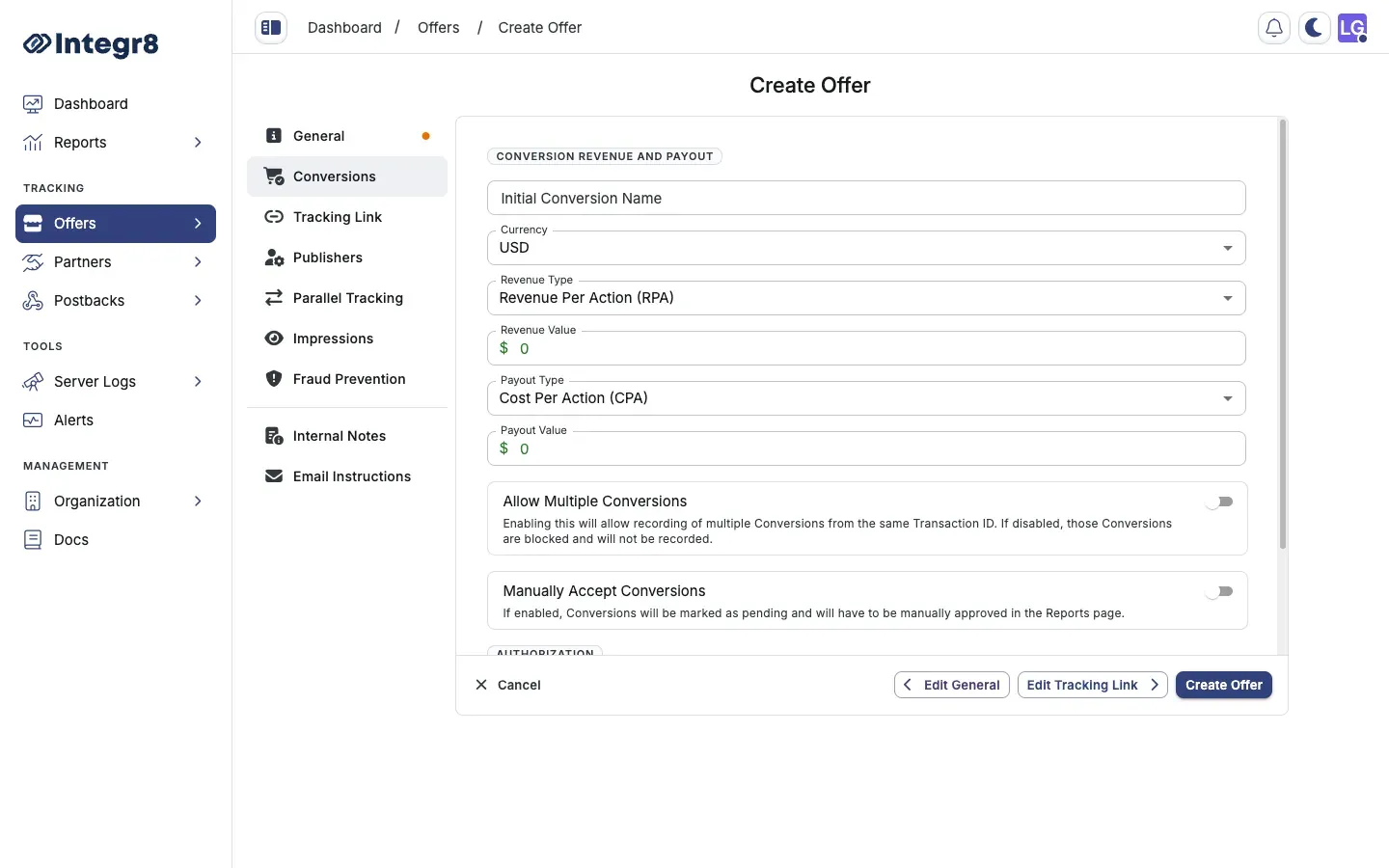
| Field | Required | Notes |
| --------------------------- | --------------- | ------------------------------------------------------------------------------------------------ |
| Initial Conversion Name | No | Defaults to `Conversion` |
| Currency | Yes | Offer-level currency |
| Revenue Type | Yes | RPA, RPS, RPC, RPM, or RPAxRPS |
| Revenue Value | Depends on type | Fixed amount for RPA, RPC, RPM. Percent for RPS and RPAxRPS |
| Payout Type | Yes | CPA, CPS, CPC, CPM, CPAxCPS, or PRV |
| Payout Value | Depends on type | Fixed amount or percent based on payout type |
| Allow Multiple Conversions | No | Record more than one conversion per `transaction_id`. If disabled, extra conversions are blocked |
| Manually Accept Conversions | No | Mark conversions as pending until you approve them in Reports |
Revenue types describe how the **advertiser** pays you. Payout types describe how you **pay publishers**. They can differ.
## Tracking Link (optional)
[Section titled “Tracking Link (optional)”](#tracking-link-optional)
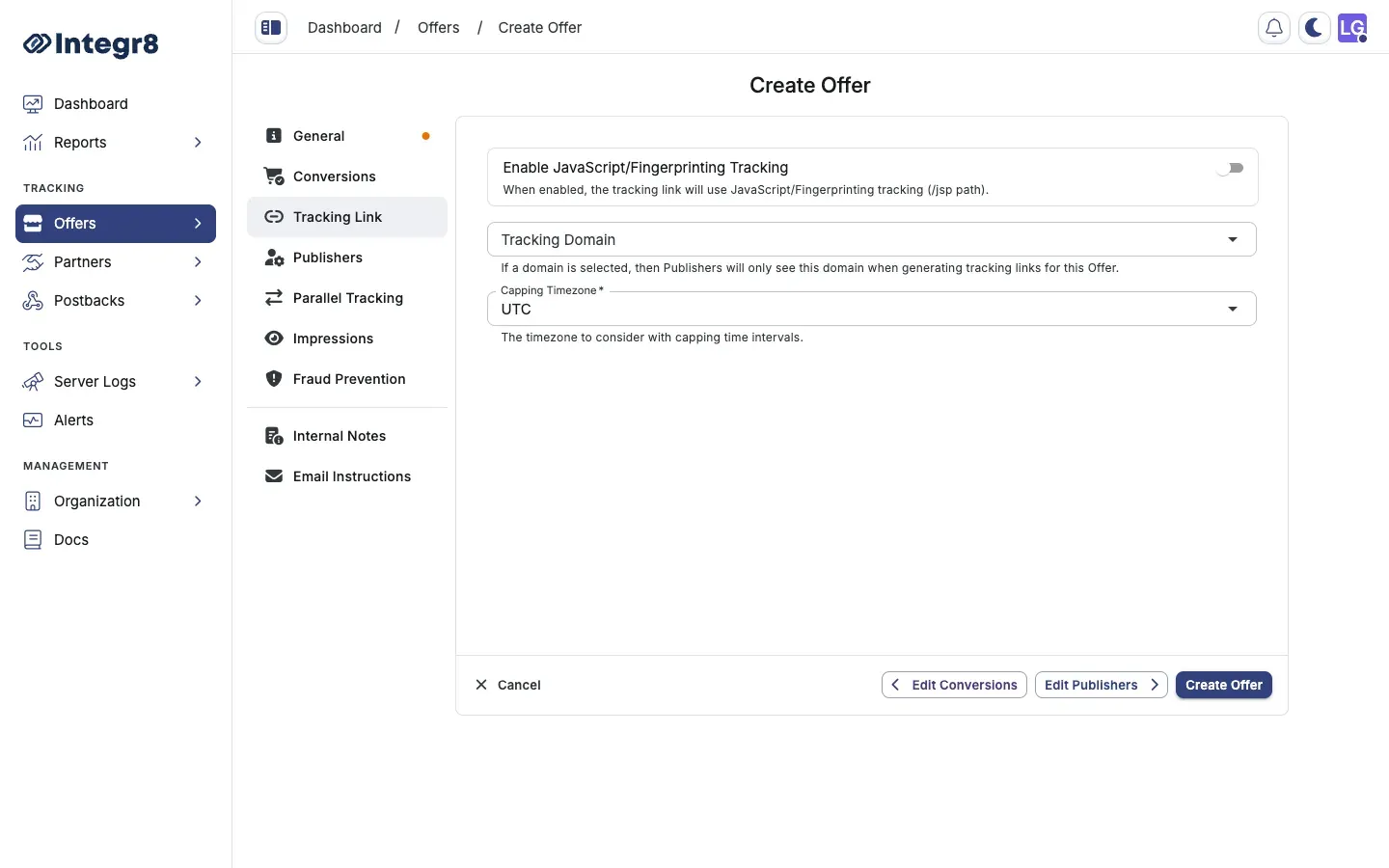
| Field | Required | Notes |
| ----------------------------------------- | -------- | ----------------------------------------------------------- |
| Enable JavaScript/Fingerprinting Tracking | No | Uses the `/jsp` path on generated links |
| Tracking Domain | No | Restricts which domain publishers see in the link generator |
| Capping Timezone | Yes | Used for cap reset cycles on this offer |
## Publishers (optional)
[Section titled “Publishers (optional)”](#publishers-optional)
Control which publishers can use the offer and what they must accept.
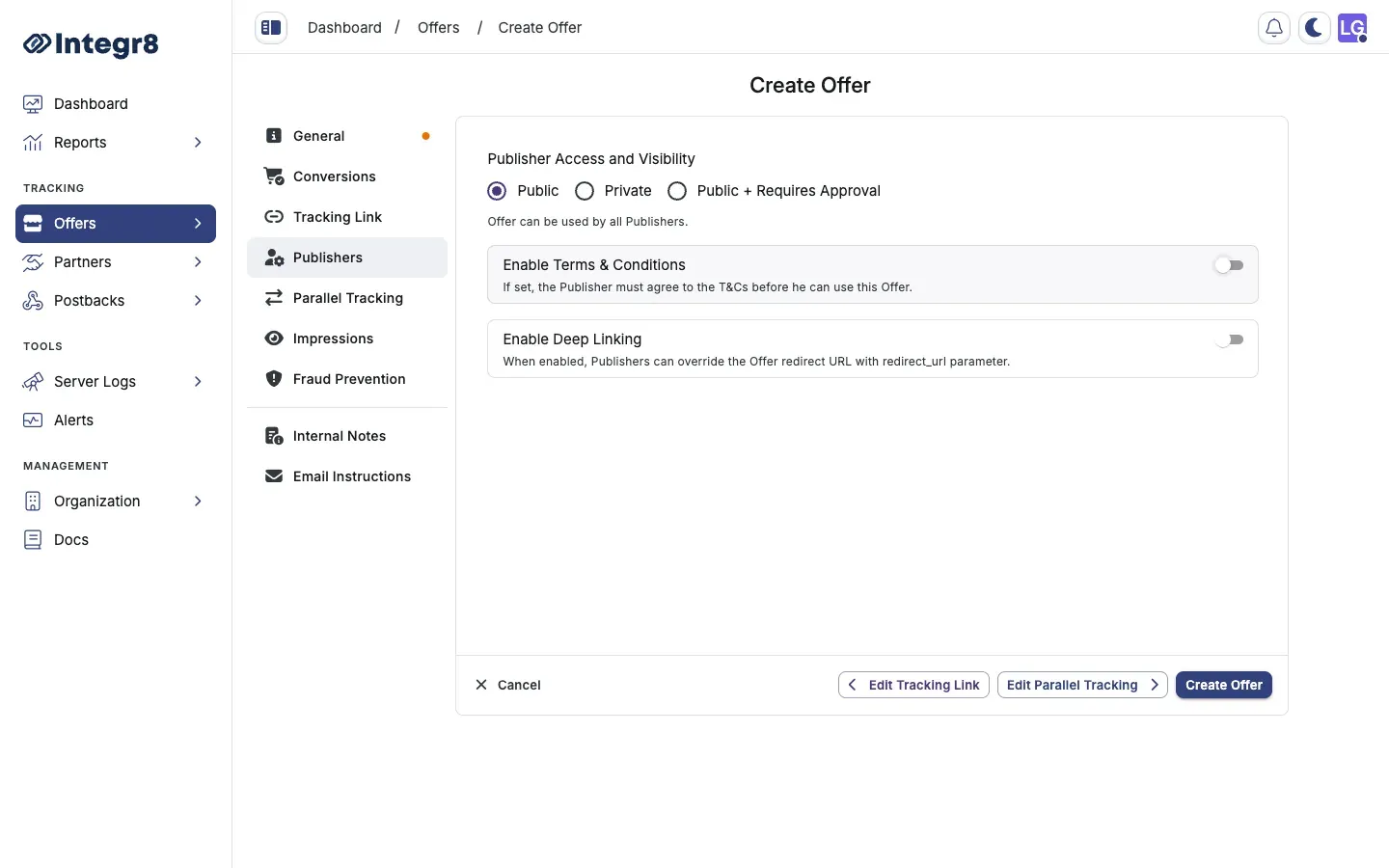
| Field | Notes |
| ------------------------------- | ------------------------------------------------------------------------- |
| Publisher Access and Visibility | `Public`, `Private`, or `Public + Requires Approval` |
| Enable Terms & Conditions | Optional agreement publishers must accept before using the offer |
| Enable Deep Linking | Lets publishers override the redirect URL with a `redirect_url` parameter |
## Parallel Tracking (optional)
[Section titled “Parallel Tracking (optional)”](#parallel-tracking-optional)
| Field | Notes |
| ------------------------------ | ---------------------------------------------------------------------- |
| Enable Click Parallel Tracking | Fire a server-side call to a Click Parallel Tracking URL on each click |
## Impressions (optional)
[Section titled “Impressions (optional)”](#impressions-optional)
| Field | Notes |
| ---------------------------------------- | -------------------------------------------------------------------------- |
| Enabled View Through Impression Tracking | Use impressions as the first option for attributed conversions |
| Enable Impression Forwarding | Fire a server-side call to an impression forwarding URL on each impression |
## Fraud Prevention (optional)
[Section titled “Fraud Prevention (optional)”](#fraud-prevention-optional)
Choose the **Click Fraud Prevention Strategy** — what happens when a click is rejected by targeting or fraud rules:
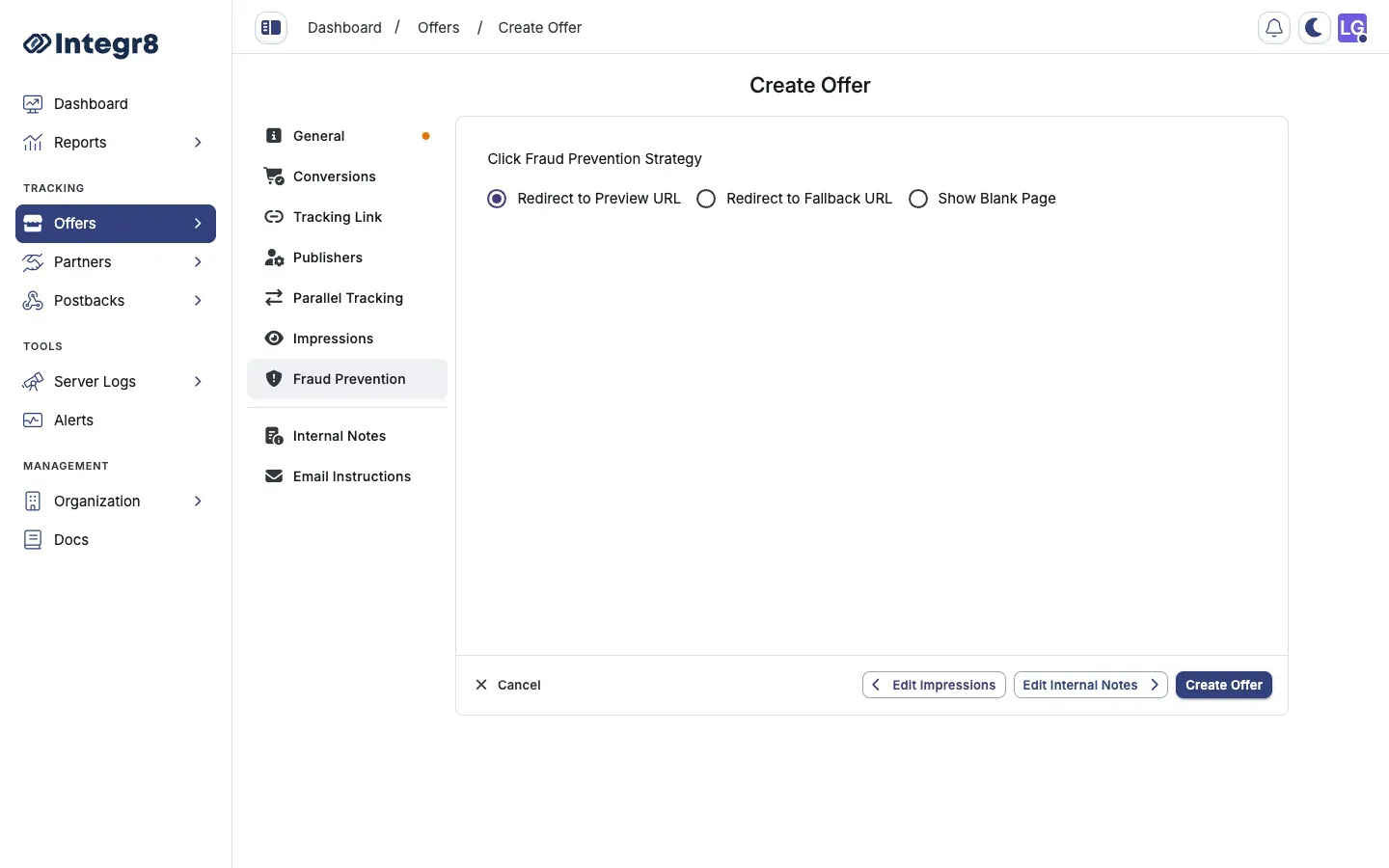
| Option | Behavior |
| ------------------------ | ----------------------------------------------- |
| Redirect to Preview URL | Send rejected clicks to the preview URL |
| Redirect to Fallback URL | Send rejected clicks to a separate fallback URL |
| Show Blank Page | Block the click with a blank page |
## Internal Notes (optional)
[Section titled “Internal Notes (optional)”](#internal-notes-optional)
| Field | Notes |
| ------------- | ---------------------------------------- |
| Internal Note | Not visible to publishers or advertisers |
| Restrictions | Visible to publishers |
## Email Instructions (optional)
[Section titled “Email Instructions (optional)”](#email-instructions-optional)
Optional **From Lines** and **Subject Lines** copy shown to publishers when you share offer details by email.
## After creation
[Section titled “After creation”](#after-creation)
The offer is created active by default — there is no separate status picker on the create flow. Open the offer to add more configuration from its detail tabs: **Landing Page**, **Revenue & Payout**, **Targeting**, **Capping**, and **Fraud Detection**.
## Edit an existing offer
[Section titled “Edit an existing offer”](#edit-an-existing-offer)
Open the offer from **Offers > Offers Management**. The **Overview** tab summarizes the offer, and each section has an edit (pencil) control. Use the tabs across the top to reach **Landing Page**, **Revenue & Payout**, **Targeting**, **Capping**, **Fraud Detection**, and **Settings**. The status is **Active** or **Inactive** — there is no Paused or Expired status.
## Next steps
[Section titled “Next steps”](#next-steps)
* [Generate a tracking link](/docs/offers/tracking-links/) for publishers.
* [Configure revenue and payouts](/docs/offers/revenue-and-payouts/) in more detail, including additional events.
* [Set up conversion tracking](/docs/offers/conversion-tracking/) so postbacks match clicks to conversions.
* [Set offer caps](/docs/offers/offer-caps/) to limit traffic or conversion volume.
# Custom tracking domain
> Replace the default Integr8 tracking host with your own subdomain to improve publisher trust, deliverability, and SSL provisioning.
By default, tracking links use an Integr8-hosted domain. You can replace this with your own subdomain (for example `track.yourdomain.com`) to improve publisher trust and avoid blocklists tied to shared infrastructure. Integr8 provisions SSL for the subdomain automatically once DNS is verified.
## Before you begin
[Section titled “Before you begin”](#before-you-begin)
* Have access to the DNS settings for the parent domain.
* Pick the subdomain you want to use, for example `track.yourdomain.com` or `go.yourdomain.com`.
## Add a custom tracking domain
[Section titled “Add a custom tracking domain”](#add-a-custom-tracking-domain)
Custom tracking domains live on the **Domain Setup** tab of **Global Settings**.
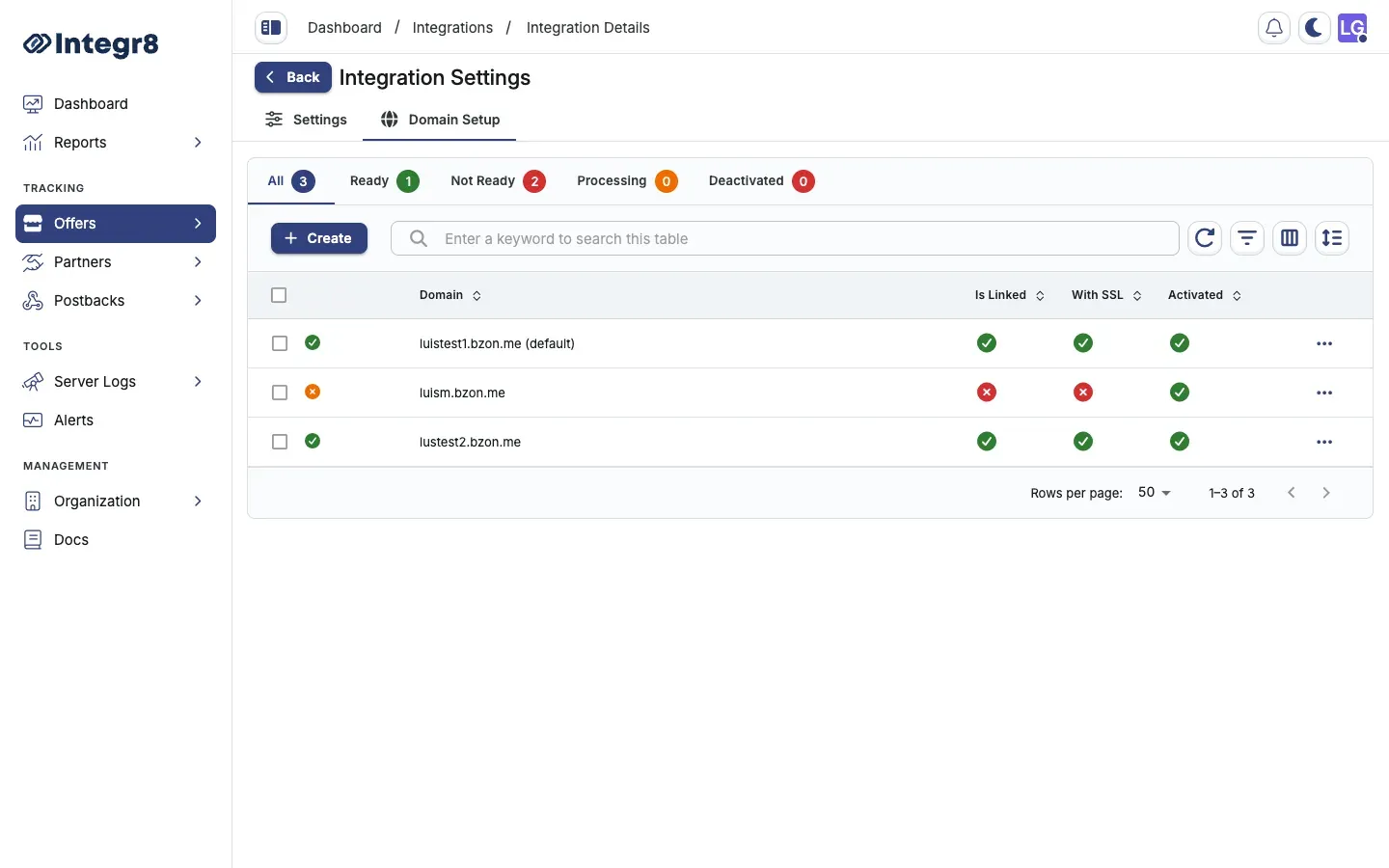
1. Go to **Offers > Global Settings** and open the **Domain Setup** tab.
2. Click **Create**.
3. In the **Add a custom domain** dialog, enter your subdomain, for example `track.yourdomain.com`, then click **Next**.
4. Integr8 generates the `CNAME` records your DNS provider needs. Keep this dialog open as a reference while you update your DNS settings.
5. Add the `CNAME` records to your DNS provider. Copy each value directly from the dialog.
6. Integr8 checks your DNS automatically. Once all records are verified, click **Done**.
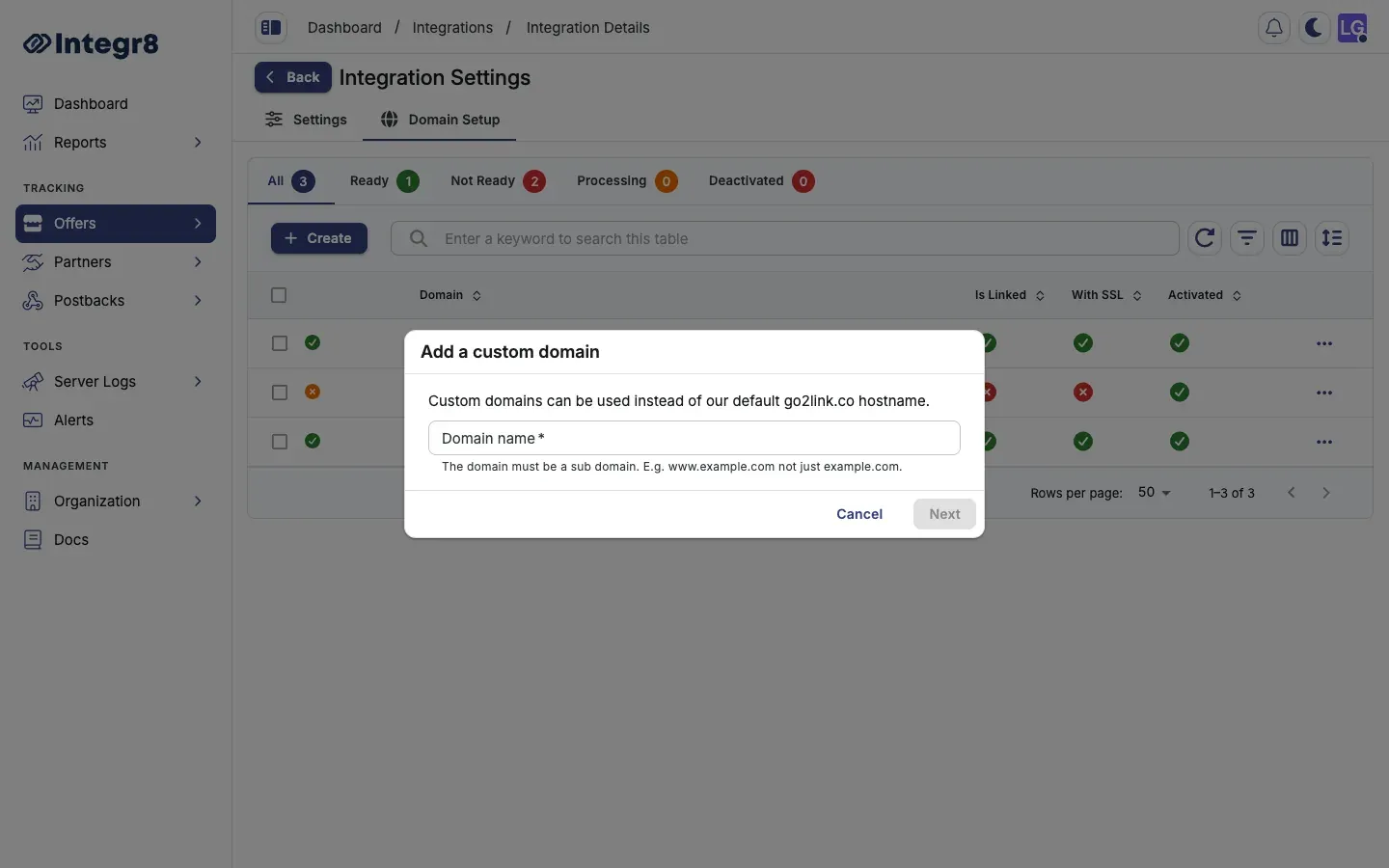
DNS propagation typically takes 5 to 30 minutes. SSL is provisioned automatically once the `CNAME` is verified. Use `CNAME` records only - do not add `A` records for this subdomain.
## Manage domains
[Section titled “Manage domains”](#manage-domains)
Once a domain is added you can manage it from the actions menu on the Domain Setup tab.
| Action | What it does |
| -------------------- | ----------------------------------------------------------------------------------- |
| Set as default | Uses this domain automatically for new tracking links |
| Verify DNS Records | Manually re-triggers DNS verification if propagation is taking longer than expected |
| Switch to go2link.co | Shows instructions for updating your CNAME back to the shared Integr8 gateway |
| Deactivate | Disables the domain without deleting it - existing links stop resolving |
| Delete | Permanently removes the domain. Cannot be undone |
Deleting an active domain breaks every tracking link that uses it. Deactivate first, then update affected links before deleting.
## DNS provider guides
[Section titled “DNS provider guides”](#dns-provider-guides)
The setup dialog surfaces step-by-step guides for the most common DNS providers. If you need help outside the dialog, use the AI-assisted walkthroughs linked there - they cover Cloudflare, GoDaddy, Namecheap, and others. Your provider’s console link is also shown directly in the dialog once your domain is recognized.
## Next steps
[Section titled “Next steps”](#next-steps)
* [Generate tracking links](/docs/offers/tracking-links/) using your new domain.
* [Set account-level tracking defaults](/docs/organization/global-tracking-settings/) so new offers pick up the right domain automatically.
# Fraud detection
> Apply fraud detection filter groups at the offer level in Integr8 to screen clicks, conversions, and impressions for invalid traffic.
Offer-level fraud detection applies a filter group to all clicks, conversions, or impressions on the offer. Filter groups define the specific rules (IP reputation, fingerprint matching, device anomalies, and more) that Integr8 evaluates against each event. Create the group once, then assign it to as many offers as you want.
## Before you begin
[Section titled “Before you begin”](#before-you-begin)
* [Create an offer](/docs/offers/create-an-offer/) you want to protect.
* Decide which traffic kinds need filtering: clicks, conversions, impressions, or all three.
## Create a fraud detection group
[Section titled “Create a fraud detection group”](#create-a-fraud-detection-group)
1. Go to **Offers > Fraud Detection Groups** in the main menu.
2. Click **Create**.
3. Set a **Name** and **Description**.
4. In **Assigned Offers**, pick the offers where this group will apply. You can leave empty and assign later.
5. Click **Next**.
6. Configure filters for **Clicks**, **Conversions**, and **Impressions**:
* Toggle individual filters on or off.
* Use a **Pre-Set** configuration as a starting point. Pre-sets apply best-practice settings for common campaign types.
7. Click **Save**.
## Assign a group to an offer
[Section titled “Assign a group to an offer”](#assign-a-group-to-an-offer)
1. Go to **Offers > Offers Management** and open the offer.
2. Select the **Fraud Detection** tab.
3. Click **Assign A Fraud Detection Group Now**, pick the group from the dropdown, and click **Save**. You can also create a new group from this dialog.
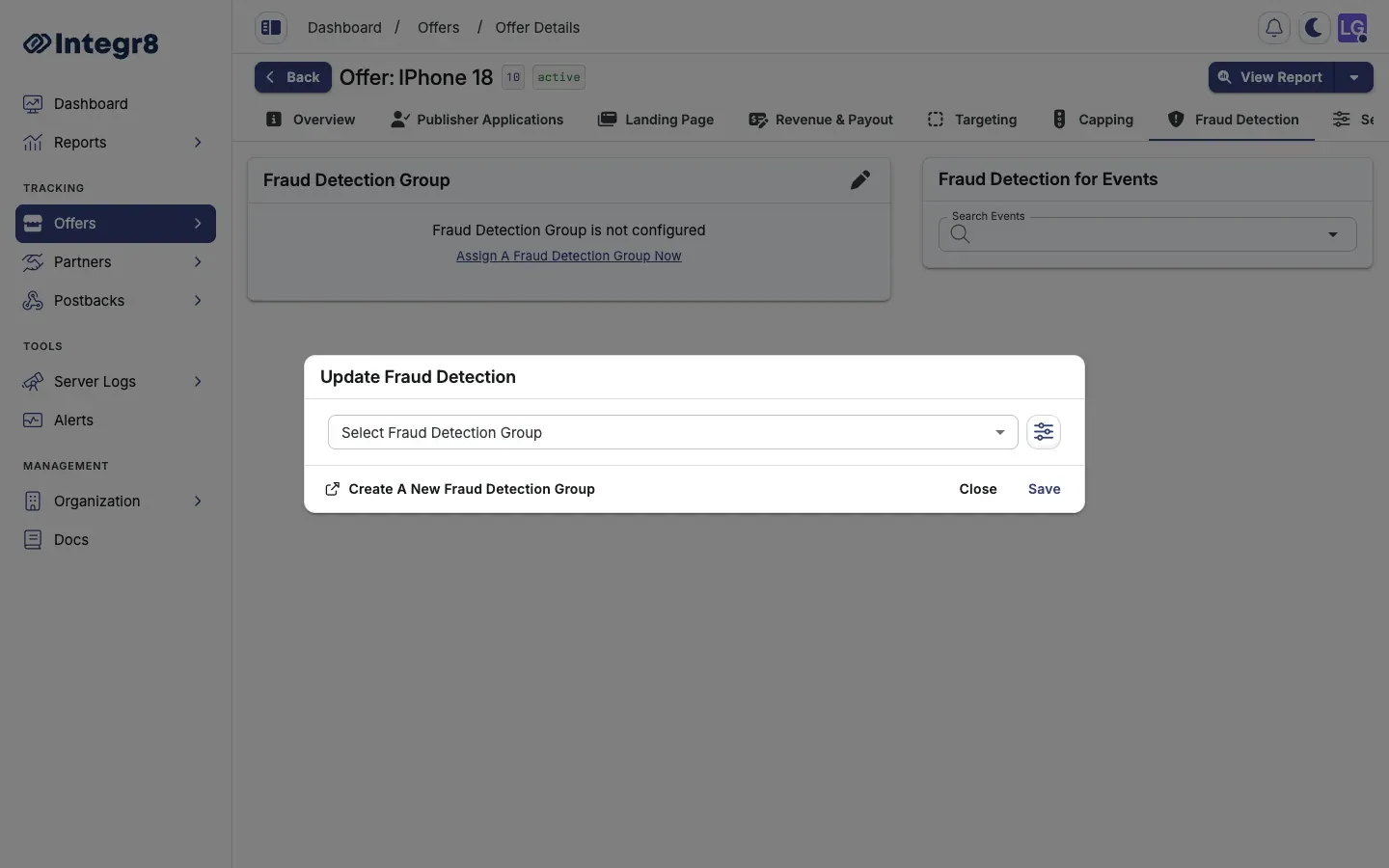
You can also assign offers from inside the group’s **General Settings** tab.
## Per-offer event filters
[Section titled “Per-offer event filters”](#per-offer-event-filters)
Post-conversion event filters (for events tracked after the initial conversion) are configured individually per offer from the **Fraud Detection** tab. They are not part of the group-level configuration.
## Fingerprint requirement
[Section titled “Fingerprint requirement”](#fingerprint-requirement)
For fingerprint-based detection to work, publishers must use the **JavaScript tracking link** instead of the standard link. Fingerprints are collected at click time and used by duplicate-click and bot-scoring rules.
## Next steps
[Section titled “Next steps”](#next-steps)
* [Enable JavaScript tracking](/docs/offers/tracking-links/) so fingerprint signals are available.
* [Browse the Fraud Prevention guide](/docs/fraud-prevention/) for platform-wide fraud detection details.
# Global settings
> Configure account-wide integration defaults in Integr8, including global tracking settings and custom tracking domains.
Global settings is the account-wide hub for tracking infrastructure that applies across all offers. Use it during initial setup and when your tracking domain or global defaults change.
Global conversion postback URLs and the account-level link generator live on a separate page: **Offers > Global Tracking**. See [Conversion tracking](/docs/offers/conversion-tracking/).
## Where to find it
[Section titled “Where to find it”](#where-to-find-it)
1. Log in to your Integr8 account at [app.integr8.co](https://app.integr8.co).
2. Go to **Offers > Global Settings**.
## What lives here
[Section titled “What lives here”](#what-lives-here)
| Tab | What it controls |
| ---------------- | ------------------------------------------------------------------------------------------- |
| **Settings** | Global fallback URL, default postback parameters, and other account-wide tracking defaults. |
| **Domain Setup** | Custom tracking domains that replace the default Integr8 host on generated links. |
## Related docs
[Section titled “Related docs”](#related-docs)
* [Global tracking settings](/docs/organization/global-tracking-settings/) walks through the **Settings** tab defaults in detail.
* [Custom tracking domain](/docs/offers/custom-tracking-domain/) covers DNS setup and domain management on the **Domain Setup** tab.
* [Conversion tracking](/docs/offers/conversion-tracking/) for global and offer-level postback URLs on **Global Tracking**.
* [CRM integration](/docs/postbacks/crm-integration/) explains how to push conversion data to an external CRM or webhook.
* [Tracking links](/docs/offers/tracking-links/) for per-offer link generation after your integration defaults are in place.
# Landing pages
> Add multiple landing pages to an offer in Integr8 for A/B testing, language variants, or angle testing, with optional rotation.
Each offer has a default landing page set during creation. You can add additional landing pages to support A/B testing, language variants, or different promotion angles. The active landing page can be selected per tracking link or rotated automatically.
## Before you begin
[Section titled “Before you begin”](#before-you-begin)
* [Create an offer](/docs/offers/create-an-offer/) with a default landing page.
* Have the additional preview and redirect URLs ready, including the macros your advertiser uses.
## Add a landing page
[Section titled “Add a landing page”](#add-a-landing-page)
1. Go to **Offers > Offers Management** and open the offer.
2. Select the **Landing Page** tab.
3. Click **Create**.
4. Fill in the fields:
* **Name**: an internal label for the landing page.
* **Preview URL**: the page URL for manual preview (not tracked).
* **Redirect URL**: the actual destination URL with parameter macros.
* **Hide From Publishers** (optional): hide this landing page URL from the publisher dashboard.
5. Click **Save**.
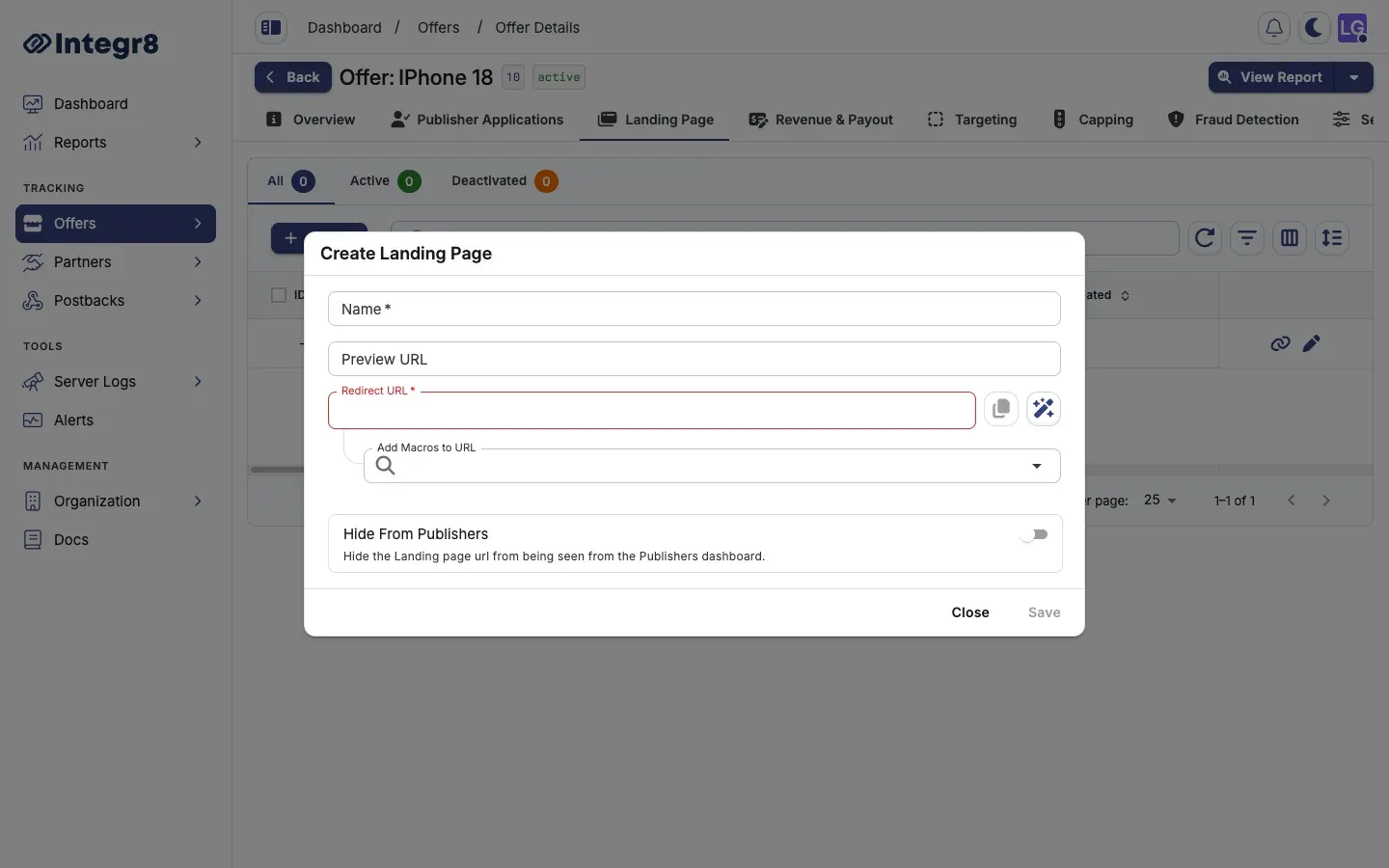
## Parameter mapping
[Section titled “Parameter mapping”](#parameter-mapping)
Landing page redirect URLs support the same parameter macros as the main offer URL. Include `{transaction_id}` so conversion tracking continues to work:
```text
https://yourdomain.com/landing-variant-b?cid={transaction_id}&source={sub_id}
```
## Assign a landing page to a tracking link
[Section titled “Assign a landing page to a tracking link”](#assign-a-landing-page-to-a-tracking-link)
When generating a tracking link, select the landing page from the **Landing Page** dropdown. If none is selected, the offer’s default landing page is used.
## Rotate landing pages
[Section titled “Rotate landing pages”](#rotate-landing-pages)
Integr8 supports weighted rotation across multiple landing pages. To configure rotation, contact to enable it for your account.
Use descriptive names for landing pages, for example `EN Discount Banner` or `FR Standard`. With multiple pages active, clear names prevent mistakes when assigning pages to tracking links.
## Next steps
[Section titled “Next steps”](#next-steps)
* [Generate a tracking link](/docs/offers/tracking-links/) and pick the landing page variant.
* [Map redirect URL parameters](/docs/offers/create-an-offer/) when extracting macros from advertiser URLs.
# Offer caps
> Limit click, conversion, impression, payout, and revenue volume on offers in Integr8 with offer-level and per-publisher caps and soft capping.
Caps let you limit how much traffic or how many conversions an offer can receive within a time window. When a cap is reached, new clicks are redirected to the offer’s fallback URL or blocked. You can apply caps at the offer level (all publishers) or per publisher.
## Before you begin
[Section titled “Before you begin”](#before-you-begin)
* [Create an offer](/docs/offers/create-an-offer/) and configure its [revenue and payouts](/docs/offers/revenue-and-payouts/).
* Decide whether you need a single offer-wide cap or different limits per publisher.
## Set offer-wide capping
[Section titled “Set offer-wide capping”](#set-offer-wide-capping)
The default **All Publishers** row on the **Capping** tab holds the offer-wide cap settings.
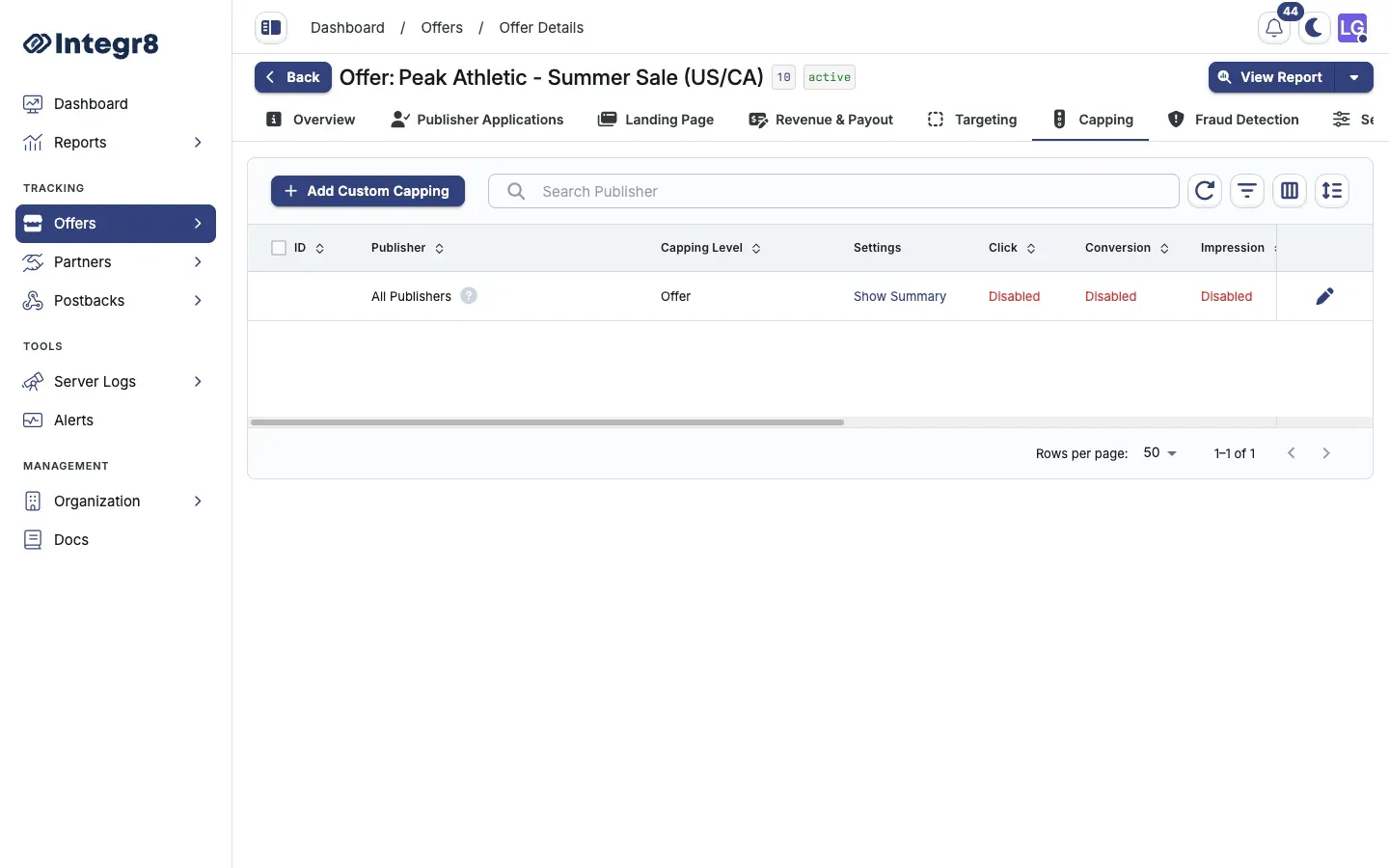
1. Go to **Offers > Offers Management** and open the offer.
2. Select the **Capping** tab.
3. On the **All Publishers** row, click **Show Summary**, then edit, or use the row actions to open **Edit Offer Capping**.
4. Set the **Capping Timezone** for the cap reset cycle.
5. Enable the cap types you need (clicks, conversions, impressions, payout, revenue, events) and set values per interval.
6. Click **Save**.
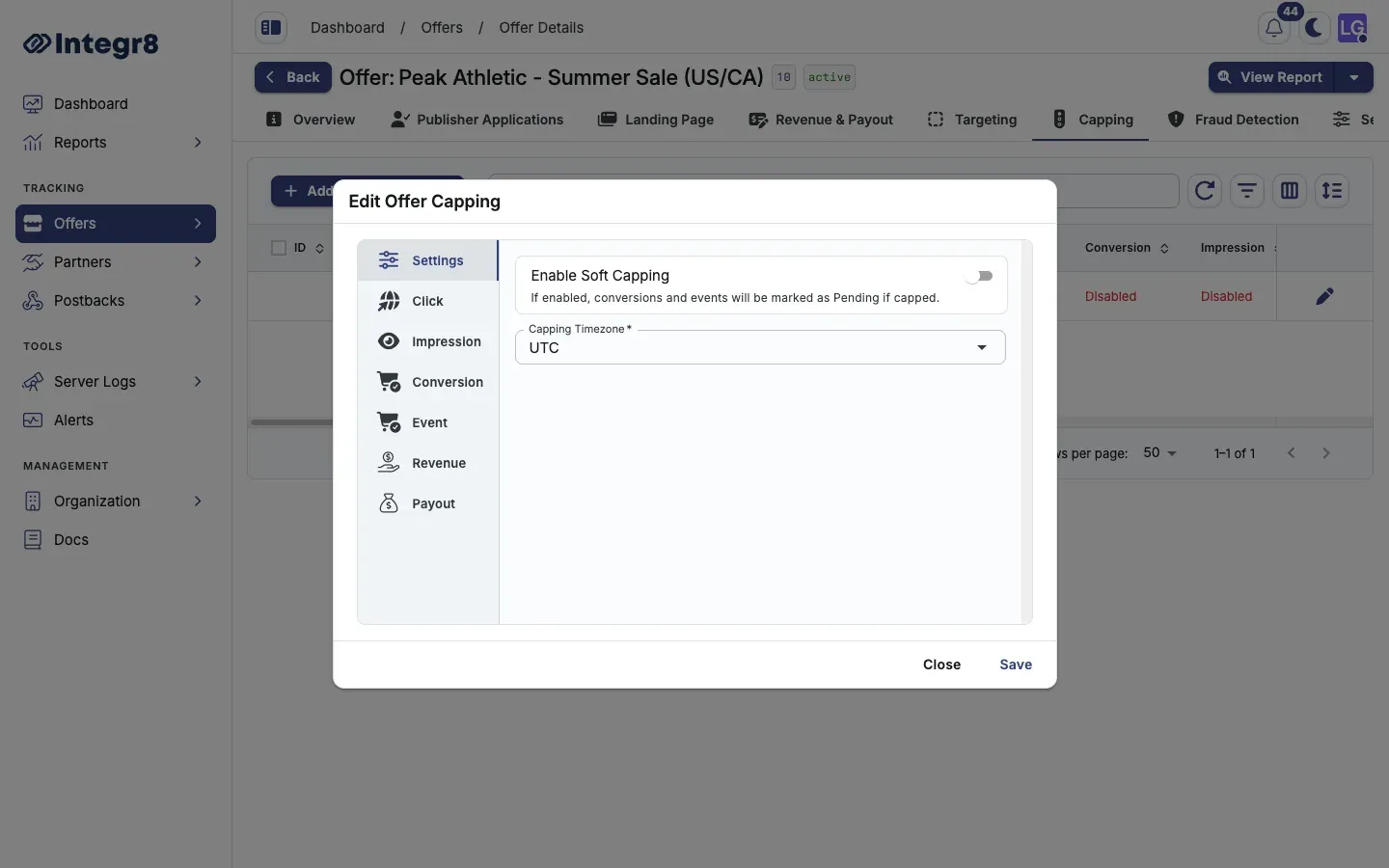
## Set a per-publisher cap
[Section titled “Set a per-publisher cap”](#set-a-per-publisher-cap)
Per-publisher caps take priority over the offer-wide cap for that publisher.
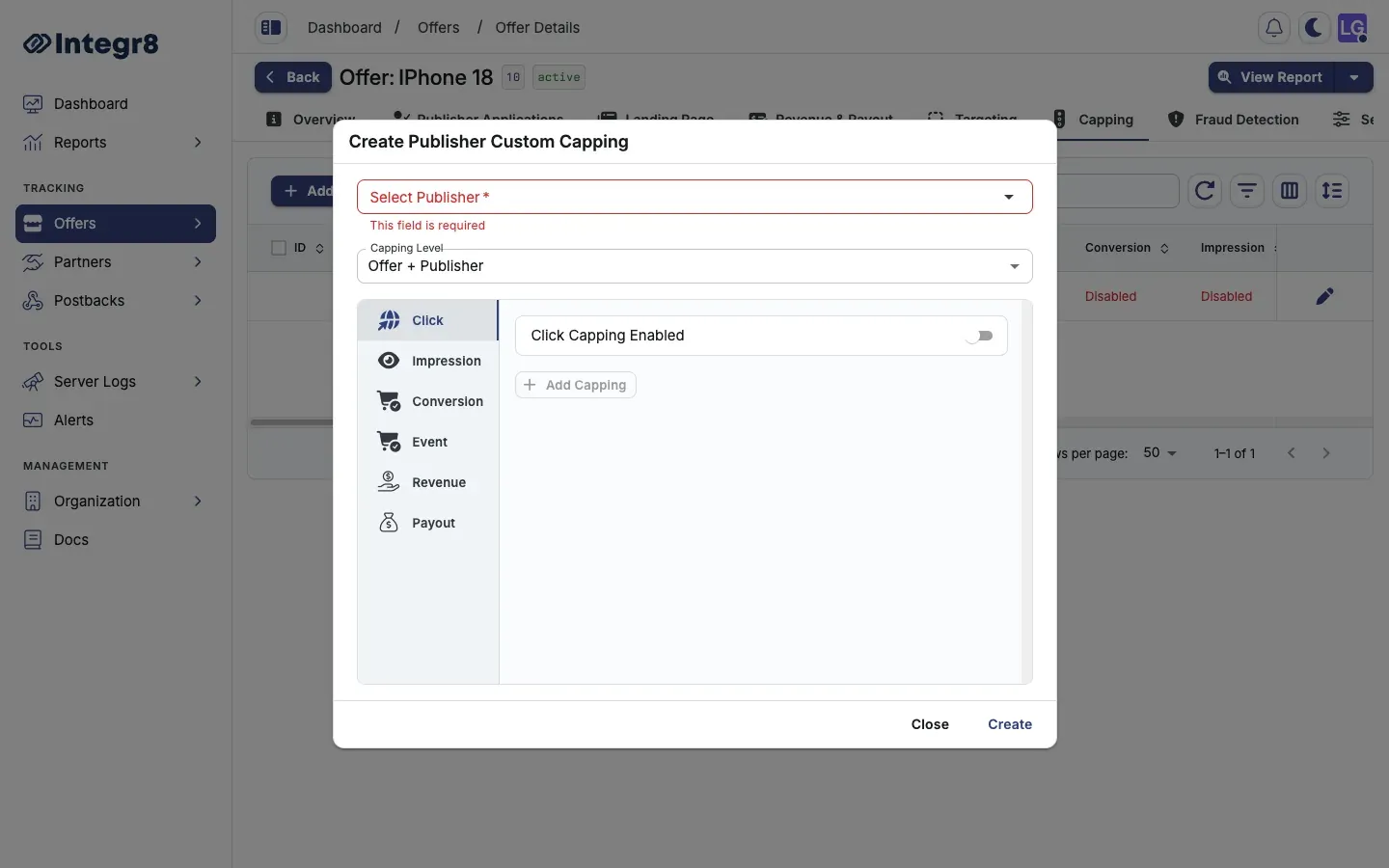
1. On the **Capping** tab, click **Add Custom Capping**.
2. Pick the **Publisher** from the dropdown.
3. Set the **Capping Level**:
* **Offer + Publisher**: applies to all traffic from this publisher.
* **Offer + Publisher + Sub ID**: applies to traffic from a specific sub ID only.
4. Configure the cap values and intervals.
5. Click **Save**.
## Cap types
[Section titled “Cap types”](#cap-types)
| Cap type | Description |
| ----------- | ----------------------------------- |
| Clicks | Maximum click count |
| Conversions | Maximum conversion count |
| Impressions | Maximum impression count |
| Payout | Maximum publisher payout spend |
| Revenue | Maximum advertiser revenue |
| Events | Maximum event count, per event type |
## Cap intervals
[Section titled “Cap intervals”](#cap-intervals)
Each cap type supports limits per interval:
* Every 15 Minutes
* Hourly
* Daily
* Weekly
* Monthly
* Total
## Soft capping
[Section titled “Soft capping”](#soft-capping)
When **Enable Soft Capping** is on, conversions that arrive after the cap is reached are recorded with **Pending** status instead of being dropped. Use soft capping to avoid losing attribution data around cap boundaries.
## Next steps
[Section titled “Next steps”](#next-steps)
* [Use a Smart Link](/docs/offers/smart-links/) to route capped traffic to a fallback offer instead of dropping it.
* [Apply targeting rules](/docs/offers/targeting-rules/) so ineligible traffic is filtered before it counts against the cap.
# Revenue and payouts
> Configure advertiser revenue and publisher payout per conversion or event in Integr8, including RPA, RPS, CPA, CPS, and related models.
Revenue and payout settings define how much the advertiser pays you (revenue) and how much you pay your publishers (payout) for each conversion or event. The two values can differ. The spread is your margin.
## Before you begin
[Section titled “Before you begin”](#before-you-begin)
* [Create an offer](/docs/offers/create-an-offer/) and assign it to an advertiser.
* Decide which model the advertiser uses to pay you. The payout model can differ from the revenue model.
* For post-conversion events, [set up conversion tracking](/docs/offers/conversion-tracking/) so the click-to-conversion path works end to end.
## Open the Revenue & Payout tab
[Section titled “Open the Revenue & Payout tab”](#open-the-revenue--payout-tab)
1. Go to **Offers > Offers Management** and open the offer.
2. Select the **Revenue & Payout** tab.
3. The default **Conversion** row shows the offer-level payout. Click the edit (pen) icon to change it.
4. Click **Create** to add post-conversion events.
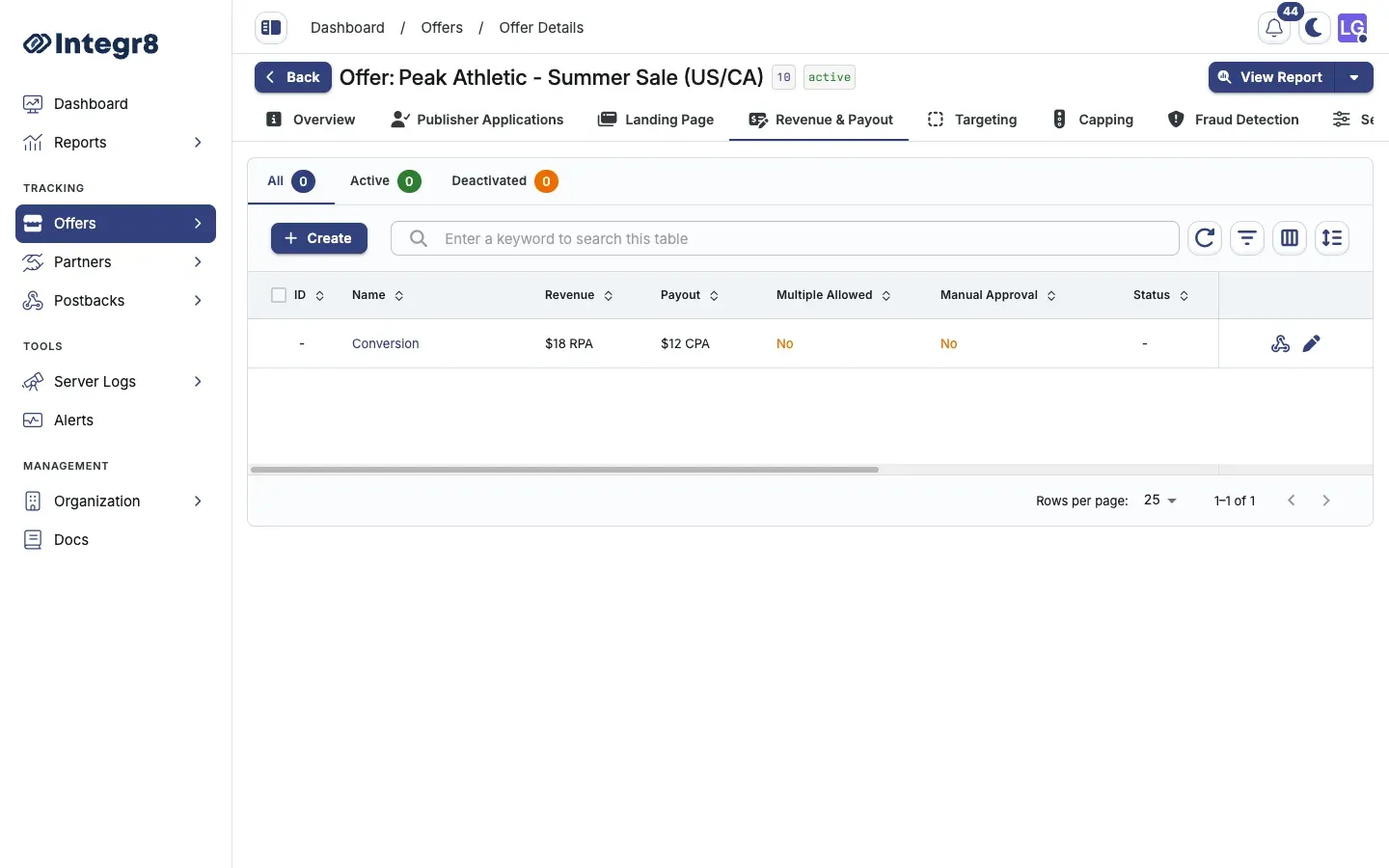
## Configure the default conversion
[Section titled “Configure the default conversion”](#configure-the-default-conversion)
| Field | Required | Description |
| --------------------------- | --------------- | -------------------------------------------------- |
| Revenue Type | Yes | How the advertiser pays you |
| Revenue Value | Depends on type | Fixed amount or percent |
| Payout Type | Yes | How you pay the publisher |
| Payout Value | Depends on type | Fixed amount or percent |
| Currency | Yes | Offer-level currency |
| Allow Multiple Conversions | No | More than one conversion per `transaction_id` |
| Manually Accept Conversions | No | Conversions stay pending until approved in Reports |
## Revenue types
[Section titled “Revenue types”](#revenue-types)
How the advertiser pays you:
| Type | Label | Value field |
| ------- | --------------------------- | ------------------------ |
| RPA | Revenue Per Action | Fixed amount |
| RPS | Revenue Per Sale | Percent of sale |
| RPC | Revenue Per Click | Fixed amount |
| RPM | Revenue Per Impression | Fixed amount |
| RPAxRPS | Revenue Per Action and Sale | Fixed amount and percent |
## Payout types
[Section titled “Payout types”](#payout-types)
How you pay publishers:
| Type | Label | Value field |
| ------- | ------------------------ | ------------------------ |
| CPA | Cost Per Action | Fixed amount |
| CPS | Cost Per Sale | Percent of sale |
| CPC | Cost Per Click | Fixed amount |
| CPM | Cost Per Impression | Fixed amount |
| CPAxCPS | Cost Per Action and Sale | Fixed amount and percent |
| PRV | Percentage of Revenue | Percent of revenue |
## Currency
[Section titled “Currency”](#currency)
Each offer has its own currency. Publisher payouts convert to the publisher’s account currency at the rate configured in your account settings.
## Post-conversion events
[Section titled “Post-conversion events”](#post-conversion-events)
Events track actions after the initial conversion, for example a first purchase after a free-trial registration or an in-app purchase after an install. Events require a conversion to exist first. They cannot fire without a matching `transaction_id` from an earlier click.
### How events work
[Section titled “How events work”](#how-events-work)
Events use the same postback mechanism as conversions, with two additional parameters:
* `event_id`: the numeric ID of the event in Integr8.
* `event_name`: the name of the event as defined in Integr8.
Either parameter alone is sufficient, or you can pass both. The values must match exactly what was defined when the event was created.
**Example postback URLs:**
```text
https://your.domain.com/?secure=TOKEN&event_id=5&transaction_id=REPLACE
https://your.domain.com/?secure=TOKEN&event_name=purchase&transaction_id=REPLACE
```
### Create an event
[Section titled “Create an event”](#create-an-event)
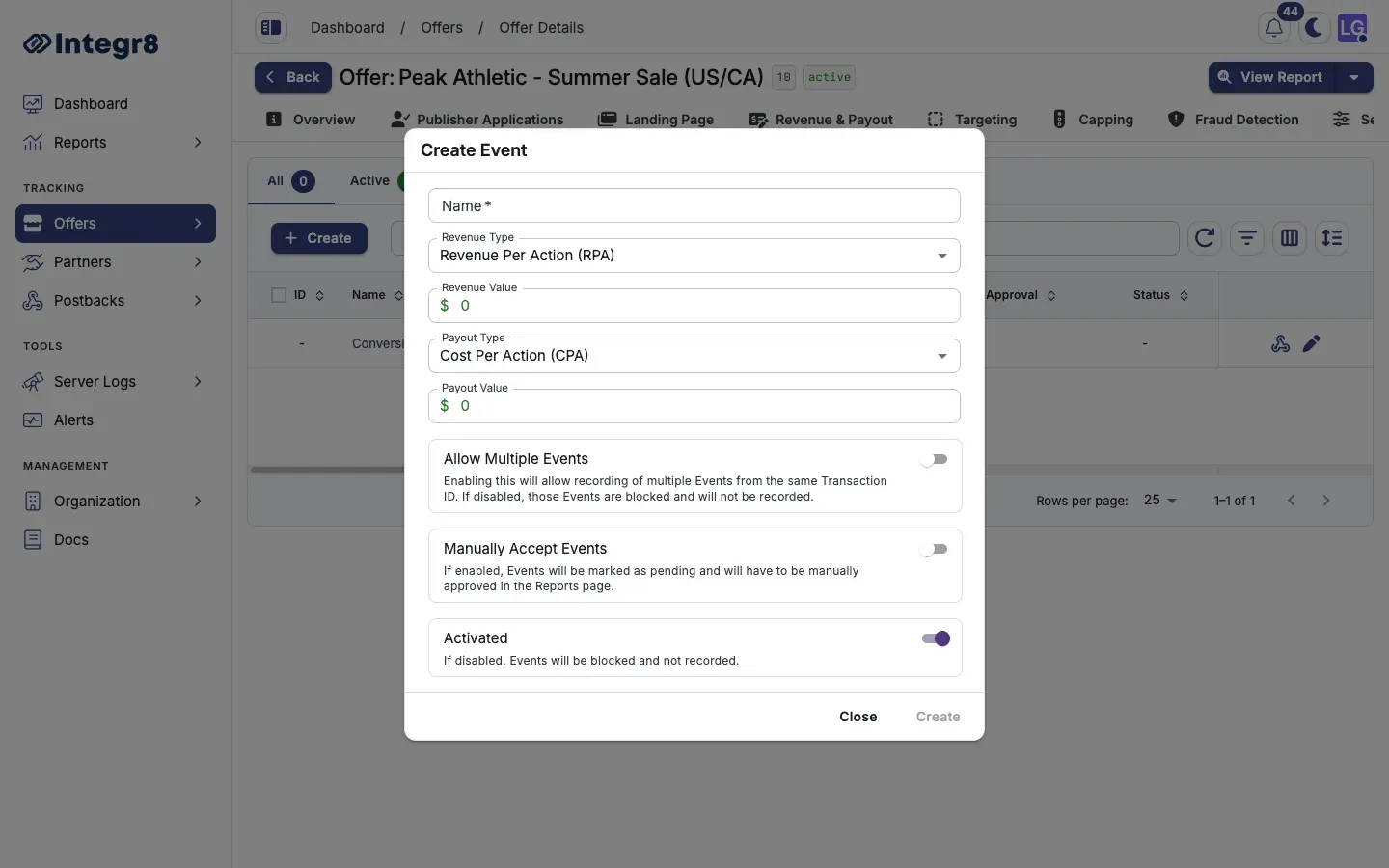
1. On the **Revenue & Payout** tab, click **Create**.
2. In the **Create Event** dialog, set:
* **Name**: must match the name the advertiser passes in their postback. For AppsFlyer integrations, use the exact event name from the AppsFlyer dashboard.
* **Revenue Type** and **Revenue Value** (or **Revenue Percent** for RPS and RPAxRPS).
* **Payout Type** and **Payout Value** (or **Payout Percent** for CPS, PRV, and CPAxCPS).
* **Allow Multiple Events**: enable if the same user can trigger this event more than once per click.
* **Manually Accept Events**: mark events as pending until approved in Reports.
* **Activated**: disable to block recording for this event.
3. Click **Create**.
### Event field reference
[Section titled “Event field reference”](#event-field-reference)
| Field | Required | Description |
| ------------------------------- | -------- | -------------------------------------------------------- |
| Name | Yes | Must match the name the advertiser sends in the postback |
| Revenue Type | Yes | RPA, RPS, RPC, RPM, or RPAxRPS |
| Revenue Value / Revenue Percent | Yes | Amount or percent based on revenue type |
| Payout Type | Yes | CPA, CPS, CPC, CPM, CPAxCPS, or PRV |
| Payout Value / Payout Percent | Yes | Amount or percent based on payout type |
| Allow Multiple Events | No | Multiple events per `transaction_id` |
| Manually Accept Events | No | Events stay pending until approved |
| Activated | No | Disable to stop recording |
### Get the event postback URL
[Section titled “Get the event postback URL”](#get-the-event-postback-url)
After creating the event, open the postback dialog from the **Revenue & Payout** tab using the webhook icon on the event row.
You can also use the global postback URL from **Offers > Global Tracking** by appending `&event_id=` or `&event_name=`.
## Next steps
[Section titled “Next steps”](#next-steps)
* View event performance in [Reports > Event Report](/docs/reports/event-report/).
* [Override payouts per publisher](/docs/publishers/custom-payouts/) for top performers or test sources.
* [Forward events to publishers](/docs/postbacks/affiliate-postback-setup/) so they receive the same notification.
* [Set offer caps](/docs/offers/offer-caps/) to limit volume and spend.
# Smart links
> Route incoming traffic across multiple Integr8 offers with one URL using weight-based or priority-based redirect strategies and a fallback offer.
A Smart Link is a single URL that routes incoming traffic to one of several offers based on a strategy you define. Instead of giving publishers a separate link per offer, you give them one Smart Link that handles routing automatically and respects every offer’s caps, targeting, and fraud rules.
## Before you begin
[Section titled “Before you begin”](#before-you-begin)
* [Create at least two offers](/docs/offers/create-an-offer/) you want to route traffic between.
* Decide whether you want weight-based testing or priority-based fallback routing.
## When to use a Smart Link
[Section titled “When to use a Smart Link”](#when-to-use-a-smart-link)
* Routing across multiple offers with weight-based A/B distribution.
* Prioritizing a high-performing offer while keeping fallbacks ready.
* Sending broad publisher traffic to the best available offer given targeting, caps, and fraud rules.
## Create a Smart Link
[Section titled “Create a Smart Link”](#create-a-smart-link)
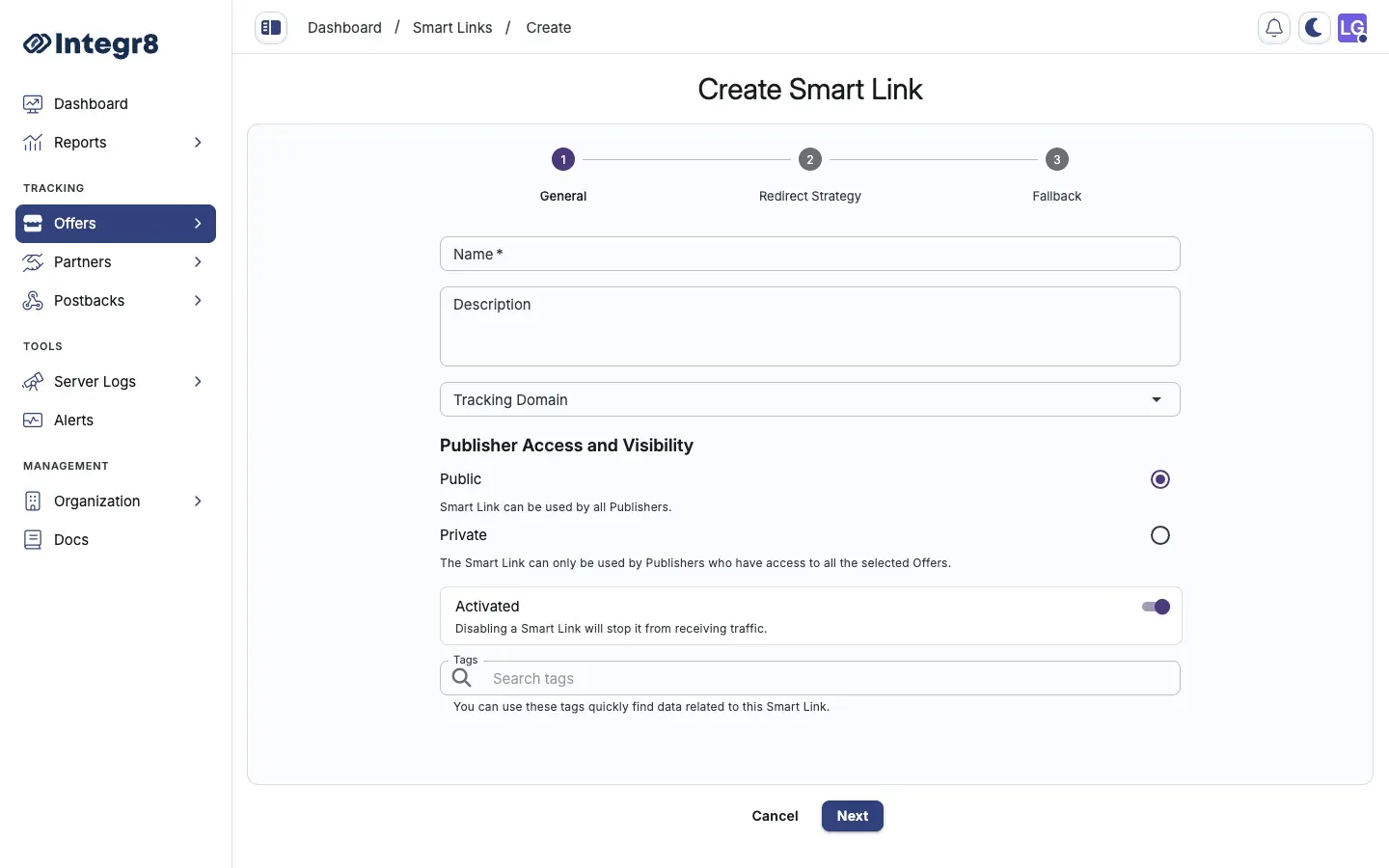
1. Go to **Offers > Smart Links** and click **Create**.
2. **General Settings:**
* Enter a **Name** and optional **Description**.
* Select the **Tracking Domain**.
* Set **Publisher Access**: `Public` (all publishers) or `Private` (only publishers with access to the assigned offers).
* Toggle to activate or deactivate the link.
3. Click **Next**.
4. **Redirect Strategy:**
* **Weight**: distribute traffic by percentage across offers. Use for testing.
* **Priority**: attempt offers in order; if the top offer blocks the click (cap, targeting, fraud), try the next.
* Click **Select Offers** to add offers to the Smart Link.
5. Click **Next**.
6. **Fallback Offer** (recommended): select an offer with no targeting restrictions, no caps, and no fraud filters as a guaranteed fallback.
7. Click **Save**.
## Redirect strategy comparison
[Section titled “Redirect strategy comparison”](#redirect-strategy-comparison)
| Strategy | Best for |
| -------- | ------------------------------------------------------ |
| Weight | Testing multiple offers, balanced traffic distribution |
| Priority | Clear winner offer with backup options |
## Common pitfalls
[Section titled “Common pitfalls”](#common-pitfalls)
| Issue | Fix |
| ---------------------------------------- | ---------------------------------------------------------------- |
| No fallback set | Always assign a fallback offer with no restrictions. |
| Wrong strategy for use case | Use Weight for testing, Priority when you have a winner. |
| Private link with mismatched permissions | Verify every offer in the link is accessible to your publishers. |
If no offer in the Smart Link accepts a click and no fallback is set, the click is lost: no redirect and no logging. Always set a fallback.
## Next steps
[Section titled “Next steps”](#next-steps)
* [Set offer caps](/docs/offers/offer-caps/) so the Smart Link can detect a capped offer and fall through.
* [Apply targeting rules](/docs/offers/targeting-rules/) on the offers in the link to control which clicks each one accepts.
# Targeting rules
> Configure geo, device, OS, language, and IP targeting on offers in Integr8, either per offer or via reusable targeting groups.
Targeting rules define which clicks are eligible to reach an offer. Clicks that do not match the active rules are blocked and redirected to the offer’s fallback URL. You can configure targeting per offer or share a single set of rules across multiple offers using a targeting group.
## Before you begin
[Section titled “Before you begin”](#before-you-begin)
* [Create an offer](/docs/offers/create-an-offer/).
* Decide whether the rules will be unique to this offer (per-offer) or shared across multiple offers (targeting group).
## Available targeting dimensions
[Section titled “Available targeting dimensions”](#available-targeting-dimensions)
| Dimension | Options |
| ----------------- | ---------------------------------------------------------------- |
| Geolocation | Country, city, and state |
| Device Properties | Device type (computer, phone, tablet), operating system, browser |
| IP | Allow or block specific IP ranges |
| Language | Browser language |
## Set targeting on a single offer
[Section titled “Set targeting on a single offer”](#set-targeting-on-a-single-offer)
1. Go to **Offers > Offers Management** and open the offer.
2. Select the **Targeting** tab.
3. Turn on the dimension you need (Geolocation, Device Properties, IP, Language), then add the values to allow or block.
4. Click **Save**.
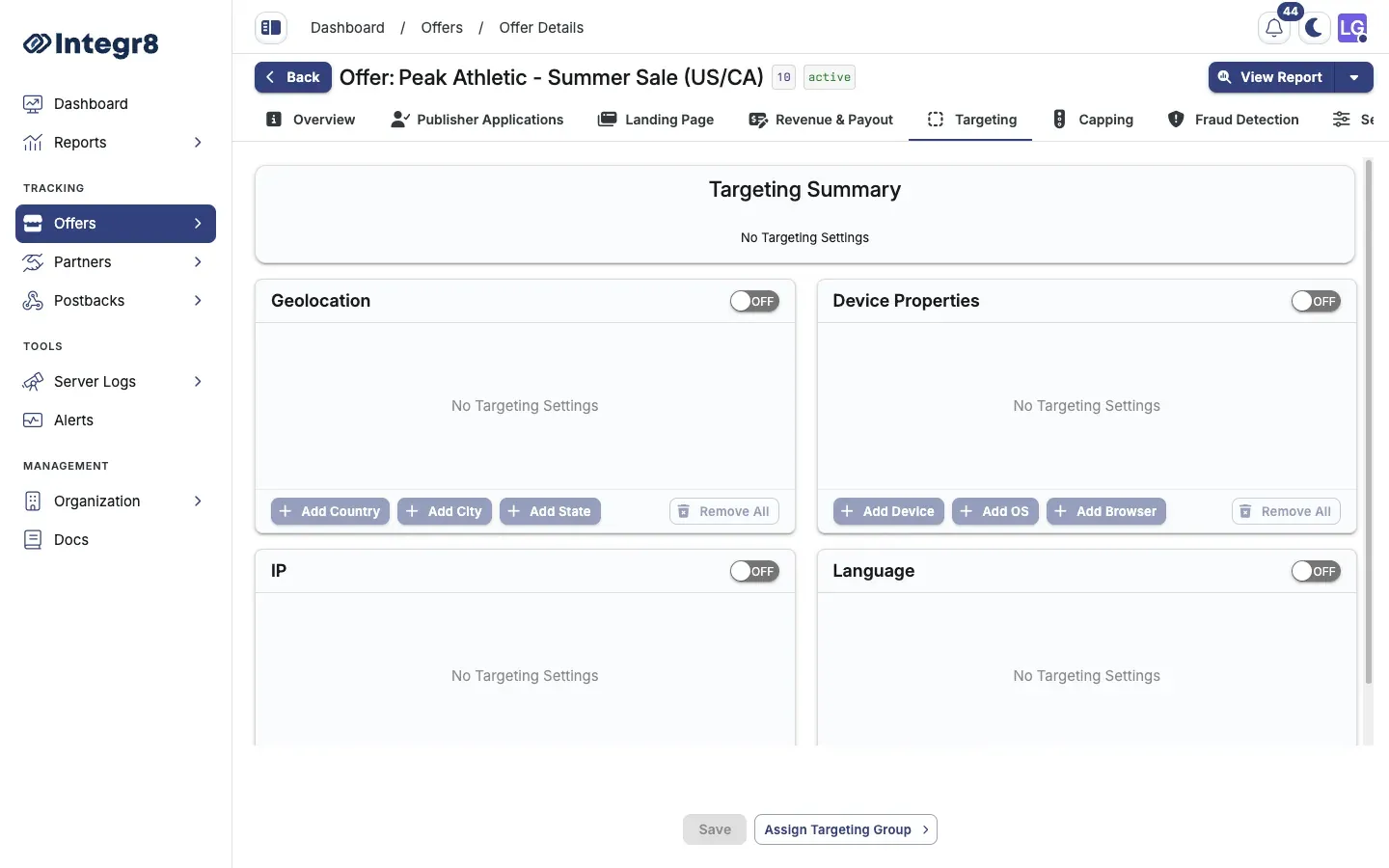
Targeting applies to both clicks and conversions unless configured otherwise.
## Use a shared targeting group
[Section titled “Use a shared targeting group”](#use-a-shared-targeting-group)
If multiple offers share the same targeting rules, create a targeting group to manage them in one place.
**Create the group:**
1. Go to **Offers > Targeting Groups** in the main menu.
2. Click **Create**.
3. Enter a **Name** and **Description**.
4. In **Assign Offers**, pick the offers this group applies to. You can skip and assign later.
5. Click **Next**.
6. Configure targeting rules for **Clicks** and **Conversions**.
7. Click **Save**.
**Assign a group to an offer:**
You have two paths.
From the targeting group: open the group, go to **General Settings**, and add offers to the **Assigned Offers** list.
From the offer: open the offer, select the **Targeting** tab, click **Assign Targeting Group**, and pick the group from the dropdown.
When a targeting group is assigned, the group’s rules override any individual targeting rules set on the offer directly.
## Next steps
[Section titled “Next steps”](#next-steps)
* [Set offer caps](/docs/offers/offer-caps/) so allowed traffic stays inside your volume limits.
* [Add fraud detection](/docs/offers/fraud-detection/) for filtering beyond geo and device targeting.
# Tracking links
> Generate tracking links in Integr8 to share with publishers, including standard, JavaScript fingerprinting, short, and test link types.
A tracking link is the URL you give to publishers. Every click on that URL is logged in Integr8 with a unique `transaction_id` that is later matched to a conversion. This guide walks you through generating one and explains the parameters you can pass.
## Before you begin
[Section titled “Before you begin”](#before-you-begin)
* [Create an offer](/docs/offers/create-an-offer/) with a redirect URL that includes the `{transaction_id}` macro.
* Add at least one publisher in **Publishers > Publishers Management**.
## Generate a tracking link
[Section titled “Generate a tracking link”](#generate-a-tracking-link)
The simplest place to build a link is the **Global Tracking** page, which has a generator that works for any offer.
1. Go to **Offers > Global Tracking**.
2. In the **Generate Tracking Link** card, select the **Offer** and the **Publisher**.
3. Optionally set a **Sub ID** (recommended for source tracking), a **Landing Page**, and a **Domain**.
4. Copy the generated link and share it with the publisher.
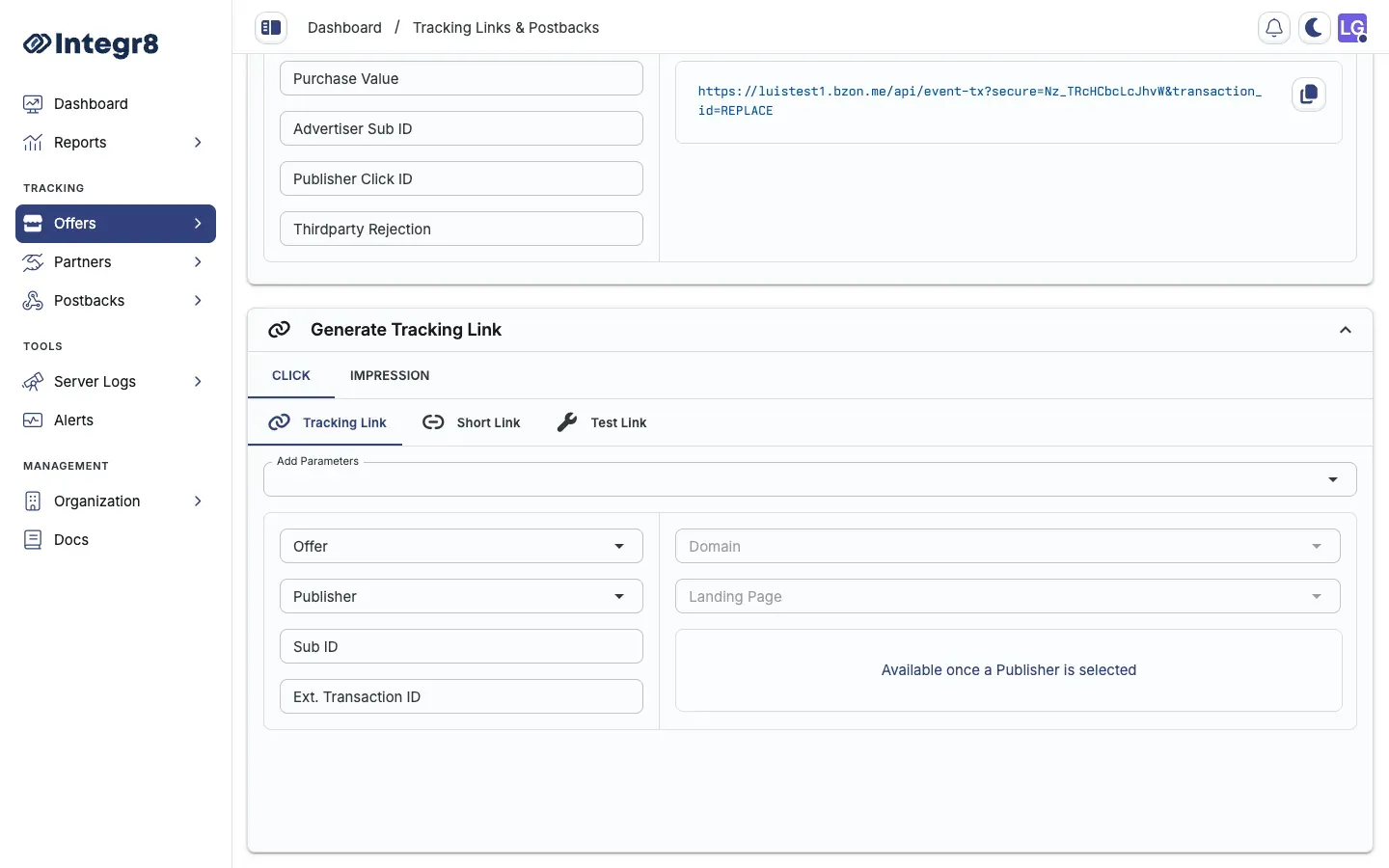
**Shortcut:** From **Offers > Offers Management**, click the link icon on an offer’s row to open the generator for that offer directly.
To pass the publisher’s own click ID back on the conversion, add `&external_transaction_id=PUBLISHER_CLICK_ID` to the link.
## Link types
[Section titled “Link types”](#link-types)
The click generator uses tabs for different link formats:
| Tab | Use case |
| ------------- | ----------------------------------------------------------------- |
| Tracking Link | Default for most integrations |
| Short Link | Compressed tracking URL |
| Test Link | Ignores caps and targeting. Use to verify setup before going live |
## JavaScript / fingerprinting links
[Section titled “JavaScript / fingerprinting links”](#javascript--fingerprinting-links)
Use JavaScript/fingerprinting links when fraud detection rules depend on browser signals: duplicate-click detection, bot scoring, and device anomaly checks.
### Enable fingerprinting on an offer
[Section titled “Enable fingerprinting on an offer”](#enable-fingerprinting-on-an-offer)
**During create:** In the Create Offer form, open the **Tracking Link** section and turn on **Enable JavaScript/Fingerprinting Tracking**.
**On an existing offer:** Open the offer, go to **Settings**, and enable the same option under tracking settings.
### How it works
[Section titled “How it works”](#how-it-works)
When fingerprinting is enabled, generated links use the `/jsp` path instead of the root path:
1. A small script runs in the browser.
2. The script collects environment signals: user agent, screen resolution, timezone, installed fonts, canvas hash, and WebGL data.
3. The fingerprint is hashed and attached to the click record.
4. The visitor is redirected to the offer landing page as normal.
Example:
```text
https://track.yourdomain.com/jsp?offer=42&publisher=7&sub_id=newsletter&external_transaction_id=CLICK_ID_HERE
```
Standard links without `/jsp` do not collect fingerprints. Fingerprint-based fraud rules only apply to clicks that arrive through this link type. See [Fraud detection](/docs/offers/fraud-detection/).
### Requirements and limitations
[Section titled “Requirements and limitations”](#requirements-and-limitations)
* JavaScript must be enabled in the visitor’s browser.
* Adds a small delay (typically under 50 ms) before redirect.
* No changes needed on the advertiser or publisher side. The script runs on the redirect.
## Tracking link parameters
[Section titled “Tracking link parameters”](#tracking-link-parameters)
| Parameter | Description |
| ------------------------- | ------------------------------------------------------------- |
| `offer` | Offer ID |
| `publisher` | Publisher ID |
| `sub_id` | Sub-publisher identifier for source attribution |
| `external_transaction_id` | Publisher’s own click ID, returned in the conversion postback |
| `lp` | Landing page ID. Optional. Uses the offer default if omitted. |
## Example
[Section titled “Example”](#example)
```text
https://track.yourdomain.com/?offer=42&publisher=7&sub_id=newsletter&external_transaction_id=CLICK_ID_HERE
```
## Next steps
[Section titled “Next steps”](#next-steps)
* [Configure conversion tracking](/docs/offers/conversion-tracking/) so postbacks match clicks to conversions.
* [Use a custom tracking domain](/docs/offers/custom-tracking-domain/) instead of the default Integr8 domain.
# Data Privacy
> Overview of Integr8's data privacy approach, GDPR compliance, and data handling policies.
Integr8 is built for performance marketers who operate across jurisdictions with active data protection laws. This page covers how Integr8 handles personal data and what compliance posture you can expect.
## What Integr8 collects
[Section titled “What Integr8 collects”](#what-integr8-collects)
When a click or conversion is processed, Integr8 logs the following data points:
| Data type | Example | Purpose |
| -------------- | ----------------- | ------------------------------- |
| IP address | `192.168.x.x` | Geo-targeting, fraud detection |
| User agent | Browser/OS string | Device targeting, fraud signals |
| Email address | `user@domain.com` | Conversion attribution |
| Transaction ID | `txn_abc123` | Click-to-conversion matching |
## IP address handling
[Section titled “IP address handling”](#ip-address-handling)
By default, Integr8 stores the full IP address for fraud detection and geo-targeting. You can enable **partial IP obfuscation** to mask the last octet (e.g., `192.168.x.x`) in reports and logs. This satisfies GDPR data minimization requirements for most use cases while preserving geo accuracy.
To enable IP obfuscation, see [Global Tracking Settings](/docs/organization/global-tracking-settings/).
## GDPR compliance
[Section titled “GDPR compliance”](#gdpr-compliance)
Integr8 supports GDPR compliance through:
* **Data minimization** — obfuscate or exclude personal data fields you do not need
* **Right to erasure** — contact to request data deletion for a specific user identifier
* **Data processing agreement** — available on request for EU-based accounts
* **Data retention** — 90 days for raw click/impression logs; 2 years for raw event logs
# Global Tracking Settings
> Configure fallback URL, postback parameters, and custom tracking domain for your Integr8 account.
Global tracking settings define the defaults that apply to all offers in your account. Configure them once during setup and adjust only when your infrastructure changes.
## Access global tracking settings
[Section titled “Access global tracking settings”](#access-global-tracking-settings)
1. Log in to your Integr8 account at [app.integr8.co](https://app.integr8.co).
2. Go to **Offers > Global Settings**.
3. Select the **Settings** tab to view and edit global tracking defaults.
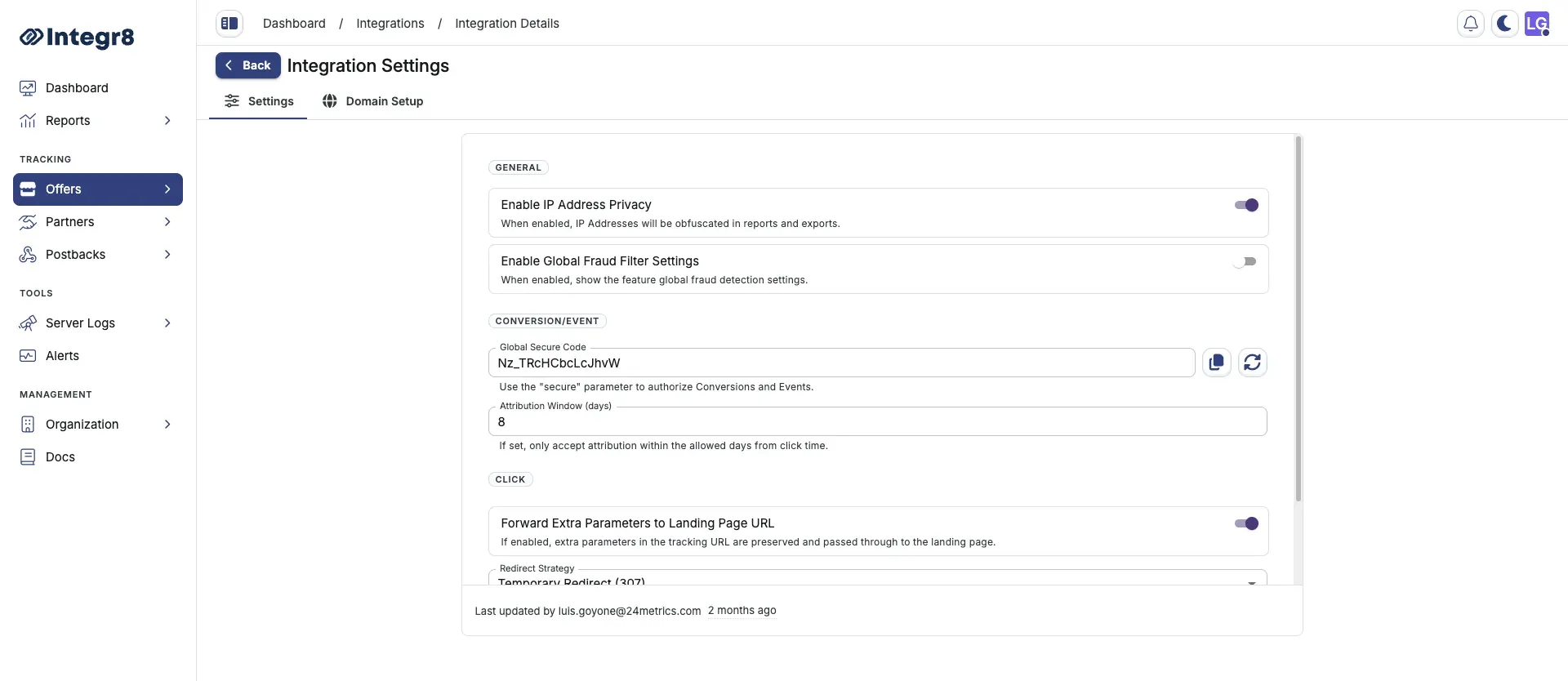
### General
[Section titled “General”](#general)
| Field | Description |
| --------------------------------------- | -------------------------------------------------------------------------------------------------------------------------------------------- |
| **Enable IP Address Privacy** | Turn this on to obfuscate IP addresses in reports and exports (e.g., `192.168.x.x`) |
| **Enable Global Fraud Filter Settings** | Turn this on to enable global fraud detection settings. Go to **Offers > Fraud Detection Groups** to configure global fraud filter settings. |
### Conversion and event
[Section titled “Conversion and event”](#conversion-and-event)
| Field | Description |
| ----------------------------- | ------------------------------------------------------------------------------------------------------------------------------------------------------------- |
| **Global Secure Code** | Use this value with the `secure` parameter to authorize conversions and events. Click **Copy** to copy the generated code or click **Renew** to regenerate it |
| **Attribution Window (days)** | Set how many days after a click Integr8 accepts attribution. Clicks outside this window do not convert |
### Click
[Section titled “Click”](#click)
| Field | Description |
| ------------------------------------------------ | --------------------------------------------------------------------------------------------------------- |
| **Forward Extra Parameters to Landing Page URL** | Turn this on to preserve extra parameters from the tracking URL and pass them through to the landing page |
| **Redirect Strategy** | Choose how clicks redirect to the landing page |
| **Redirect Cache Expiry (seconds)** | Set how long click redirect responses are cached. Use `0` to disable caching |
| Option | Description |
| ---------------------------- | ------------------------------------------------------------------------------------------------------------------------------------------------- |
| **Temporary Redirect (307)** | Sends an HTTP 307 response. The browser follows the redirect to the landing page while preserving the request method |
| **Temporary Redirect (302)** | Sends an HTTP 302 response. The browser follows the redirect to the landing page |
| **Permanent Redirect (301)** | Sends an HTTP 301 response. Browsers and caches may store this redirect long term. Use only when the destination URL is stable |
| **Single Meta Refresh** | Returns an HTML page that redirects via a meta refresh tag. Use when HTTP redirects are stripped or blocked by the traffic source |
| **Double Meta Refresh** | Returns a two-step meta refresh chain. Hides the referrer from the landing page and works around stricter browser or ad network redirect policies |
## Custom tracking domain
[Section titled “Custom tracking domain”](#custom-tracking-domain)
You can replace the default Integr8 tracking domain with your own subdomain (e.g., `track.yourdomain.com`). This improves deliverability and brand trust.
1. From **Offers > Global Settings**, select the **Domain Setup** tab.
2. Enter your subdomain (e.g., `track.yourdomain.com`).
3. Copy the CNAME record shown and add it to your DNS provider.
4. Wait for DNS propagation (typically 5–30 minutes), then click **Verify**.
SSL is provisioned automatically once the CNAME record is verified. Do not add an A record — CNAME only.
## Next steps
[Section titled “Next steps”](#next-steps)
* [Create your first offer](/docs/offers/create-an-offer/)
# Organization
> Configure your Integr8 account details, general settings, and API keys.
Your organization is the top-level container for all your Integr8 data — offers, publishers, users, and settings. Configure it before you start running campaigns.
## General settings
[Section titled “General settings”](#general-settings)
The **General** tab of the organization settings holds your company name, business type, plan details, and publisher sign-up links.
1. Go to **Organization > Settings**.
2. On the **General** tab, use the edit (pencil) icon on the **Organization Details** card.
3. Update your company name and details, then save.
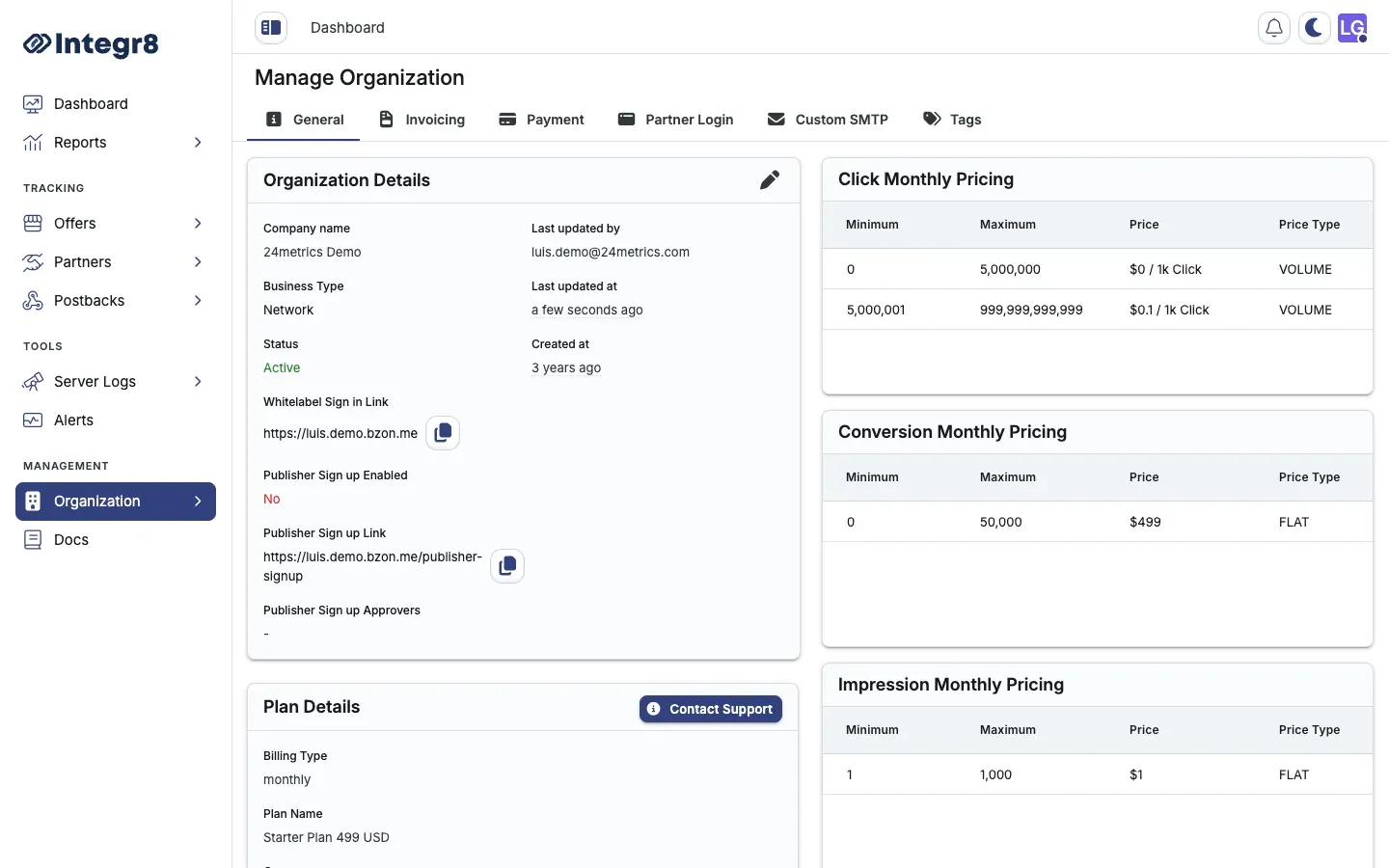
Invoice details (billing address, VAT, currency) live on the separate **Invoicing** tab — see [Organization Billing](/docs/organization/organization-billing/).
## API keys
[Section titled “API keys”](#api-keys)
API keys give external systems access to your Integr8 account via the REST API. Each key has its own permission scope.
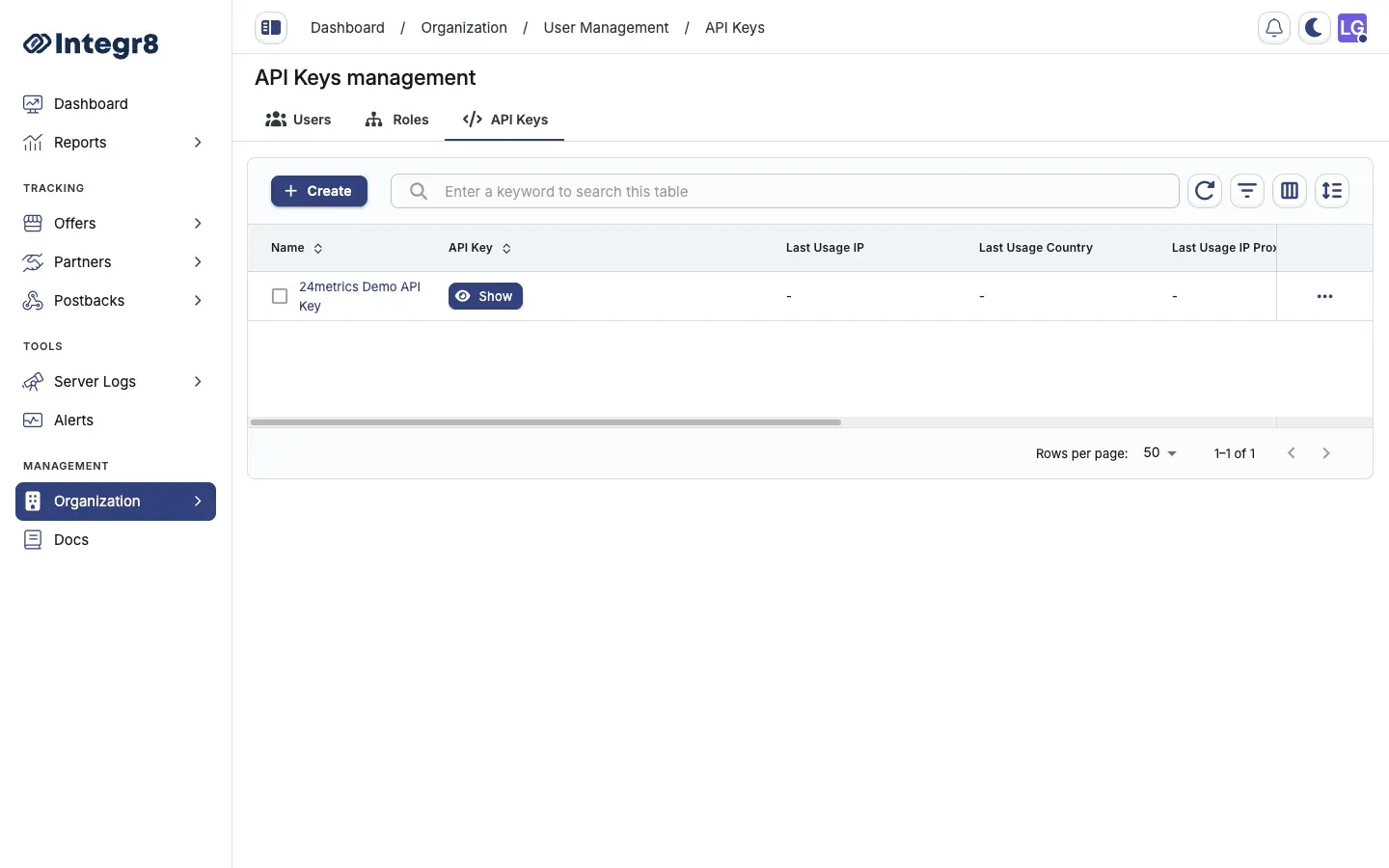
1. Go to **Organization > User Management**.
2. Select the **API Keys** tab.
3. Click **Create** to generate a new key.
4. Enter a label and select the permission scopes.
5. Click **Save**.
6. Click **Show** on the key’s row to reveal it, then copy it.
Store API keys securely. Anyone with a key can access your account data within the key’s permission scope.
## Organization structure
[Section titled “Organization structure”](#organization-structure)
The **Organization** section contains three sub-areas:
| Sub-area | What it controls |
| --------------- | ---------------------------------------------------------------- |
| User Management | Team members, roles, and API keys |
| Plan Management | Subscription plan and usage |
| Settings | General info, invoice details, payment method, and partner login |
## Related
[Section titled “Related”](#related)
* [User Management](/docs/organization/user-management/)
* [Organization Billing](/docs/organization/organization-billing/)
# Organization Billing
> Configure invoice details, payment method, and subscription settings for your Integr8 account.
Billing configuration controls how Integr8 invoices your account and what payment method is charged on renewal.
## Update invoice details
[Section titled “Update invoice details”](#update-invoice-details)
Invoice details appear on every invoice Integr8 generates for your account. Keep them accurate for accounting purposes.
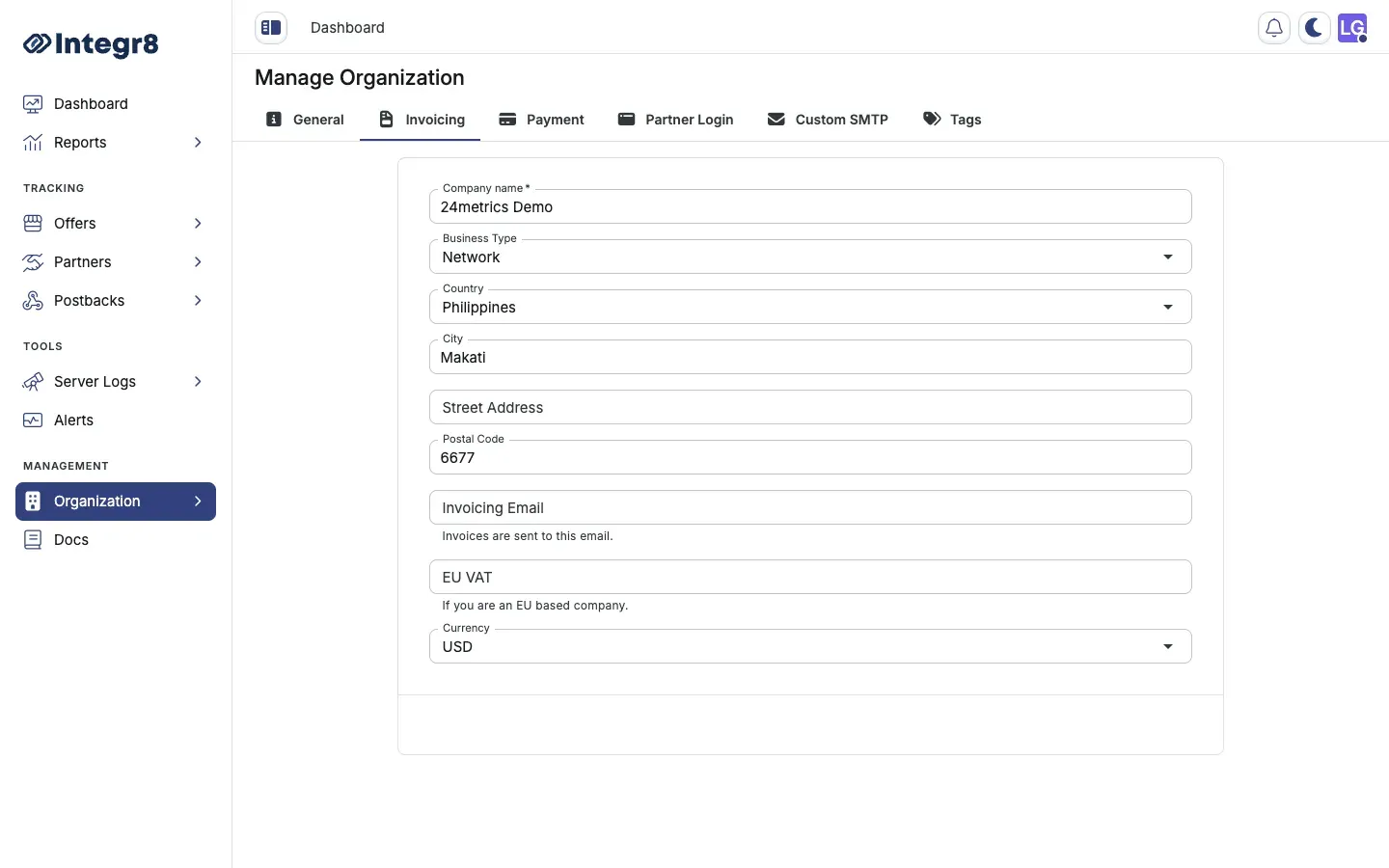
1. Go to **Organization > Settings**.
2. Select the **Invoicing** tab.
3. Update the following fields as needed:
* **Company name** — the legal entity name on your invoices
* **Business Type** and **Country / City / Street Address / Postal Code** — your billing address
* **Invoicing Email** — where invoices are sent
* **EU VAT** — required for EU business accounts
* **Currency** — invoice currency for your account
4. Click **Save**.
## Update payment method
[Section titled “Update payment method”](#update-payment-method)
Your subscription renews automatically against the saved card. To change it:
1. Go to **Organization > Settings**.
2. Select the **Payment** tab.
3. Enter your new card details.
4. Click **Save**.
Changing the card does not trigger an immediate charge. The new card is used on the next renewal date.
## Partner login
[Section titled “Partner login”](#partner-login)
The **Partner Login** section in Settings lets you create a white-label dashboard for publishers. See [White-Label Dashboard](/docs/organization/white-label-dashboard/) for setup instructions.
## Custom SMTP
[Section titled “Custom SMTP”](#custom-smtp)
By default, Integr8 sends billing emails from its own mail server. To send from your own domain:
1. Go to **Organization > Settings**.
2. Select the **Custom SMTP** tab.
3. Enter your SMTP host, port, username, and password.
4. Click **Save** and send a test email to verify.
## Related
[Section titled “Related”](#related)
* [White-Label Dashboard](/docs/organization/white-label-dashboard/)
# User Management
> Add team members, create permission roles, and manage user access in Integr8.
Integr8 lets you add multiple users to your account, each with a role that defines what they can see and edit. Create roles before adding users.
## Create a role
[Section titled “Create a role”](#create-a-role)
Roles define the permission level for each section of the platform. You must create at least one role before inviting users.
1. Go to **Organization > User Management**.
2. Select the **Roles** tab.
3. Click **+ Create**.
4. In the **Create Role** dialog, enter a **Name** (e.g., “Campaign Manager”) and optional **Description**.
5. For each **Scope** (Offers, Advertisers, Publishers, Users, Roles, API Keys, and more), set the **Access Type**:
* **None** — the user cannot view or edit this section
* **Read** — the user can view but not edit
* **Write** — the user can view and edit
6. Click **Save**.
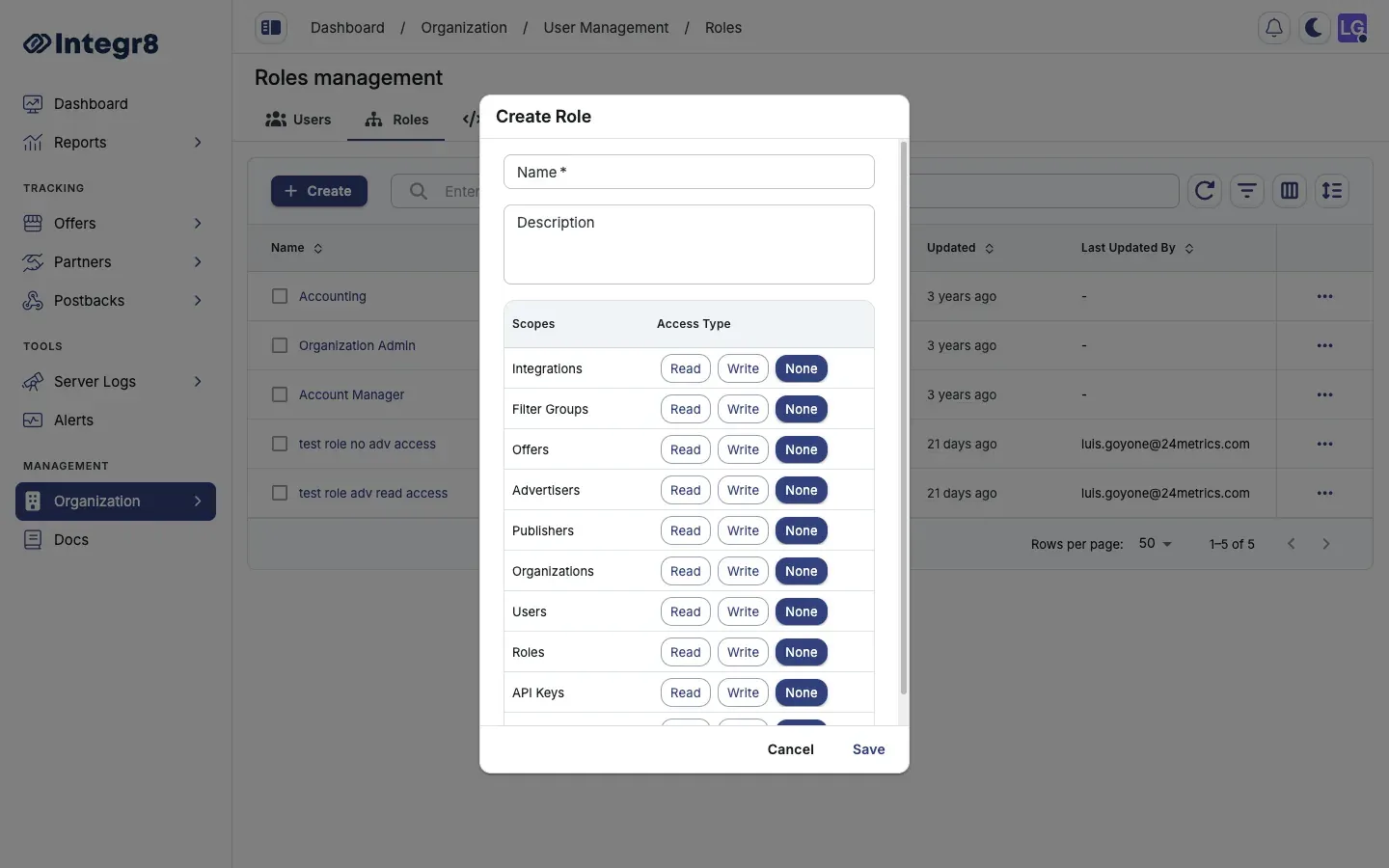
## Invite a user
[Section titled “Invite a user”](#invite-a-user)
1. Go to **Organization > User Management**.
2. Select the **Users** tab.
3. Click **+ Create**.
4. Fill in the user’s **Email**, **First name**, and **Last name** (Country, Timezone, and Notes are optional).
5. Keep **Send password setup email to this user** checked so they receive an invite.
6. Choose the base **Role** (Member, Account Manager, or Organization Owner) and select the **Custom Role** you created.
7. Click **Create User**. The user receives an email invitation to set their password.
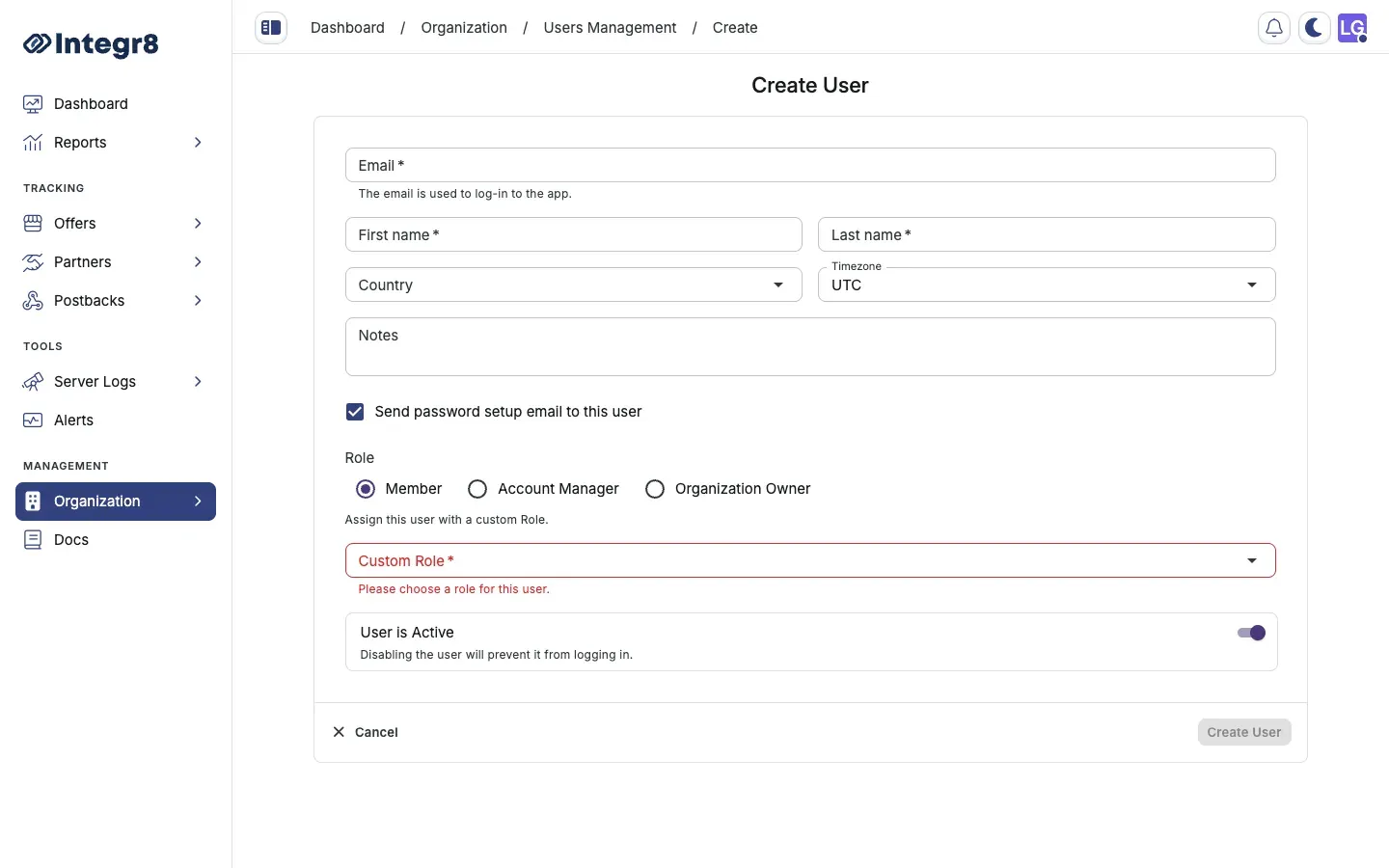
Users can only be assigned one role at a time. To change a user’s role, edit the user and select a different role.
## Edit or remove a user
[Section titled “Edit or remove a user”](#edit-or-remove-a-user)
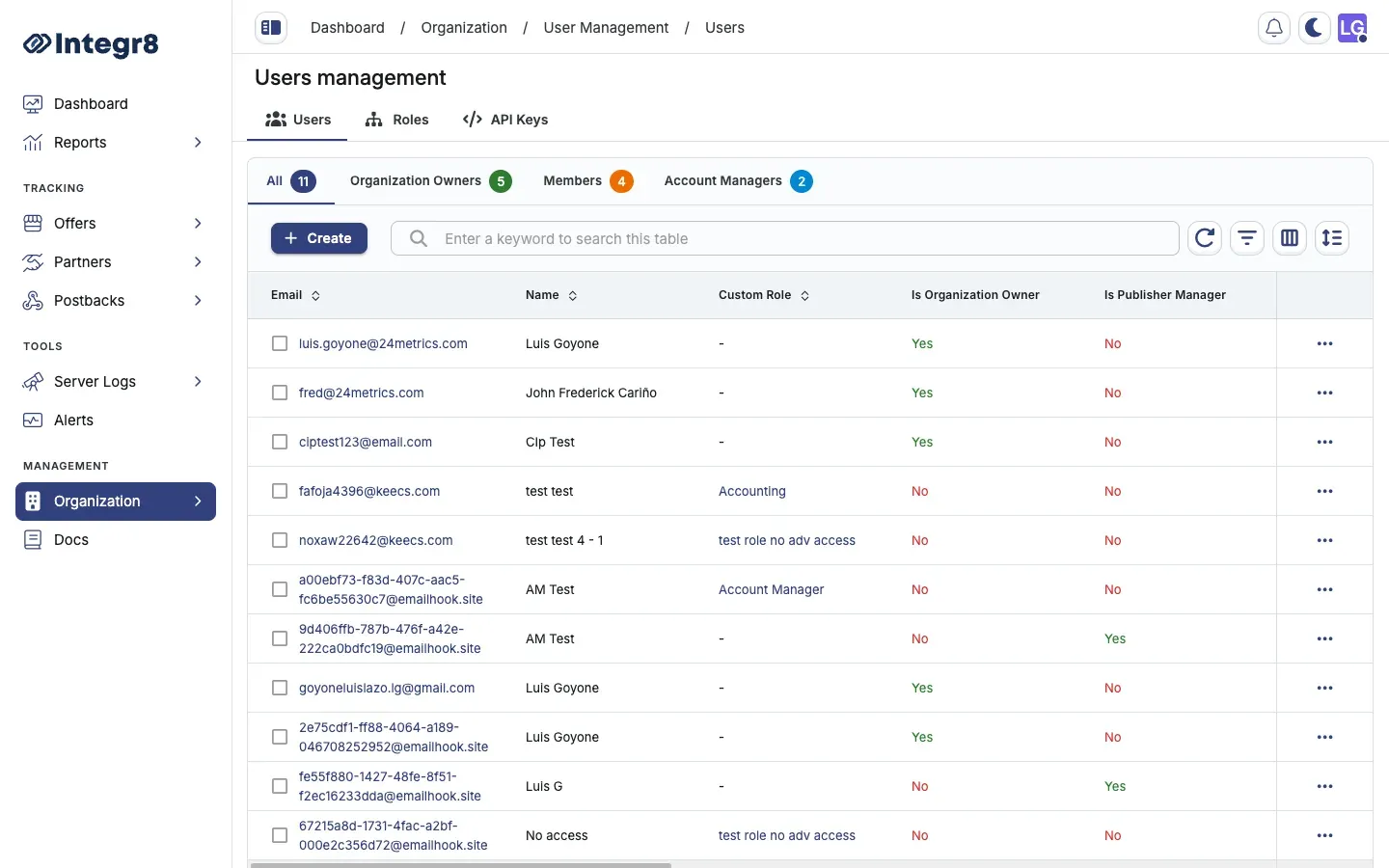
1. Go to **Organization > User Management**.
2. Select the **Users** tab.
3. Find the user in the list and click their name.
4. Select the **Settings** tab.
5. Update their details or role, then click **Save**.
6. To remove a user, go to **Danger Zone**, click **Delete User** and confirm.
## Permission reference
[Section titled “Permission reference”](#permission-reference)
| Permission | Can view | Can edit |
| ---------- | -------- | -------- |
| None | No | No |
| Read | Yes | No |
| Write | Yes | Yes |
Permissions apply section by section. A user can have Read access to Reports and Write access to Campaigns simultaneously.
# White-Label Dashboard
> Configure a branded publisher login portal with your domain, logo, and terms.
The white-label dashboard gives your publishers a branded login portal where they can view their statistics, access offer tracking links, and configure their own postbacks. You control the domain, branding, and terms.
## Enable the publisher portal
[Section titled “Enable the publisher portal”](#enable-the-publisher-portal)
1. Go to **Organization > Settings**.
2. Select the **Partner Login** tab.
3. Turn on **Enable Publisher Signup** and enter **Approver Emails**.
4. Click **Save**.
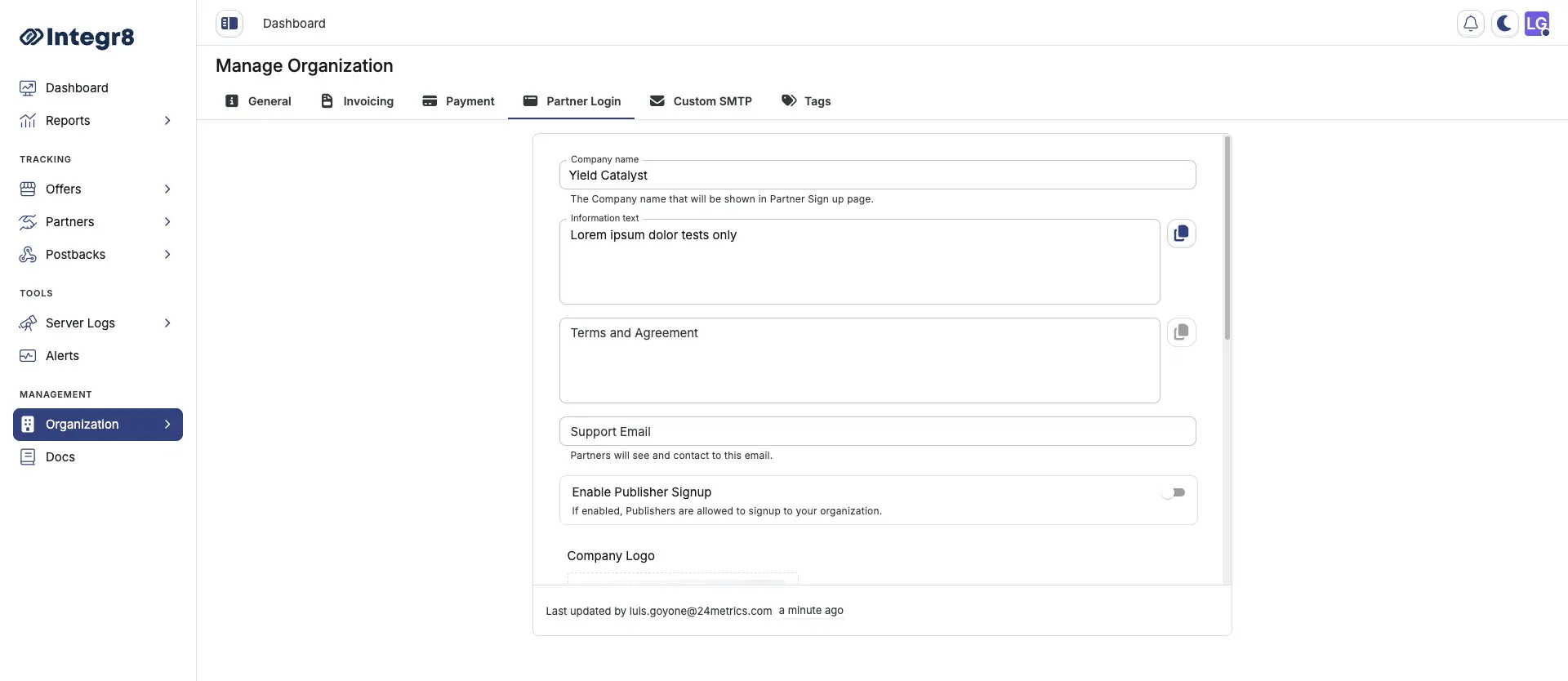
### Publisher signup settings
[Section titled “Publisher signup settings”](#publisher-signup-settings)
On the **Partner Login** tab, set up publisher self-registration:
* **Enable Publisher Signup**: Turn this on to allow publishers to sign up to your organization. Leave it off if you onboard publishers manually.
* **Approver Emails**: Enter the email addresses that receive a notification on every publisher signup.
## Configure profile settings
[Section titled “Configure profile settings”](#configure-profile-settings)
On the **Partner Login** tab, set the following fields:
| Field | Description |
| ----------------------- | ---------------------------------------------------------- |
| **Company Name** | Appears on the login page and in emails sent to publishers |
| **Information Text** | Optional short description shown on the login page |
| **Terms and Agreement** | Publishers must accept these during signup |
| **Support Email** | Displayed to publishers for help requests |
## Set up custom domain
[Section titled “Set up custom domain”](#set-up-custom-domain)
1. On the **Partner Login** tab, enter your subdomain in the **Custom Domain** field (e.g., `partners.yourdomain.com`).
2. Copy the CNAME record shown.
3. Log in to your DNS provider and add the CNAME record to your subdomain.
4. Wait for DNS propagation (5–30 minutes), then return to Integr8 and click **Verify Domain**.
SSL is provisioned automatically after domain verification. Do not add an A record — CNAME only.
## Upload branding assets
[Section titled “Upload branding assets”](#upload-branding-assets)
| Asset | Where it appears |
| ------------------ | ----------------------------------------------- |
| **Company Logo** | Login page, signup page, and email headers |
| **Dashboard Logo** | Expanded sidebar inside the publisher dashboard |
| **Company Icon** | Browser favicon and collapsed sidebar icon |
Upload each asset on the **Partner Login** tab under **Branding**. Supported formats: PNG or SVG, minimum 200px wide.
# Affiliate postback setup
> Configure postback URLs in Integr8 to fire conversion and event data to publisher tracking systems, with macros, scope, status filters, and delays.
An affiliate postback is the URL Integr8 calls on the publisher’s server when a tracked action occurs. You configure one postback per action type (click, conversion, or event) and Integr8 fires it automatically when the condition is met. This guide walks you through creating one and explains the macros and options you can use.
## Before you begin
[Section titled “Before you begin”](#before-you-begin)
* Have the publisher’s tracking endpoint URL ready, including the click ID parameter name they expect.
* Decide the scope: every offer and publisher, a single offer, a single publisher, or a specific combination.
* Check whether the publisher wants approved conversions only, rejected only, or both.
## Create a postback
[Section titled “Create a postback”](#create-a-postback)
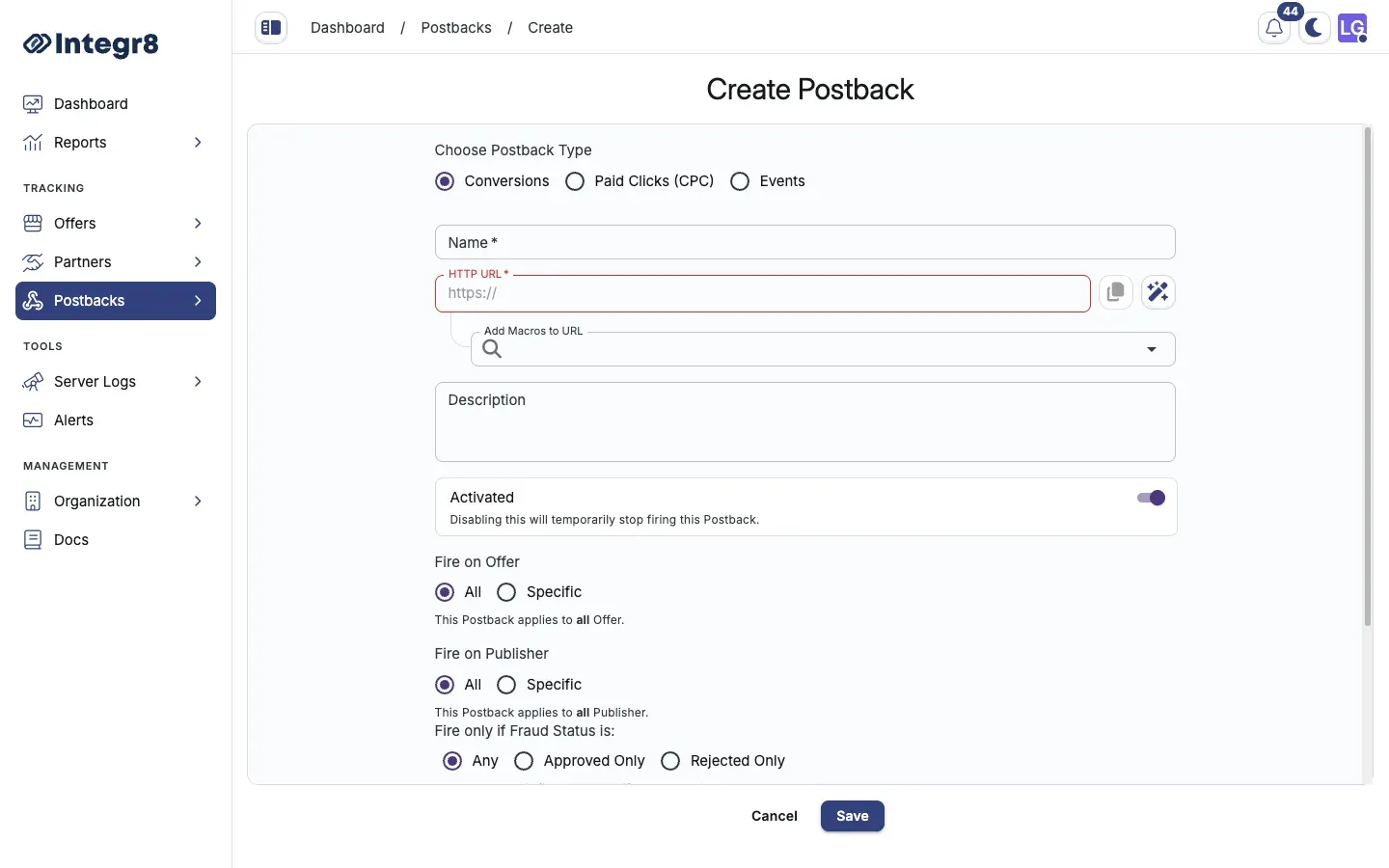
1. Go to **Postbacks > Postbacks Management** and click **+ Create**.
2. Pick the **Postback Type**: `Conversions`, `Paid Clicks (CPC)`, or `Events`.
3. Enter a **Name** to identify this postback.
4. Enter the **Postback HTTP URL**, the publisher’s tracking endpoint. Always include the publisher’s click ID:
```text
https://publisher-track.com/postback?clickid={external_transaction_id}&status={status}
```
5. Map parameters using the macros available in the **Add Macros to URL** field.
6. Set where to apply the **Postback offer and publisher**:
* Toggle **All** to apply the postback to all **offers** and **publishers**.
* Or pick a specific **offer** or **publisher** from the dropdowns.
7. Configure the **Firing Status**:
* **Any**: fires for both approved and rejected conversions.
* **Approved only**: fires only on approved conversions. Recommended.
* **Rejected only**: fires only on rejected conversions.
8. Click **Save**.
## Fire only on specific rejection reasons
[Section titled “Fire only on specific rejection reasons”](#fire-only-on-specific-rejection-reasons)
In the **Rejected Only** section, pick the reasons that should trigger the postback. Other rejection reasons are ignored. Use this to forward chargebacks but not policy violations, for example.
## Add a delay
[Section titled “Add a delay”](#add-a-delay)
Set a delay if Integr8 should wait for a third-party fraud check (for example, AppsFlyer or an internal validator) before firing. Minimum delay is 2 minutes.
1. Toggle **Add Firing Delay** in the postback settings.
2. Enter the delay duration and unit: minutes or hours.
3. Click **Save**.
## Macro reference
[Section titled “Macro reference”](#macro-reference)
| Macro | Description |
| --------------------------- | ------------------------------------------------- |
| `{transaction_id}` | Integr8’s unique click ID |
| `{external_transaction_id}` | Publisher’s click ID passed via the tracking link |
| `{offer_id}` | Offer identifier |
| `{publisher_id}` | Publisher identifier |
| `{sub_id}` | Sub-publisher ID |
| `{payout}` | Publisher payout amount |
| `{revenue}` | Advertiser revenue amount |
| `{currency}` | Payout currency |
| `{status}` | Conversion status: `approved` or `rejected` |
| `{rejection_reason}` | Reason code if the conversion is rejected |
## Next steps
[Section titled “Next steps”](#next-steps)
* [Verify the postback is firing](/docs/postbacks/postback-logs/) by checking the logs after a test conversion.
* [Push the same data to a CRM](/docs/postbacks/crm-integration/) by configuring a second postback with your CRM endpoint.
# Conversion rejection
> Allow advertisers to reject or update the status of previously-recorded conversions in Integr8 via a server-to-server endpoint.
The conversion rejection endpoint lets advertisers send a server-to-server request to Integr8 to reject a conversion that was previously approved, or to update the rejection reason on an already-rejected conversion. Use it when fraudulent or invalid conversions are detected after the initial attribution.
## Endpoint format
[Section titled “Endpoint format”](#endpoint-format)
```text
https://INTEGRATION_DOMAIN/?new_rejected_reason=REASON&transaction_id=TRANSACTION_ID
```
## Parameters
[Section titled “Parameters”](#parameters)
| Parameter | Required | Description |
| --------------------- | -------- | ---------------------------------------------------------------------------- |
| `transaction_id` | Yes | The unique ID of the conversion to reject |
| `new_rejected_reason` | Yes | The rejection reason code, for example `fraud`, `chargeback`, or `duplicate` |
## Behavior
[Section titled “Behavior”](#behavior)
| Conversion state | Result |
| -------------------------- | ------------------------------------------------------ |
| Approved | Status changes to `Rejected` with the supplied reason. |
| Already Rejected | Rejection reason is updated to the new value. |
| `transaction_id` not found | No action taken, no error returned. |
## Get the endpoint URL
[Section titled “Get the endpoint URL”](#get-the-endpoint-url)
**Offer-level rejection URL** is tied to a single offer:
1. Go to **Offers > Offers Management** and open a specific offer.
2. On the **General** tab, scroll down then expand the **Conversion Tracking** dropdown card.
3. Open the **Rejection** tab inside the card.
4. Copy the URL and share it with the advertiser.
**Global rejection URL** works for every offer in the account:
1. Go to **Offers > Global Tracking**.
2. Open the **Rejection** tab.
3. Copy the URL and share it with the advertiser.
**NOTE:** The global URL is the better default for advertisers running multiple offers; one URL handles rejections across every offer without generating separate URLs.
## Security
[Section titled “Security”](#security)
* Share the rejection endpoint only with trusted advertisers.
* All requests must use HTTPS.
* Watch [postback logs](/docs/postbacks/postback-logs/) for unexpected rejection patterns.
* There is no undo for status changes made via this endpoint. Confirm the integration is correct before sharing the URL.
## Related
[Section titled “Related”](#related)
* [Affiliate postback setup](/docs/postbacks/affiliate-postback-setup/) to forward rejection events to publishers.
* [Conversion tracking](/docs/offers/conversion-tracking/) for the original conversion ingestion path.
# CRM integration
> Push Integr8 conversion and event data to a CRM or external system using the standard postback mechanism, with GET or POST and custom headers.
You can push conversion and event data from Integr8 to any CRM or external system that accepts inbound HTTP requests. Integr8 sends the data as a standard postback, the same mechanism used for affiliate postbacks, so there is nothing new to configure on the Integr8 side.
## Before you begin
[Section titled “Before you begin”](#before-you-begin)
* Get the CRM endpoint URL and the parameter or field names it expects.
* Get any required authentication: API key, bearer token, or basic auth header.
* Decide whether you want all conversions pushed, or only a specific offer.
## How it works
[Section titled “How it works”](#how-it-works)
1. Set up a postback in Integr8 that points to your CRM’s webhook or API endpoint.
2. Map Integr8 data fields (offer ID, transaction ID, payout, etc.) to the parameters your CRM expects.
3. Integr8 fires the postback on each conversion or event, pushing the data in real time.
## Set up CRM data push
[Section titled “Set up CRM data push”](#set-up-crm-data-push)

1. Go to **Postbacks > Postbacks Management** and click **Create**.
2. Pick **Conversion** (or **Event** for post-conversion actions) as the postback type.
3. Enter a name, for example `CRM Salesforce Leads`.
4. Set scope to **Any** to push all conversions, or pick a specific offer.
5. Enter your CRM’s API endpoint as the **Postback URL**. For GET requests:
```text
https://crm.yourdomain.com/api/conversions?lead_id={transaction_id}&offer={offer_id}&revenue={revenue}
```
6. For POST requests, click **Advanced HTTP Settings**:
* Set the HTTP method to `POST`.
* Add required headers, for example `Authorization: Bearer YOUR_TOKEN`.
* Define the request body with the fields your CRM expects.
7. Click **Save**.
## Test the integration
[Section titled “Test the integration”](#test-the-integration)
After saving, trigger a test conversion using the **Test** link type from the [tracking link generator](/docs/offers/tracking-links/). Check your CRM to confirm the data arrived. If it does not, review the [postback logs](/docs/postbacks/postback-logs/) for error details.
## Available data fields
[Section titled “Available data fields”](#available-data-fields)
| Macro | Value |
| --------------------------- | ----------------------------- |
| `{transaction_id}` | Unique conversion ID |
| `{offer_id}` | Offer identifier |
| `{publisher_id}` | Publisher identifier |
| `{sub_id}` | Sub-publisher ID |
| `{revenue}` | Advertiser revenue |
| `{payout}` | Publisher payout |
| `{currency}` | Currency code |
| `{status}` | `approved` or `rejected` |
| `{external_transaction_id}` | Publisher’s original click ID |
## Next steps
[Section titled “Next steps”](#next-steps)
* [Set up post-conversion events](/docs/offers/revenue-and-payouts/) if your CRM tracks post-conversion actions like LTV.
* [Watch postback logs](/docs/postbacks/postback-logs/) for delivery failures.
# Postback logs
> View postback delivery status in Integr8, filter by publisher or offer, and debug failed postback fires by reading response codes and errors.
Postback logs record every postback Integr8 attempted to fire, including success status, the full URL called, and any error details. Use logs to verify postbacks are firing and to diagnose delivery failures.
## Before you begin
[Section titled “Before you begin”](#before-you-begin)
* Have at least one [postback configured](/docs/postbacks/affiliate-postback-setup/).
* Trigger a test conversion or event so there is something to inspect.
## Open the logs
[Section titled “Open the logs”](#open-the-logs)
Go to **Postbacks > Postbacks Logs**.
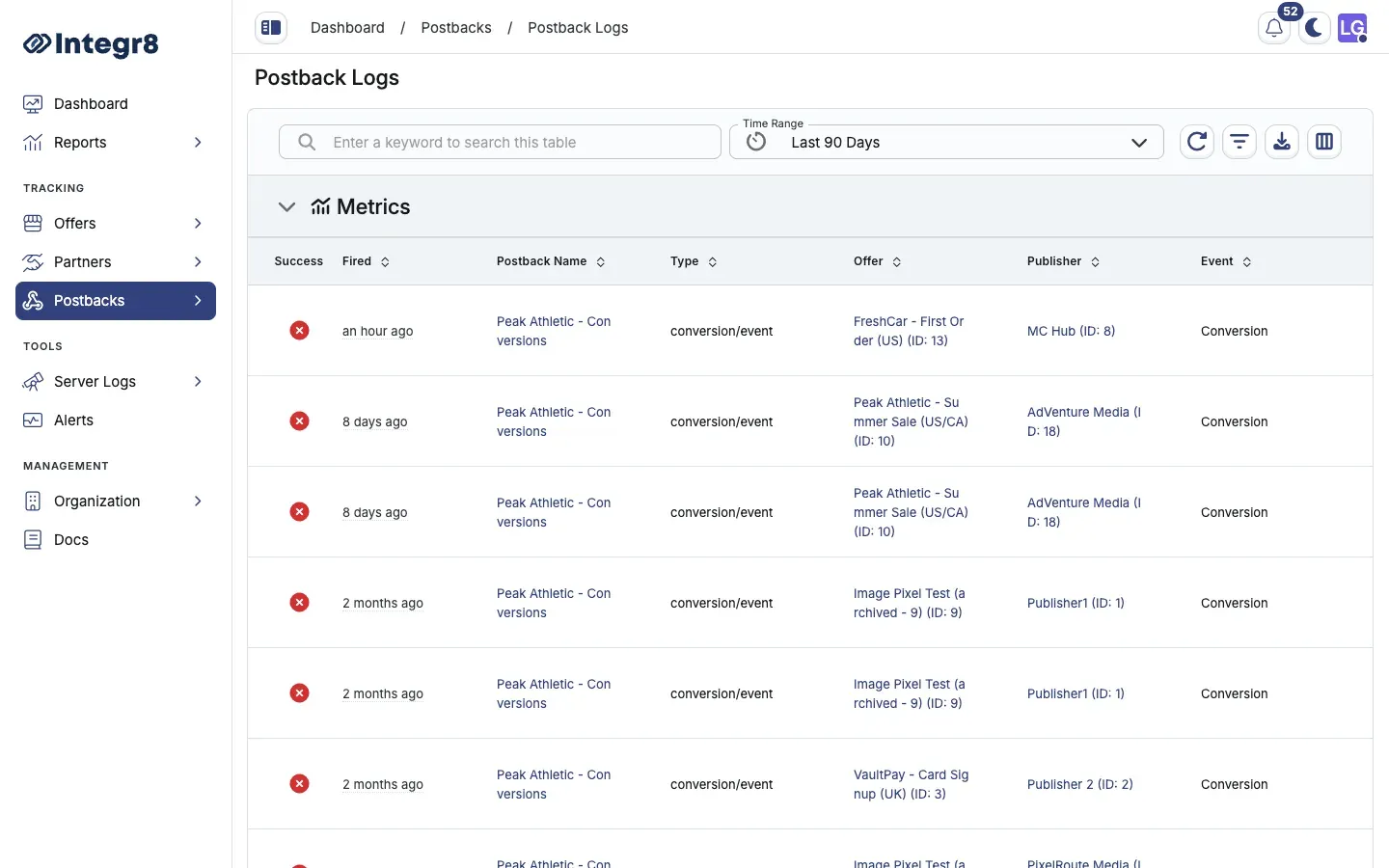
## Filter the logs
[Section titled “Filter the logs”](#filter-the-logs)
Every column supports filtering. Filters offer:
* **Is**: exact match.
* **Is not**: excludes exact match.
* **Contains**: substring match.
For example, to find all failed postbacks for one publisher, filter `Status = Failed` and `Publisher ID = `.
## Debug a failed postback
[Section titled “Debug a failed postback”](#debug-a-failed-postback)
1. Find the failed row in the logs.
2. Check the **Response Code**:
* `4xx`: the publisher’s server rejected the request. Check URL parameters.
* `5xx`: the publisher’s server returned an error. Contact the publisher.
* `0` or timeout: the publisher’s server was unreachable.
3. Read the **Error** and **Server Response** columns for specific messages.
4. Correct the postback URL or parameters in the [postback configuration](/docs/postbacks/affiliate-postback-setup/) and verify on the next conversion.
Integr8 does not retry failed postbacks automatically. Once you fix the underlying issue, ask the advertiser to re-fire the original conversion postback to trigger a new attempt.
## Column reference
[Section titled “Column reference”](#column-reference)
| Column | Description |
| --------------- | ---------------------------------------------- |
| Status | `Success` or `Failed` |
| Postback Name | Name of the postback configuration |
| Postback Type | Click, Conversion, or Event |
| Offer ID | ID of the offer the postback is tied to |
| Publisher ID | ID of the publisher receiving the postback |
| Event ID | Event identifier (Event postbacks only) |
| Transaction ID | Integr8’s unique click or conversion ID |
| Response Code | HTTP response code from the publisher’s server |
| URL | The full URL that was called |
| Error | Error message if the postback failed |
| Server Response | Raw response body from the publisher’s server |
## Next steps
[Section titled “Next steps”](#next-steps)
* [Set up conversion rejection forwarding](/docs/postbacks/conversion-rejection/) so publishers learn about rejections too.
# Postback types
> Reference for the three postback types Integr8 fires to publishers, when each fires, and how they sequence around clicks, conversions, and events.
A postback is an HTTP request that Integr8 fires to a publisher’s system when a tracked action occurs. There are three postback types, one for each trackable action in the platform. This page explains what each does and the order they fire in.
## The three types
[Section titled “The three types”](#the-three-types)
| Type | When it fires | Use case |
| ----------------- | --------------------------------------------------------- | ------------------------------------------------------- |
| Conversions | When the advertiser fires an approved conversion postback | CPA, CPL, CPS campaigns where the publisher gets credit |
| Paid Clicks (CPC) | When a publisher’s tracking link is clicked | CPC campaigns, click confirmation for fraud systems |
| Events | When a post-conversion event is recorded | In-app events, secondary purchases, LTV tracking |
A **Conversion** postback must be received before any **Event** postback can fire. There is no standalone event postback; events always follow a conversion.
## How postbacks sequence
[Section titled “How postbacks sequence”](#how-postbacks-sequence)
1. The publisher’s user clicks the tracking link. Integr8 generates a `transaction_id`.
2. The `transaction_id` is passed to the advertiser’s landing page.
3. The advertiser fires a conversion postback to Integr8 with the `transaction_id`.
4. Integr8 fires a **Conversion** postback to the publisher’s system.
5. If the user triggers additional events (for example, an in-app purchase), the advertiser fires event postbacks.
6. Integr8 fires **Event** postbacks to the publisher for each event.
## Common pitfalls
[Section titled “Common pitfalls”](#common-pitfalls)
* Configuring an event postback with no upstream conversion. Events without a parent conversion never fire.
* Forwarding rejected conversions when the publisher only wants approved. Set the **Firing Status** filter when configuring the postback.
* Mixing postback types in one configuration. Each postback URL handles exactly one type.
## Related
[Section titled “Related”](#related)
* [Set up an affiliate postback](/docs/postbacks/affiliate-postback-setup/) for the configuration steps.
* [Read postback logs](/docs/postbacks/postback-logs/) when a postback does not fire as expected.
* [Conversion tracking](/docs/offers/conversion-tracking/) for the upstream side of the flow.
# Publishers
> Manage publisher accounts, billing, payouts, coupon codes, and per-publisher controls in Integr8 from the Partners section.
Publishers are the traffic sources that promote your offers. In Integr8, publisher operations live under **Partners** in the sidebar. From there you create accounts, configure how each publisher gets paid, run payouts, and manage per-publisher controls like custom payouts, blocked sub IDs, and coupon codes.
## Why it matters
[Section titled “Why it matters”](#why-it-matters)
A correctly configured publisher account is the difference between paying the right amount on time and either losing trust or losing money. Billing details determine whether a publisher even shows up on the payouts run, and per-publisher controls are how you reward strong sources and contain weak ones without breaking the global offer setup.
## How the section is organized
[Section titled “How the section is organized”](#how-the-section-is-organized)
Under **Partners**, the app has three screens. The docs sidebar follows the same structure.
### Publishers Management
[Section titled “Publishers Management”](#publishers-management)
Create and manage publisher accounts from **Partners > Publishers Management**. Open any publisher to work through its detail tabs:
| Tab | Docs |
| --------------- | ------------------------------------------------------------------------------------------ |
| General | [Publisher setup](/docs/publishers/publisher-setup/) |
| Sub IDs | [Sub IDs](/docs/publishers/sub-ids/) |
| Custom Payouts | [Custom payouts](/docs/publishers/custom-payouts/) |
| Throttling | [Throttling](/docs/publishers/throttling/) |
| Blocked Sub IDs | [Blocked sub IDs](/docs/publishers/blocked-sub-ids/) |
| Publisher Users | [Publisher setup](/docs/publishers/publisher-setup/#publisher-users) |
| Settings | [Publisher setup](/docs/publishers/publisher-setup/), [Billing](/docs/publishers/billing/) |
Account creation, activation, visibility, and publisher user invites are covered in [Publisher setup](/docs/publishers/publisher-setup/). [Billing](/docs/publishers/billing/) is configured from the publisher **Settings** tab. Publishers without billing cannot be paid.
### Coupon codes
[Section titled “Coupon codes”](#coupon-codes)
[Coupon codes](/docs/publishers/coupon-codes/) attribute conversions to a publisher when no tracking link is in play. Manage them from **Partners > Coupon Codes**.
### Publisher payments
[Section titled “Publisher payments”](#publisher-payments)
[Publisher payments](/docs/publishers/payments/) is where you review and export payouts each cycle. Open it from **Partners > Publisher Payments**.
## Common pitfalls
[Section titled “Common pitfalls”](#common-pitfalls)
* Forgetting to fill in billing details before the first payment cycle. The publisher quietly disappears from the payouts report.
* Blocking a publisher entirely when only one sub ID is the problem. Use blocked sub IDs instead.
* Using raw sub ID strings in tracking links without creating them in Sub IDs first. Named sub IDs unlock reporting, filtering, and block rules across the platform.
* Leaving **Enable Postback Management** on for publishers you do not trust. The create flow turns this on by default. Some publishers will create misconfigured postbacks that cause silent attribution loss. Disable it per publisher unless the operator is trusted.
## Related
[Section titled “Related”](#related)
* [Custom payouts](/docs/publishers/custom-payouts/) override the global offer payout for individual publishers.
* [Affiliate postback setup](/docs/postbacks/affiliate-postback-setup/) configures the URLs that fire to publisher tracking systems.
# Billing
> Configure payment method, currency, VAT details, and tax compliance for publisher payouts in Integr8 using Tipalti, PayPal, or wire transfer.
Publisher billing information must be set before a publisher appears in the [payments overview](/docs/publishers/payments/). Without it, payout data is not processed correctly. This guide walks through configuring billing for one publisher.
## Before you begin
[Section titled “Before you begin”](#before-you-begin)
* [Create the publisher account](/docs/publishers/publisher-setup/).
* Get the publisher’s preferred payment method, payout currency, and (if applicable) VAT registration details.
## Configure billing
[Section titled “Configure billing”](#configure-billing)
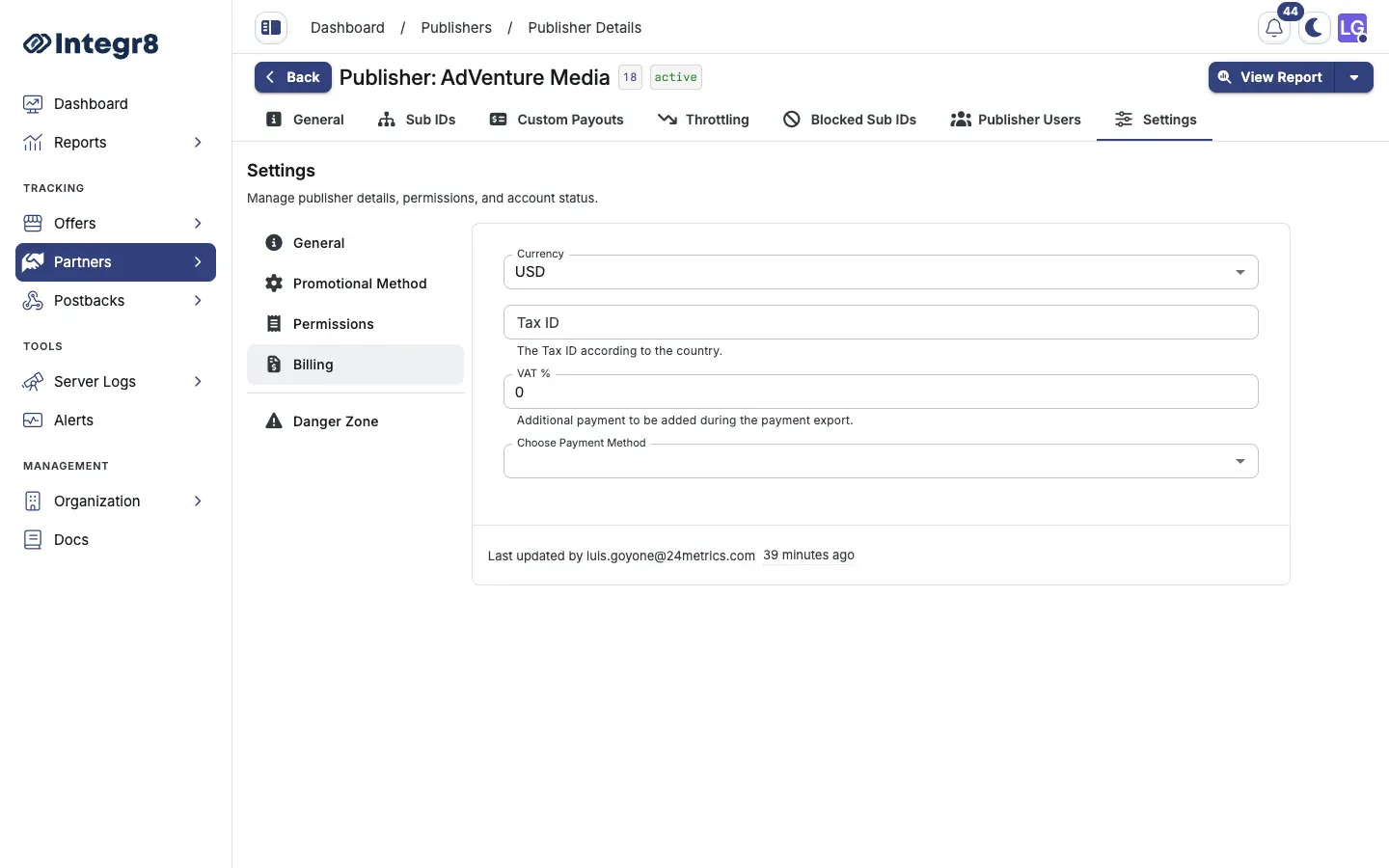
1. Go to **Partners > Publishers Management** and open the publisher.
2. Select the **Settings** tab.
3. Open the **Billing** section.
4. Fill in the fields:
* **Currency**: the currency for this publisher’s payouts.
* **Tax ID** or **VAT Number**: the publisher’s tax registration number, if applicable.
* **VAT %**: the applicable VAT rate. Enter `0` if not applicable.
5. Pick a **Payment Method**:
* **Tipalti** (recommended): supports ACH, wire transfer, PayPal, SEPA, SWIFT, local bank transfers, and virtual cards.
* **PayPal**: enter the publisher’s PayPal email address.
* **Wire Transfer**: enter the publisher’s bank account details.
6. Click **Save**.
A payment method and its method-specific details are required for payment processing. Publishers without a configured payment method will not appear in the payments overview and cannot be paid.
You can also set billing during [publisher creation](/docs/publishers/publisher-setup/) on the final **Billing** step of the create wizard.
## Supported payment methods
[Section titled “Supported payment methods”](#supported-payment-methods)
| Method | Supported currencies | Notes |
| ------------- | ------------------------- | -------------------------------------------------------------- |
| Tipalti | 120+ currencies | Preferred for international publishers; handles tax compliance |
| PayPal | USD, EUR, GBP, and others | Requires the publisher to have a PayPal account |
| Wire Transfer | Depends on bank | Higher fees for international transfers |
## Next steps
[Section titled “Next steps”](#next-steps)
* [Process publisher payouts](/docs/publishers/payments/) once billing is set.
* [Set custom payouts](/docs/publishers/custom-payouts/) per offer for this publisher.
# Blocked sub IDs
> Block specific sub-publisher IDs from sending traffic to an Integr8 offer without blocking the entire publisher account or every offer.
Blocked sub IDs let you stop traffic from a specific sub-publisher source without blocking the entire publisher. Use this when you identify a sub ID sending low-quality or fraudulent traffic on a specific offer. Blocked sub IDs are offer-specific; blocking a sub ID on one offer does not affect the same publisher on another offer.
## Before you begin
[Section titled “Before you begin”](#before-you-begin)
* [Add the publisher](/docs/publishers/publisher-setup/) the sub ID belongs to.
* Identify the exact `sub_id` value to block from your reports or postback logs.
## Block a sub ID
[Section titled “Block a sub ID”](#block-a-sub-id)
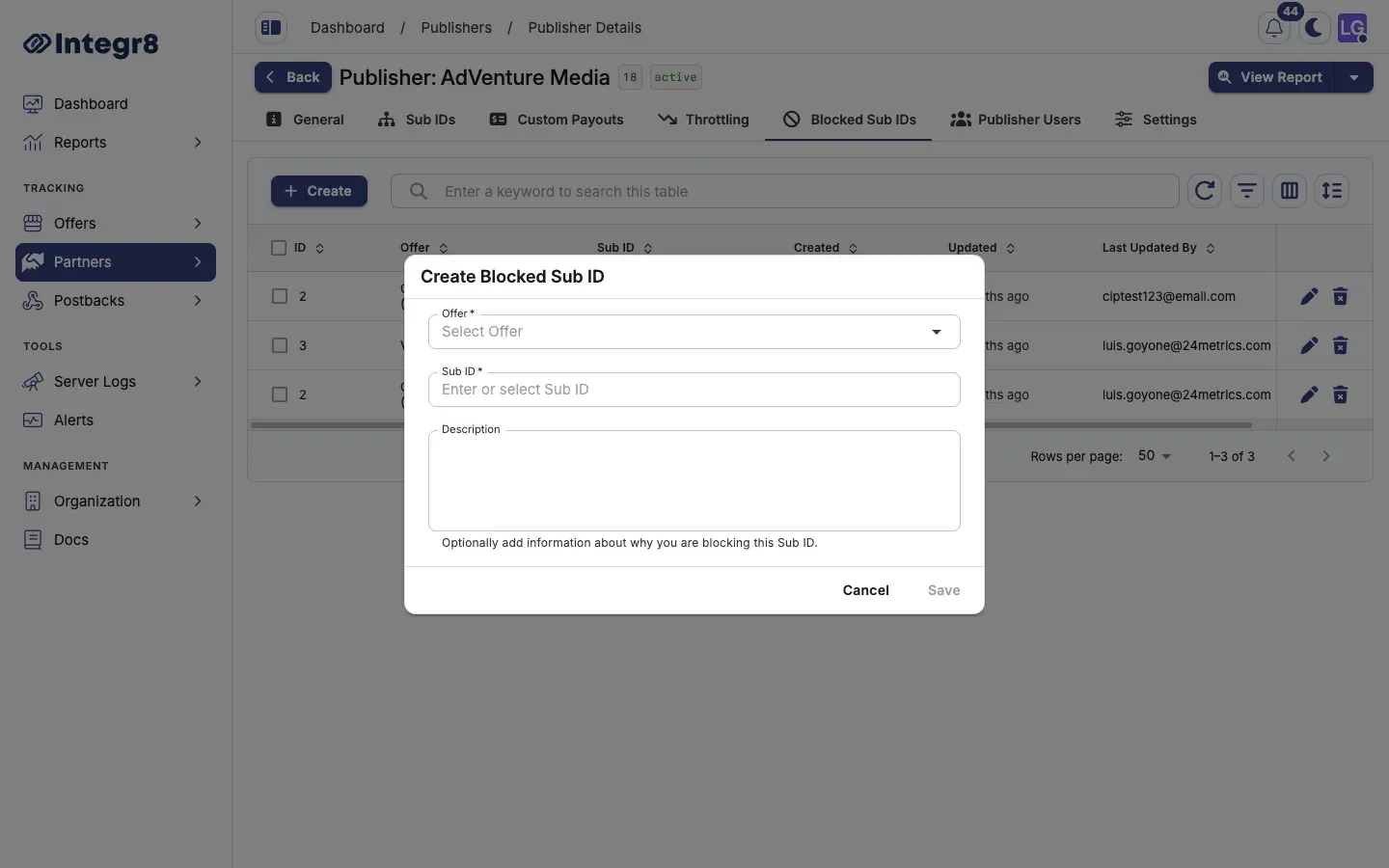
1. Go to **Partners > Publishers Management** and open the publisher.
2. Select the **Blocked Sub IDs** tab.
3. Click **Create**.
4. Pick the **Offer** from the dropdown.
5. Enter or select the **Sub ID** value to block.
6. Add an optional **Description** to record the reason for blocking.
7. Click **Save**.
Clicks from that publisher on that offer with the matching `sub_id` value are rejected immediately. The visitor is redirected to the offer’s fallback URL.
## Bulk blocking
[Section titled “Bulk blocking”](#bulk-blocking)
To block a large number of sub IDs at once, contact with a list. Bulk import is available on request.
## Field reference
[Section titled “Field reference”](#field-reference)
| Field | Required | Description |
| ----------- | -------- | --------------------------------------------------- |
| Offer | Yes | The offer this block applies to |
| Sub ID | Yes | Exact sub ID value to reject |
| Description | No | Internal note explaining why this sub ID is blocked |
## Next steps
[Section titled “Next steps”](#next-steps)
* [Configure fraud detection](/docs/offers/fraud-detection/) to automate blocking based on fraud signals.
* [Set offer caps](/docs/offers/offer-caps/) for volume-based traffic limiting.
# Coupon codes
> Assign trackable coupon codes to publishers in Integr8 for social, newsletter, and influencer campaigns where tracking links are stripped.
Coupon codes give publishers a shareable code instead of (or in addition to) a tracking link. They work well for social media, newsletters, and influencer campaigns where tracking links are stripped or ignored. Each coupon code is unique to one publisher and one offer. Integr8 attributes conversions to the publisher when the coupon is used at checkout, based on advertiser postback data that includes the coupon code value.
## Before you begin
[Section titled “Before you begin”](#before-you-begin)
* [Add the publisher](/docs/publishers/publisher-setup/) who will own the coupon.
* Confirm with the advertiser that they will return the coupon code in their conversion postback. Without this, attribution does not work.
## Create a coupon code
[Section titled “Create a coupon code”](#create-a-coupon-code)
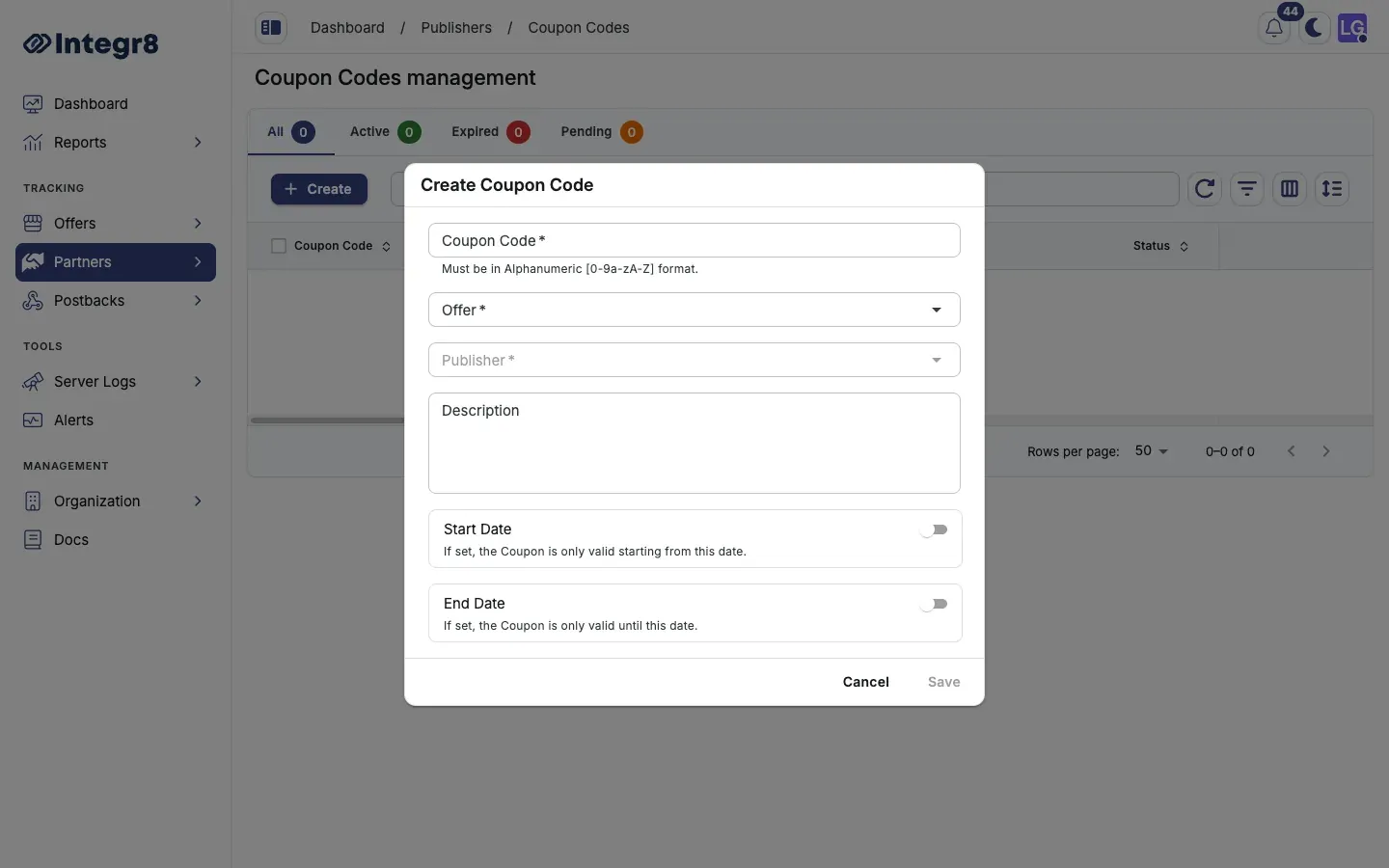
1. Go to **Partners > Coupon Codes**.
2. Click **Create**.
3. Fill in the fields:
* **Coupon Code**: the coupon code string, for example `PUBLISHER20`. Alphanumeric only.
* **Offer**: the offer this code is tied to.
* **Publisher**: the publisher who owns this code.
* **Description**: optional, for internal reference.
* **Start Date** and **End Date**: optional. If set, the code is only active inside the window.
4. Click **Save**.
## How publishers access their codes
[Section titled “How publishers access their codes”](#how-publishers-access-their-codes)
Publishers see their coupon codes in the white-label dashboard under **Coupons**. Each code comes with a pre-built tracking link for environments where a link is also appropriate.
## Attribution
[Section titled “Attribution”](#attribution)
For coupon attribution to work, the advertiser must pass the coupon code in their conversion postback. Typically this is done via a `coupon_code` parameter in the S2S postback URL. Confirm this mapping with the advertiser before launching the campaign.
If the advertiser does not return the coupon code, conversions cannot be attributed. Verify the integration end to end before distributing codes.
## Next steps
[Section titled “Next steps”](#next-steps)
* [Set up conversion tracking](/docs/offers/conversion-tracking/) so postbacks carry the coupon code back to Integr8.
* [Configure the white-label dashboard](/docs/organization/white-label-dashboard/) so publishers can find their codes.
# Custom payouts
> Override the global offer payout for individual publishers in Integr8 to reward top performers or test new sources at a different rate.
Custom payouts let you pay individual publishers a different rate than the global offer payout. This is useful when negotiating higher rates with top-performing publishers, or lower rates for new and unproven sources.
Open **Partners > Publishers Management**, select a publisher, then go to the **Custom Payouts** tab.
## Before you begin
[Section titled “Before you begin”](#before-you-begin)
* [Configure global revenue and payout](/docs/offers/revenue-and-payouts/) for the offer.
* [Add the publisher](/docs/publishers/publisher-setup/) you want to set a custom rate for.
## Create a custom payout
[Section titled “Create a custom payout”](#create-a-custom-payout)
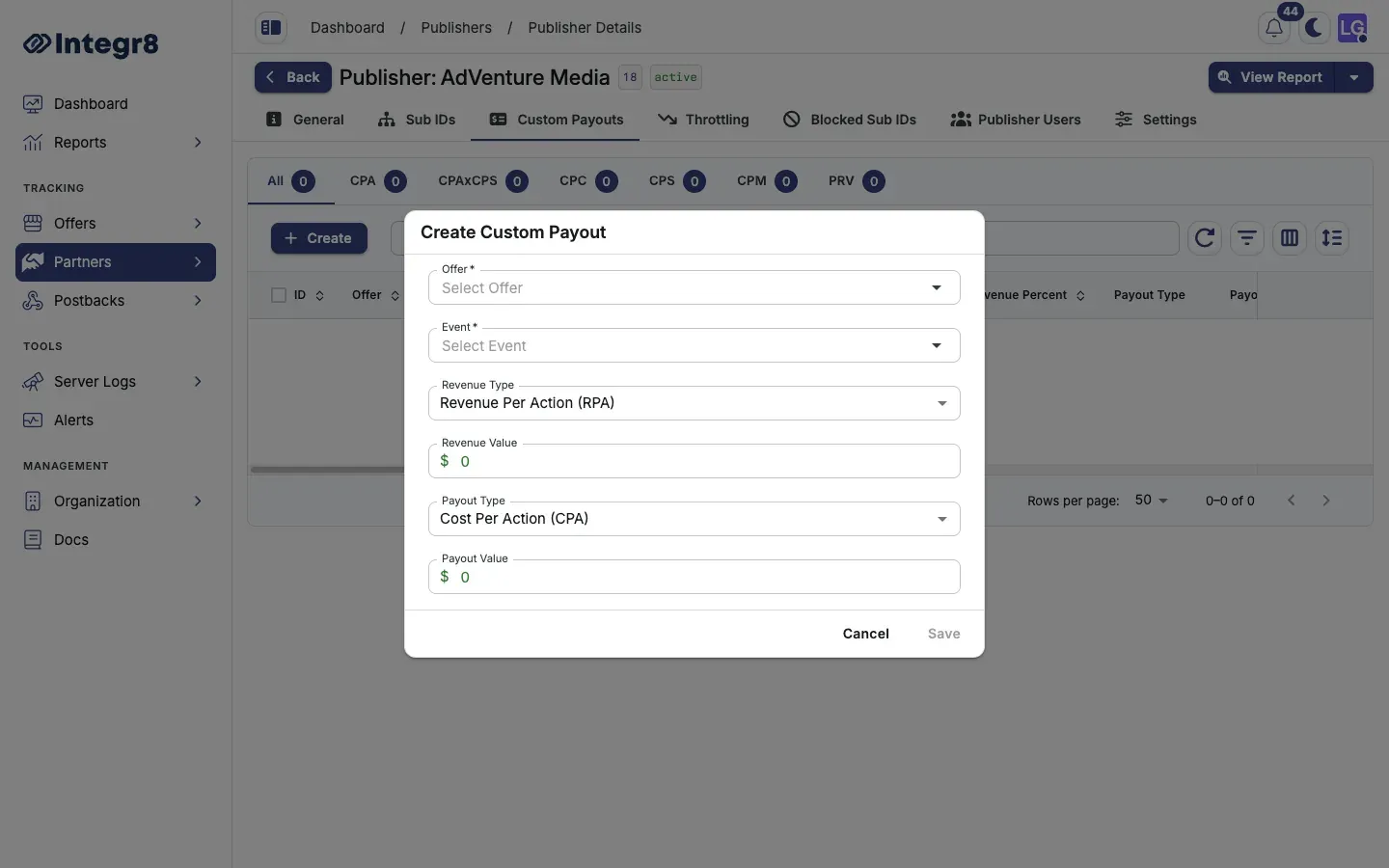
1. Go to **Partners > Publishers Management** and open the publisher.
2. Select the **Custom Payouts** tab.
3. Click **Create**.
4. Set:
* **Offer**: pick the offer this custom payout applies to.
* **Event**: pick the conversion or event that triggers the payout.
* **Revenue Type** and **Revenue Value** (or percent for RPS and RPAxRPS).
* **Payout Type** and **Payout Value** (or percent for CPS, PRV, and CPAxCPS).
5. Click **Save**.
The custom payout overrides the global payout for this publisher on the selected offer and event. Other publishers keep the global rate.
## How custom payouts interact with global payouts
[Section titled “How custom payouts interact with global payouts”](#how-custom-payouts-interact-with-global-payouts)
| Scenario | What the publisher gets paid |
| ------------------------------------------------------- | ------------------------------------------------ |
| No custom payout exists | The global offer payout |
| Custom payout exists for this offer + event | The custom value |
| Custom payout exists for this offer + a different event | The global payout for events without an override |
When set, custom revenue fields override the global offer revenue for that publisher and event.
## Payout and revenue types
[Section titled “Payout and revenue types”](#payout-and-revenue-types)
Same type system as [Revenue and payouts](/docs/offers/revenue-and-payouts/):
* **Revenue:** RPA, RPS, RPC, RPM, RPAxRPS
* **Payout:** CPA, CPS, CPC, CPM, CPAxCPS, PRV
## Field reference
[Section titled “Field reference”](#field-reference)
| Field | Required | Description |
| ---------------------- | -------- | --------------------------------------- |
| Offer | Yes | The offer this custom payout applies to |
| Event / Conversion | Yes | The trigger that pays out |
| Revenue Type | Yes | RPA, RPS, RPC, RPM, or RPAxRPS |
| Payout Type | Yes | CPA, CPS, CPC, CPM, CPAxCPS, or PRV |
| Revenue / Payout Value | Yes | Amount or percent based on type |
## Next steps
[Section titled “Next steps”](#next-steps)
* [Set offer caps](/docs/offers/offer-caps/) so a higher-payout publisher does not blow your margin.
* [Configure throttling](/docs/publishers/throttling/) to control click volume independently of payout.
# Publisher payments
> View, filter, edit, and export publisher payout reports in Integr8, with totals broken down by payment method, currency, and billing period.
The payments overview shows the total payout due to each publisher for a selected time period. Use it to review amounts before processing payments and to export data for your accounting system.
## Before you begin
[Section titled “Before you begin”](#before-you-begin)
* [Configure billing](/docs/publishers/billing/) for the publishers you want to pay. Publishers without billing data do not appear here.
## Open the payments overview
[Section titled “Open the payments overview”](#open-the-payments-overview)
1. Go to **Partners > Publisher Payments**.
2. Use the filter controls to narrow the view:
* **Payment method**: filter by Tipalti, PayPal, or Wire Transfer.
* **Time range**: pick the billing period.
* **Currency**: filter by USD, EUR, or other configured currencies.
* **Publisher**: filter to a specific publisher.
## Edit a payout
[Section titled “Edit a payout”](#edit-a-payout)
To manually adjust a payout amount:
1. Open the row action menu and click **Adjust Payout**.
2. Enter the corrected amount.
3. Click **Save**.
Manual payout edits are not logged automatically. Document your reason externally before making adjustments.
## Exclude a publisher from the export
[Section titled “Exclude a publisher from the export”](#exclude-a-publisher-from-the-export)
To remove a publisher from the current export without deleting the payout data:
1. Open the row action menu and click **Exclude from Report**.
The publisher’s data is still stored in Integr8 but will not appear in the CSV export for the current session.
## Export to CSV
[Section titled “Export to CSV”](#export-to-csv)
Click the **Export** icon in the top right of the table to download the current filtered view as a CSV file.
## Column reference
[Section titled “Column reference”](#column-reference)
Columns vary slightly by payment method filter.
| Column | Description |
| ------------------- | ------------------------------------- |
| Publisher | Publisher name |
| Tipalti ID | Shown when filtering by Tipalti |
| PayPal Email | Shown when filtering by PayPal |
| IBAN/Account Number | Shown when filtering by Wire Transfer |
| SWIFT/BIC-Code | Shown when filtering by Wire Transfer |
| Currency | Payout currency |
| Payout | Net payout amount |
| VAT % | Applicable tax rate |
| Payout (incl. Tax) | Total due including VAT |
## Next steps
[Section titled “Next steps”](#next-steps)
* [Configure or update publisher billing](/docs/publishers/billing/) if a publisher is missing from the report.
# Publisher setup
> Add a publisher to Integr8 manually as an admin or via the partner domain self-signup portal, then configure activation and visibility settings.
Publishers can be added to Integr8 in two ways: manually by an admin, or via self-signup through the white-label portal. Both methods create the same publisher account type. This guide walks through the manual flow and links to the self-signup path.
## Before you begin
[Section titled “Before you begin”](#before-you-begin)
* Have the publisher’s company name, email, and website ready.
* Decide whether the publisher should see their own fraud stats and manage their own postbacks.
## Create a publisher manually
[Section titled “Create a publisher manually”](#create-a-publisher-manually)
The create flow has three steps: **General**, **Settings**, and **Billing**.
### Step 1: General
[Section titled “Step 1: General”](#step-1-general)
1. Go to **Partners > Publishers Management** and click **Create**.
2. Fill in the publisher’s details:
* **Name**: the publisher’s company or brand name.
* **Company Name**: optional legal or display company name.
* **Company Email**: optional contact email.
* **Website**: the publisher’s main domain.
* **Account Manager**, **Description**, **Phone**, **Address**, **Country**, and promotional details as needed.
3. Click **Create Publisher**. 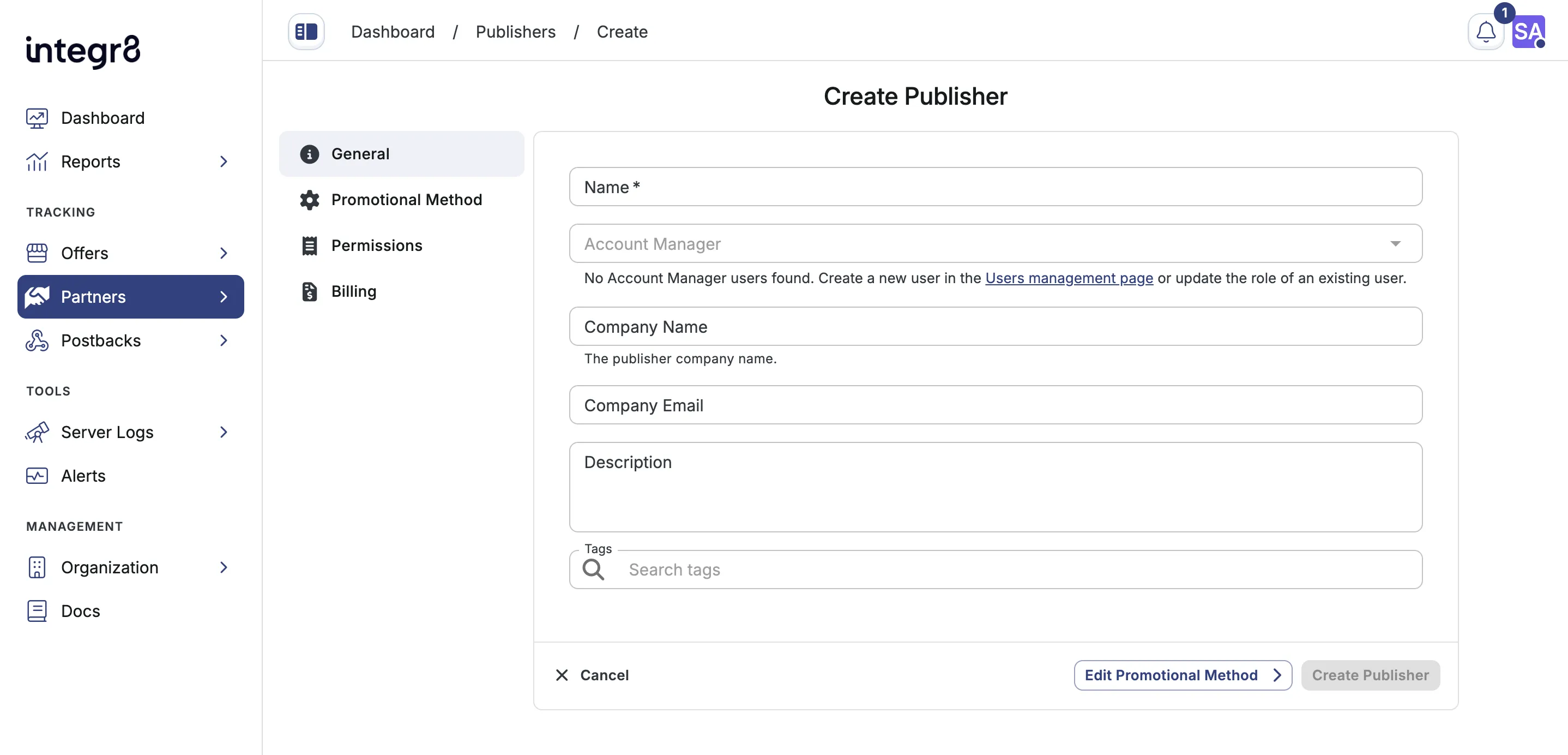
### Step 2: Settings
[Section titled “Step 2: Settings”](#step-2-settings)
Configure account settings:
#### Promotional Method Tab
[Section titled “Promotional Method Tab”](#promotional-method-tab)
* **Country** – Select the country where the publisher operates.
* **Promotional Methods** – Select all methods that apply to this publisher.
#### Permissions Tab
[Section titled “Permissions Tab”](#permissions-tab)
* **Tracking Domains Visibility**: limit which domains the publisher can see when generating tracking URLs.
* **Enable Fraud Visibility**: when on, fraud detection stats appear in the publisher’s own dashboard.
* **Enable Postback Management**: when on, the publisher can create and manage their own affiliate postbacks. This is enabled by default. Turn it off unless you trust the operator.
* **Tags**: optional labels for filtering and grouping publishers in reports. 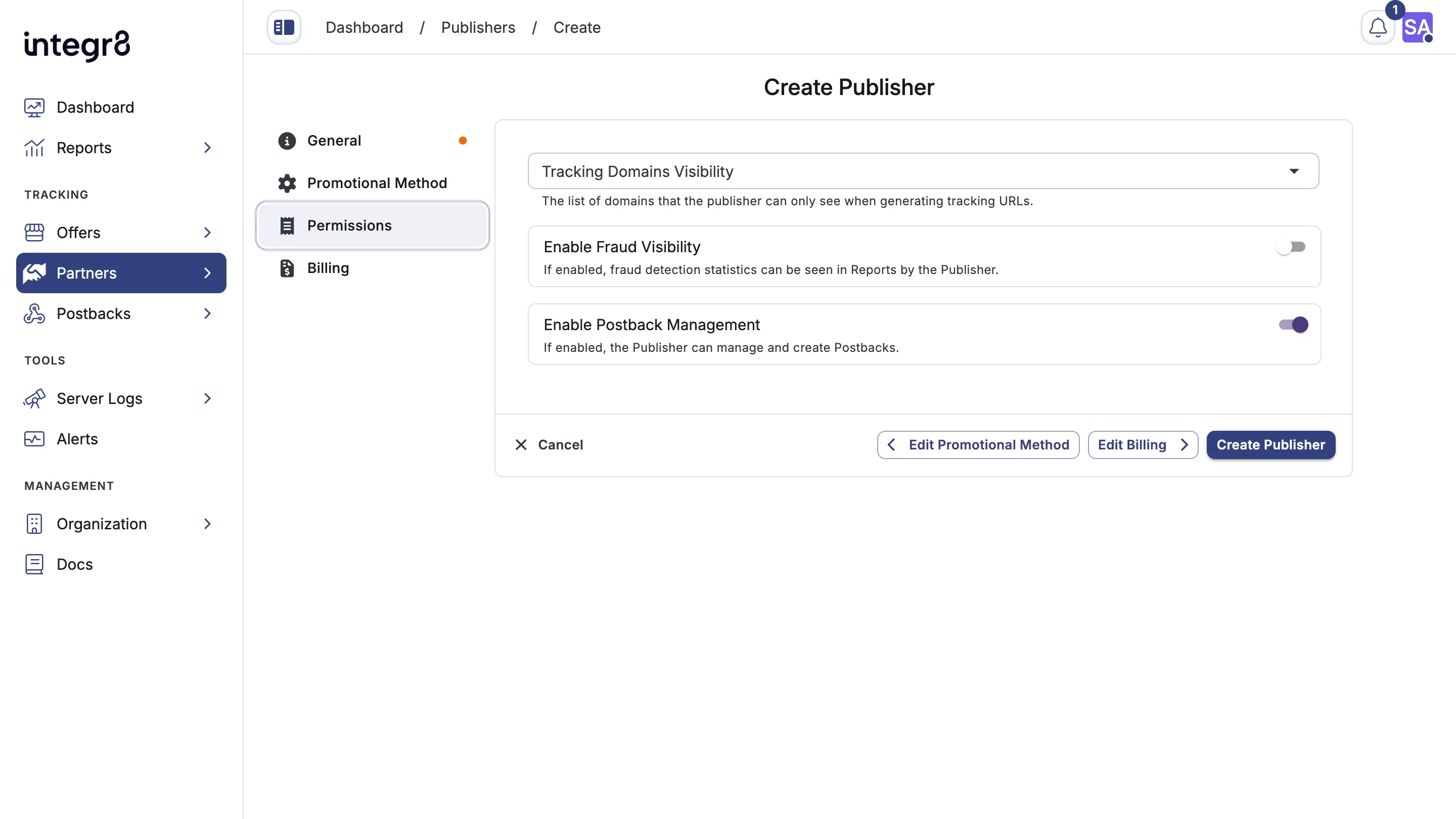
#### Danger zone Tab
[Section titled “Danger zone Tab”](#danger-zone-tab)
* **Publisher is Active** - Disabling this will block all traffic from this publisher without deleting the account.
### Step 3: Billing
[Section titled “Step 3: Billing”](#step-3-billing)
Set payment method and tax details now, or leave the defaults and [configure billing later](/docs/publishers/billing/). 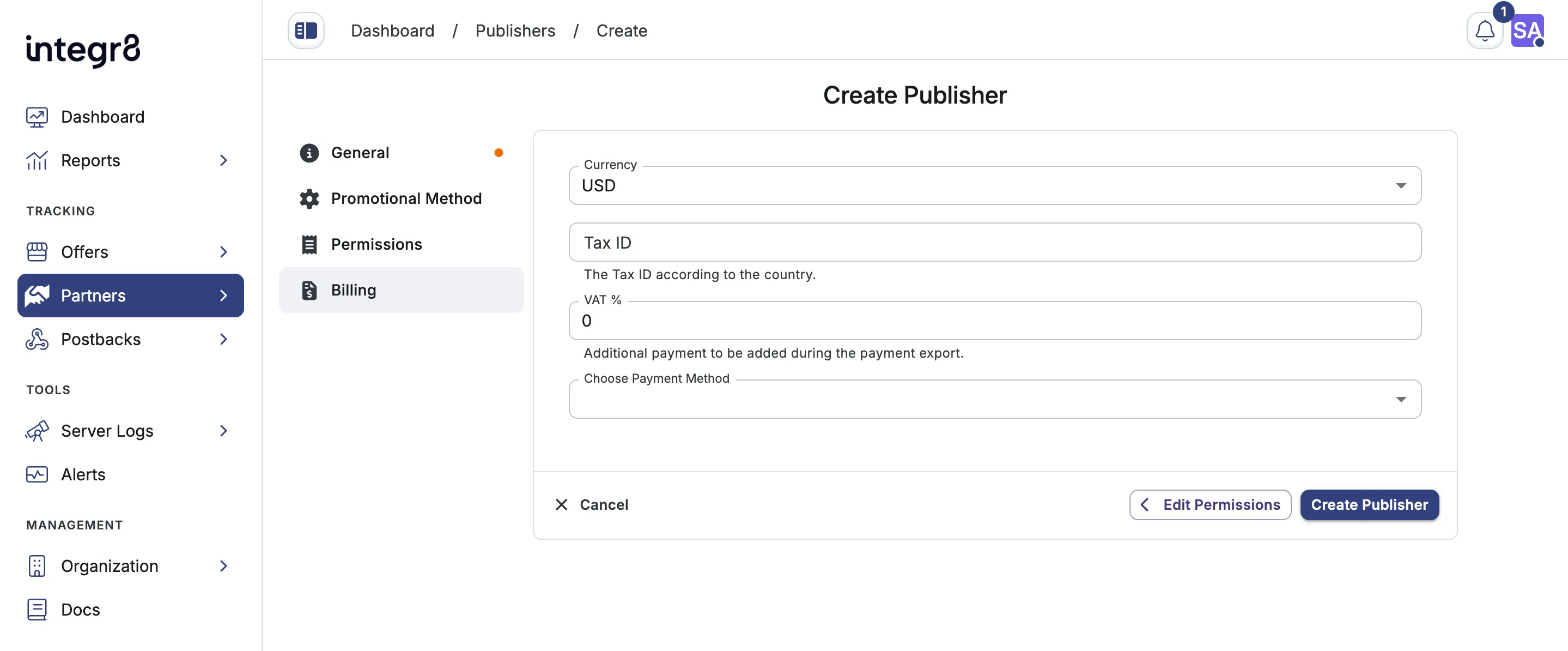 Click **Create Publisher** to Save.
## Publisher users
[Section titled “Publisher users”](#publisher-users)
A publisher account alone does not grant login access. To let someone use the white-label publisher dashboard, invite a **publisher user**.
### Invite a publisher user
[Section titled “Invite a publisher user”](#invite-a-publisher-user)
1. Open the publisher and go to the **Publisher Users** tab.
2. Click **Invite**.
3. Fill in **First name**, **Last name**, and **Email** (used to log in).
4. Click **Send Invite**. 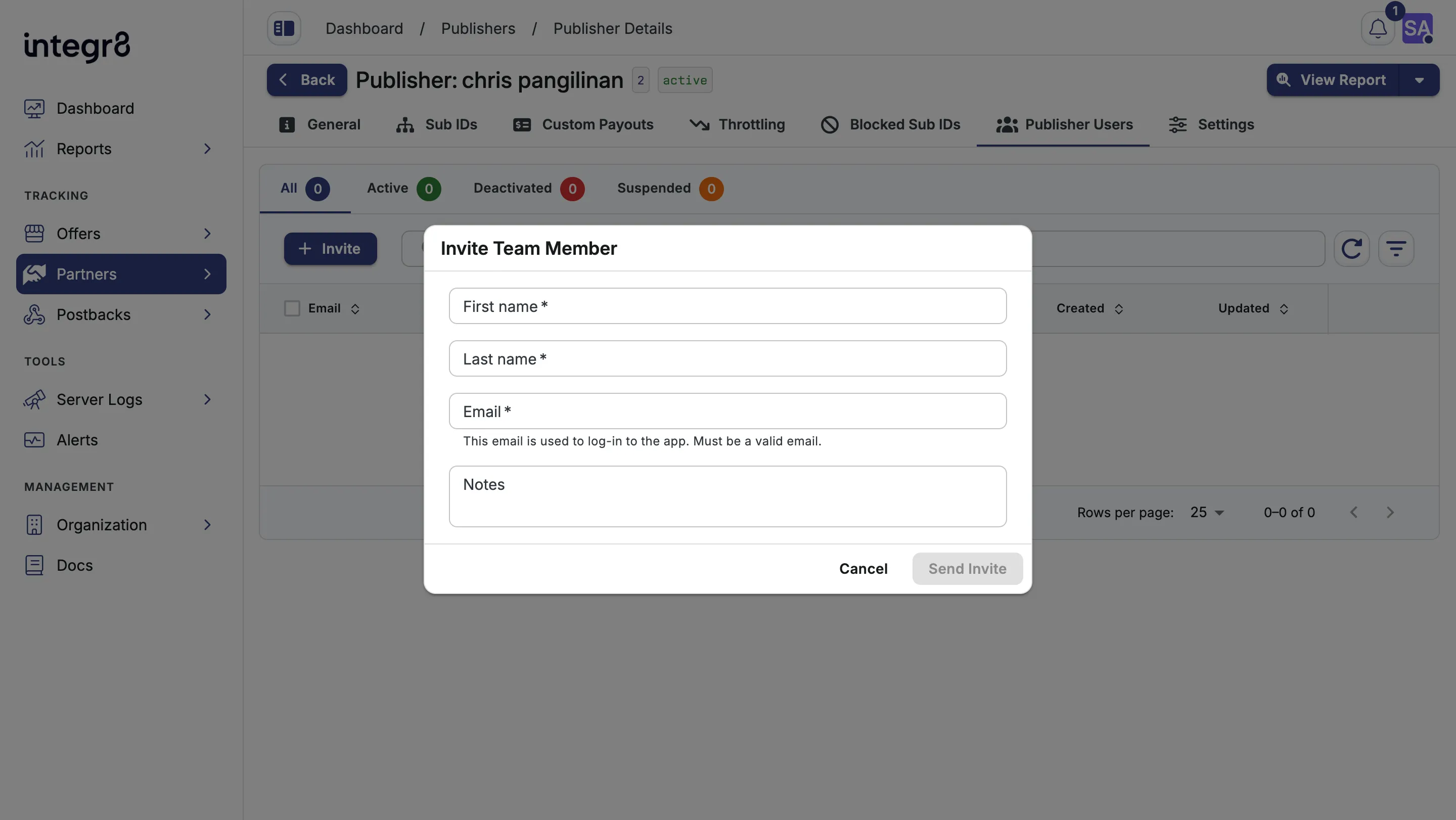 Integr8 sends a password setup email. After the user confirms, they can log in and view allowed offers and reports.
### Manage publisher users
[Section titled “Manage publisher users”](#manage-publisher-users)
From the **Publisher Users** tab you can:
* **Edit** a user to update name, notes, or status (Active, Deactivated, Suspended).
* **Change password** or **Reset password** from the row action menu.
* **Assume identity** to log in as an active publisher user for troubleshooting.
* **Delete** a user to revoke access on their next login.
Each publisher supports up to **100** publisher users. When the limit is reached, **Invite** is disabled.
Make sure [partner login / white-label dashboard](/docs/organization/white-label-dashboard/) is configured so invited users have a URL to sign in.
## Self-signup via the Partner login portal
[Section titled “Self-signup via the Partner login portal”](#self-signup-via-the-partner-login-portal)
Publishers can sign up themselves through your partner login URL. New accounts land in pending state until you approve them. To enable self-signup, configure the partner login first. See [partner login setup](/docs/organization/white-label-dashboard/). 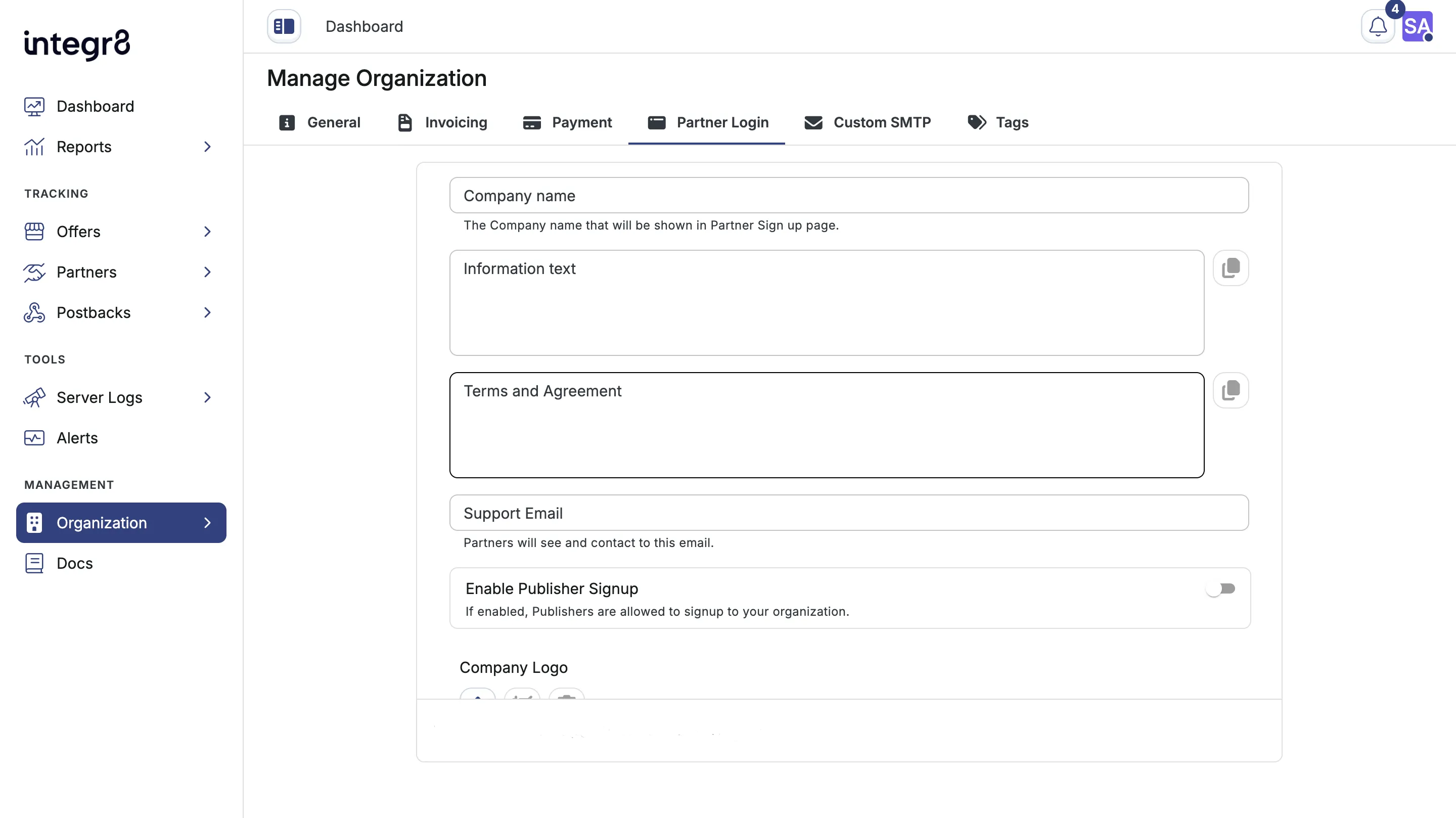 Approved pending signups appear under the **Pending Signup** tab on the Publishers Management page. After approval, invite publisher users so they can log in.
## Field reference
[Section titled “Field reference”](#field-reference)
### Publisher account
[Section titled “Publisher account”](#publisher-account)
| Field | Required | Description |
| -------------------------- | -------- | ------------------------------------------------------------------------------- |
| Name | Yes | Internal label for the publisher |
| Company Email | No | Contact email for the publisher |
| Website | No | Publisher’s main domain |
| Activated | Yes | Toggles whether traffic is accepted |
| Enable Fraud Visibility | No | Show fraud stats in the publisher’s dashboard |
| Enable Postback Management | No | Allow the publisher to create their own postbacks. Enabled by default on create |
| Tags | No | Labels for filtering and grouping |
### Publisher user
[Section titled “Publisher user”](#publisher-user)
| Field | Required | Description |
| ---------- | -------- | ------------------------------------ |
| First name | Yes | User’s first name |
| Last name | Yes | User’s last name |
| Email | Yes | Login email. Set at invite time |
| Notes | No | Internal notes when editing the user |
| Status | Yes | Active, Deactivated, or Suspended |
## Next steps
[Section titled “Next steps”](#next-steps)
* [Configure billing](/docs/publishers/billing/) so the publisher can be paid.
* [Set custom payouts per offer](/docs/publishers/custom-payouts/) for top performers.
* [Configure throttling](/docs/publishers/throttling/) to control conversion volume per offer.
* [Block sub IDs](/docs/publishers/blocked-sub-ids/) from publishers that send mixed-quality traffic.
# Sub IDs
> Create and manage sub IDs for a publisher to track individual placements, campaigns, or traffic channels without creating separate publisher accounts.
Sub IDs let you split a publisher’s traffic into named segments - email, social, a specific placement, a media buy - without creating a separate publisher account for each one. Every click and conversion is recorded with the sub ID that was used, so you can analyze, cap, or block each source independently.
## Before you begin
[Section titled “Before you begin”](#before-you-begin)
* [Add the publisher](/docs/publishers/publisher-setup/) you want to manage sub IDs for.
* Know the identifier you want to use. Sub ID values appear in tracking links and reports, so choose something short and meaningful (e.g. `ig-reel-may`, `email-q2`).
## Create a sub ID
[Section titled “Create a sub ID”](#create-a-sub-id)
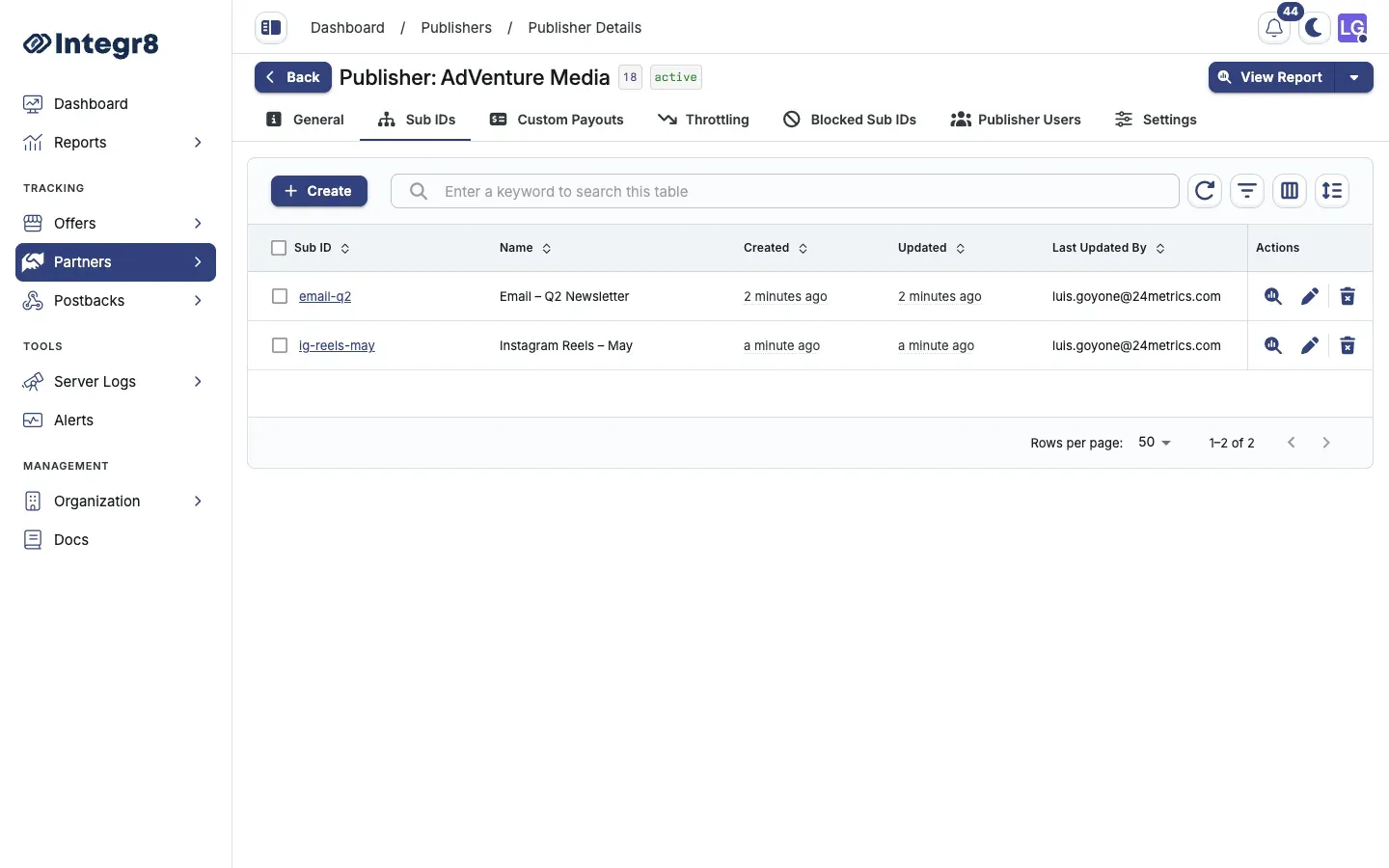
1. Go to **Partners > Publishers Management** and open the publisher.
2. Select the **Sub IDs** tab.
3. Click **Create**.
4. Fill in the sub ID details (see [Field reference](#field-reference) below).
5. Click **Save**.
The sub ID is available immediately in tracking links, reports, and filter dropdowns across the platform.
## Edit a sub ID
[Section titled “Edit a sub ID”](#edit-a-sub-id)
Click the edit icon on any row, update the fields, and click **Save**. The Sub ID identifier itself can be changed, but note that any tracking links already using the old value will no longer match.
## Delete a sub ID
[Section titled “Delete a sub ID”](#delete-a-sub-id)
Click the delete icon on a row and confirm. To remove several at once, check the rows you want and use the bulk delete action from the toolbar.
Historical data for deleted sub IDs is preserved in reports. Deleting a sub ID only prevents new traffic from using that identifier going forward.
## Search and filter
[Section titled “Search and filter”](#search-and-filter)
Use the search bar to find a sub ID by its identifier. For multi-field lookups, open the filter panel to filter by Sub ID and Name at the same time.
## View reports for a sub ID
[Section titled “View reports for a sub ID”](#view-reports-for-a-sub-id)
Click the **View Report** icon on a row to open the reports page pre-filtered for that sub ID. This scopes clicks, conversions, and fraud metrics to that source only.
## Field reference
[Section titled “Field reference”](#field-reference)
| Field | Required | Description |
| ------------- | -------- | ------------------------------------------------------------------------------------------------------------------------------------------------ |
| Sub ID | Yes | The identifier appended to tracking links and stored with every event. Max 50 characters. Letters, numbers, hyphens, underscores, and dots only. |
| Name | Yes | Human-readable label shown in the management table. Not used in tracking. |
| Description | No | Internal notes about what this sub ID represents. Shown as a tooltip in the table. |
| External Link | No | URL to an external reference such as a campaign brief or landing page. Shown alongside the description tooltip. |
## Next steps
[Section titled “Next steps”](#next-steps)
* [Block a sub ID](/docs/publishers/blocked-sub-ids/) on a specific offer if it starts sending low-quality traffic.
* [Configure fraud detection](/docs/offers/fraud-detection/) to automate blocking based on fraud signals.
# Throttling
> Limit conversion volume from a publisher on specific offers using publisher-level or sub ID-level throttle rates in Integr8.
Throttling lets you cap how many conversions from a publisher are accepted on an offer. Use it to control volume, test traffic gradually, or contain sources that convert too aggressively. Rules can apply to all offers by default, to a single offer, or to individual sub IDs.
## Before you begin
[Section titled “Before you begin”](#before-you-begin)
* [Add the publisher](/docs/publishers/publisher-setup/) you want to throttle.
* Know which offer and, if needed, which [sub IDs](/docs/publishers/sub-ids/) the rule should target.
## Open throttling
[Section titled “Open throttling”](#open-throttling)
1. Go to **Partners > Publishers Management** and open the publisher.
2. Select the **Throttling** tab.
The table includes an **All Offers** row at the top. This is the publisher-wide default. It applies unless a more specific rule exists for an offer.
## Configure default throttling (All Offers)
[Section titled “Configure default throttling (All Offers)”](#configure-default-throttling-all-offers)
1. On the **All Offers** row, open the row action menu and click **Edit**. 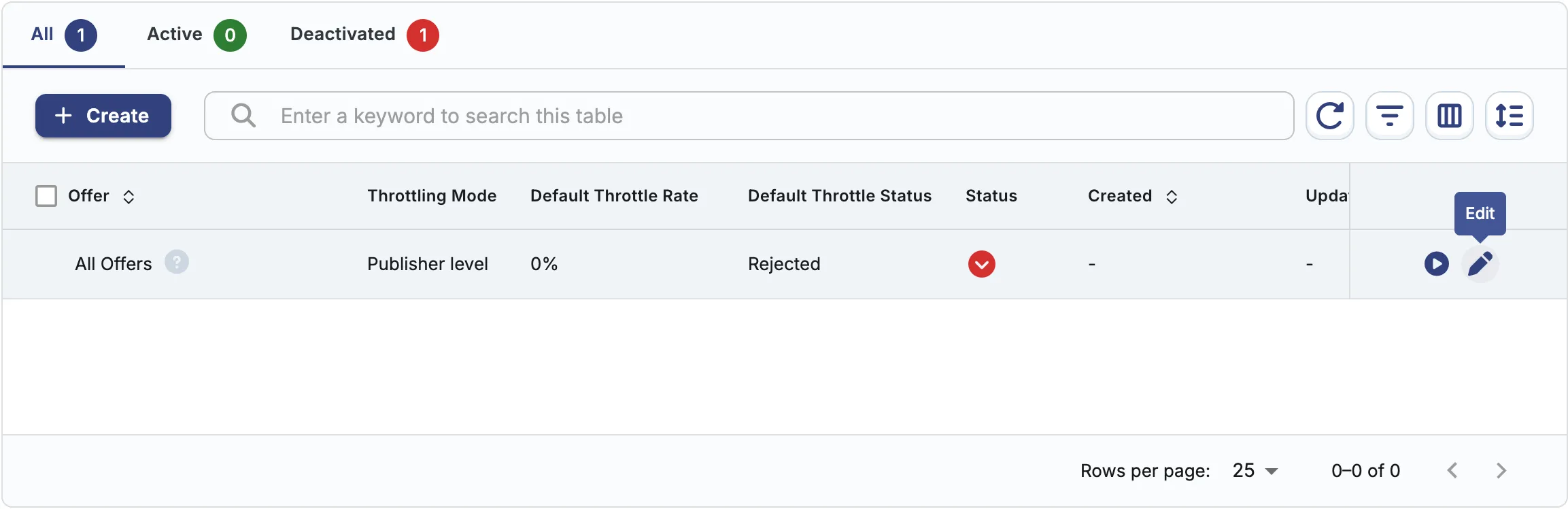
2. Set **Throttle Level**:
* **Publisher**: one throttle rate for the publisher on this scope.
* **Hourly Throttling**: optionally vary the rate by hour of day.
* **Additional Filters**: optionally narrow the traffic by `sub_id_2` through `sub_id_6`.
* **Sub ID**: throttle each sub ID independently. 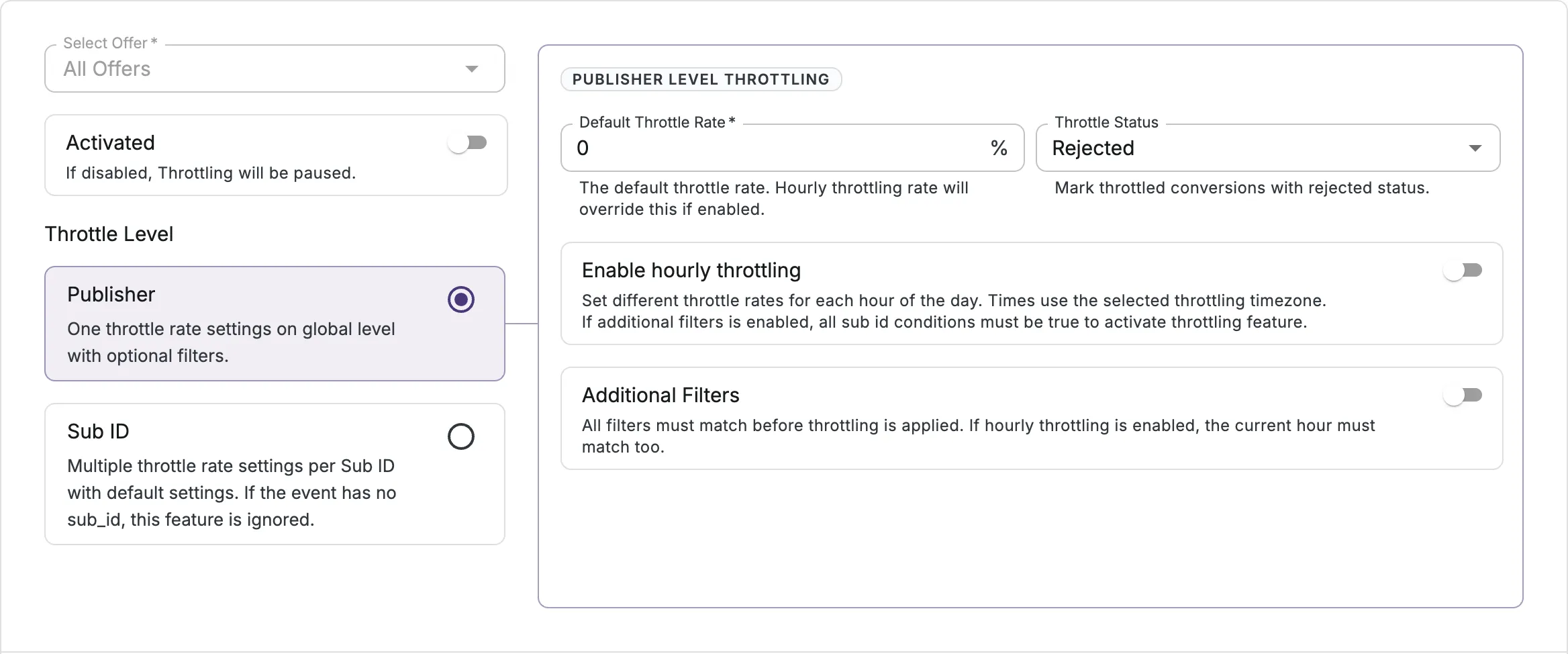
3. Set **Throttle Rate** (0-100%). This is the percentage of conversions that pass through. The rest are throttled.
4. Set **Throttle Status**:
* **Rejected**: throttled conversions are marked rejected.
* **Pending**: throttled conversions are held as pending and excluded from report stats until approved.
5. Click **Save**.
## Create an offer-specific throttle rule
[Section titled “Create an offer-specific throttle rule”](#create-an-offer-specific-throttle-rule)
1. On the **Throttling** tab, click **Create**.
2. Select the **Offer**.
3. Choose **Throttle Level**, **Throttle Rate**, and **Throttle Status** as above.
4. Turn **Activated** on and click **Save**.
Each offer can have only one custom throttle rule. Offers that already have a rule are marked in the offer dropdown.
## Sub ID custom throttling
[Section titled “Sub ID custom throttling”](#sub-id-custom-throttling)
When you set **Throttle Level** to **Sub ID**, you can throttle each sub ID independently instead of applying one rate across the publisher. If an event has no sub\_id, this throttle is ignored.
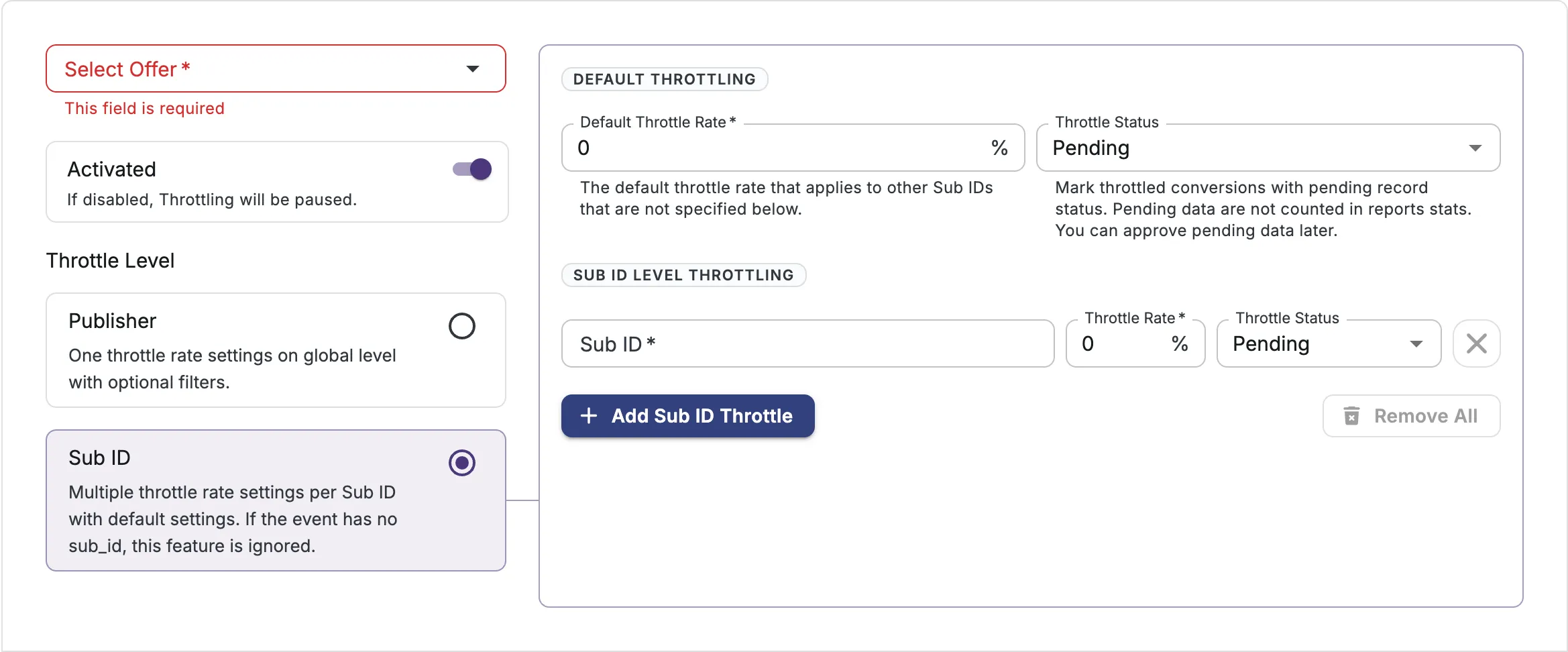
Two sets of settings appear:
**Default Throttling** — the fallback that applies to any sub ID not listed below.
* **Default Throttle Rate** (0-100%): the percentage of conversions accepted for unlisted sub IDs.
* **Throttle Status**: **Pending** or **Rejected** for those throttled conversions.
**Sub ID Level Throttling** — per-sub-ID overrides. For each entry, set:
* **Sub ID** (required): the sub ID to throttle.
* **Throttle Rate** (0-100%): the percentage of conversions accepted for this sub ID.
* **Throttle Status**: **Pending** or **Rejected**.
Click **Add Sub ID Throttle** to add another sub ID, or **Remove All** to clear the list.
## Manage existing rules
[Section titled “Manage existing rules”](#manage-existing-rules)
From the row action menu on any rule:
* **Activate** / **Deactivate**: pause or resume the rule without deleting it.
* **Edit**: change throttle settings.
* **Clone**: copy settings into a new rule for a different offer.
* **Delete**: remove the offer-specific rule. Traffic falls back to the **All Offers** default.
Use the **All**, **Active**, and **Deactivated** tabs to filter the list. Bulk activate, deactivate, and delete are available from the toolbar when multiple rows are selected.
## Field reference
[Section titled “Field reference”](#field-reference)
| Field | Required | Description |
| ------------------ | -------- | ----------------------------------------------------------------------------- |
| Offer | Yes | The offer this rule applies to. Use **All Offers** for the publisher default. |
| Activated | Yes | Pauses throttling when off |
| Throttle Level | Yes | **Publisher** or **Sub ID** |
| Throttle Rate | Yes | Percentage of conversions to accept (0-100) |
| Throttle Status | Yes | **Rejected** or **Pending** |
| Hourly Throttling | No | Different rates by hour of day |
| Additional Filters | No | Filter by `sub_id_2` through `sub_id_6` |
## Next steps
[Section titled “Next steps”](#next-steps)
* [Block a sub ID](/docs/publishers/blocked-sub-ids/) if a source should be stopped entirely on an offer.
* [Set offer caps](/docs/offers/offer-caps/) for volume limits at the offer level.
# Click Reports
> View detailed click-level data with filtering by publisher, offer, sub ID, IP, device, status, and fraud rejection reason.
## What this report shows
[Section titled “What this report shows”](#what-this-report-shows)
Click Reports provide row-level detail for every click recorded in your campaigns. Use this report to investigate specific traffic sources, audit fraud rejections, trace individual click IDs, or diagnose attribution problems.
## How to access it
[Section titled “How to access it”](#how-to-access-it)
Navigate to **Reports** > **Click Report**.
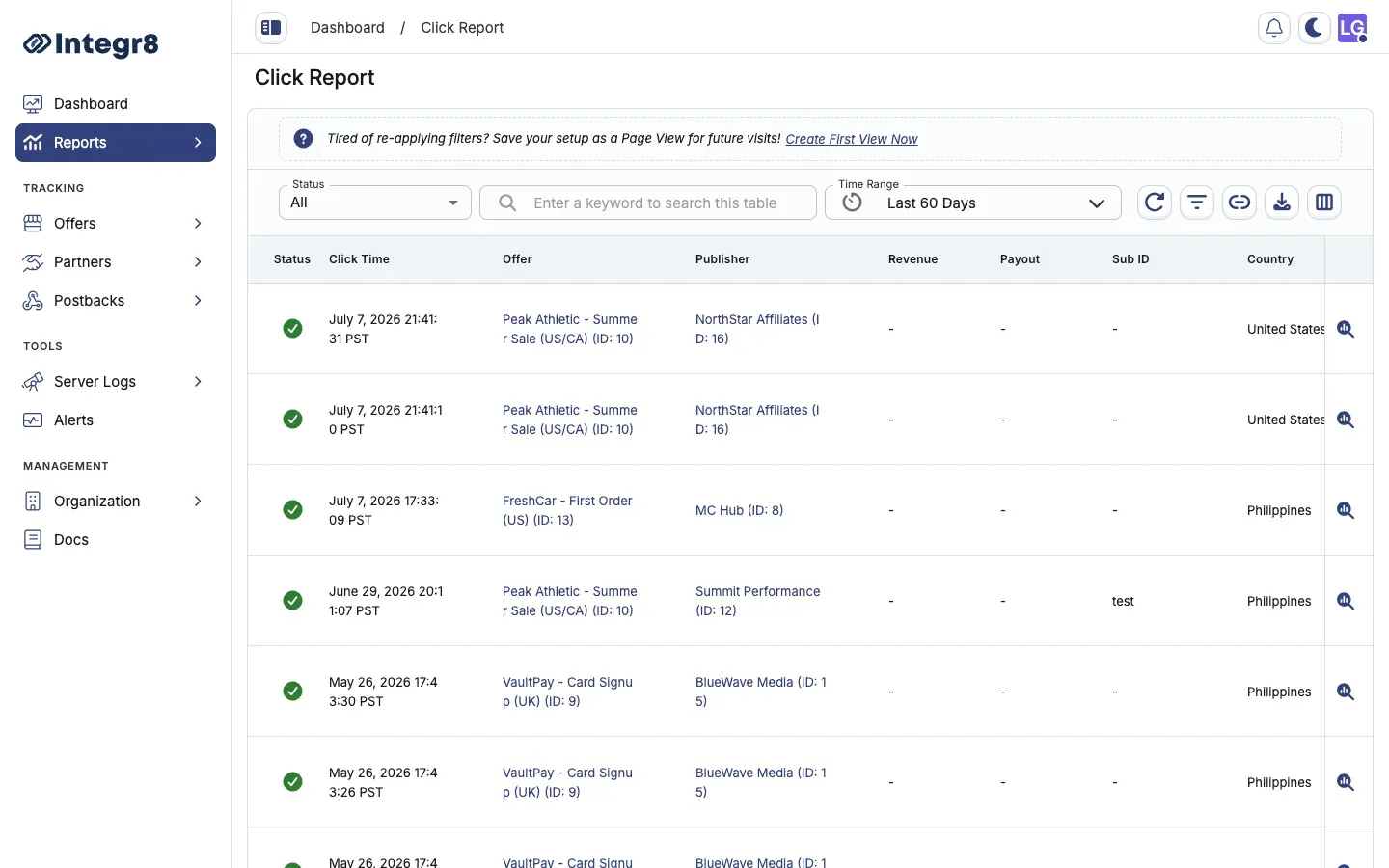
## Available columns
[Section titled “Available columns”](#available-columns)
| Column | Type | Description |
| ------------ | -------- | -------------------------------------- |
| Click ID | String | Unique identifier for this click event |
| Timestamp | DateTime | Date and time the click was recorded |
| IP Address | String | Originating IP address (IPv4 or IPv6) |
| Country | String | Geo-resolved country code |
| Publisher | String | Publisher ID and name |
| Offer | String | Offer ID and name |
| Sub ID | String | Publisher sub source identifier |
| Device | String | Device type (Mobile, Desktop, Tablet) |
| OS | String | Operating system and version |
| Browser | String | Browser name and version |
| User Agent | String | Raw user agent string |
| Status | Enum | Approved, Rejected |
| Fraud Reason | String | Rejection reason if status is Rejected |
Use **Edit Columns** to show or hide individual columns. Save your configuration as a **Custom View** for reuse.
## Filters
[Section titled “Filters”](#filters)
Filter click data by any available column. Commonly used filters:
* **Date range** — narrow to a specific period
* **Advertiser / Publisher** — investigate a specific traffic source
* **Offer** — narrow results to a specific offer
* **Sub ID** — drill into a specific publisher sub source (Sub ID 1–6 supported)
* **Rejection Type** — filter to `Invalid` or `Fraud` rejection categories only
* **Rejected Simple / Advanced Reason** — filter by specific rejection cause (e.g. `click_flooding`, `vpn_proxy`)
* **Click IP** — trace clicks from a specific IP address
* **Country** — narrow to a specific geographic region
* **Device Type** — isolate traffic from Mobile, Desktop, or Tablet
* **Risk** — filter by fraud risk level
## Data limits
[Section titled “Data limits”](#data-limits)
* **UI display**: Up to 2,000 rows shown at a time in the interface
* **Export**: Up to 5,000,000 rows per CSV export
When filtering by IP address or other high-cardinality fields on large date ranges, reduce the time window to avoid timeouts. Use **Export** for large dataset analysis.
## Export options
[Section titled “Export options”](#export-options)
Click **Export** to queue a CSV export of the filtered view. Download from **Reports** > [Download Center](/docs/reports/download-center/).
## Related reports
[Section titled “Related reports”](#related-reports)
* [Event Report](/docs/reports/event-report/) — view event outcomes for clicks that resulted in conversions
* [Server Logs](/docs/server-logs/) — raw request logs for debugging specific click errors
# Download Center
> Access and manage all queued and completed CSV export files generated from Integr8 reports.
## What this report shows
[Section titled “What this report shows”](#what-this-report-shows)
The Download Center is the central location for all CSV export files generated from Integr8 reports. After you initiate an export from any report, the file is processed and delivered here when ready.
## How to access it
[Section titled “How to access it”](#how-to-access-it)
Navigate to **Reports** > **Download Center**.
The Download Center lists all your export requests with status, file name, and creation date.
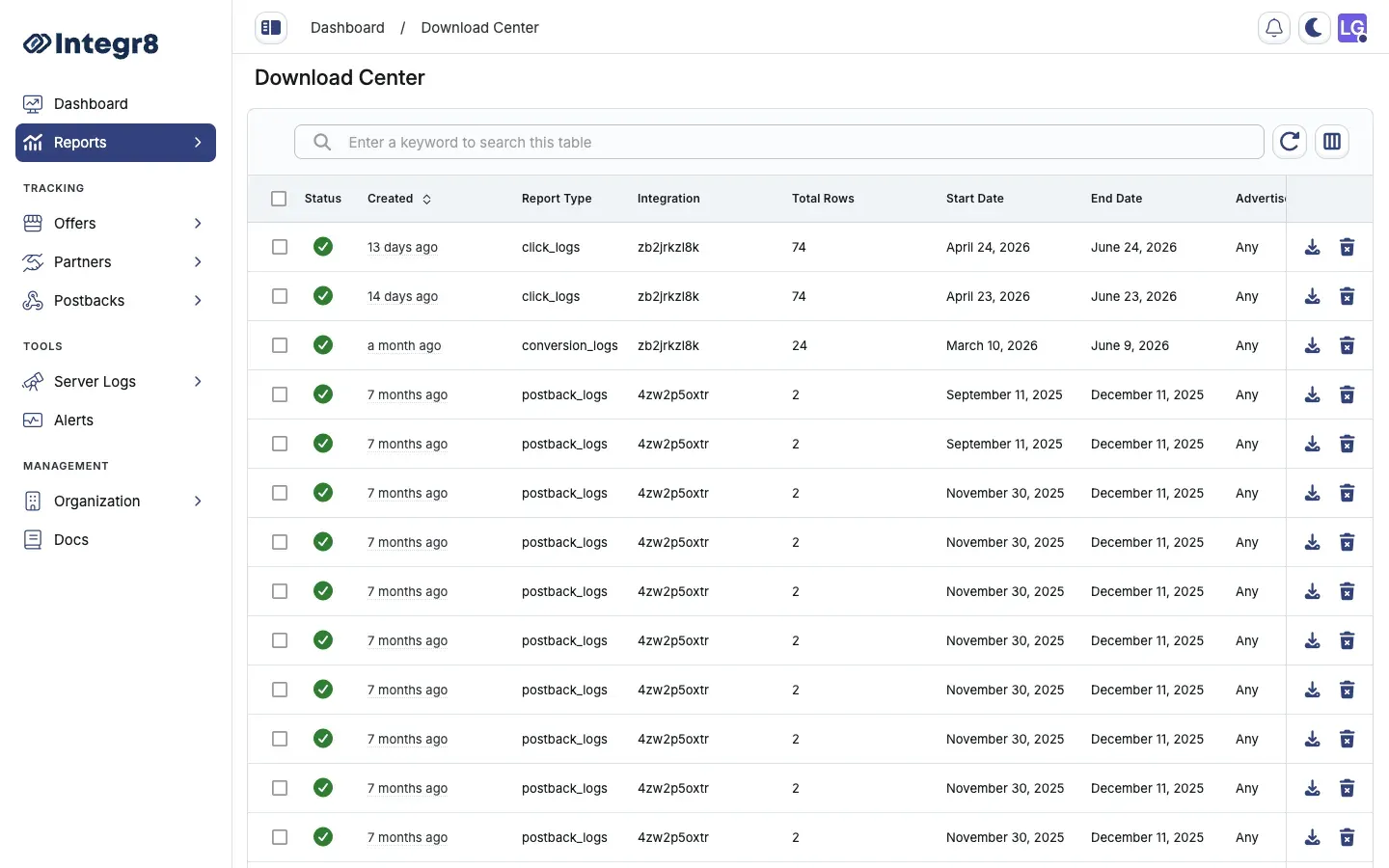
## Download a file
[Section titled “Download a file”](#download-a-file)
1. Navigate to **Reports** > **Download Center**.
2. Locate your export in the list. The **Status** column shows the current state.
3. When the status is **Completed**, click the download link to save the CSV file.
## Export statuses
[Section titled “Export statuses”](#export-statuses)
| Status | Description |
| ---------- | ------------------------------------------------------------------------ |
| Queued | Export request received, waiting to be processed |
| Processing | Export is being generated |
| Completed | File is ready for download |
| Failed | Export failed — retry by re-generating the export from the source report |
| Canceled | Export was canceled before completion |
## Limits and retention
[Section titled “Limits and retention”](#limits-and-retention)
| Limit | Value |
| ------------------------------- | --------- |
| Maximum rows per export | 5,000,000 |
| Maximum export requests per day | 10 |
| File retention period | 90 days |
Files are automatically deleted after 90 days. Download and save any exports you need to retain beyond this window.
If an export shows **Failed**, return to the source report, adjust your filters or date range to reduce the result set, and re-export. Very large date ranges with high-cardinality filters are the most common cause of export failures.
## Related reports
[Section titled “Related reports”](#related-reports)
* [Export Reports](/docs/reports/export-reports/) — how to generate an export from any report type
* [Overview Reports](/docs/reports/overview-reports/) — most common source for bulk exports
# Event Report
> Access raw event data in Integr8 with status tracking, revenue and payout columns, rejection reasons, and CSV export.
## What this report shows
[Section titled “What this report shows”](#what-this-report-shows)
The Event Report provides row-level data for every post-conversion event recorded in your campaigns. Use it to track event funnels, audit payout accuracy, investigate rejected events, and export data for reconciliation with advertiser systems.
## How to access it
[Section titled “How to access it”](#how-to-access-it)
Navigate to **Reports** > **Events**.
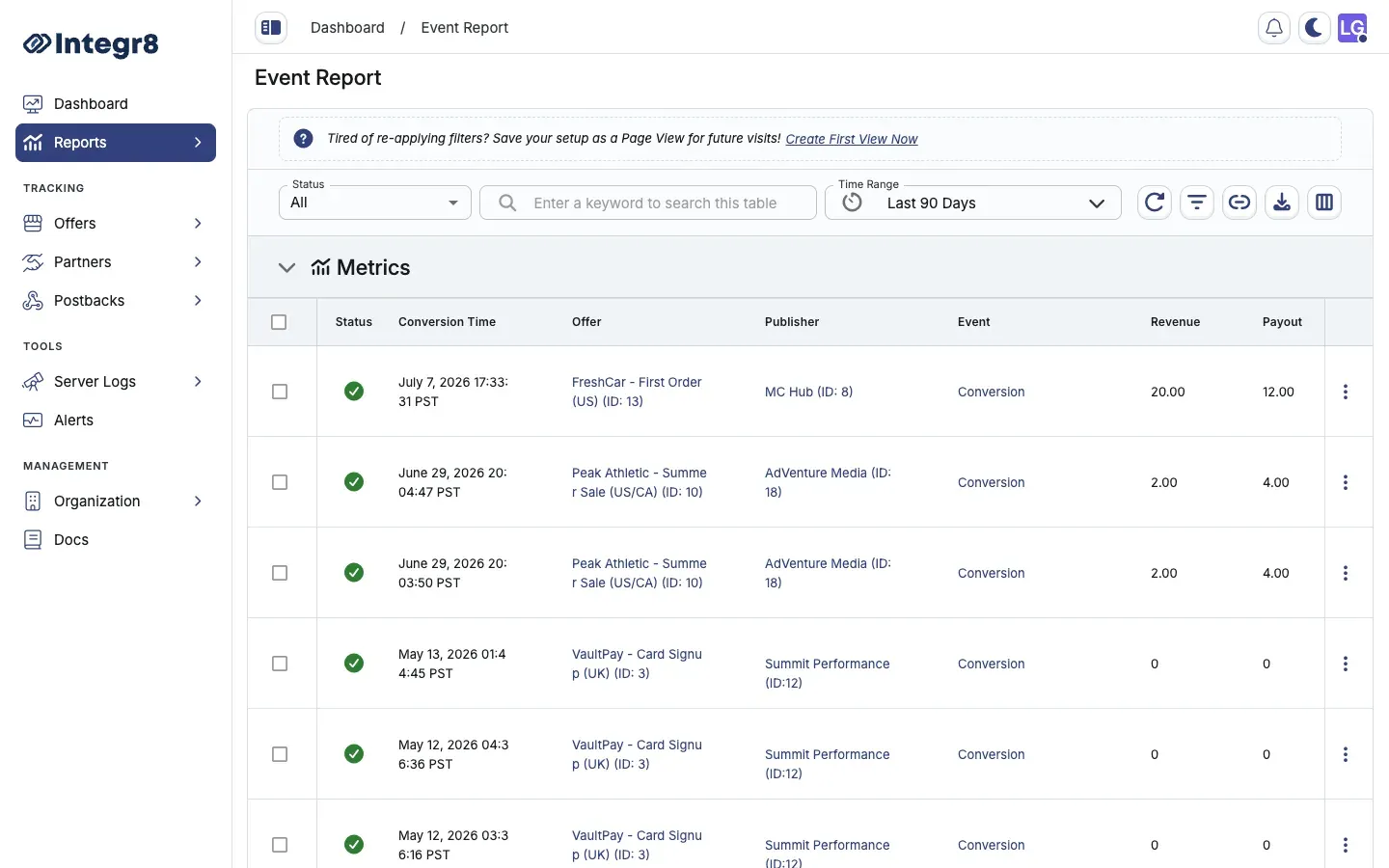
## Available columns
[Section titled “Available columns”](#available-columns)
| Column | Type | Description |
| ---------------- | -------- | ----------------------------------------------------------------- |
| Event ID | String | Unique identifier for this event |
| Click ID | String | ID of the originating click |
| Timestamp | DateTime | Date and time the event was recorded |
| Publisher | String | Publisher ID and name |
| Offer | String | Offer ID and name |
| Sub ID | String | Publisher sub source identifier |
| Event Name | String | Install, Purchase, Lead, or custom event name |
| Status | Enum | Approved, Rejected |
| Rejection Reason | String | Fraud reason or advertiser rejection reason if status is Rejected |
| Revenue | Decimal | Advertiser revenue for this event |
| Payout | Decimal | Publisher commission for this event |
| IP Address | String | IP address associated with the event |
| Country | String | Geo-resolved country code |
| Device | String | Device type at time of the event |
Use **Edit Columns** to customize visible columns. Save as a **Custom View** for future reuse.
## Filters
[Section titled “Filters”](#filters)
Filter event data by any available column. Commonly used filters:
* **Date range** — set the time window for event timestamps
* **Advertiser / Publisher** — investigate a specific traffic source
* **Offer** — narrow to a specific offer
* **Sub ID** — drill into a specific publisher sub source (Sub ID 1–6 supported)
* **Event** — filter by event name
* **Record Status** — filter events by `Recorded` or `Pending` state
* **Rejection Type** — filter to `Invalid` or `Fraud` rejection categories only
* **Rejected Simple / Advanced Reason** — isolate specific fraud rejection types
* **Click IP** — trace events from a specific IP address
* **Country** — narrow to a specific geographic region
## Export options
[Section titled “Export options”](#export-options)
Click **Export** to queue a CSV export of the current filtered view. The file is available in **Reports** > [Download Center](/docs/reports/download-center/) once processing completes.
You can also generate a public share link using the **Share Report** button to give partners read-only access without requiring a login. See [Shared Reports](/docs/reports/shared-reports/) for details.
## Related reports
[Section titled “Related reports”](#related-reports)
* [Click Reports](/docs/reports/click-reports/) — trace the originating click for any event
* [Revenue and payouts](/docs/offers/revenue-and-payouts/) — configure the post-conversion events this report tracks
* [Traffic Insights](/docs/reports/traffic-insights/) — fraud and quality signals for the publisher generating an event
# Export Reports
> Download report data as CSV files for offline analysis, reconciliation, or sharing with team members.
## What this report shows
[Section titled “What this report shows”](#what-this-report-shows)
Export Reports lets you download filtered campaign data as a CSV file for offline analysis. Use it to share data with team members, reconcile conversion records with advertiser systems, or run custom analysis outside of Integr8.
## How to access it
[Section titled “How to access it”](#how-to-access-it)
CSV export is available from any report in the Reports section. Navigate to the report you want to export, apply your filters, then click **Export**.
## Available export types
[Section titled “Available export types”](#available-export-types)
| Report | Export includes |
| ---------------------- | ----------------------------------------------------- |
| Overview Report | Aggregated performance by selected grouping dimension |
| Click Report | Row-level click data with all visible columns |
| Conversions and Events | Row-level conversion and event data |
| Postback Logs | Raw postback request records |
| Daily Reports | Day-by-day performance summary |
| Impressions Reports | Impression data by date and publisher |
| SmartLink Reports | SmartLink click and conversion data |
## How to export
[Section titled “How to export”](#how-to-export)
1. Navigate to the report you want to export.
2. Set the **date range** and apply any **filters** to narrow the data.
3. Deactivate columns you do not need using **Edit Columns** — smaller exports process faster.
4. Click the **Export** icon (the download icon in the report toolbar).
5. The export is queued. Go to **Reports** > [Download Center](/docs/reports/download-center/) to download the file when the status shows **Completed**.

Large exports are processed asynchronously and are not immediately available. Processing time depends on the data volume. Files are available in Download Center for 90 days after generation.
## Export limits
[Section titled “Export limits”](#export-limits)
* Maximum rows per export: **5,000,000**
* Maximum export requests per day: **10**
* File format: **CSV**
## Related reports
[Section titled “Related reports”](#related-reports)
* [Download Center](/docs/reports/download-center/) — where exported files are available for download
* [Shared Reports](/docs/reports/shared-reports/) — share a filtered report view via a public link without downloading
# Overview Reports
> View high-level campaign performance data grouped by advertiser, publisher, offer, or sub ID with fraud profile summaries.
## What this report shows
[Section titled “What this report shows”](#what-this-report-shows)
Overview Reports provide a summary-level view of campaign performance. Use them to monitor click volumes, conversion counts, and rejection rates across all your campaigns in one place. Two report types are available:
* **Overview Report** (Global): Aggregates click, impression, and conversion data across all advertisers, publishers, offers, and sub IDs.
* **Events Overview Report**: Summarizes the total number of events recorded for a specific offer within a selected time frame.
## How to access it
[Section titled “How to access it”](#how-to-access-it)
Navigate to **Reports** > **Overview** for the global view, or **Reports** > **Events Overview** for the events-only view.
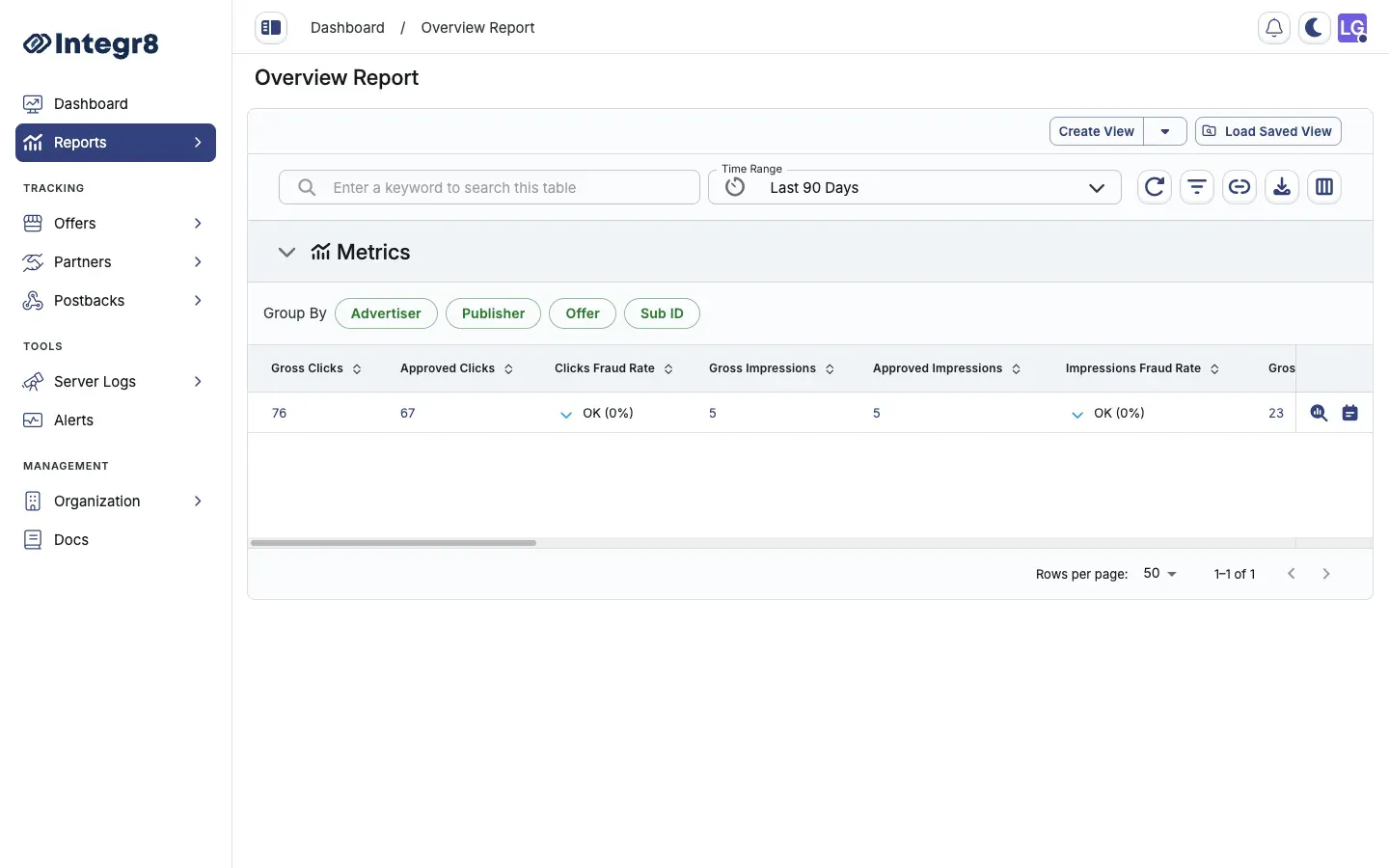
## Group and read the data
[Section titled “Group and read the data”](#group-and-read-the-data)
Use the **Group By** buttons above the table to aggregate rows by **Advertiser**, **Publisher**, **Offer**, or **Sub ID**.
Most metrics are reported as **Gross** (all traffic), **Approved** (passed fraud checks), and a **Fraud Rate** (percentage rejected):
| Column | Description |
| ---------------------------- | -------------------------------------- |
| Gross / Approved Clicks | Total and approved click counts |
| Clicks Fraud Rate | Percentage of clicks rejected |
| Gross / Approved Impressions | Total and approved impression counts |
| Impressions Fraud Rate | Percentage of impressions rejected |
| Gross / Approved Conversions | Total and approved conversion counts |
| Conversions Fraud Rate | Percentage of conversions rejected |
| CR | Conversion rate (conversions ÷ clicks) |
| Gross / Approved Events | Total and approved event counts |
| Events Fraud Rate | Percentage of events rejected |
| eCPC / eCPA | Effective cost per click / per action |
| RPA | Revenue per action |
| Gross / Approved Revenue | Advertiser revenue for the period |
| Gross / Approved Payout | Publisher payout for the period |
| Profit | Revenue minus payout |
| Margin | Profit as a percentage of revenue |
Use **Edit Columns** (the columns icon in the toolbar) to show or hide individual columns.
## Filters and date ranges
[Section titled “Filters and date ranges”](#filters-and-date-ranges)
* Set the reporting period with the **Time Range** picker (preset ranges or custom).
* Use **Set Filters** (the filter icon) to narrow by advertiser, publisher, offer, sub ID, or performance thresholds.
* Save a filter + column combination as a reusable view with **Create View**, then reopen it later from **Load Saved View**.
## Traffic Insights
[Section titled “Traffic Insights”](#traffic-insights)
Each row has a **View Traffic Insights** icon that opens a diagnostic panel — fraud distribution, traffic sources, audience profile, and device/fingerprint breakdown — for that row. See [Traffic Insights](/docs/reports/traffic-insights/).
## Export options
[Section titled “Export options”](#export-options)
Click **Export** (the download icon) to queue a CSV export of the current report view. Large exports are processed asynchronously — download the file from **Reports** > [Download Center](/docs/reports/download-center/) once the status shows **Completed**.
## Related reports
[Section titled “Related reports”](#related-reports)
* [Traffic Insights](/docs/reports/traffic-insights/) — drill into fraud distribution, device breakdown, and ISP data for any row
* [Click Reports](/docs/reports/click-reports/) — row-level click data for deeper investigation
# Shared Reports
> Generate public report links to share filtered campaign data with publishers and advertisers without requiring an Integr8 login.
## What this report shows
[Section titled “What this report shows”](#what-this-report-shows)
Shared Reports let you create public, read-only links to a filtered report view. Use them to give publishers real-time access to their performance data, or share campaign results with advertisers — without granting them full account access.
Shared links are available for Overview, Impression, Click, Conversion, Event, Daily Overview, Events Overview, and Smart Link reports.
## How to generate a shared report
[Section titled “How to generate a shared report”](#how-to-generate-a-shared-report)
1. Navigate to the report you want to share: **Reports** > **Overview**, **Impressions**, **Click Report**, **Conversions**, **Events**, **Daily Overview**, **Events Overview**, **SmartLink**, or **Event Overview**.
2. Apply the filters you want the recipient to see (date range, publisher, offer, sub ID, etc.).
3. Click the **Share Link** icon in the toolbar.
4. In the **Create Shared Report** dialog, enter a **Name** and click **Create Shared Report**.
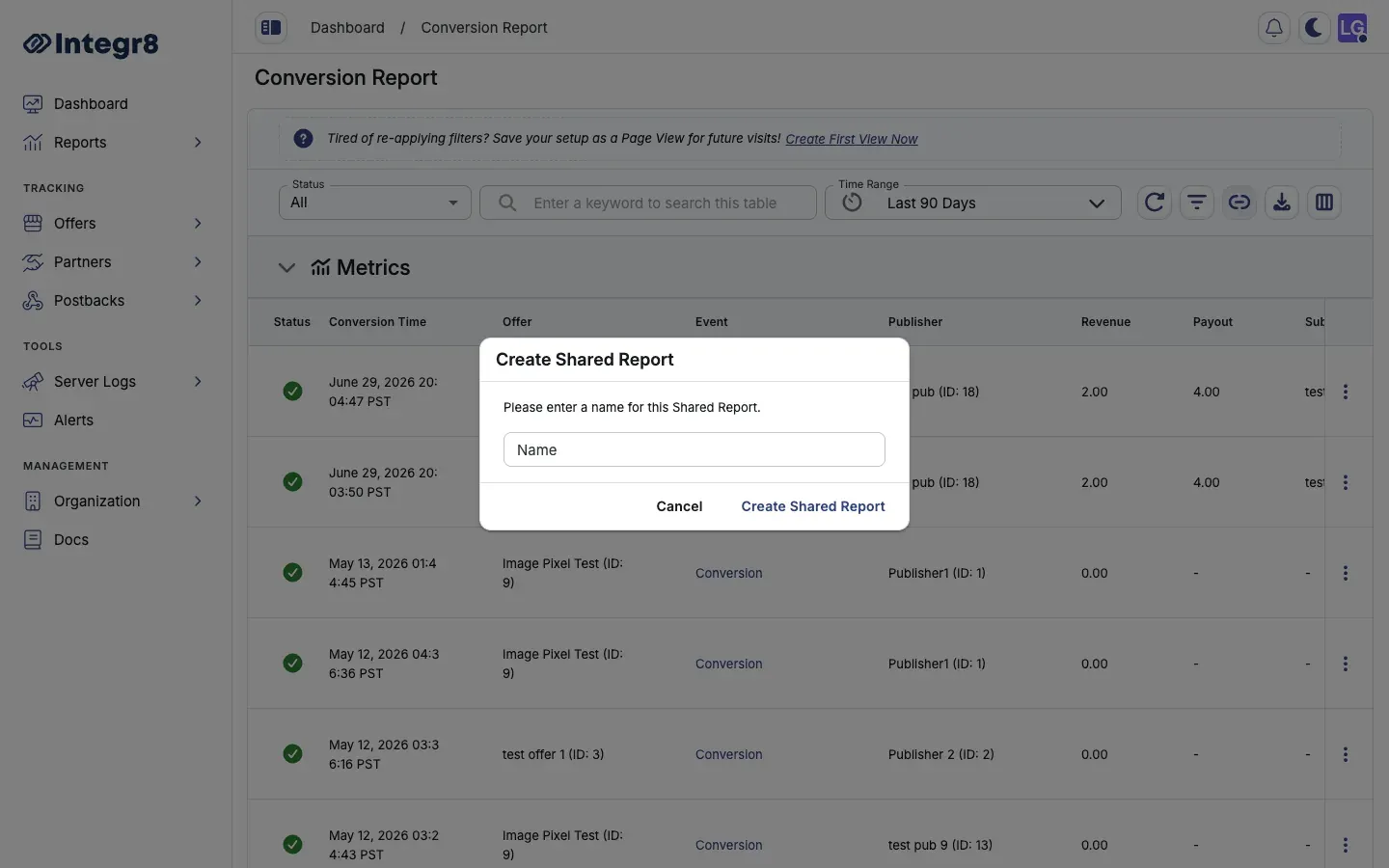
5. The report appears in **Reports** > **Shared Reports**. Copy its public link from there (see below) and send it to your partner.
The recipient can view the report in real time without logging in. The report reflects current data within the filters you applied when generating the link.
## Managing shared reports
[Section titled “Managing shared reports”](#managing-shared-reports)
Navigate to **Reports** > **Shared Reports** to see all active shared report links.
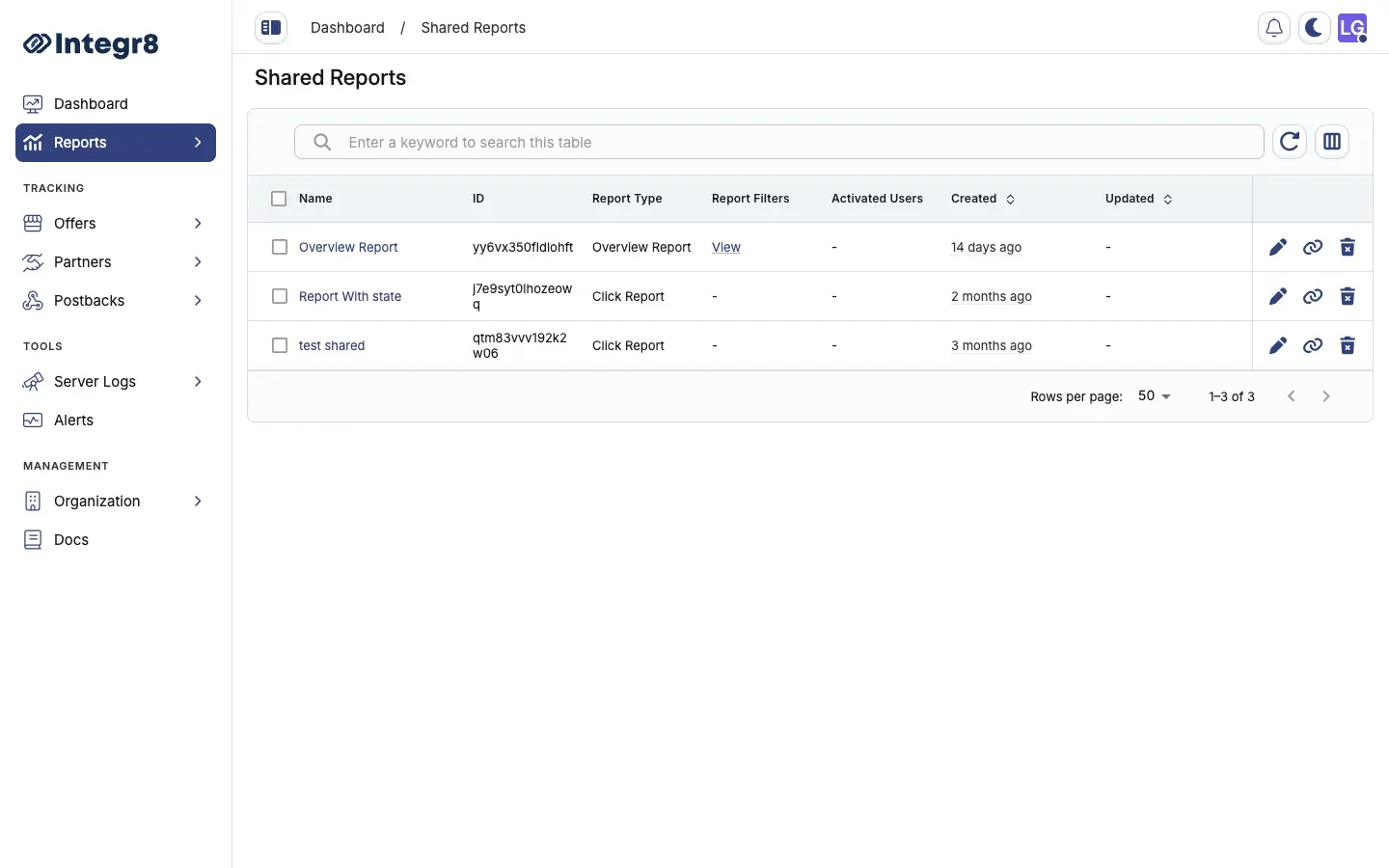
From this view you can:
* **Copy** the link (the chain icon) to resend to a partner
* **Edit** a shared report (the pencil icon)
* **Delete** a link (the trash icon) to revoke access immediately
There is no expiry on shared links — delete them manually when they are no longer needed.
## Access controls
[Section titled “Access controls”](#access-controls)
Shared report links are public URLs — anyone with the link can view the report. They are not authenticated.
Apply precise filters before generating a shared link. If you share a link without publisher or offer filters, the recipient can view aggregated data across all your campaigns. Always scope the filters to the data you intend to share.
## Related reports
[Section titled “Related reports”](#related-reports)
* [Overview Reports](/docs/reports/overview-reports/) — most commonly shared for performance summaries
* [Export Reports](/docs/reports/export-reports/) — export data as CSV for offline sharing
# Traffic Insights
> Real-time traffic analysis overlay showing fraud distribution, device breakdown, geo, ISP, top IPs, and session time for any campaign row.
## What this report shows
[Section titled “What this report shows”](#what-this-report-shows)
Traffic Insights is an analysis overlay within Overview Reports that gives you a quick diagnostic view of a specific publisher, offer, or sub ID row. Use it to understand the composition of traffic — fraud distribution, device types, geographic spread, ISP breakdown, and session time patterns — without leaving the overview.
## How to access it
[Section titled “How to access it”](#how-to-access-it)
Traffic Insights opens from any row in the Overview Report:
1. Navigate to **Reports** > **Overview**.
2. Find the advertiser, publisher, offer, or sub ID row you want to analyze.
3. Click the **View Traffic Insights** icon on that row. The panel opens as a slide-over.
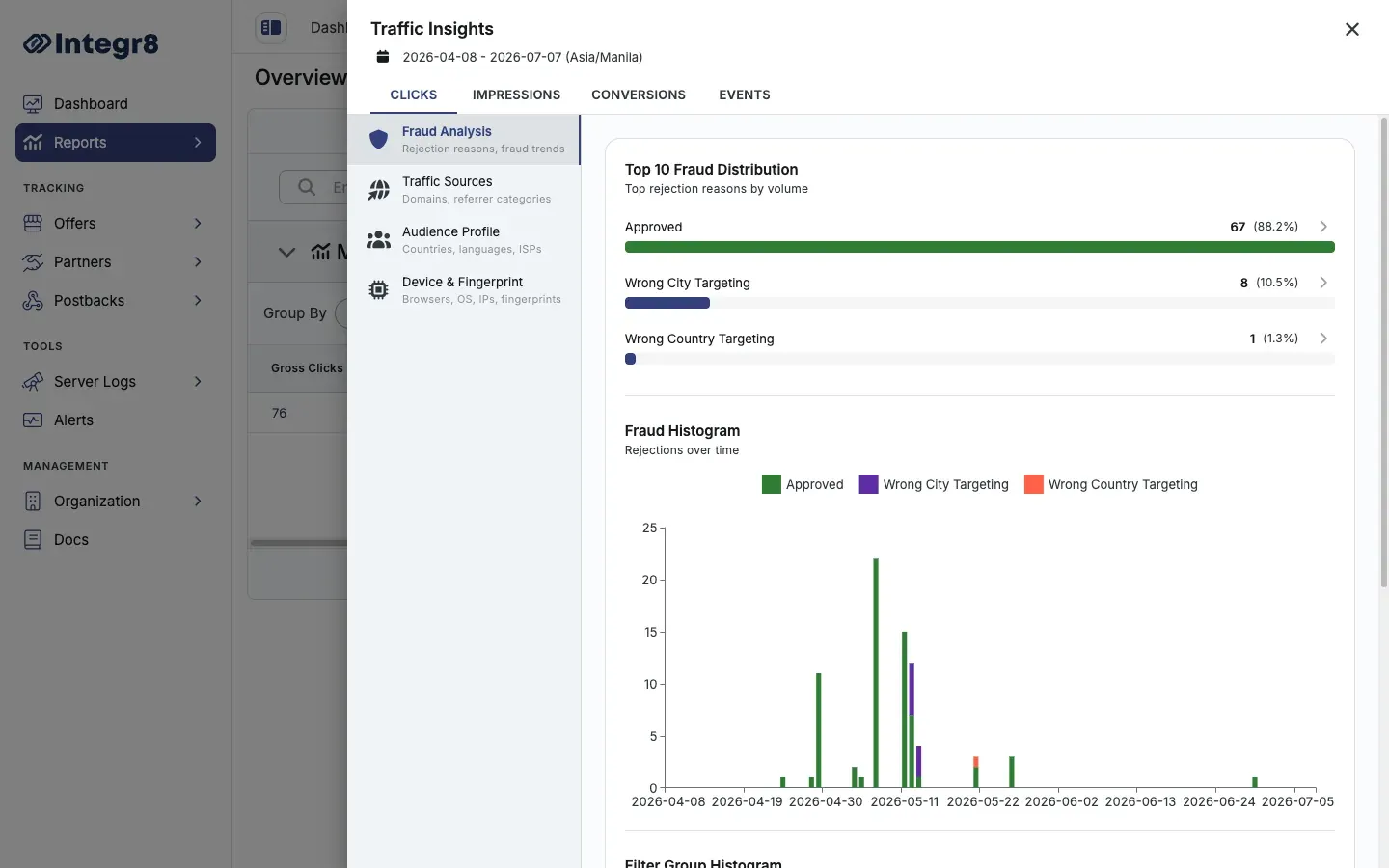
## How the panel is organized
[Section titled “How the panel is organized”](#how-the-panel-is-organized)
The panel has tabs across the top for the metric type — **Clicks**, **Impressions**, **Conversions**, and **Events** — and categories down the left side:
| Category | What it shows |
| -------------------- | -------------------------------------------------------------------------------------------------- |
| Fraud Analysis | Top fraud distribution, fraud histogram, and filter-group histogram (rejection reasons and trends) |
| Traffic Sources | Domains and referrer categories |
| Audience Profile | Country, language, and ISP distribution |
| Device & Fingerprint | Browser, OS, IP, and fingerprint breakdown, plus top IPs |
## Filters and date ranges
[Section titled “Filters and date ranges”](#filters-and-date-ranges)
Traffic Insights inherits the date range and filters applied to the parent Overview Report. Adjust the Overview Report filters to change the scope of the insights panel.
## Export options
[Section titled “Export options”](#export-options)
Traffic Insights data is not directly exportable as a standalone file. For detailed per-record data, use [Click Reports](/docs/reports/click-reports/) or the [Event Report](/docs/reports/event-report/) with equivalent filters applied.
## Related reports
[Section titled “Related reports”](#related-reports)
* [Overview Reports](/docs/reports/overview-reports/) — the parent report you open Traffic Insights from
* [Click Reports](/docs/reports/click-reports/) — row-level click data for deeper investigation of specific fraud signals
# Server Logs
> Access raw request logs for debugging attribution errors, conversion rejections, postback failures, and tracking setup issues.
## What this report shows
[Section titled “What this report shows”](#what-this-report-shows)
Server Logs record every request received by Integr8 — including requests that were rejected or returned errors. Use them to debug attribution problems, trace postback failures, investigate conversion rejections at the raw request level, and verify that tracking links and postback URLs are configured correctly.
## How to access it
[Section titled “How to access it”](#how-to-access-it)
Open **Server Logs** from the main menu. Logs are organized into three sections:
| Section | Description |
| --------------------- | --------------------------------------------------------------------------- |
| Attribution Logs | Records of click attribution events, including accepted and rejected clicks |
| Conversion Logs | Records of incoming conversion postbacks, both successful and failed |
| Conversion Rejections | Detailed log of conversions rejected by fraud rules, with rejection reason |
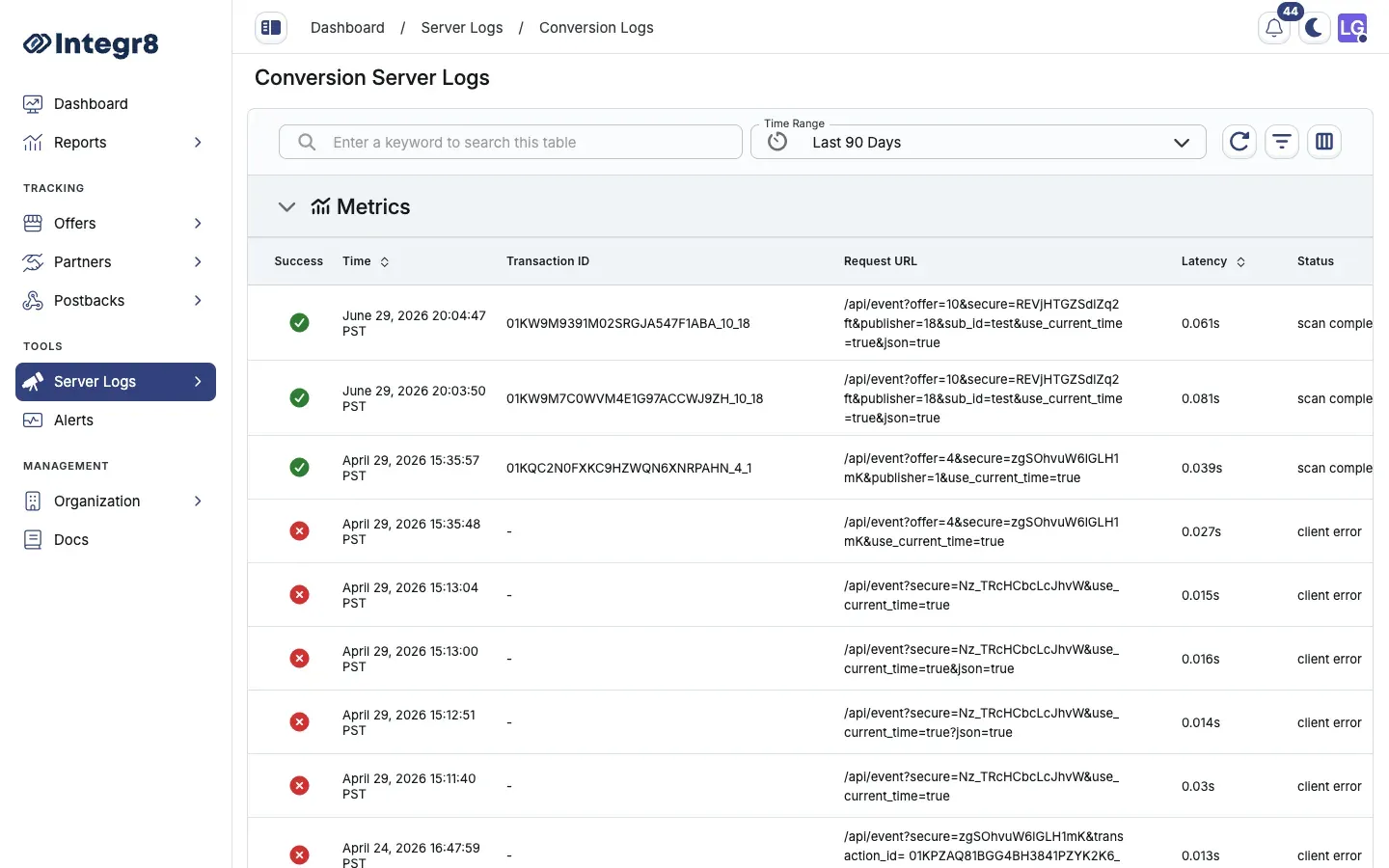
## Available columns
[Section titled “Available columns”](#available-columns)
| Column | Description |
| -------------- | ------------------------------------------------------------- |
| Time | Timestamp of the request |
| Transaction ID | Unique identifier for this request |
| Request URL | The full URL received by Integr8, including all parameters |
| Latency | Server processing time in milliseconds |
| Status | HTTP response status returned to the caller |
| Metadata | Parsed parameters extracted from the request |
| Errors | Error messages if the request failed validation or processing |
## Filters and date ranges
[Section titled “Filters and date ranges”](#filters-and-date-ranges)
Filter log entries by:
* **Date range** — set the window for log retrieval
* **Transaction ID** — look up a specific request by ID
* **Status** — filter to errors, rejections, or successful requests
* **Log type** — switch between attribution, conversion, and rejection logs
When debugging a specific postback issue, find the Transaction ID from the Click Report or Conversion Report, then use it to locate the exact raw request in Server Logs. This shows you the full URL received and any parsing errors.
## Export options
[Section titled “Export options”](#export-options)
Server Logs are not available for bulk CSV export through the standard Export button. Use the date range filter to narrow results, then review directly in the interface. For high-volume log analysis, contact support.
## Related reports
[Section titled “Related reports”](#related-reports)
* [Click Reports](/docs/reports/click-reports/) — summarized click data with fraud reason tagging
* [Event Report](/docs/reports/event-report/) — event-level data with status and rejection reason
```
Generate the exact pixel URL from the **Image Pixel** tab in the Conversion Tracking card or from **Global Tracking**.
## Clickless postback
[Section titled “Clickless postback”](#clickless-postback)
For conversions with no associated click, use the clickless postback endpoint. Include the publisher and attribution data directly in the request:
| Parameter | Description |
| ------------------------- | ------------------------ |
| `publisher` | Publisher ID |
| `sub_id` | Sub-publisher ID |
| `session_time` | Timestamp of the session |
| `conversion_ip` | User IP at conversion |
| `user_agent` | User agent string |
| `revenue` | Revenue amount |
| `payout` | Publisher payout amount |
| `external_transaction_id` | Publisher’s click ID |
| `user_email` | Hashed or raw user email |
## Common pitfalls
[Section titled “Common pitfalls”](#common-pitfalls)
* Forgetting to include `{transaction_id}` in the offer redirect URL. Without it, the advertiser has nothing to pass back.
* Hardcoding the `secure` token in publisher-shared URLs. The token belongs in postback URLs only.
* Mixing global and offer-level postbacks for the same integration. Pick one path to avoid duplicate conversions.
## Related
[Section titled “Related”](#related)
* [Tracking links](/docs/offers/tracking-links/) for the click side of the flow.
* [Affiliate postback setup](/docs/postbacks/affiliate-postback-setup/) for forwarding conversions to publishers.
* [Conversion rejection](/docs/postbacks/conversion-rejection/) for marking previously-recorded conversions as rejected.
# Create an offer
> Create an affiliate offer in Integr8 using the Create Offer form. Set redirect URLs, default payout, publisher access, tracking, and fraud options.
An offer is the core unit of a campaign in Integr8. It defines the product being promoted, the tracking link structure, and the payout rules for publishers.
## Before you begin
[Section titled “Before you begin”](#before-you-begin)
* Create the advertiser the offer belongs to. See [Create an advertiser](/docs/advertisers/advertiser-setup/).
* Have the destination URL ready, including the macro your advertiser uses to receive the click ID.
## Quick start
[Section titled “Quick start”](#quick-start)
The fastest path to a working offer. Only the **General** section is required — every other section keeps sensible defaults, so you can create the offer and refine it later.
1. Go to **Offers > Offers Management** and click **Create**.
2. In **General**, enter a **Name**, pick the **Advertiser**, and set the **Redirect URL** (include `{transaction_id}`).
3. *(Optional)* In **Conversions**, set the **Currency**, **Revenue**, and **Payout**.
4. *(Optional)* In **Publishers**, choose the visibility: `Public`, `Private`, or `Public + Requires Approval`.
5. Click **Create Offer**.

Always include `{transaction_id}` in the redirect URL. The advertiser’s system passes this value back on conversion, and Integr8 uses it to match the click to the conversion.
The rest of this page is a reference for every section of the Create Offer form. You can fill the sections in any order using the left-hand navigation.
## General (required)
[Section titled “General (required)”](#general-required)
This is the only section with required fields.

### Basic details
[Section titled “Basic details”](#basic-details)
| Field | Required | Notes |
| ----------- | -------- | ----------------------------------------------------------- |
| Name | Yes | Internal label used in reports and search |
| Advertiser | Yes | Select from the dropdown |
| Description | No | Visible to the public. Describe the offer for your partners |
| Tags | No | Filter and group offers in tables and reports |
### Landing page
[Section titled “Landing page”](#landing-page)
| Field | Required | Notes |
| ------------ | -------- | ---------------------------------------------------- |
| Preview URL | No | Non-tracked preview of the landing page |
| Redirect URL | Yes | Tracked destination. Must include `{transaction_id}` |
Example redirect URL:
```text
https://example.com/lp?clickid={transaction_id}
```
### Add macros to the redirect URL
[Section titled “Add macros to the redirect URL”](#add-macros-to-the-redirect-url)
Use the **Add Macros to URL** picker below the **Redirect URL** field to insert Integr8 macros into the destination URL, so the advertiser receives the click ID and any other values you pass. Map the advertiser’s click ID parameter to `{transaction_id}`.
| Integr8 macro | Description |
| ------------------ | --------------------------------------- |
| `{transaction_id}` | Unique click ID |
| `{publisher}` | Integr8 publisher ID |
| `{offer}` | Integr8 offer ID |
| `{sub_id}` | Sub-publisher ID from the tracking link |
See the picker for the full list of available macros. After saving, use the tracking link generator to verify substitution before going live.
## Conversions (optional)
[Section titled “Conversions (optional)”](#conversions-optional)
Set the default conversion revenue and payout for this offer. You can add more events later from the offer’s **Revenue & Payout** tab.

| Field | Required | Notes |
| --------------------------- | --------------- | ------------------------------------------------------------------------------------------------ |
| Initial Conversion Name | No | Defaults to `Conversion` |
| Currency | Yes | Offer-level currency |
| Revenue Type | Yes | RPA, RPS, RPC, RPM, or RPAxRPS |
| Revenue Value | Depends on type | Fixed amount for RPA, RPC, RPM. Percent for RPS and RPAxRPS |
| Payout Type | Yes | CPA, CPS, CPC, CPM, CPAxCPS, or PRV |
| Payout Value | Depends on type | Fixed amount or percent based on payout type |
| Allow Multiple Conversions | No | Record more than one conversion per `transaction_id`. If disabled, extra conversions are blocked |
| Manually Accept Conversions | No | Mark conversions as pending until you approve them in Reports |
Revenue types describe how the **advertiser** pays you. Payout types describe how you **pay publishers**. They can differ.
## Tracking Link (optional)
[Section titled “Tracking Link (optional)”](#tracking-link-optional)

| Field | Required | Notes |
| ----------------------------------------- | -------- | ----------------------------------------------------------- |
| Enable JavaScript/Fingerprinting Tracking | No | Uses the `/jsp` path on generated links |
| Tracking Domain | No | Restricts which domain publishers see in the link generator |
| Capping Timezone | Yes | Used for cap reset cycles on this offer |
## Publishers (optional)
[Section titled “Publishers (optional)”](#publishers-optional)
Control which publishers can use the offer and what they must accept.

| Field | Notes |
| ------------------------------- | ------------------------------------------------------------------------- |
| Publisher Access and Visibility | `Public`, `Private`, or `Public + Requires Approval` |
| Enable Terms & Conditions | Optional agreement publishers must accept before using the offer |
| Enable Deep Linking | Lets publishers override the redirect URL with a `redirect_url` parameter |
## Parallel Tracking (optional)
[Section titled “Parallel Tracking (optional)”](#parallel-tracking-optional)
| Field | Notes |
| ------------------------------ | ---------------------------------------------------------------------- |
| Enable Click Parallel Tracking | Fire a server-side call to a Click Parallel Tracking URL on each click |
## Impressions (optional)
[Section titled “Impressions (optional)”](#impressions-optional)
| Field | Notes |
| ---------------------------------------- | -------------------------------------------------------------------------- |
| Enabled View Through Impression Tracking | Use impressions as the first option for attributed conversions |
| Enable Impression Forwarding | Fire a server-side call to an impression forwarding URL on each impression |
## Fraud Prevention (optional)
[Section titled “Fraud Prevention (optional)”](#fraud-prevention-optional)
Choose the **Click Fraud Prevention Strategy** — what happens when a click is rejected by targeting or fraud rules:

| Option | Behavior |
| ------------------------ | ----------------------------------------------- |
| Redirect to Preview URL | Send rejected clicks to the preview URL |
| Redirect to Fallback URL | Send rejected clicks to a separate fallback URL |
| Show Blank Page | Block the click with a blank page |
## Internal Notes (optional)
[Section titled “Internal Notes (optional)”](#internal-notes-optional)
| Field | Notes |
| ------------- | ---------------------------------------- |
| Internal Note | Not visible to publishers or advertisers |
| Restrictions | Visible to publishers |
## Email Instructions (optional)
[Section titled “Email Instructions (optional)”](#email-instructions-optional)
Optional **From Lines** and **Subject Lines** copy shown to publishers when you share offer details by email.
## After creation
[Section titled “After creation”](#after-creation)
The offer is created active by default — there is no separate status picker on the create flow. Open the offer to add more configuration from its detail tabs: **Landing Page**, **Revenue & Payout**, **Targeting**, **Capping**, and **Fraud Detection**.
## Edit an existing offer
[Section titled “Edit an existing offer”](#edit-an-existing-offer)
Open the offer from **Offers > Offers Management**. The **Overview** tab summarizes the offer, and each section has an edit (pencil) control. Use the tabs across the top to reach **Landing Page**, **Revenue & Payout**, **Targeting**, **Capping**, **Fraud Detection**, and **Settings**. The status is **Active** or **Inactive** — there is no Paused or Expired status.
## Next steps
[Section titled “Next steps”](#next-steps)
* [Generate a tracking link](/docs/offers/tracking-links/) for publishers.
* [Configure revenue and payouts](/docs/offers/revenue-and-payouts/) in more detail, including additional events.
* [Set up conversion tracking](/docs/offers/conversion-tracking/) so postbacks match clicks to conversions.
* [Set offer caps](/docs/offers/offer-caps/) to limit traffic or conversion volume.
# Custom tracking domain
> Replace the default Integr8 tracking host with your own subdomain to improve publisher trust, deliverability, and SSL provisioning.
By default, tracking links use an Integr8-hosted domain. You can replace this with your own subdomain (for example `track.yourdomain.com`) to improve publisher trust and avoid blocklists tied to shared infrastructure. Integr8 provisions SSL for the subdomain automatically once DNS is verified.
## Before you begin
[Section titled “Before you begin”](#before-you-begin)
* Have access to the DNS settings for the parent domain.
* Pick the subdomain you want to use, for example `track.yourdomain.com` or `go.yourdomain.com`.
## Add a custom tracking domain
[Section titled “Add a custom tracking domain”](#add-a-custom-tracking-domain)
Custom tracking domains live on the **Domain Setup** tab of **Global Settings**.

1. Go to **Offers > Global Settings** and open the **Domain Setup** tab.
2. Click **Create**.
3. In the **Add a custom domain** dialog, enter your subdomain, for example `track.yourdomain.com`, then click **Next**.
4. Integr8 generates the `CNAME` records your DNS provider needs. Keep this dialog open as a reference while you update your DNS settings.
5. Add the `CNAME` records to your DNS provider. Copy each value directly from the dialog.
6. Integr8 checks your DNS automatically. Once all records are verified, click **Done**.

DNS propagation typically takes 5 to 30 minutes. SSL is provisioned automatically once the `CNAME` is verified. Use `CNAME` records only - do not add `A` records for this subdomain.
## Manage domains
[Section titled “Manage domains”](#manage-domains)
Once a domain is added you can manage it from the actions menu on the Domain Setup tab.
| Action | What it does |
| -------------------- | ----------------------------------------------------------------------------------- |
| Set as default | Uses this domain automatically for new tracking links |
| Verify DNS Records | Manually re-triggers DNS verification if propagation is taking longer than expected |
| Switch to go2link.co | Shows instructions for updating your CNAME back to the shared Integr8 gateway |
| Deactivate | Disables the domain without deleting it - existing links stop resolving |
| Delete | Permanently removes the domain. Cannot be undone |
Deleting an active domain breaks every tracking link that uses it. Deactivate first, then update affected links before deleting.
## DNS provider guides
[Section titled “DNS provider guides”](#dns-provider-guides)
The setup dialog surfaces step-by-step guides for the most common DNS providers. If you need help outside the dialog, use the AI-assisted walkthroughs linked there - they cover Cloudflare, GoDaddy, Namecheap, and others. Your provider’s console link is also shown directly in the dialog once your domain is recognized.
## Next steps
[Section titled “Next steps”](#next-steps)
* [Generate tracking links](/docs/offers/tracking-links/) using your new domain.
* [Set account-level tracking defaults](/docs/organization/global-tracking-settings/) so new offers pick up the right domain automatically.
# Fraud detection
> Apply fraud detection filter groups at the offer level in Integr8 to screen clicks, conversions, and impressions for invalid traffic.
Offer-level fraud detection applies a filter group to all clicks, conversions, or impressions on the offer. Filter groups define the specific rules (IP reputation, fingerprint matching, device anomalies, and more) that Integr8 evaluates against each event. Create the group once, then assign it to as many offers as you want.
## Before you begin
[Section titled “Before you begin”](#before-you-begin)
* [Create an offer](/docs/offers/create-an-offer/) you want to protect.
* Decide which traffic kinds need filtering: clicks, conversions, impressions, or all three.
## Create a fraud detection group
[Section titled “Create a fraud detection group”](#create-a-fraud-detection-group)
1. Go to **Offers > Fraud Detection Groups** in the main menu.
2. Click **Create**.
3. Set a **Name** and **Description**.
4. In **Assigned Offers**, pick the offers where this group will apply. You can leave empty and assign later.
5. Click **Next**.
6. Configure filters for **Clicks**, **Conversions**, and **Impressions**:
* Toggle individual filters on or off.
* Use a **Pre-Set** configuration as a starting point. Pre-sets apply best-practice settings for common campaign types.
7. Click **Save**.
## Assign a group to an offer
[Section titled “Assign a group to an offer”](#assign-a-group-to-an-offer)
1. Go to **Offers > Offers Management** and open the offer.
2. Select the **Fraud Detection** tab.
3. Click **Assign A Fraud Detection Group Now**, pick the group from the dropdown, and click **Save**. You can also create a new group from this dialog.

You can also assign offers from inside the group’s **General Settings** tab.
## Per-offer event filters
[Section titled “Per-offer event filters”](#per-offer-event-filters)
Post-conversion event filters (for events tracked after the initial conversion) are configured individually per offer from the **Fraud Detection** tab. They are not part of the group-level configuration.
## Fingerprint requirement
[Section titled “Fingerprint requirement”](#fingerprint-requirement)
For fingerprint-based detection to work, publishers must use the **JavaScript tracking link** instead of the standard link. Fingerprints are collected at click time and used by duplicate-click and bot-scoring rules.
## Next steps
[Section titled “Next steps”](#next-steps)
* [Enable JavaScript tracking](/docs/offers/tracking-links/) so fingerprint signals are available.
* [Browse the Fraud Prevention guide](/docs/fraud-prevention/) for platform-wide fraud detection details.
# Global settings
> Configure account-wide integration defaults in Integr8, including global tracking settings and custom tracking domains.
Global settings is the account-wide hub for tracking infrastructure that applies across all offers. Use it during initial setup and when your tracking domain or global defaults change.
Global conversion postback URLs and the account-level link generator live on a separate page: **Offers > Global Tracking**. See [Conversion tracking](/docs/offers/conversion-tracking/).
## Where to find it
[Section titled “Where to find it”](#where-to-find-it)
1. Log in to your Integr8 account at [app.integr8.co](https://app.integr8.co).
2. Go to **Offers > Global Settings**.
## What lives here
[Section titled “What lives here”](#what-lives-here)
| Tab | What it controls |
| ---------------- | ------------------------------------------------------------------------------------------- |
| **Settings** | Global fallback URL, default postback parameters, and other account-wide tracking defaults. |
| **Domain Setup** | Custom tracking domains that replace the default Integr8 host on generated links. |
## Related docs
[Section titled “Related docs”](#related-docs)
* [Global tracking settings](/docs/organization/global-tracking-settings/) walks through the **Settings** tab defaults in detail.
* [Custom tracking domain](/docs/offers/custom-tracking-domain/) covers DNS setup and domain management on the **Domain Setup** tab.
* [Conversion tracking](/docs/offers/conversion-tracking/) for global and offer-level postback URLs on **Global Tracking**.
* [CRM integration](/docs/postbacks/crm-integration/) explains how to push conversion data to an external CRM or webhook.
* [Tracking links](/docs/offers/tracking-links/) for per-offer link generation after your integration defaults are in place.
# Landing pages
> Add multiple landing pages to an offer in Integr8 for A/B testing, language variants, or angle testing, with optional rotation.
Each offer has a default landing page set during creation. You can add additional landing pages to support A/B testing, language variants, or different promotion angles. The active landing page can be selected per tracking link or rotated automatically.
## Before you begin
[Section titled “Before you begin”](#before-you-begin)
* [Create an offer](/docs/offers/create-an-offer/) with a default landing page.
* Have the additional preview and redirect URLs ready, including the macros your advertiser uses.
## Add a landing page
[Section titled “Add a landing page”](#add-a-landing-page)
1. Go to **Offers > Offers Management** and open the offer.
2. Select the **Landing Page** tab.
3. Click **Create**.
4. Fill in the fields:
* **Name**: an internal label for the landing page.
* **Preview URL**: the page URL for manual preview (not tracked).
* **Redirect URL**: the actual destination URL with parameter macros.
* **Hide From Publishers** (optional): hide this landing page URL from the publisher dashboard.
5. Click **Save**.

## Parameter mapping
[Section titled “Parameter mapping”](#parameter-mapping)
Landing page redirect URLs support the same parameter macros as the main offer URL. Include `{transaction_id}` so conversion tracking continues to work:
```text
https://yourdomain.com/landing-variant-b?cid={transaction_id}&source={sub_id}
```
## Assign a landing page to a tracking link
[Section titled “Assign a landing page to a tracking link”](#assign-a-landing-page-to-a-tracking-link)
When generating a tracking link, select the landing page from the **Landing Page** dropdown. If none is selected, the offer’s default landing page is used.
## Rotate landing pages
[Section titled “Rotate landing pages”](#rotate-landing-pages)
Integr8 supports weighted rotation across multiple landing pages. To configure rotation, contact to enable it for your account.
Use descriptive names for landing pages, for example `EN Discount Banner` or `FR Standard`. With multiple pages active, clear names prevent mistakes when assigning pages to tracking links.
## Next steps
[Section titled “Next steps”](#next-steps)
* [Generate a tracking link](/docs/offers/tracking-links/) and pick the landing page variant.
* [Map redirect URL parameters](/docs/offers/create-an-offer/) when extracting macros from advertiser URLs.
# Offer caps
> Limit click, conversion, impression, payout, and revenue volume on offers in Integr8 with offer-level and per-publisher caps and soft capping.
Caps let you limit how much traffic or how many conversions an offer can receive within a time window. When a cap is reached, new clicks are redirected to the offer’s fallback URL or blocked. You can apply caps at the offer level (all publishers) or per publisher.
## Before you begin
[Section titled “Before you begin”](#before-you-begin)
* [Create an offer](/docs/offers/create-an-offer/) and configure its [revenue and payouts](/docs/offers/revenue-and-payouts/).
* Decide whether you need a single offer-wide cap or different limits per publisher.
## Set offer-wide capping
[Section titled “Set offer-wide capping”](#set-offer-wide-capping)
The default **All Publishers** row on the **Capping** tab holds the offer-wide cap settings.

1. Go to **Offers > Offers Management** and open the offer.
2. Select the **Capping** tab.
3. On the **All Publishers** row, click **Show Summary**, then edit, or use the row actions to open **Edit Offer Capping**.
4. Set the **Capping Timezone** for the cap reset cycle.
5. Enable the cap types you need (clicks, conversions, impressions, payout, revenue, events) and set values per interval.
6. Click **Save**.

## Set a per-publisher cap
[Section titled “Set a per-publisher cap”](#set-a-per-publisher-cap)
Per-publisher caps take priority over the offer-wide cap for that publisher.

1. On the **Capping** tab, click **Add Custom Capping**.
2. Pick the **Publisher** from the dropdown.
3. Set the **Capping Level**:
* **Offer + Publisher**: applies to all traffic from this publisher.
* **Offer + Publisher + Sub ID**: applies to traffic from a specific sub ID only.
4. Configure the cap values and intervals.
5. Click **Save**.
## Cap types
[Section titled “Cap types”](#cap-types)
| Cap type | Description |
| ----------- | ----------------------------------- |
| Clicks | Maximum click count |
| Conversions | Maximum conversion count |
| Impressions | Maximum impression count |
| Payout | Maximum publisher payout spend |
| Revenue | Maximum advertiser revenue |
| Events | Maximum event count, per event type |
## Cap intervals
[Section titled “Cap intervals”](#cap-intervals)
Each cap type supports limits per interval:
* Every 15 Minutes
* Hourly
* Daily
* Weekly
* Monthly
* Total
## Soft capping
[Section titled “Soft capping”](#soft-capping)
When **Enable Soft Capping** is on, conversions that arrive after the cap is reached are recorded with **Pending** status instead of being dropped. Use soft capping to avoid losing attribution data around cap boundaries.
## Next steps
[Section titled “Next steps”](#next-steps)
* [Use a Smart Link](/docs/offers/smart-links/) to route capped traffic to a fallback offer instead of dropping it.
* [Apply targeting rules](/docs/offers/targeting-rules/) so ineligible traffic is filtered before it counts against the cap.
# Revenue and payouts
> Configure advertiser revenue and publisher payout per conversion or event in Integr8, including RPA, RPS, CPA, CPS, and related models.
Revenue and payout settings define how much the advertiser pays you (revenue) and how much you pay your publishers (payout) for each conversion or event. The two values can differ. The spread is your margin.
## Before you begin
[Section titled “Before you begin”](#before-you-begin)
* [Create an offer](/docs/offers/create-an-offer/) and assign it to an advertiser.
* Decide which model the advertiser uses to pay you. The payout model can differ from the revenue model.
* For post-conversion events, [set up conversion tracking](/docs/offers/conversion-tracking/) so the click-to-conversion path works end to end.
## Open the Revenue & Payout tab
[Section titled “Open the Revenue & Payout tab”](#open-the-revenue--payout-tab)
1. Go to **Offers > Offers Management** and open the offer.
2. Select the **Revenue & Payout** tab.
3. The default **Conversion** row shows the offer-level payout. Click the edit (pen) icon to change it.
4. Click **Create** to add post-conversion events.

## Configure the default conversion
[Section titled “Configure the default conversion”](#configure-the-default-conversion)
| Field | Required | Description |
| --------------------------- | --------------- | -------------------------------------------------- |
| Revenue Type | Yes | How the advertiser pays you |
| Revenue Value | Depends on type | Fixed amount or percent |
| Payout Type | Yes | How you pay the publisher |
| Payout Value | Depends on type | Fixed amount or percent |
| Currency | Yes | Offer-level currency |
| Allow Multiple Conversions | No | More than one conversion per `transaction_id` |
| Manually Accept Conversions | No | Conversions stay pending until approved in Reports |
## Revenue types
[Section titled “Revenue types”](#revenue-types)
How the advertiser pays you:
| Type | Label | Value field |
| ------- | --------------------------- | ------------------------ |
| RPA | Revenue Per Action | Fixed amount |
| RPS | Revenue Per Sale | Percent of sale |
| RPC | Revenue Per Click | Fixed amount |
| RPM | Revenue Per Impression | Fixed amount |
| RPAxRPS | Revenue Per Action and Sale | Fixed amount and percent |
## Payout types
[Section titled “Payout types”](#payout-types)
How you pay publishers:
| Type | Label | Value field |
| ------- | ------------------------ | ------------------------ |
| CPA | Cost Per Action | Fixed amount |
| CPS | Cost Per Sale | Percent of sale |
| CPC | Cost Per Click | Fixed amount |
| CPM | Cost Per Impression | Fixed amount |
| CPAxCPS | Cost Per Action and Sale | Fixed amount and percent |
| PRV | Percentage of Revenue | Percent of revenue |
## Currency
[Section titled “Currency”](#currency)
Each offer has its own currency. Publisher payouts convert to the publisher’s account currency at the rate configured in your account settings.
## Post-conversion events
[Section titled “Post-conversion events”](#post-conversion-events)
Events track actions after the initial conversion, for example a first purchase after a free-trial registration or an in-app purchase after an install. Events require a conversion to exist first. They cannot fire without a matching `transaction_id` from an earlier click.
### How events work
[Section titled “How events work”](#how-events-work)
Events use the same postback mechanism as conversions, with two additional parameters:
* `event_id`: the numeric ID of the event in Integr8.
* `event_name`: the name of the event as defined in Integr8.
Either parameter alone is sufficient, or you can pass both. The values must match exactly what was defined when the event was created.
**Example postback URLs:**
```text
https://your.domain.com/?secure=TOKEN&event_id=5&transaction_id=REPLACE
https://your.domain.com/?secure=TOKEN&event_name=purchase&transaction_id=REPLACE
```
### Create an event
[Section titled “Create an event”](#create-an-event)

1. On the **Revenue & Payout** tab, click **Create**.
2. In the **Create Event** dialog, set:
* **Name**: must match the name the advertiser passes in their postback. For AppsFlyer integrations, use the exact event name from the AppsFlyer dashboard.
* **Revenue Type** and **Revenue Value** (or **Revenue Percent** for RPS and RPAxRPS).
* **Payout Type** and **Payout Value** (or **Payout Percent** for CPS, PRV, and CPAxCPS).
* **Allow Multiple Events**: enable if the same user can trigger this event more than once per click.
* **Manually Accept Events**: mark events as pending until approved in Reports.
* **Activated**: disable to block recording for this event.
3. Click **Create**.
### Event field reference
[Section titled “Event field reference”](#event-field-reference)
| Field | Required | Description |
| ------------------------------- | -------- | -------------------------------------------------------- |
| Name | Yes | Must match the name the advertiser sends in the postback |
| Revenue Type | Yes | RPA, RPS, RPC, RPM, or RPAxRPS |
| Revenue Value / Revenue Percent | Yes | Amount or percent based on revenue type |
| Payout Type | Yes | CPA, CPS, CPC, CPM, CPAxCPS, or PRV |
| Payout Value / Payout Percent | Yes | Amount or percent based on payout type |
| Allow Multiple Events | No | Multiple events per `transaction_id` |
| Manually Accept Events | No | Events stay pending until approved |
| Activated | No | Disable to stop recording |
### Get the event postback URL
[Section titled “Get the event postback URL”](#get-the-event-postback-url)
After creating the event, open the postback dialog from the **Revenue & Payout** tab using the webhook icon on the event row.
You can also use the global postback URL from **Offers > Global Tracking** by appending `&event_id=` or `&event_name=`.
## Next steps
[Section titled “Next steps”](#next-steps)
* View event performance in [Reports > Event Report](/docs/reports/event-report/).
* [Override payouts per publisher](/docs/publishers/custom-payouts/) for top performers or test sources.
* [Forward events to publishers](/docs/postbacks/affiliate-postback-setup/) so they receive the same notification.
* [Set offer caps](/docs/offers/offer-caps/) to limit volume and spend.
# Smart links
> Route incoming traffic across multiple Integr8 offers with one URL using weight-based or priority-based redirect strategies and a fallback offer.
A Smart Link is a single URL that routes incoming traffic to one of several offers based on a strategy you define. Instead of giving publishers a separate link per offer, you give them one Smart Link that handles routing automatically and respects every offer’s caps, targeting, and fraud rules.
## Before you begin
[Section titled “Before you begin”](#before-you-begin)
* [Create at least two offers](/docs/offers/create-an-offer/) you want to route traffic between.
* Decide whether you want weight-based testing or priority-based fallback routing.
## When to use a Smart Link
[Section titled “When to use a Smart Link”](#when-to-use-a-smart-link)
* Routing across multiple offers with weight-based A/B distribution.
* Prioritizing a high-performing offer while keeping fallbacks ready.
* Sending broad publisher traffic to the best available offer given targeting, caps, and fraud rules.
## Create a Smart Link
[Section titled “Create a Smart Link”](#create-a-smart-link)

1. Go to **Offers > Smart Links** and click **Create**.
2. **General Settings:**
* Enter a **Name** and optional **Description**.
* Select the **Tracking Domain**.
* Set **Publisher Access**: `Public` (all publishers) or `Private` (only publishers with access to the assigned offers).
* Toggle to activate or deactivate the link.
3. Click **Next**.
4. **Redirect Strategy:**
* **Weight**: distribute traffic by percentage across offers. Use for testing.
* **Priority**: attempt offers in order; if the top offer blocks the click (cap, targeting, fraud), try the next.
* Click **Select Offers** to add offers to the Smart Link.
5. Click **Next**.
6. **Fallback Offer** (recommended): select an offer with no targeting restrictions, no caps, and no fraud filters as a guaranteed fallback.
7. Click **Save**.
## Redirect strategy comparison
[Section titled “Redirect strategy comparison”](#redirect-strategy-comparison)
| Strategy | Best for |
| -------- | ------------------------------------------------------ |
| Weight | Testing multiple offers, balanced traffic distribution |
| Priority | Clear winner offer with backup options |
## Common pitfalls
[Section titled “Common pitfalls”](#common-pitfalls)
| Issue | Fix |
| ---------------------------------------- | ---------------------------------------------------------------- |
| No fallback set | Always assign a fallback offer with no restrictions. |
| Wrong strategy for use case | Use Weight for testing, Priority when you have a winner. |
| Private link with mismatched permissions | Verify every offer in the link is accessible to your publishers. |
If no offer in the Smart Link accepts a click and no fallback is set, the click is lost: no redirect and no logging. Always set a fallback.
## Next steps
[Section titled “Next steps”](#next-steps)
* [Set offer caps](/docs/offers/offer-caps/) so the Smart Link can detect a capped offer and fall through.
* [Apply targeting rules](/docs/offers/targeting-rules/) on the offers in the link to control which clicks each one accepts.
# Targeting rules
> Configure geo, device, OS, language, and IP targeting on offers in Integr8, either per offer or via reusable targeting groups.
Targeting rules define which clicks are eligible to reach an offer. Clicks that do not match the active rules are blocked and redirected to the offer’s fallback URL. You can configure targeting per offer or share a single set of rules across multiple offers using a targeting group.
## Before you begin
[Section titled “Before you begin”](#before-you-begin)
* [Create an offer](/docs/offers/create-an-offer/).
* Decide whether the rules will be unique to this offer (per-offer) or shared across multiple offers (targeting group).
## Available targeting dimensions
[Section titled “Available targeting dimensions”](#available-targeting-dimensions)
| Dimension | Options |
| ----------------- | ---------------------------------------------------------------- |
| Geolocation | Country, city, and state |
| Device Properties | Device type (computer, phone, tablet), operating system, browser |
| IP | Allow or block specific IP ranges |
| Language | Browser language |
## Set targeting on a single offer
[Section titled “Set targeting on a single offer”](#set-targeting-on-a-single-offer)
1. Go to **Offers > Offers Management** and open the offer.
2. Select the **Targeting** tab.
3. Turn on the dimension you need (Geolocation, Device Properties, IP, Language), then add the values to allow or block.
4. Click **Save**.

Targeting applies to both clicks and conversions unless configured otherwise.
## Use a shared targeting group
[Section titled “Use a shared targeting group”](#use-a-shared-targeting-group)
If multiple offers share the same targeting rules, create a targeting group to manage them in one place.
**Create the group:**
1. Go to **Offers > Targeting Groups** in the main menu.
2. Click **Create**.
3. Enter a **Name** and **Description**.
4. In **Assign Offers**, pick the offers this group applies to. You can skip and assign later.
5. Click **Next**.
6. Configure targeting rules for **Clicks** and **Conversions**.
7. Click **Save**.
**Assign a group to an offer:**
You have two paths.
From the targeting group: open the group, go to **General Settings**, and add offers to the **Assigned Offers** list.
From the offer: open the offer, select the **Targeting** tab, click **Assign Targeting Group**, and pick the group from the dropdown.
When a targeting group is assigned, the group’s rules override any individual targeting rules set on the offer directly.
## Next steps
[Section titled “Next steps”](#next-steps)
* [Set offer caps](/docs/offers/offer-caps/) so allowed traffic stays inside your volume limits.
* [Add fraud detection](/docs/offers/fraud-detection/) for filtering beyond geo and device targeting.
# Tracking links
> Generate tracking links in Integr8 to share with publishers, including standard, JavaScript fingerprinting, short, and test link types.
A tracking link is the URL you give to publishers. Every click on that URL is logged in Integr8 with a unique `transaction_id` that is later matched to a conversion. This guide walks you through generating one and explains the parameters you can pass.
## Before you begin
[Section titled “Before you begin”](#before-you-begin)
* [Create an offer](/docs/offers/create-an-offer/) with a redirect URL that includes the `{transaction_id}` macro.
* Add at least one publisher in **Publishers > Publishers Management**.
## Generate a tracking link
[Section titled “Generate a tracking link”](#generate-a-tracking-link)
The simplest place to build a link is the **Global Tracking** page, which has a generator that works for any offer.
1. Go to **Offers > Global Tracking**.
2. In the **Generate Tracking Link** card, select the **Offer** and the **Publisher**.
3. Optionally set a **Sub ID** (recommended for source tracking), a **Landing Page**, and a **Domain**.
4. Copy the generated link and share it with the publisher.

**Shortcut:** From **Offers > Offers Management**, click the link icon on an offer’s row to open the generator for that offer directly.
To pass the publisher’s own click ID back on the conversion, add `&external_transaction_id=PUBLISHER_CLICK_ID` to the link.
## Link types
[Section titled “Link types”](#link-types)
The click generator uses tabs for different link formats:
| Tab | Use case |
| ------------- | ----------------------------------------------------------------- |
| Tracking Link | Default for most integrations |
| Short Link | Compressed tracking URL |
| Test Link | Ignores caps and targeting. Use to verify setup before going live |
## JavaScript / fingerprinting links
[Section titled “JavaScript / fingerprinting links”](#javascript--fingerprinting-links)
Use JavaScript/fingerprinting links when fraud detection rules depend on browser signals: duplicate-click detection, bot scoring, and device anomaly checks.
### Enable fingerprinting on an offer
[Section titled “Enable fingerprinting on an offer”](#enable-fingerprinting-on-an-offer)
**During create:** In the Create Offer form, open the **Tracking Link** section and turn on **Enable JavaScript/Fingerprinting Tracking**.
**On an existing offer:** Open the offer, go to **Settings**, and enable the same option under tracking settings.
### How it works
[Section titled “How it works”](#how-it-works)
When fingerprinting is enabled, generated links use the `/jsp` path instead of the root path:
1. A small script runs in the browser.
2. The script collects environment signals: user agent, screen resolution, timezone, installed fonts, canvas hash, and WebGL data.
3. The fingerprint is hashed and attached to the click record.
4. The visitor is redirected to the offer landing page as normal.
Example:
```text
https://track.yourdomain.com/jsp?offer=42&publisher=7&sub_id=newsletter&external_transaction_id=CLICK_ID_HERE
```
Standard links without `/jsp` do not collect fingerprints. Fingerprint-based fraud rules only apply to clicks that arrive through this link type. See [Fraud detection](/docs/offers/fraud-detection/).
### Requirements and limitations
[Section titled “Requirements and limitations”](#requirements-and-limitations)
* JavaScript must be enabled in the visitor’s browser.
* Adds a small delay (typically under 50 ms) before redirect.
* No changes needed on the advertiser or publisher side. The script runs on the redirect.
## Tracking link parameters
[Section titled “Tracking link parameters”](#tracking-link-parameters)
| Parameter | Description |
| ------------------------- | ------------------------------------------------------------- |
| `offer` | Offer ID |
| `publisher` | Publisher ID |
| `sub_id` | Sub-publisher identifier for source attribution |
| `external_transaction_id` | Publisher’s own click ID, returned in the conversion postback |
| `lp` | Landing page ID. Optional. Uses the offer default if omitted. |
## Example
[Section titled “Example”](#example)
```text
https://track.yourdomain.com/?offer=42&publisher=7&sub_id=newsletter&external_transaction_id=CLICK_ID_HERE
```
## Next steps
[Section titled “Next steps”](#next-steps)
* [Configure conversion tracking](/docs/offers/conversion-tracking/) so postbacks match clicks to conversions.
* [Use a custom tracking domain](/docs/offers/custom-tracking-domain/) instead of the default Integr8 domain.
# Data Privacy
> Overview of Integr8's data privacy approach, GDPR compliance, and data handling policies.
Integr8 is built for performance marketers who operate across jurisdictions with active data protection laws. This page covers how Integr8 handles personal data and what compliance posture you can expect.
## What Integr8 collects
[Section titled “What Integr8 collects”](#what-integr8-collects)
When a click or conversion is processed, Integr8 logs the following data points:
| Data type | Example | Purpose |
| -------------- | ----------------- | ------------------------------- |
| IP address | `192.168.x.x` | Geo-targeting, fraud detection |
| User agent | Browser/OS string | Device targeting, fraud signals |
| Email address | `user@domain.com` | Conversion attribution |
| Transaction ID | `txn_abc123` | Click-to-conversion matching |
## IP address handling
[Section titled “IP address handling”](#ip-address-handling)
By default, Integr8 stores the full IP address for fraud detection and geo-targeting. You can enable **partial IP obfuscation** to mask the last octet (e.g., `192.168.x.x`) in reports and logs. This satisfies GDPR data minimization requirements for most use cases while preserving geo accuracy.
To enable IP obfuscation, see [Global Tracking Settings](/docs/organization/global-tracking-settings/).
## GDPR compliance
[Section titled “GDPR compliance”](#gdpr-compliance)
Integr8 supports GDPR compliance through:
* **Data minimization** — obfuscate or exclude personal data fields you do not need
* **Right to erasure** — contact to request data deletion for a specific user identifier
* **Data processing agreement** — available on request for EU-based accounts
* **Data retention** — 90 days for raw click/impression logs; 2 years for raw event logs
# Global Tracking Settings
> Configure fallback URL, postback parameters, and custom tracking domain for your Integr8 account.
Global tracking settings define the defaults that apply to all offers in your account. Configure them once during setup and adjust only when your infrastructure changes.
## Access global tracking settings
[Section titled “Access global tracking settings”](#access-global-tracking-settings)
1. Log in to your Integr8 account at [app.integr8.co](https://app.integr8.co).
2. Go to **Offers > Global Settings**.
3. Select the **Settings** tab to view and edit global tracking defaults.

### General
[Section titled “General”](#general)
| Field | Description |
| --------------------------------------- | -------------------------------------------------------------------------------------------------------------------------------------------- |
| **Enable IP Address Privacy** | Turn this on to obfuscate IP addresses in reports and exports (e.g., `192.168.x.x`) |
| **Enable Global Fraud Filter Settings** | Turn this on to enable global fraud detection settings. Go to **Offers > Fraud Detection Groups** to configure global fraud filter settings. |
### Conversion and event
[Section titled “Conversion and event”](#conversion-and-event)
| Field | Description |
| ----------------------------- | ------------------------------------------------------------------------------------------------------------------------------------------------------------- |
| **Global Secure Code** | Use this value with the `secure` parameter to authorize conversions and events. Click **Copy** to copy the generated code or click **Renew** to regenerate it |
| **Attribution Window (days)** | Set how many days after a click Integr8 accepts attribution. Clicks outside this window do not convert |
### Click
[Section titled “Click”](#click)
| Field | Description |
| ------------------------------------------------ | --------------------------------------------------------------------------------------------------------- |
| **Forward Extra Parameters to Landing Page URL** | Turn this on to preserve extra parameters from the tracking URL and pass them through to the landing page |
| **Redirect Strategy** | Choose how clicks redirect to the landing page |
| **Redirect Cache Expiry (seconds)** | Set how long click redirect responses are cached. Use `0` to disable caching |
| Option | Description |
| ---------------------------- | ------------------------------------------------------------------------------------------------------------------------------------------------- |
| **Temporary Redirect (307)** | Sends an HTTP 307 response. The browser follows the redirect to the landing page while preserving the request method |
| **Temporary Redirect (302)** | Sends an HTTP 302 response. The browser follows the redirect to the landing page |
| **Permanent Redirect (301)** | Sends an HTTP 301 response. Browsers and caches may store this redirect long term. Use only when the destination URL is stable |
| **Single Meta Refresh** | Returns an HTML page that redirects via a meta refresh tag. Use when HTTP redirects are stripped or blocked by the traffic source |
| **Double Meta Refresh** | Returns a two-step meta refresh chain. Hides the referrer from the landing page and works around stricter browser or ad network redirect policies |
## Custom tracking domain
[Section titled “Custom tracking domain”](#custom-tracking-domain)
You can replace the default Integr8 tracking domain with your own subdomain (e.g., `track.yourdomain.com`). This improves deliverability and brand trust.
1. From **Offers > Global Settings**, select the **Domain Setup** tab.
2. Enter your subdomain (e.g., `track.yourdomain.com`).
3. Copy the CNAME record shown and add it to your DNS provider.
4. Wait for DNS propagation (typically 5–30 minutes), then click **Verify**.
SSL is provisioned automatically once the CNAME record is verified. Do not add an A record — CNAME only.
## Next steps
[Section titled “Next steps”](#next-steps)
* [Create your first offer](/docs/offers/create-an-offer/)
# Organization
> Configure your Integr8 account details, general settings, and API keys.
Your organization is the top-level container for all your Integr8 data — offers, publishers, users, and settings. Configure it before you start running campaigns.
## General settings
[Section titled “General settings”](#general-settings)
The **General** tab of the organization settings holds your company name, business type, plan details, and publisher sign-up links.
1. Go to **Organization > Settings**.
2. On the **General** tab, use the edit (pencil) icon on the **Organization Details** card.
3. Update your company name and details, then save.

Invoice details (billing address, VAT, currency) live on the separate **Invoicing** tab — see [Organization Billing](/docs/organization/organization-billing/).
## API keys
[Section titled “API keys”](#api-keys)
API keys give external systems access to your Integr8 account via the REST API. Each key has its own permission scope.

1. Go to **Organization > User Management**.
2. Select the **API Keys** tab.
3. Click **Create** to generate a new key.
4. Enter a label and select the permission scopes.
5. Click **Save**.
6. Click **Show** on the key’s row to reveal it, then copy it.
Store API keys securely. Anyone with a key can access your account data within the key’s permission scope.
## Organization structure
[Section titled “Organization structure”](#organization-structure)
The **Organization** section contains three sub-areas:
| Sub-area | What it controls |
| --------------- | ---------------------------------------------------------------- |
| User Management | Team members, roles, and API keys |
| Plan Management | Subscription plan and usage |
| Settings | General info, invoice details, payment method, and partner login |
## Related
[Section titled “Related”](#related)
* [User Management](/docs/organization/user-management/)
* [Organization Billing](/docs/organization/organization-billing/)
# Organization Billing
> Configure invoice details, payment method, and subscription settings for your Integr8 account.
Billing configuration controls how Integr8 invoices your account and what payment method is charged on renewal.
## Update invoice details
[Section titled “Update invoice details”](#update-invoice-details)
Invoice details appear on every invoice Integr8 generates for your account. Keep them accurate for accounting purposes.

1. Go to **Organization > Settings**.
2. Select the **Invoicing** tab.
3. Update the following fields as needed:
* **Company name** — the legal entity name on your invoices
* **Business Type** and **Country / City / Street Address / Postal Code** — your billing address
* **Invoicing Email** — where invoices are sent
* **EU VAT** — required for EU business accounts
* **Currency** — invoice currency for your account
4. Click **Save**.
## Update payment method
[Section titled “Update payment method”](#update-payment-method)
Your subscription renews automatically against the saved card. To change it:
1. Go to **Organization > Settings**.
2. Select the **Payment** tab.
3. Enter your new card details.
4. Click **Save**.
Changing the card does not trigger an immediate charge. The new card is used on the next renewal date.
## Partner login
[Section titled “Partner login”](#partner-login)
The **Partner Login** section in Settings lets you create a white-label dashboard for publishers. See [White-Label Dashboard](/docs/organization/white-label-dashboard/) for setup instructions.
## Custom SMTP
[Section titled “Custom SMTP”](#custom-smtp)
By default, Integr8 sends billing emails from its own mail server. To send from your own domain:
1. Go to **Organization > Settings**.
2. Select the **Custom SMTP** tab.
3. Enter your SMTP host, port, username, and password.
4. Click **Save** and send a test email to verify.
## Related
[Section titled “Related”](#related)
* [White-Label Dashboard](/docs/organization/white-label-dashboard/)
# User Management
> Add team members, create permission roles, and manage user access in Integr8.
Integr8 lets you add multiple users to your account, each with a role that defines what they can see and edit. Create roles before adding users.
## Create a role
[Section titled “Create a role”](#create-a-role)
Roles define the permission level for each section of the platform. You must create at least one role before inviting users.
1. Go to **Organization > User Management**.
2. Select the **Roles** tab.
3. Click **+ Create**.
4. In the **Create Role** dialog, enter a **Name** (e.g., “Campaign Manager”) and optional **Description**.
5. For each **Scope** (Offers, Advertisers, Publishers, Users, Roles, API Keys, and more), set the **Access Type**:
* **None** — the user cannot view or edit this section
* **Read** — the user can view but not edit
* **Write** — the user can view and edit
6. Click **Save**.

## Invite a user
[Section titled “Invite a user”](#invite-a-user)
1. Go to **Organization > User Management**.
2. Select the **Users** tab.
3. Click **+ Create**.
4. Fill in the user’s **Email**, **First name**, and **Last name** (Country, Timezone, and Notes are optional).
5. Keep **Send password setup email to this user** checked so they receive an invite.
6. Choose the base **Role** (Member, Account Manager, or Organization Owner) and select the **Custom Role** you created.
7. Click **Create User**. The user receives an email invitation to set their password.

Users can only be assigned one role at a time. To change a user’s role, edit the user and select a different role.
## Edit or remove a user
[Section titled “Edit or remove a user”](#edit-or-remove-a-user)

1. Go to **Organization > User Management**.
2. Select the **Users** tab.
3. Find the user in the list and click their name.
4. Select the **Settings** tab.
5. Update their details or role, then click **Save**.
6. To remove a user, go to **Danger Zone**, click **Delete User** and confirm.
## Permission reference
[Section titled “Permission reference”](#permission-reference)
| Permission | Can view | Can edit |
| ---------- | -------- | -------- |
| None | No | No |
| Read | Yes | No |
| Write | Yes | Yes |
Permissions apply section by section. A user can have Read access to Reports and Write access to Campaigns simultaneously.
# White-Label Dashboard
> Configure a branded publisher login portal with your domain, logo, and terms.
The white-label dashboard gives your publishers a branded login portal where they can view their statistics, access offer tracking links, and configure their own postbacks. You control the domain, branding, and terms.
## Enable the publisher portal
[Section titled “Enable the publisher portal”](#enable-the-publisher-portal)
1. Go to **Organization > Settings**.
2. Select the **Partner Login** tab.
3. Turn on **Enable Publisher Signup** and enter **Approver Emails**.
4. Click **Save**.

### Publisher signup settings
[Section titled “Publisher signup settings”](#publisher-signup-settings)
On the **Partner Login** tab, set up publisher self-registration:
* **Enable Publisher Signup**: Turn this on to allow publishers to sign up to your organization. Leave it off if you onboard publishers manually.
* **Approver Emails**: Enter the email addresses that receive a notification on every publisher signup.
## Configure profile settings
[Section titled “Configure profile settings”](#configure-profile-settings)
On the **Partner Login** tab, set the following fields:
| Field | Description |
| ----------------------- | ---------------------------------------------------------- |
| **Company Name** | Appears on the login page and in emails sent to publishers |
| **Information Text** | Optional short description shown on the login page |
| **Terms and Agreement** | Publishers must accept these during signup |
| **Support Email** | Displayed to publishers for help requests |
## Set up custom domain
[Section titled “Set up custom domain”](#set-up-custom-domain)
1. On the **Partner Login** tab, enter your subdomain in the **Custom Domain** field (e.g., `partners.yourdomain.com`).
2. Copy the CNAME record shown.
3. Log in to your DNS provider and add the CNAME record to your subdomain.
4. Wait for DNS propagation (5–30 minutes), then return to Integr8 and click **Verify Domain**.
SSL is provisioned automatically after domain verification. Do not add an A record — CNAME only.
## Upload branding assets
[Section titled “Upload branding assets”](#upload-branding-assets)
| Asset | Where it appears |
| ------------------ | ----------------------------------------------- |
| **Company Logo** | Login page, signup page, and email headers |
| **Dashboard Logo** | Expanded sidebar inside the publisher dashboard |
| **Company Icon** | Browser favicon and collapsed sidebar icon |
Upload each asset on the **Partner Login** tab under **Branding**. Supported formats: PNG or SVG, minimum 200px wide.
# Affiliate postback setup
> Configure postback URLs in Integr8 to fire conversion and event data to publisher tracking systems, with macros, scope, status filters, and delays.
An affiliate postback is the URL Integr8 calls on the publisher’s server when a tracked action occurs. You configure one postback per action type (click, conversion, or event) and Integr8 fires it automatically when the condition is met. This guide walks you through creating one and explains the macros and options you can use.
## Before you begin
[Section titled “Before you begin”](#before-you-begin)
* Have the publisher’s tracking endpoint URL ready, including the click ID parameter name they expect.
* Decide the scope: every offer and publisher, a single offer, a single publisher, or a specific combination.
* Check whether the publisher wants approved conversions only, rejected only, or both.
## Create a postback
[Section titled “Create a postback”](#create-a-postback)

1. Go to **Postbacks > Postbacks Management** and click **+ Create**.
2. Pick the **Postback Type**: `Conversions`, `Paid Clicks (CPC)`, or `Events`.
3. Enter a **Name** to identify this postback.
4. Enter the **Postback HTTP URL**, the publisher’s tracking endpoint. Always include the publisher’s click ID:
```text
https://publisher-track.com/postback?clickid={external_transaction_id}&status={status}
```
5. Map parameters using the macros available in the **Add Macros to URL** field.
6. Set where to apply the **Postback offer and publisher**:
* Toggle **All** to apply the postback to all **offers** and **publishers**.
* Or pick a specific **offer** or **publisher** from the dropdowns.
7. Configure the **Firing Status**:
* **Any**: fires for both approved and rejected conversions.
* **Approved only**: fires only on approved conversions. Recommended.
* **Rejected only**: fires only on rejected conversions.
8. Click **Save**.
## Fire only on specific rejection reasons
[Section titled “Fire only on specific rejection reasons”](#fire-only-on-specific-rejection-reasons)
In the **Rejected Only** section, pick the reasons that should trigger the postback. Other rejection reasons are ignored. Use this to forward chargebacks but not policy violations, for example.
## Add a delay
[Section titled “Add a delay”](#add-a-delay)
Set a delay if Integr8 should wait for a third-party fraud check (for example, AppsFlyer or an internal validator) before firing. Minimum delay is 2 minutes.
1. Toggle **Add Firing Delay** in the postback settings.
2. Enter the delay duration and unit: minutes or hours.
3. Click **Save**.
## Macro reference
[Section titled “Macro reference”](#macro-reference)
| Macro | Description |
| --------------------------- | ------------------------------------------------- |
| `{transaction_id}` | Integr8’s unique click ID |
| `{external_transaction_id}` | Publisher’s click ID passed via the tracking link |
| `{offer_id}` | Offer identifier |
| `{publisher_id}` | Publisher identifier |
| `{sub_id}` | Sub-publisher ID |
| `{payout}` | Publisher payout amount |
| `{revenue}` | Advertiser revenue amount |
| `{currency}` | Payout currency |
| `{status}` | Conversion status: `approved` or `rejected` |
| `{rejection_reason}` | Reason code if the conversion is rejected |
## Next steps
[Section titled “Next steps”](#next-steps)
* [Verify the postback is firing](/docs/postbacks/postback-logs/) by checking the logs after a test conversion.
* [Push the same data to a CRM](/docs/postbacks/crm-integration/) by configuring a second postback with your CRM endpoint.
# Conversion rejection
> Allow advertisers to reject or update the status of previously-recorded conversions in Integr8 via a server-to-server endpoint.
The conversion rejection endpoint lets advertisers send a server-to-server request to Integr8 to reject a conversion that was previously approved, or to update the rejection reason on an already-rejected conversion. Use it when fraudulent or invalid conversions are detected after the initial attribution.
## Endpoint format
[Section titled “Endpoint format”](#endpoint-format)
```text
https://INTEGRATION_DOMAIN/?new_rejected_reason=REASON&transaction_id=TRANSACTION_ID
```
## Parameters
[Section titled “Parameters”](#parameters)
| Parameter | Required | Description |
| --------------------- | -------- | ---------------------------------------------------------------------------- |
| `transaction_id` | Yes | The unique ID of the conversion to reject |
| `new_rejected_reason` | Yes | The rejection reason code, for example `fraud`, `chargeback`, or `duplicate` |
## Behavior
[Section titled “Behavior”](#behavior)
| Conversion state | Result |
| -------------------------- | ------------------------------------------------------ |
| Approved | Status changes to `Rejected` with the supplied reason. |
| Already Rejected | Rejection reason is updated to the new value. |
| `transaction_id` not found | No action taken, no error returned. |
## Get the endpoint URL
[Section titled “Get the endpoint URL”](#get-the-endpoint-url)
**Offer-level rejection URL** is tied to a single offer:
1. Go to **Offers > Offers Management** and open a specific offer.
2. On the **General** tab, scroll down then expand the **Conversion Tracking** dropdown card.
3. Open the **Rejection** tab inside the card.
4. Copy the URL and share it with the advertiser.
**Global rejection URL** works for every offer in the account:
1. Go to **Offers > Global Tracking**.
2. Open the **Rejection** tab.
3. Copy the URL and share it with the advertiser.
**NOTE:** The global URL is the better default for advertisers running multiple offers; one URL handles rejections across every offer without generating separate URLs.
## Security
[Section titled “Security”](#security)
* Share the rejection endpoint only with trusted advertisers.
* All requests must use HTTPS.
* Watch [postback logs](/docs/postbacks/postback-logs/) for unexpected rejection patterns.
* There is no undo for status changes made via this endpoint. Confirm the integration is correct before sharing the URL.
## Related
[Section titled “Related”](#related)
* [Affiliate postback setup](/docs/postbacks/affiliate-postback-setup/) to forward rejection events to publishers.
* [Conversion tracking](/docs/offers/conversion-tracking/) for the original conversion ingestion path.
# CRM integration
> Push Integr8 conversion and event data to a CRM or external system using the standard postback mechanism, with GET or POST and custom headers.
You can push conversion and event data from Integr8 to any CRM or external system that accepts inbound HTTP requests. Integr8 sends the data as a standard postback, the same mechanism used for affiliate postbacks, so there is nothing new to configure on the Integr8 side.
## Before you begin
[Section titled “Before you begin”](#before-you-begin)
* Get the CRM endpoint URL and the parameter or field names it expects.
* Get any required authentication: API key, bearer token, or basic auth header.
* Decide whether you want all conversions pushed, or only a specific offer.
## How it works
[Section titled “How it works”](#how-it-works)
1. Set up a postback in Integr8 that points to your CRM’s webhook or API endpoint.
2. Map Integr8 data fields (offer ID, transaction ID, payout, etc.) to the parameters your CRM expects.
3. Integr8 fires the postback on each conversion or event, pushing the data in real time.
## Set up CRM data push
[Section titled “Set up CRM data push”](#set-up-crm-data-push)

1. Go to **Postbacks > Postbacks Management** and click **Create**.
2. Pick **Conversion** (or **Event** for post-conversion actions) as the postback type.
3. Enter a name, for example `CRM Salesforce Leads`.
4. Set scope to **Any** to push all conversions, or pick a specific offer.
5. Enter your CRM’s API endpoint as the **Postback URL**. For GET requests:
```text
https://crm.yourdomain.com/api/conversions?lead_id={transaction_id}&offer={offer_id}&revenue={revenue}
```
6. For POST requests, click **Advanced HTTP Settings**:
* Set the HTTP method to `POST`.
* Add required headers, for example `Authorization: Bearer YOUR_TOKEN`.
* Define the request body with the fields your CRM expects.
7. Click **Save**.
## Test the integration
[Section titled “Test the integration”](#test-the-integration)
After saving, trigger a test conversion using the **Test** link type from the [tracking link generator](/docs/offers/tracking-links/). Check your CRM to confirm the data arrived. If it does not, review the [postback logs](/docs/postbacks/postback-logs/) for error details.
## Available data fields
[Section titled “Available data fields”](#available-data-fields)
| Macro | Value |
| --------------------------- | ----------------------------- |
| `{transaction_id}` | Unique conversion ID |
| `{offer_id}` | Offer identifier |
| `{publisher_id}` | Publisher identifier |
| `{sub_id}` | Sub-publisher ID |
| `{revenue}` | Advertiser revenue |
| `{payout}` | Publisher payout |
| `{currency}` | Currency code |
| `{status}` | `approved` or `rejected` |
| `{external_transaction_id}` | Publisher’s original click ID |
## Next steps
[Section titled “Next steps”](#next-steps)
* [Set up post-conversion events](/docs/offers/revenue-and-payouts/) if your CRM tracks post-conversion actions like LTV.
* [Watch postback logs](/docs/postbacks/postback-logs/) for delivery failures.
# Postback logs
> View postback delivery status in Integr8, filter by publisher or offer, and debug failed postback fires by reading response codes and errors.
Postback logs record every postback Integr8 attempted to fire, including success status, the full URL called, and any error details. Use logs to verify postbacks are firing and to diagnose delivery failures.
## Before you begin
[Section titled “Before you begin”](#before-you-begin)
* Have at least one [postback configured](/docs/postbacks/affiliate-postback-setup/).
* Trigger a test conversion or event so there is something to inspect.
## Open the logs
[Section titled “Open the logs”](#open-the-logs)
Go to **Postbacks > Postbacks Logs**.

## Filter the logs
[Section titled “Filter the logs”](#filter-the-logs)
Every column supports filtering. Filters offer:
* **Is**: exact match.
* **Is not**: excludes exact match.
* **Contains**: substring match.
For example, to find all failed postbacks for one publisher, filter `Status = Failed` and `Publisher ID = `.
## Debug a failed postback
[Section titled “Debug a failed postback”](#debug-a-failed-postback)
1. Find the failed row in the logs.
2. Check the **Response Code**:
* `4xx`: the publisher’s server rejected the request. Check URL parameters.
* `5xx`: the publisher’s server returned an error. Contact the publisher.
* `0` or timeout: the publisher’s server was unreachable.
3. Read the **Error** and **Server Response** columns for specific messages.
4. Correct the postback URL or parameters in the [postback configuration](/docs/postbacks/affiliate-postback-setup/) and verify on the next conversion.
Integr8 does not retry failed postbacks automatically. Once you fix the underlying issue, ask the advertiser to re-fire the original conversion postback to trigger a new attempt.
## Column reference
[Section titled “Column reference”](#column-reference)
| Column | Description |
| --------------- | ---------------------------------------------- |
| Status | `Success` or `Failed` |
| Postback Name | Name of the postback configuration |
| Postback Type | Click, Conversion, or Event |
| Offer ID | ID of the offer the postback is tied to |
| Publisher ID | ID of the publisher receiving the postback |
| Event ID | Event identifier (Event postbacks only) |
| Transaction ID | Integr8’s unique click or conversion ID |
| Response Code | HTTP response code from the publisher’s server |
| URL | The full URL that was called |
| Error | Error message if the postback failed |
| Server Response | Raw response body from the publisher’s server |
## Next steps
[Section titled “Next steps”](#next-steps)
* [Set up conversion rejection forwarding](/docs/postbacks/conversion-rejection/) so publishers learn about rejections too.
# Postback types
> Reference for the three postback types Integr8 fires to publishers, when each fires, and how they sequence around clicks, conversions, and events.
A postback is an HTTP request that Integr8 fires to a publisher’s system when a tracked action occurs. There are three postback types, one for each trackable action in the platform. This page explains what each does and the order they fire in.
## The three types
[Section titled “The three types”](#the-three-types)
| Type | When it fires | Use case |
| ----------------- | --------------------------------------------------------- | ------------------------------------------------------- |
| Conversions | When the advertiser fires an approved conversion postback | CPA, CPL, CPS campaigns where the publisher gets credit |
| Paid Clicks (CPC) | When a publisher’s tracking link is clicked | CPC campaigns, click confirmation for fraud systems |
| Events | When a post-conversion event is recorded | In-app events, secondary purchases, LTV tracking |
A **Conversion** postback must be received before any **Event** postback can fire. There is no standalone event postback; events always follow a conversion.
## How postbacks sequence
[Section titled “How postbacks sequence”](#how-postbacks-sequence)
1. The publisher’s user clicks the tracking link. Integr8 generates a `transaction_id`.
2. The `transaction_id` is passed to the advertiser’s landing page.
3. The advertiser fires a conversion postback to Integr8 with the `transaction_id`.
4. Integr8 fires a **Conversion** postback to the publisher’s system.
5. If the user triggers additional events (for example, an in-app purchase), the advertiser fires event postbacks.
6. Integr8 fires **Event** postbacks to the publisher for each event.
## Common pitfalls
[Section titled “Common pitfalls”](#common-pitfalls)
* Configuring an event postback with no upstream conversion. Events without a parent conversion never fire.
* Forwarding rejected conversions when the publisher only wants approved. Set the **Firing Status** filter when configuring the postback.
* Mixing postback types in one configuration. Each postback URL handles exactly one type.
## Related
[Section titled “Related”](#related)
* [Set up an affiliate postback](/docs/postbacks/affiliate-postback-setup/) for the configuration steps.
* [Read postback logs](/docs/postbacks/postback-logs/) when a postback does not fire as expected.
* [Conversion tracking](/docs/offers/conversion-tracking/) for the upstream side of the flow.
# Publishers
> Manage publisher accounts, billing, payouts, coupon codes, and per-publisher controls in Integr8 from the Partners section.
Publishers are the traffic sources that promote your offers. In Integr8, publisher operations live under **Partners** in the sidebar. From there you create accounts, configure how each publisher gets paid, run payouts, and manage per-publisher controls like custom payouts, blocked sub IDs, and coupon codes.
## Why it matters
[Section titled “Why it matters”](#why-it-matters)
A correctly configured publisher account is the difference between paying the right amount on time and either losing trust or losing money. Billing details determine whether a publisher even shows up on the payouts run, and per-publisher controls are how you reward strong sources and contain weak ones without breaking the global offer setup.
## How the section is organized
[Section titled “How the section is organized”](#how-the-section-is-organized)
Under **Partners**, the app has three screens. The docs sidebar follows the same structure.
### Publishers Management
[Section titled “Publishers Management”](#publishers-management)
Create and manage publisher accounts from **Partners > Publishers Management**. Open any publisher to work through its detail tabs:
| Tab | Docs |
| --------------- | ------------------------------------------------------------------------------------------ |
| General | [Publisher setup](/docs/publishers/publisher-setup/) |
| Sub IDs | [Sub IDs](/docs/publishers/sub-ids/) |
| Custom Payouts | [Custom payouts](/docs/publishers/custom-payouts/) |
| Throttling | [Throttling](/docs/publishers/throttling/) |
| Blocked Sub IDs | [Blocked sub IDs](/docs/publishers/blocked-sub-ids/) |
| Publisher Users | [Publisher setup](/docs/publishers/publisher-setup/#publisher-users) |
| Settings | [Publisher setup](/docs/publishers/publisher-setup/), [Billing](/docs/publishers/billing/) |
Account creation, activation, visibility, and publisher user invites are covered in [Publisher setup](/docs/publishers/publisher-setup/). [Billing](/docs/publishers/billing/) is configured from the publisher **Settings** tab. Publishers without billing cannot be paid.
### Coupon codes
[Section titled “Coupon codes”](#coupon-codes)
[Coupon codes](/docs/publishers/coupon-codes/) attribute conversions to a publisher when no tracking link is in play. Manage them from **Partners > Coupon Codes**.
### Publisher payments
[Section titled “Publisher payments”](#publisher-payments)
[Publisher payments](/docs/publishers/payments/) is where you review and export payouts each cycle. Open it from **Partners > Publisher Payments**.
## Common pitfalls
[Section titled “Common pitfalls”](#common-pitfalls)
* Forgetting to fill in billing details before the first payment cycle. The publisher quietly disappears from the payouts report.
* Blocking a publisher entirely when only one sub ID is the problem. Use blocked sub IDs instead.
* Using raw sub ID strings in tracking links without creating them in Sub IDs first. Named sub IDs unlock reporting, filtering, and block rules across the platform.
* Leaving **Enable Postback Management** on for publishers you do not trust. The create flow turns this on by default. Some publishers will create misconfigured postbacks that cause silent attribution loss. Disable it per publisher unless the operator is trusted.
## Related
[Section titled “Related”](#related)
* [Custom payouts](/docs/publishers/custom-payouts/) override the global offer payout for individual publishers.
* [Affiliate postback setup](/docs/postbacks/affiliate-postback-setup/) configures the URLs that fire to publisher tracking systems.
# Billing
> Configure payment method, currency, VAT details, and tax compliance for publisher payouts in Integr8 using Tipalti, PayPal, or wire transfer.
Publisher billing information must be set before a publisher appears in the [payments overview](/docs/publishers/payments/). Without it, payout data is not processed correctly. This guide walks through configuring billing for one publisher.
## Before you begin
[Section titled “Before you begin”](#before-you-begin)
* [Create the publisher account](/docs/publishers/publisher-setup/).
* Get the publisher’s preferred payment method, payout currency, and (if applicable) VAT registration details.
## Configure billing
[Section titled “Configure billing”](#configure-billing)

1. Go to **Partners > Publishers Management** and open the publisher.
2. Select the **Settings** tab.
3. Open the **Billing** section.
4. Fill in the fields:
* **Currency**: the currency for this publisher’s payouts.
* **Tax ID** or **VAT Number**: the publisher’s tax registration number, if applicable.
* **VAT %**: the applicable VAT rate. Enter `0` if not applicable.
5. Pick a **Payment Method**:
* **Tipalti** (recommended): supports ACH, wire transfer, PayPal, SEPA, SWIFT, local bank transfers, and virtual cards.
* **PayPal**: enter the publisher’s PayPal email address.
* **Wire Transfer**: enter the publisher’s bank account details.
6. Click **Save**.
A payment method and its method-specific details are required for payment processing. Publishers without a configured payment method will not appear in the payments overview and cannot be paid.
You can also set billing during [publisher creation](/docs/publishers/publisher-setup/) on the final **Billing** step of the create wizard.
## Supported payment methods
[Section titled “Supported payment methods”](#supported-payment-methods)
| Method | Supported currencies | Notes |
| ------------- | ------------------------- | -------------------------------------------------------------- |
| Tipalti | 120+ currencies | Preferred for international publishers; handles tax compliance |
| PayPal | USD, EUR, GBP, and others | Requires the publisher to have a PayPal account |
| Wire Transfer | Depends on bank | Higher fees for international transfers |
## Next steps
[Section titled “Next steps”](#next-steps)
* [Process publisher payouts](/docs/publishers/payments/) once billing is set.
* [Set custom payouts](/docs/publishers/custom-payouts/) per offer for this publisher.
# Blocked sub IDs
> Block specific sub-publisher IDs from sending traffic to an Integr8 offer without blocking the entire publisher account or every offer.
Blocked sub IDs let you stop traffic from a specific sub-publisher source without blocking the entire publisher. Use this when you identify a sub ID sending low-quality or fraudulent traffic on a specific offer. Blocked sub IDs are offer-specific; blocking a sub ID on one offer does not affect the same publisher on another offer.
## Before you begin
[Section titled “Before you begin”](#before-you-begin)
* [Add the publisher](/docs/publishers/publisher-setup/) the sub ID belongs to.
* Identify the exact `sub_id` value to block from your reports or postback logs.
## Block a sub ID
[Section titled “Block a sub ID”](#block-a-sub-id)

1. Go to **Partners > Publishers Management** and open the publisher.
2. Select the **Blocked Sub IDs** tab.
3. Click **Create**.
4. Pick the **Offer** from the dropdown.
5. Enter or select the **Sub ID** value to block.
6. Add an optional **Description** to record the reason for blocking.
7. Click **Save**.
Clicks from that publisher on that offer with the matching `sub_id` value are rejected immediately. The visitor is redirected to the offer’s fallback URL.
## Bulk blocking
[Section titled “Bulk blocking”](#bulk-blocking)
To block a large number of sub IDs at once, contact with a list. Bulk import is available on request.
## Field reference
[Section titled “Field reference”](#field-reference)
| Field | Required | Description |
| ----------- | -------- | --------------------------------------------------- |
| Offer | Yes | The offer this block applies to |
| Sub ID | Yes | Exact sub ID value to reject |
| Description | No | Internal note explaining why this sub ID is blocked |
## Next steps
[Section titled “Next steps”](#next-steps)
* [Configure fraud detection](/docs/offers/fraud-detection/) to automate blocking based on fraud signals.
* [Set offer caps](/docs/offers/offer-caps/) for volume-based traffic limiting.
# Coupon codes
> Assign trackable coupon codes to publishers in Integr8 for social, newsletter, and influencer campaigns where tracking links are stripped.
Coupon codes give publishers a shareable code instead of (or in addition to) a tracking link. They work well for social media, newsletters, and influencer campaigns where tracking links are stripped or ignored. Each coupon code is unique to one publisher and one offer. Integr8 attributes conversions to the publisher when the coupon is used at checkout, based on advertiser postback data that includes the coupon code value.
## Before you begin
[Section titled “Before you begin”](#before-you-begin)
* [Add the publisher](/docs/publishers/publisher-setup/) who will own the coupon.
* Confirm with the advertiser that they will return the coupon code in their conversion postback. Without this, attribution does not work.
## Create a coupon code
[Section titled “Create a coupon code”](#create-a-coupon-code)

1. Go to **Partners > Coupon Codes**.
2. Click **Create**.
3. Fill in the fields:
* **Coupon Code**: the coupon code string, for example `PUBLISHER20`. Alphanumeric only.
* **Offer**: the offer this code is tied to.
* **Publisher**: the publisher who owns this code.
* **Description**: optional, for internal reference.
* **Start Date** and **End Date**: optional. If set, the code is only active inside the window.
4. Click **Save**.
## How publishers access their codes
[Section titled “How publishers access their codes”](#how-publishers-access-their-codes)
Publishers see their coupon codes in the white-label dashboard under **Coupons**. Each code comes with a pre-built tracking link for environments where a link is also appropriate.
## Attribution
[Section titled “Attribution”](#attribution)
For coupon attribution to work, the advertiser must pass the coupon code in their conversion postback. Typically this is done via a `coupon_code` parameter in the S2S postback URL. Confirm this mapping with the advertiser before launching the campaign.
If the advertiser does not return the coupon code, conversions cannot be attributed. Verify the integration end to end before distributing codes.
## Next steps
[Section titled “Next steps”](#next-steps)
* [Set up conversion tracking](/docs/offers/conversion-tracking/) so postbacks carry the coupon code back to Integr8.
* [Configure the white-label dashboard](/docs/organization/white-label-dashboard/) so publishers can find their codes.
# Custom payouts
> Override the global offer payout for individual publishers in Integr8 to reward top performers or test new sources at a different rate.
Custom payouts let you pay individual publishers a different rate than the global offer payout. This is useful when negotiating higher rates with top-performing publishers, or lower rates for new and unproven sources.
Open **Partners > Publishers Management**, select a publisher, then go to the **Custom Payouts** tab.
## Before you begin
[Section titled “Before you begin”](#before-you-begin)
* [Configure global revenue and payout](/docs/offers/revenue-and-payouts/) for the offer.
* [Add the publisher](/docs/publishers/publisher-setup/) you want to set a custom rate for.
## Create a custom payout
[Section titled “Create a custom payout”](#create-a-custom-payout)

1. Go to **Partners > Publishers Management** and open the publisher.
2. Select the **Custom Payouts** tab.
3. Click **Create**.
4. Set:
* **Offer**: pick the offer this custom payout applies to.
* **Event**: pick the conversion or event that triggers the payout.
* **Revenue Type** and **Revenue Value** (or percent for RPS and RPAxRPS).
* **Payout Type** and **Payout Value** (or percent for CPS, PRV, and CPAxCPS).
5. Click **Save**.
The custom payout overrides the global payout for this publisher on the selected offer and event. Other publishers keep the global rate.
## How custom payouts interact with global payouts
[Section titled “How custom payouts interact with global payouts”](#how-custom-payouts-interact-with-global-payouts)
| Scenario | What the publisher gets paid |
| ------------------------------------------------------- | ------------------------------------------------ |
| No custom payout exists | The global offer payout |
| Custom payout exists for this offer + event | The custom value |
| Custom payout exists for this offer + a different event | The global payout for events without an override |
When set, custom revenue fields override the global offer revenue for that publisher and event.
## Payout and revenue types
[Section titled “Payout and revenue types”](#payout-and-revenue-types)
Same type system as [Revenue and payouts](/docs/offers/revenue-and-payouts/):
* **Revenue:** RPA, RPS, RPC, RPM, RPAxRPS
* **Payout:** CPA, CPS, CPC, CPM, CPAxCPS, PRV
## Field reference
[Section titled “Field reference”](#field-reference)
| Field | Required | Description |
| ---------------------- | -------- | --------------------------------------- |
| Offer | Yes | The offer this custom payout applies to |
| Event / Conversion | Yes | The trigger that pays out |
| Revenue Type | Yes | RPA, RPS, RPC, RPM, or RPAxRPS |
| Payout Type | Yes | CPA, CPS, CPC, CPM, CPAxCPS, or PRV |
| Revenue / Payout Value | Yes | Amount or percent based on type |
## Next steps
[Section titled “Next steps”](#next-steps)
* [Set offer caps](/docs/offers/offer-caps/) so a higher-payout publisher does not blow your margin.
* [Configure throttling](/docs/publishers/throttling/) to control click volume independently of payout.
# Publisher payments
> View, filter, edit, and export publisher payout reports in Integr8, with totals broken down by payment method, currency, and billing period.
The payments overview shows the total payout due to each publisher for a selected time period. Use it to review amounts before processing payments and to export data for your accounting system.
## Before you begin
[Section titled “Before you begin”](#before-you-begin)
* [Configure billing](/docs/publishers/billing/) for the publishers you want to pay. Publishers without billing data do not appear here.
## Open the payments overview
[Section titled “Open the payments overview”](#open-the-payments-overview)

1. Go to **Partners > Publisher Payments**.
2. Use the filter controls to narrow the view:
* **Payment method**: filter by Tipalti, PayPal, or Wire Transfer.
* **Time range**: pick the billing period.
* **Currency**: filter by USD, EUR, or other configured currencies.
* **Publisher**: filter to a specific publisher.
## Edit a payout
[Section titled “Edit a payout”](#edit-a-payout)
To manually adjust a payout amount:
1. Open the row action menu and click **Adjust Payout**.
2. Enter the corrected amount.
3. Click **Save**.
Manual payout edits are not logged automatically. Document your reason externally before making adjustments.
## Exclude a publisher from the export
[Section titled “Exclude a publisher from the export”](#exclude-a-publisher-from-the-export)
To remove a publisher from the current export without deleting the payout data:
1. Open the row action menu and click **Exclude from Report**.
The publisher’s data is still stored in Integr8 but will not appear in the CSV export for the current session.
## Export to CSV
[Section titled “Export to CSV”](#export-to-csv)
Click the **Export** icon in the top right of the table to download the current filtered view as a CSV file.
## Column reference
[Section titled “Column reference”](#column-reference)
Columns vary slightly by payment method filter.
| Column | Description |
| ------------------- | ------------------------------------- |
| Publisher | Publisher name |
| Tipalti ID | Shown when filtering by Tipalti |
| PayPal Email | Shown when filtering by PayPal |
| IBAN/Account Number | Shown when filtering by Wire Transfer |
| SWIFT/BIC-Code | Shown when filtering by Wire Transfer |
| Currency | Payout currency |
| Payout | Net payout amount |
| VAT % | Applicable tax rate |
| Payout (incl. Tax) | Total due including VAT |
## Next steps
[Section titled “Next steps”](#next-steps)
* [Configure or update publisher billing](/docs/publishers/billing/) if a publisher is missing from the report.
# Publisher setup
> Add a publisher to Integr8 manually as an admin or via the partner domain self-signup portal, then configure activation and visibility settings.
Publishers can be added to Integr8 in two ways: manually by an admin, or via self-signup through the white-label portal. Both methods create the same publisher account type. This guide walks through the manual flow and links to the self-signup path.
## Before you begin
[Section titled “Before you begin”](#before-you-begin)
* Have the publisher’s company name, email, and website ready.
* Decide whether the publisher should see their own fraud stats and manage their own postbacks.
## Create a publisher manually
[Section titled “Create a publisher manually”](#create-a-publisher-manually)
The create flow has three steps: **General**, **Settings**, and **Billing**.
### Step 1: General
[Section titled “Step 1: General”](#step-1-general)
1. Go to **Partners > Publishers Management** and click **Create**.
2. Fill in the publisher’s details:
* **Name**: the publisher’s company or brand name.
* **Company Name**: optional legal or display company name.
* **Company Email**: optional contact email.
* **Website**: the publisher’s main domain.
* **Account Manager**, **Description**, **Phone**, **Address**, **Country**, and promotional details as needed.
3. Click **Create Publisher**. 
### Step 2: Settings
[Section titled “Step 2: Settings”](#step-2-settings)
Configure account settings:
#### Promotional Method Tab
[Section titled “Promotional Method Tab”](#promotional-method-tab)
* **Country** – Select the country where the publisher operates.
* **Promotional Methods** – Select all methods that apply to this publisher.
#### Permissions Tab
[Section titled “Permissions Tab”](#permissions-tab)
* **Tracking Domains Visibility**: limit which domains the publisher can see when generating tracking URLs.
* **Enable Fraud Visibility**: when on, fraud detection stats appear in the publisher’s own dashboard.
* **Enable Postback Management**: when on, the publisher can create and manage their own affiliate postbacks. This is enabled by default. Turn it off unless you trust the operator.
* **Tags**: optional labels for filtering and grouping publishers in reports. 
#### Danger zone Tab
[Section titled “Danger zone Tab”](#danger-zone-tab)
* **Publisher is Active** - Disabling this will block all traffic from this publisher without deleting the account.
### Step 3: Billing
[Section titled “Step 3: Billing”](#step-3-billing)
Set payment method and tax details now, or leave the defaults and [configure billing later](/docs/publishers/billing/).  Click **Create Publisher** to Save.
## Publisher users
[Section titled “Publisher users”](#publisher-users)
A publisher account alone does not grant login access. To let someone use the white-label publisher dashboard, invite a **publisher user**.
### Invite a publisher user
[Section titled “Invite a publisher user”](#invite-a-publisher-user)
1. Open the publisher and go to the **Publisher Users** tab.
2. Click **Invite**.
3. Fill in **First name**, **Last name**, and **Email** (used to log in).
4. Click **Send Invite**.  Integr8 sends a password setup email. After the user confirms, they can log in and view allowed offers and reports.
### Manage publisher users
[Section titled “Manage publisher users”](#manage-publisher-users)
From the **Publisher Users** tab you can:
* **Edit** a user to update name, notes, or status (Active, Deactivated, Suspended).
* **Change password** or **Reset password** from the row action menu.
* **Assume identity** to log in as an active publisher user for troubleshooting.
* **Delete** a user to revoke access on their next login.
Each publisher supports up to **100** publisher users. When the limit is reached, **Invite** is disabled.
Make sure [partner login / white-label dashboard](/docs/organization/white-label-dashboard/) is configured so invited users have a URL to sign in.
## Self-signup via the Partner login portal
[Section titled “Self-signup via the Partner login portal”](#self-signup-via-the-partner-login-portal)
Publishers can sign up themselves through your partner login URL. New accounts land in pending state until you approve them. To enable self-signup, configure the partner login first. See [partner login setup](/docs/organization/white-label-dashboard/).  Approved pending signups appear under the **Pending Signup** tab on the Publishers Management page. After approval, invite publisher users so they can log in.
## Field reference
[Section titled “Field reference”](#field-reference)
### Publisher account
[Section titled “Publisher account”](#publisher-account)
| Field | Required | Description |
| -------------------------- | -------- | ------------------------------------------------------------------------------- |
| Name | Yes | Internal label for the publisher |
| Company Email | No | Contact email for the publisher |
| Website | No | Publisher’s main domain |
| Activated | Yes | Toggles whether traffic is accepted |
| Enable Fraud Visibility | No | Show fraud stats in the publisher’s dashboard |
| Enable Postback Management | No | Allow the publisher to create their own postbacks. Enabled by default on create |
| Tags | No | Labels for filtering and grouping |
### Publisher user
[Section titled “Publisher user”](#publisher-user)
| Field | Required | Description |
| ---------- | -------- | ------------------------------------ |
| First name | Yes | User’s first name |
| Last name | Yes | User’s last name |
| Email | Yes | Login email. Set at invite time |
| Notes | No | Internal notes when editing the user |
| Status | Yes | Active, Deactivated, or Suspended |
## Next steps
[Section titled “Next steps”](#next-steps)
* [Configure billing](/docs/publishers/billing/) so the publisher can be paid.
* [Set custom payouts per offer](/docs/publishers/custom-payouts/) for top performers.
* [Configure throttling](/docs/publishers/throttling/) to control conversion volume per offer.
* [Block sub IDs](/docs/publishers/blocked-sub-ids/) from publishers that send mixed-quality traffic.
# Sub IDs
> Create and manage sub IDs for a publisher to track individual placements, campaigns, or traffic channels without creating separate publisher accounts.
Sub IDs let you split a publisher’s traffic into named segments - email, social, a specific placement, a media buy - without creating a separate publisher account for each one. Every click and conversion is recorded with the sub ID that was used, so you can analyze, cap, or block each source independently.
## Before you begin
[Section titled “Before you begin”](#before-you-begin)
* [Add the publisher](/docs/publishers/publisher-setup/) you want to manage sub IDs for.
* Know the identifier you want to use. Sub ID values appear in tracking links and reports, so choose something short and meaningful (e.g. `ig-reel-may`, `email-q2`).
## Create a sub ID
[Section titled “Create a sub ID”](#create-a-sub-id)

1. Go to **Partners > Publishers Management** and open the publisher.
2. Select the **Sub IDs** tab.
3. Click **Create**.
4. Fill in the sub ID details (see [Field reference](#field-reference) below).
5. Click **Save**.
The sub ID is available immediately in tracking links, reports, and filter dropdowns across the platform.
## Edit a sub ID
[Section titled “Edit a sub ID”](#edit-a-sub-id)
Click the edit icon on any row, update the fields, and click **Save**. The Sub ID identifier itself can be changed, but note that any tracking links already using the old value will no longer match.
## Delete a sub ID
[Section titled “Delete a sub ID”](#delete-a-sub-id)
Click the delete icon on a row and confirm. To remove several at once, check the rows you want and use the bulk delete action from the toolbar.
Historical data for deleted sub IDs is preserved in reports. Deleting a sub ID only prevents new traffic from using that identifier going forward.
## Search and filter
[Section titled “Search and filter”](#search-and-filter)
Use the search bar to find a sub ID by its identifier. For multi-field lookups, open the filter panel to filter by Sub ID and Name at the same time.
## View reports for a sub ID
[Section titled “View reports for a sub ID”](#view-reports-for-a-sub-id)
Click the **View Report** icon on a row to open the reports page pre-filtered for that sub ID. This scopes clicks, conversions, and fraud metrics to that source only.
## Field reference
[Section titled “Field reference”](#field-reference)
| Field | Required | Description |
| ------------- | -------- | ------------------------------------------------------------------------------------------------------------------------------------------------ |
| Sub ID | Yes | The identifier appended to tracking links and stored with every event. Max 50 characters. Letters, numbers, hyphens, underscores, and dots only. |
| Name | Yes | Human-readable label shown in the management table. Not used in tracking. |
| Description | No | Internal notes about what this sub ID represents. Shown as a tooltip in the table. |
| External Link | No | URL to an external reference such as a campaign brief or landing page. Shown alongside the description tooltip. |
## Next steps
[Section titled “Next steps”](#next-steps)
* [Block a sub ID](/docs/publishers/blocked-sub-ids/) on a specific offer if it starts sending low-quality traffic.
* [Configure fraud detection](/docs/offers/fraud-detection/) to automate blocking based on fraud signals.
# Throttling
> Limit conversion volume from a publisher on specific offers using publisher-level or sub ID-level throttle rates in Integr8.
Throttling lets you cap how many conversions from a publisher are accepted on an offer. Use it to control volume, test traffic gradually, or contain sources that convert too aggressively. Rules can apply to all offers by default, to a single offer, or to individual sub IDs.
## Before you begin
[Section titled “Before you begin”](#before-you-begin)
* [Add the publisher](/docs/publishers/publisher-setup/) you want to throttle.
* Know which offer and, if needed, which [sub IDs](/docs/publishers/sub-ids/) the rule should target.
## Open throttling
[Section titled “Open throttling”](#open-throttling)
1. Go to **Partners > Publishers Management** and open the publisher.
2. Select the **Throttling** tab.
The table includes an **All Offers** row at the top. This is the publisher-wide default. It applies unless a more specific rule exists for an offer.
## Configure default throttling (All Offers)
[Section titled “Configure default throttling (All Offers)”](#configure-default-throttling-all-offers)
1. On the **All Offers** row, open the row action menu and click **Edit**. 
2. Set **Throttle Level**:
* **Publisher**: one throttle rate for the publisher on this scope.
* **Hourly Throttling**: optionally vary the rate by hour of day.
* **Additional Filters**: optionally narrow the traffic by `sub_id_2` through `sub_id_6`.
* **Sub ID**: throttle each sub ID independently. 
3. Set **Throttle Rate** (0-100%). This is the percentage of conversions that pass through. The rest are throttled.
4. Set **Throttle Status**:
* **Rejected**: throttled conversions are marked rejected.
* **Pending**: throttled conversions are held as pending and excluded from report stats until approved.
5. Click **Save**.
## Create an offer-specific throttle rule
[Section titled “Create an offer-specific throttle rule”](#create-an-offer-specific-throttle-rule)
1. On the **Throttling** tab, click **Create**.
2. Select the **Offer**.
3. Choose **Throttle Level**, **Throttle Rate**, and **Throttle Status** as above.
4. Turn **Activated** on and click **Save**.
Each offer can have only one custom throttle rule. Offers that already have a rule are marked in the offer dropdown.
## Sub ID custom throttling
[Section titled “Sub ID custom throttling”](#sub-id-custom-throttling)
When you set **Throttle Level** to **Sub ID**, you can throttle each sub ID independently instead of applying one rate across the publisher. If an event has no sub\_id, this throttle is ignored.

Two sets of settings appear:
**Default Throttling** — the fallback that applies to any sub ID not listed below.
* **Default Throttle Rate** (0-100%): the percentage of conversions accepted for unlisted sub IDs.
* **Throttle Status**: **Pending** or **Rejected** for those throttled conversions.
**Sub ID Level Throttling** — per-sub-ID overrides. For each entry, set:
* **Sub ID** (required): the sub ID to throttle.
* **Throttle Rate** (0-100%): the percentage of conversions accepted for this sub ID.
* **Throttle Status**: **Pending** or **Rejected**.
Click **Add Sub ID Throttle** to add another sub ID, or **Remove All** to clear the list.
## Manage existing rules
[Section titled “Manage existing rules”](#manage-existing-rules)
From the row action menu on any rule:
* **Activate** / **Deactivate**: pause or resume the rule without deleting it.
* **Edit**: change throttle settings.
* **Clone**: copy settings into a new rule for a different offer.
* **Delete**: remove the offer-specific rule. Traffic falls back to the **All Offers** default.
Use the **All**, **Active**, and **Deactivated** tabs to filter the list. Bulk activate, deactivate, and delete are available from the toolbar when multiple rows are selected.
## Field reference
[Section titled “Field reference”](#field-reference)
| Field | Required | Description |
| ------------------ | -------- | ----------------------------------------------------------------------------- |
| Offer | Yes | The offer this rule applies to. Use **All Offers** for the publisher default. |
| Activated | Yes | Pauses throttling when off |
| Throttle Level | Yes | **Publisher** or **Sub ID** |
| Throttle Rate | Yes | Percentage of conversions to accept (0-100) |
| Throttle Status | Yes | **Rejected** or **Pending** |
| Hourly Throttling | No | Different rates by hour of day |
| Additional Filters | No | Filter by `sub_id_2` through `sub_id_6` |
## Next steps
[Section titled “Next steps”](#next-steps)
* [Block a sub ID](/docs/publishers/blocked-sub-ids/) if a source should be stopped entirely on an offer.
* [Set offer caps](/docs/offers/offer-caps/) for volume limits at the offer level.
# Click Reports
> View detailed click-level data with filtering by publisher, offer, sub ID, IP, device, status, and fraud rejection reason.
## What this report shows
[Section titled “What this report shows”](#what-this-report-shows)
Click Reports provide row-level detail for every click recorded in your campaigns. Use this report to investigate specific traffic sources, audit fraud rejections, trace individual click IDs, or diagnose attribution problems.
## How to access it
[Section titled “How to access it”](#how-to-access-it)
Navigate to **Reports** > **Click Report**.

## Available columns
[Section titled “Available columns”](#available-columns)
| Column | Type | Description |
| ------------ | -------- | -------------------------------------- |
| Click ID | String | Unique identifier for this click event |
| Timestamp | DateTime | Date and time the click was recorded |
| IP Address | String | Originating IP address (IPv4 or IPv6) |
| Country | String | Geo-resolved country code |
| Publisher | String | Publisher ID and name |
| Offer | String | Offer ID and name |
| Sub ID | String | Publisher sub source identifier |
| Device | String | Device type (Mobile, Desktop, Tablet) |
| OS | String | Operating system and version |
| Browser | String | Browser name and version |
| User Agent | String | Raw user agent string |
| Status | Enum | Approved, Rejected |
| Fraud Reason | String | Rejection reason if status is Rejected |
Use **Edit Columns** to show or hide individual columns. Save your configuration as a **Custom View** for reuse.
## Filters
[Section titled “Filters”](#filters)
Filter click data by any available column. Commonly used filters:
* **Date range** — narrow to a specific period
* **Advertiser / Publisher** — investigate a specific traffic source
* **Offer** — narrow results to a specific offer
* **Sub ID** — drill into a specific publisher sub source (Sub ID 1–6 supported)
* **Rejection Type** — filter to `Invalid` or `Fraud` rejection categories only
* **Rejected Simple / Advanced Reason** — filter by specific rejection cause (e.g. `click_flooding`, `vpn_proxy`)
* **Click IP** — trace clicks from a specific IP address
* **Country** — narrow to a specific geographic region
* **Device Type** — isolate traffic from Mobile, Desktop, or Tablet
* **Risk** — filter by fraud risk level
## Data limits
[Section titled “Data limits”](#data-limits)
* **UI display**: Up to 2,000 rows shown at a time in the interface
* **Export**: Up to 5,000,000 rows per CSV export
When filtering by IP address or other high-cardinality fields on large date ranges, reduce the time window to avoid timeouts. Use **Export** for large dataset analysis.
## Export options
[Section titled “Export options”](#export-options)
Click **Export** to queue a CSV export of the filtered view. Download from **Reports** > [Download Center](/docs/reports/download-center/).
## Related reports
[Section titled “Related reports”](#related-reports)
* [Event Report](/docs/reports/event-report/) — view event outcomes for clicks that resulted in conversions
* [Server Logs](/docs/server-logs/) — raw request logs for debugging specific click errors
# Download Center
> Access and manage all queued and completed CSV export files generated from Integr8 reports.
## What this report shows
[Section titled “What this report shows”](#what-this-report-shows)
The Download Center is the central location for all CSV export files generated from Integr8 reports. After you initiate an export from any report, the file is processed and delivered here when ready.
## How to access it
[Section titled “How to access it”](#how-to-access-it)
Navigate to **Reports** > **Download Center**.
The Download Center lists all your export requests with status, file name, and creation date.

## Download a file
[Section titled “Download a file”](#download-a-file)
1. Navigate to **Reports** > **Download Center**.
2. Locate your export in the list. The **Status** column shows the current state.
3. When the status is **Completed**, click the download link to save the CSV file.
## Export statuses
[Section titled “Export statuses”](#export-statuses)
| Status | Description |
| ---------- | ------------------------------------------------------------------------ |
| Queued | Export request received, waiting to be processed |
| Processing | Export is being generated |
| Completed | File is ready for download |
| Failed | Export failed — retry by re-generating the export from the source report |
| Canceled | Export was canceled before completion |
## Limits and retention
[Section titled “Limits and retention”](#limits-and-retention)
| Limit | Value |
| ------------------------------- | --------- |
| Maximum rows per export | 5,000,000 |
| Maximum export requests per day | 10 |
| File retention period | 90 days |
Files are automatically deleted after 90 days. Download and save any exports you need to retain beyond this window.
If an export shows **Failed**, return to the source report, adjust your filters or date range to reduce the result set, and re-export. Very large date ranges with high-cardinality filters are the most common cause of export failures.
## Related reports
[Section titled “Related reports”](#related-reports)
* [Export Reports](/docs/reports/export-reports/) — how to generate an export from any report type
* [Overview Reports](/docs/reports/overview-reports/) — most common source for bulk exports
# Event Report
> Access raw event data in Integr8 with status tracking, revenue and payout columns, rejection reasons, and CSV export.
## What this report shows
[Section titled “What this report shows”](#what-this-report-shows)
The Event Report provides row-level data for every post-conversion event recorded in your campaigns. Use it to track event funnels, audit payout accuracy, investigate rejected events, and export data for reconciliation with advertiser systems.
## How to access it
[Section titled “How to access it”](#how-to-access-it)
Navigate to **Reports** > **Events**.

## Available columns
[Section titled “Available columns”](#available-columns)
| Column | Type | Description |
| ---------------- | -------- | ----------------------------------------------------------------- |
| Event ID | String | Unique identifier for this event |
| Click ID | String | ID of the originating click |
| Timestamp | DateTime | Date and time the event was recorded |
| Publisher | String | Publisher ID and name |
| Offer | String | Offer ID and name |
| Sub ID | String | Publisher sub source identifier |
| Event Name | String | Install, Purchase, Lead, or custom event name |
| Status | Enum | Approved, Rejected |
| Rejection Reason | String | Fraud reason or advertiser rejection reason if status is Rejected |
| Revenue | Decimal | Advertiser revenue for this event |
| Payout | Decimal | Publisher commission for this event |
| IP Address | String | IP address associated with the event |
| Country | String | Geo-resolved country code |
| Device | String | Device type at time of the event |
Use **Edit Columns** to customize visible columns. Save as a **Custom View** for future reuse.
## Filters
[Section titled “Filters”](#filters)
Filter event data by any available column. Commonly used filters:
* **Date range** — set the time window for event timestamps
* **Advertiser / Publisher** — investigate a specific traffic source
* **Offer** — narrow to a specific offer
* **Sub ID** — drill into a specific publisher sub source (Sub ID 1–6 supported)
* **Event** — filter by event name
* **Record Status** — filter events by `Recorded` or `Pending` state
* **Rejection Type** — filter to `Invalid` or `Fraud` rejection categories only
* **Rejected Simple / Advanced Reason** — isolate specific fraud rejection types
* **Click IP** — trace events from a specific IP address
* **Country** — narrow to a specific geographic region
## Export options
[Section titled “Export options”](#export-options)
Click **Export** to queue a CSV export of the current filtered view. The file is available in **Reports** > [Download Center](/docs/reports/download-center/) once processing completes.
You can also generate a public share link using the **Share Report** button to give partners read-only access without requiring a login. See [Shared Reports](/docs/reports/shared-reports/) for details.
## Related reports
[Section titled “Related reports”](#related-reports)
* [Click Reports](/docs/reports/click-reports/) — trace the originating click for any event
* [Revenue and payouts](/docs/offers/revenue-and-payouts/) — configure the post-conversion events this report tracks
* [Traffic Insights](/docs/reports/traffic-insights/) — fraud and quality signals for the publisher generating an event
# Export Reports
> Download report data as CSV files for offline analysis, reconciliation, or sharing with team members.
## What this report shows
[Section titled “What this report shows”](#what-this-report-shows)
Export Reports lets you download filtered campaign data as a CSV file for offline analysis. Use it to share data with team members, reconcile conversion records with advertiser systems, or run custom analysis outside of Integr8.
## How to access it
[Section titled “How to access it”](#how-to-access-it)
CSV export is available from any report in the Reports section. Navigate to the report you want to export, apply your filters, then click **Export**.
## Available export types
[Section titled “Available export types”](#available-export-types)
| Report | Export includes |
| ---------------------- | ----------------------------------------------------- |
| Overview Report | Aggregated performance by selected grouping dimension |
| Click Report | Row-level click data with all visible columns |
| Conversions and Events | Row-level conversion and event data |
| Postback Logs | Raw postback request records |
| Daily Reports | Day-by-day performance summary |
| Impressions Reports | Impression data by date and publisher |
| SmartLink Reports | SmartLink click and conversion data |
## How to export
[Section titled “How to export”](#how-to-export)
1. Navigate to the report you want to export.
2. Set the **date range** and apply any **filters** to narrow the data.
3. Deactivate columns you do not need using **Edit Columns** — smaller exports process faster.
4. Click the **Export** icon (the download icon in the report toolbar).
5. The export is queued. Go to **Reports** > [Download Center](/docs/reports/download-center/) to download the file when the status shows **Completed**.

Large exports are processed asynchronously and are not immediately available. Processing time depends on the data volume. Files are available in Download Center for 90 days after generation.
## Export limits
[Section titled “Export limits”](#export-limits)
* Maximum rows per export: **5,000,000**
* Maximum export requests per day: **10**
* File format: **CSV**
## Related reports
[Section titled “Related reports”](#related-reports)
* [Download Center](/docs/reports/download-center/) — where exported files are available for download
* [Shared Reports](/docs/reports/shared-reports/) — share a filtered report view via a public link without downloading
# Overview Reports
> View high-level campaign performance data grouped by advertiser, publisher, offer, or sub ID with fraud profile summaries.
## What this report shows
[Section titled “What this report shows”](#what-this-report-shows)
Overview Reports provide a summary-level view of campaign performance. Use them to monitor click volumes, conversion counts, and rejection rates across all your campaigns in one place. Two report types are available:
* **Overview Report** (Global): Aggregates click, impression, and conversion data across all advertisers, publishers, offers, and sub IDs.
* **Events Overview Report**: Summarizes the total number of events recorded for a specific offer within a selected time frame.
## How to access it
[Section titled “How to access it”](#how-to-access-it)
Navigate to **Reports** > **Overview** for the global view, or **Reports** > **Events Overview** for the events-only view.

## Group and read the data
[Section titled “Group and read the data”](#group-and-read-the-data)
Use the **Group By** buttons above the table to aggregate rows by **Advertiser**, **Publisher**, **Offer**, or **Sub ID**.
Most metrics are reported as **Gross** (all traffic), **Approved** (passed fraud checks), and a **Fraud Rate** (percentage rejected):
| Column | Description |
| ---------------------------- | -------------------------------------- |
| Gross / Approved Clicks | Total and approved click counts |
| Clicks Fraud Rate | Percentage of clicks rejected |
| Gross / Approved Impressions | Total and approved impression counts |
| Impressions Fraud Rate | Percentage of impressions rejected |
| Gross / Approved Conversions | Total and approved conversion counts |
| Conversions Fraud Rate | Percentage of conversions rejected |
| CR | Conversion rate (conversions ÷ clicks) |
| Gross / Approved Events | Total and approved event counts |
| Events Fraud Rate | Percentage of events rejected |
| eCPC / eCPA | Effective cost per click / per action |
| RPA | Revenue per action |
| Gross / Approved Revenue | Advertiser revenue for the period |
| Gross / Approved Payout | Publisher payout for the period |
| Profit | Revenue minus payout |
| Margin | Profit as a percentage of revenue |
Use **Edit Columns** (the columns icon in the toolbar) to show or hide individual columns.
## Filters and date ranges
[Section titled “Filters and date ranges”](#filters-and-date-ranges)
* Set the reporting period with the **Time Range** picker (preset ranges or custom).
* Use **Set Filters** (the filter icon) to narrow by advertiser, publisher, offer, sub ID, or performance thresholds.
* Save a filter + column combination as a reusable view with **Create View**, then reopen it later from **Load Saved View**.
## Traffic Insights
[Section titled “Traffic Insights”](#traffic-insights)
Each row has a **View Traffic Insights** icon that opens a diagnostic panel — fraud distribution, traffic sources, audience profile, and device/fingerprint breakdown — for that row. See [Traffic Insights](/docs/reports/traffic-insights/).
## Export options
[Section titled “Export options”](#export-options)
Click **Export** (the download icon) to queue a CSV export of the current report view. Large exports are processed asynchronously — download the file from **Reports** > [Download Center](/docs/reports/download-center/) once the status shows **Completed**.
## Related reports
[Section titled “Related reports”](#related-reports)
* [Traffic Insights](/docs/reports/traffic-insights/) — drill into fraud distribution, device breakdown, and ISP data for any row
* [Click Reports](/docs/reports/click-reports/) — row-level click data for deeper investigation
# Shared Reports
> Generate public report links to share filtered campaign data with publishers and advertisers without requiring an Integr8 login.
## What this report shows
[Section titled “What this report shows”](#what-this-report-shows)
Shared Reports let you create public, read-only links to a filtered report view. Use them to give publishers real-time access to their performance data, or share campaign results with advertisers — without granting them full account access.
Shared links are available for Overview, Impression, Click, Conversion, Event, Daily Overview, Events Overview, and Smart Link reports.
## How to generate a shared report
[Section titled “How to generate a shared report”](#how-to-generate-a-shared-report)
1. Navigate to the report you want to share: **Reports** > **Overview**, **Impressions**, **Click Report**, **Conversions**, **Events**, **Daily Overview**, **Events Overview**, **SmartLink**, or **Event Overview**.
2. Apply the filters you want the recipient to see (date range, publisher, offer, sub ID, etc.).
3. Click the **Share Link** icon in the toolbar.
4. In the **Create Shared Report** dialog, enter a **Name** and click **Create Shared Report**.

5. The report appears in **Reports** > **Shared Reports**. Copy its public link from there (see below) and send it to your partner.
The recipient can view the report in real time without logging in. The report reflects current data within the filters you applied when generating the link.
## Managing shared reports
[Section titled “Managing shared reports”](#managing-shared-reports)
Navigate to **Reports** > **Shared Reports** to see all active shared report links.

From this view you can:
* **Copy** the link (the chain icon) to resend to a partner
* **Edit** a shared report (the pencil icon)
* **Delete** a link (the trash icon) to revoke access immediately
There is no expiry on shared links — delete them manually when they are no longer needed.
## Access controls
[Section titled “Access controls”](#access-controls)
Shared report links are public URLs — anyone with the link can view the report. They are not authenticated.
Apply precise filters before generating a shared link. If you share a link without publisher or offer filters, the recipient can view aggregated data across all your campaigns. Always scope the filters to the data you intend to share.
## Related reports
[Section titled “Related reports”](#related-reports)
* [Overview Reports](/docs/reports/overview-reports/) — most commonly shared for performance summaries
* [Export Reports](/docs/reports/export-reports/) — export data as CSV for offline sharing
# Traffic Insights
> Real-time traffic analysis overlay showing fraud distribution, device breakdown, geo, ISP, top IPs, and session time for any campaign row.
## What this report shows
[Section titled “What this report shows”](#what-this-report-shows)
Traffic Insights is an analysis overlay within Overview Reports that gives you a quick diagnostic view of a specific publisher, offer, or sub ID row. Use it to understand the composition of traffic — fraud distribution, device types, geographic spread, ISP breakdown, and session time patterns — without leaving the overview.
## How to access it
[Section titled “How to access it”](#how-to-access-it)
Traffic Insights opens from any row in the Overview Report:
1. Navigate to **Reports** > **Overview**.
2. Find the advertiser, publisher, offer, or sub ID row you want to analyze.
3. Click the **View Traffic Insights** icon on that row. The panel opens as a slide-over.

## How the panel is organized
[Section titled “How the panel is organized”](#how-the-panel-is-organized)
The panel has tabs across the top for the metric type — **Clicks**, **Impressions**, **Conversions**, and **Events** — and categories down the left side:
| Category | What it shows |
| -------------------- | -------------------------------------------------------------------------------------------------- |
| Fraud Analysis | Top fraud distribution, fraud histogram, and filter-group histogram (rejection reasons and trends) |
| Traffic Sources | Domains and referrer categories |
| Audience Profile | Country, language, and ISP distribution |
| Device & Fingerprint | Browser, OS, IP, and fingerprint breakdown, plus top IPs |
## Filters and date ranges
[Section titled “Filters and date ranges”](#filters-and-date-ranges)
Traffic Insights inherits the date range and filters applied to the parent Overview Report. Adjust the Overview Report filters to change the scope of the insights panel.
## Export options
[Section titled “Export options”](#export-options)
Traffic Insights data is not directly exportable as a standalone file. For detailed per-record data, use [Click Reports](/docs/reports/click-reports/) or the [Event Report](/docs/reports/event-report/) with equivalent filters applied.
## Related reports
[Section titled “Related reports”](#related-reports)
* [Overview Reports](/docs/reports/overview-reports/) — the parent report you open Traffic Insights from
* [Click Reports](/docs/reports/click-reports/) — row-level click data for deeper investigation of specific fraud signals
# Server Logs
> Access raw request logs for debugging attribution errors, conversion rejections, postback failures, and tracking setup issues.
## What this report shows
[Section titled “What this report shows”](#what-this-report-shows)
Server Logs record every request received by Integr8 — including requests that were rejected or returned errors. Use them to debug attribution problems, trace postback failures, investigate conversion rejections at the raw request level, and verify that tracking links and postback URLs are configured correctly.
## How to access it
[Section titled “How to access it”](#how-to-access-it)
Open **Server Logs** from the main menu. Logs are organized into three sections:
| Section | Description |
| --------------------- | --------------------------------------------------------------------------- |
| Attribution Logs | Records of click attribution events, including accepted and rejected clicks |
| Conversion Logs | Records of incoming conversion postbacks, both successful and failed |
| Conversion Rejections | Detailed log of conversions rejected by fraud rules, with rejection reason |

## Available columns
[Section titled “Available columns”](#available-columns)
| Column | Description |
| -------------- | ------------------------------------------------------------- |
| Time | Timestamp of the request |
| Transaction ID | Unique identifier for this request |
| Request URL | The full URL received by Integr8, including all parameters |
| Latency | Server processing time in milliseconds |
| Status | HTTP response status returned to the caller |
| Metadata | Parsed parameters extracted from the request |
| Errors | Error messages if the request failed validation or processing |
## Filters and date ranges
[Section titled “Filters and date ranges”](#filters-and-date-ranges)
Filter log entries by:
* **Date range** — set the window for log retrieval
* **Transaction ID** — look up a specific request by ID
* **Status** — filter to errors, rejections, or successful requests
* **Log type** — switch between attribution, conversion, and rejection logs
When debugging a specific postback issue, find the Transaction ID from the Click Report or Conversion Report, then use it to locate the exact raw request in Server Logs. This shows you the full URL received and any parsing errors.
## Export options
[Section titled “Export options”](#export-options)
Server Logs are not available for bulk CSV export through the standard Export button. Use the date range filter to narrow results, then review directly in the interface. For high-volume log analysis, contact support.
## Related reports
[Section titled “Related reports”](#related-reports)
* [Click Reports](/docs/reports/click-reports/) — summarized click data with fraud reason tagging
* [Event Report](/docs/reports/event-report/) — event-level data with status and rejection reason