

Export Reports
What this report shows
Section titled “What this report shows”Export Reports lets you download filtered campaign data as a CSV file for offline analysis. Use it to share data with team members, reconcile conversion records with advertiser systems, or run custom analysis outside of Integr8.
How to access it
Section titled “How to access it”CSV export is available from any report in the Reports section. Navigate to the report you want to export, apply your filters, then click Export.
Available export types
Section titled “Available export types”| Report | Export includes |
|---|---|
| Overview Report | Aggregated performance by selected grouping dimension |
| Click Report | Row-level click data with all visible columns |
| Conversions and Events | Row-level conversion and event data |
| Postback Logs | Raw postback request records |
| Daily Reports | Day-by-day performance summary |
| Impressions Reports | Impression data by date and publisher |
| SmartLink Reports | SmartLink click and conversion data |
How to export
Section titled “How to export”-
Navigate to the report you want to export.
-
Set the date range and apply any filters to narrow the data.
-
Deactivate columns you do not need using Edit Columns — smaller exports process faster.
-
Click the Export icon (the download icon in the report toolbar).
-
The export is queued. Go to Reports > Download Center to download the file when the status shows Completed.
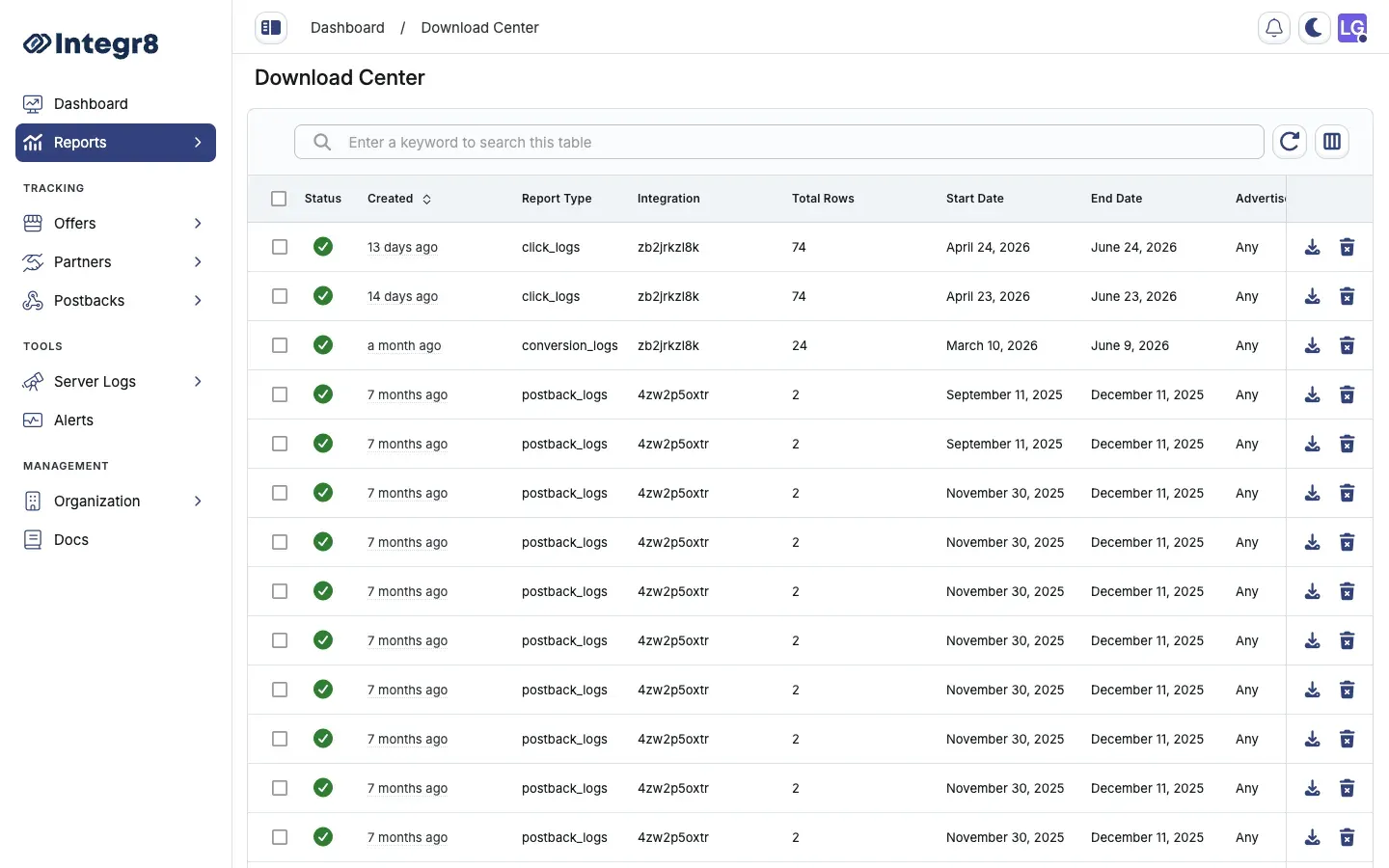
Large exports are processed asynchronously and are not immediately available. Processing time depends on the data volume. Files are available in Download Center for 90 days after generation.
Export limits
Section titled “Export limits”- Maximum rows per export: 5,000,000
- Maximum export requests per day: 10
- File format: CSV
Related reports
Section titled “Related reports”- Download Center — where exported files are available for download
- Shared Reports — share a filtered report view via a public link without downloading