

Shared Reports
What this report shows
Section titled “What this report shows”Shared Reports let you create public, read-only links to a filtered report view. Use them to give publishers real-time access to their performance data, or share campaign results with advertisers — without granting them full account access.
Shared links are available for Overview, Impression, Click, Conversion, Event, Daily Overview, Events Overview, and Smart Link reports.
How to generate a shared report
Section titled “How to generate a shared report”-
Navigate to the report you want to share: Reports > Overview, Impressions, Click Report, Conversions, Events, Daily Overview, Events Overview, SmartLink, or Event Overview.
-
Apply the filters you want the recipient to see (date range, publisher, offer, sub ID, etc.).
-
Click the Share Link icon in the toolbar.
-
In the Create Shared Report dialog, enter a Name and click Create Shared Report.
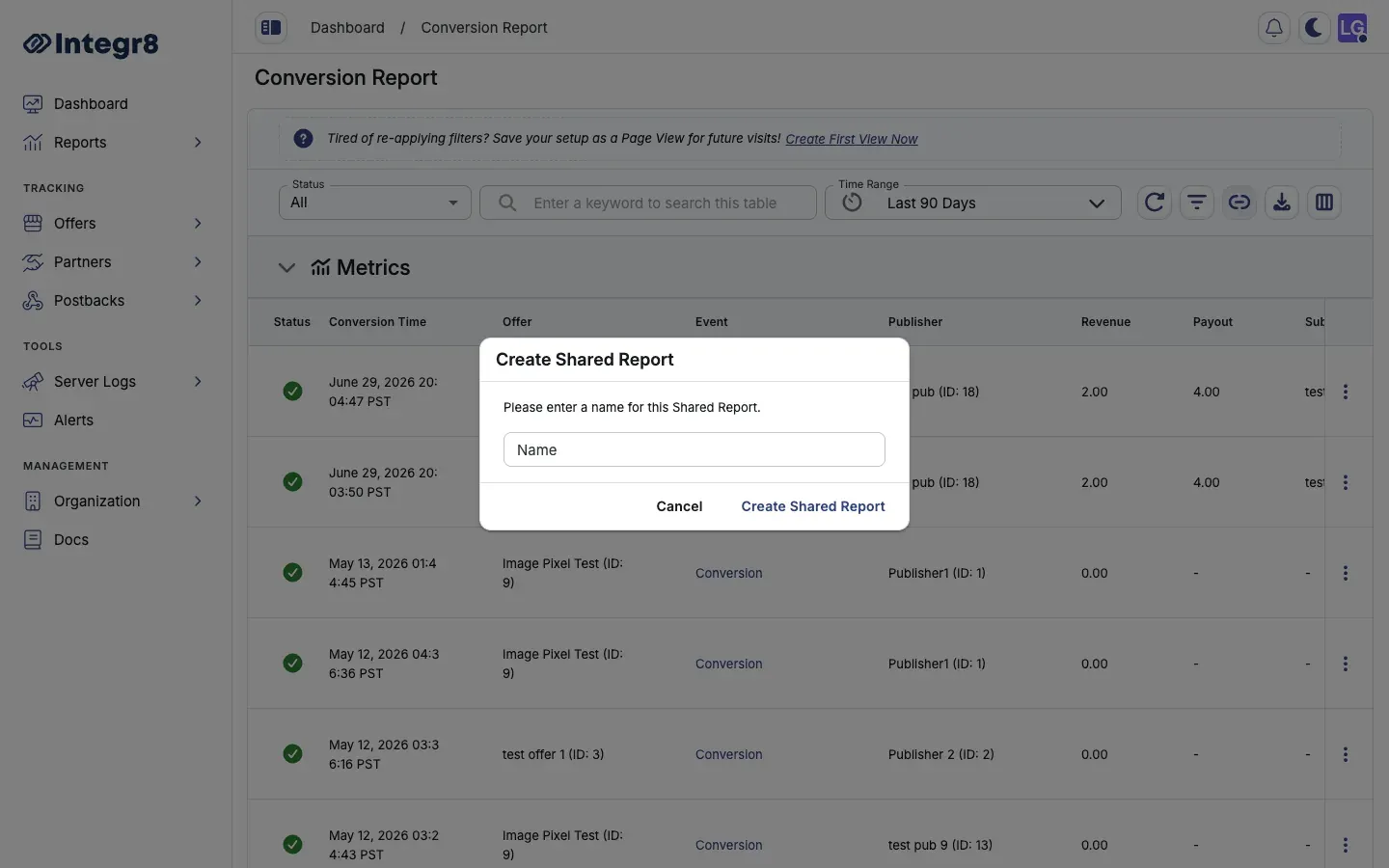
- The report appears in Reports > Shared Reports. Copy its public link from there (see below) and send it to your partner.
The recipient can view the report in real time without logging in. The report reflects current data within the filters you applied when generating the link.
Managing shared reports
Section titled “Managing shared reports”Navigate to Reports > Shared Reports to see all active shared report links.
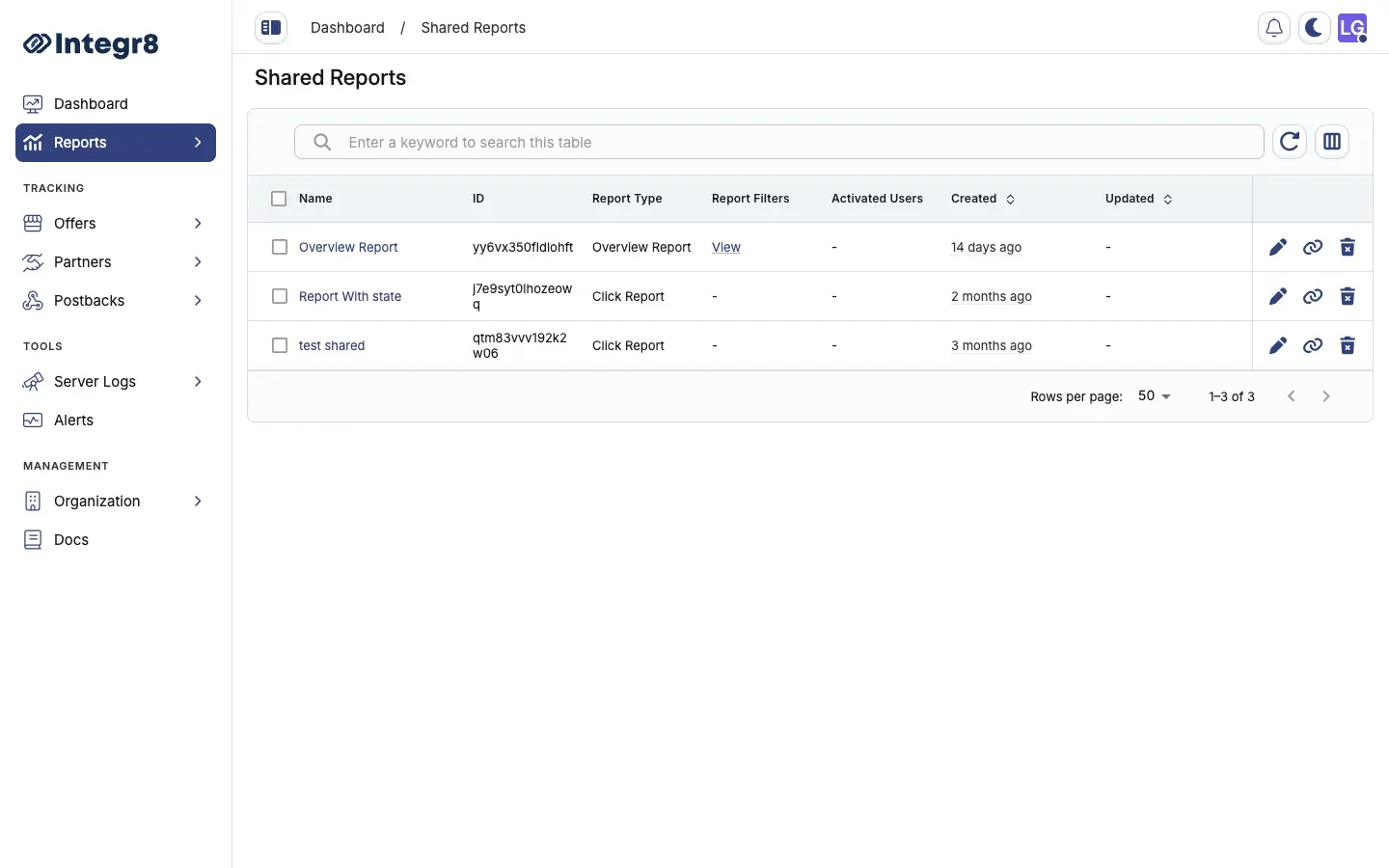
From this view you can:
- Copy the link (the chain icon) to resend to a partner
- Edit a shared report (the pencil icon)
- Delete a link (the trash icon) to revoke access immediately
There is no expiry on shared links — delete them manually when they are no longer needed.
Access controls
Section titled “Access controls”Shared report links are public URLs — anyone with the link can view the report. They are not authenticated.
Apply precise filters before generating a shared link. If you share a link without publisher or offer filters, the recipient can view aggregated data across all your campaigns. Always scope the filters to the data you intend to share.
Related reports
Section titled “Related reports”- Overview Reports — most commonly shared for performance summaries
- Export Reports — export data as CSV for offline sharing