

Event Report
What this report shows
Section titled “What this report shows”The Event Report provides row-level data for every post-conversion event recorded in your campaigns. Use it to track event funnels, audit payout accuracy, investigate rejected events, and export data for reconciliation with advertiser systems.
How to access it
Section titled “How to access it”Navigate to Reports > Events.
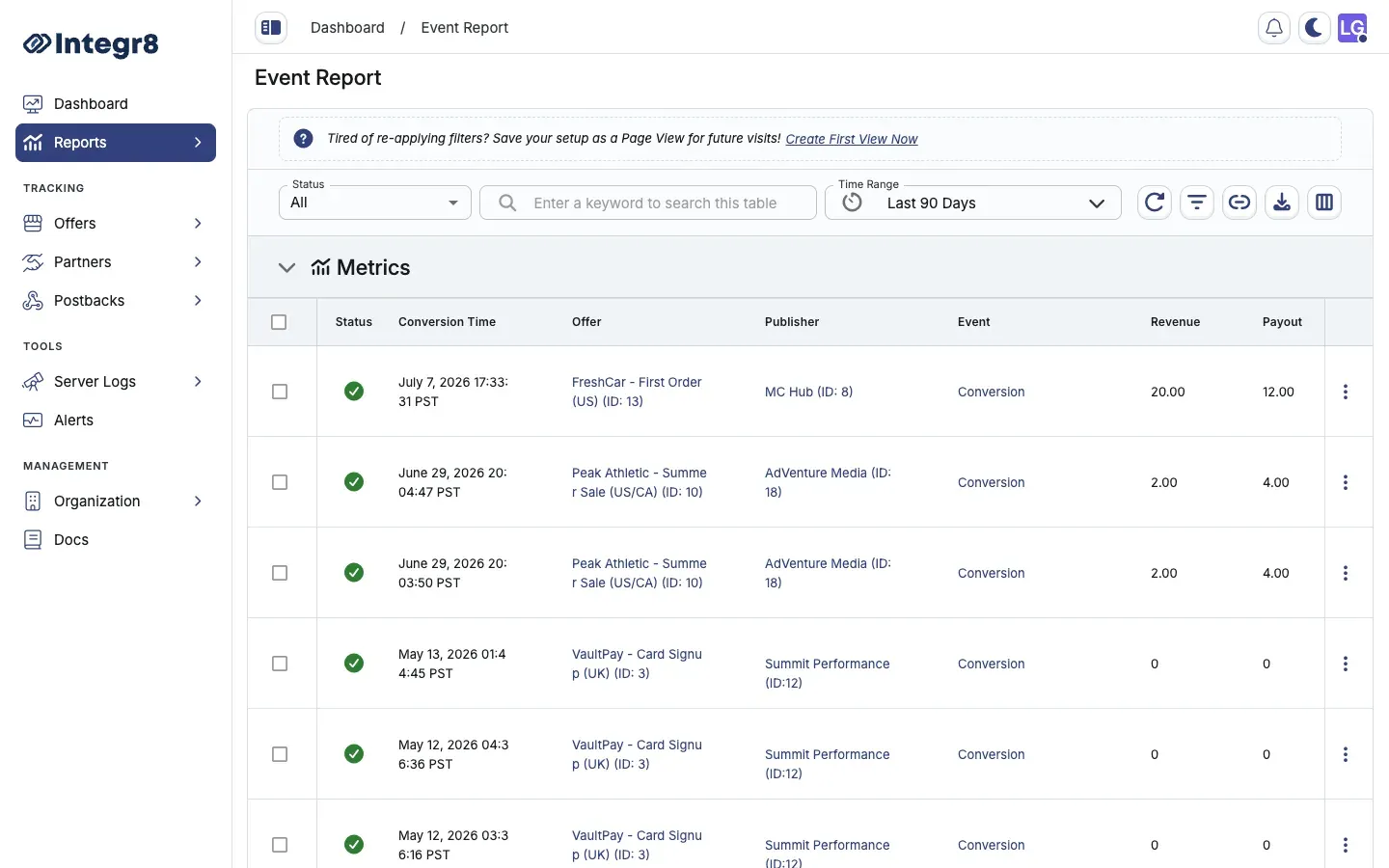
Available columns
Section titled “Available columns”| Column | Type | Description |
|---|---|---|
| Event ID | String | Unique identifier for this event |
| Click ID | String | ID of the originating click |
| Timestamp | DateTime | Date and time the event was recorded |
| Publisher | String | Publisher ID and name |
| Offer | String | Offer ID and name |
| Sub ID | String | Publisher sub source identifier |
| Event Name | String | Install, Purchase, Lead, or custom event name |
| Status | Enum | Approved, Rejected |
| Rejection Reason | String | Fraud reason or advertiser rejection reason if status is Rejected |
| Revenue | Decimal | Advertiser revenue for this event |
| Payout | Decimal | Publisher commission for this event |
| IP Address | String | IP address associated with the event |
| Country | String | Geo-resolved country code |
| Device | String | Device type at time of the event |
Use Edit Columns to customize visible columns. Save as a Custom View for future reuse.
Filters
Section titled “Filters”Filter event data by any available column. Commonly used filters:
- Date range — set the time window for event timestamps
- Advertiser / Publisher — investigate a specific traffic source
- Offer — narrow to a specific offer
- Sub ID — drill into a specific publisher sub source (Sub ID 1–6 supported)
- Event — filter by event name
- Record Status — filter events by
RecordedorPendingstate - Rejection Type — filter to
InvalidorFraudrejection categories only - Rejected Simple / Advanced Reason — isolate specific fraud rejection types
- Click IP — trace events from a specific IP address
- Country — narrow to a specific geographic region
Export options
Section titled “Export options”Click Export to queue a CSV export of the current filtered view. The file is available in Reports > Download Center once processing completes.
You can also generate a public share link using the Share Report button to give partners read-only access without requiring a login. See Shared Reports for details.
Related reports
Section titled “Related reports”- Click Reports — trace the originating click for any event
- Revenue and payouts — configure the post-conversion events this report tracks
- Traffic Insights — fraud and quality signals for the publisher generating an event