

Revenue and payouts
Revenue and payout settings define how much the advertiser pays you (revenue) and how much you pay your publishers (payout) for each conversion or event. The two values can differ. The spread is your margin.
Before you begin
Section titled “Before you begin”- Create an offer and assign it to an advertiser.
- Decide which model the advertiser uses to pay you. The payout model can differ from the revenue model.
- For post-conversion events, set up conversion tracking so the click-to-conversion path works end to end.
Open the Revenue & Payout tab
Section titled “Open the Revenue & Payout tab”- Go to Offers > Offers Management and open the offer.
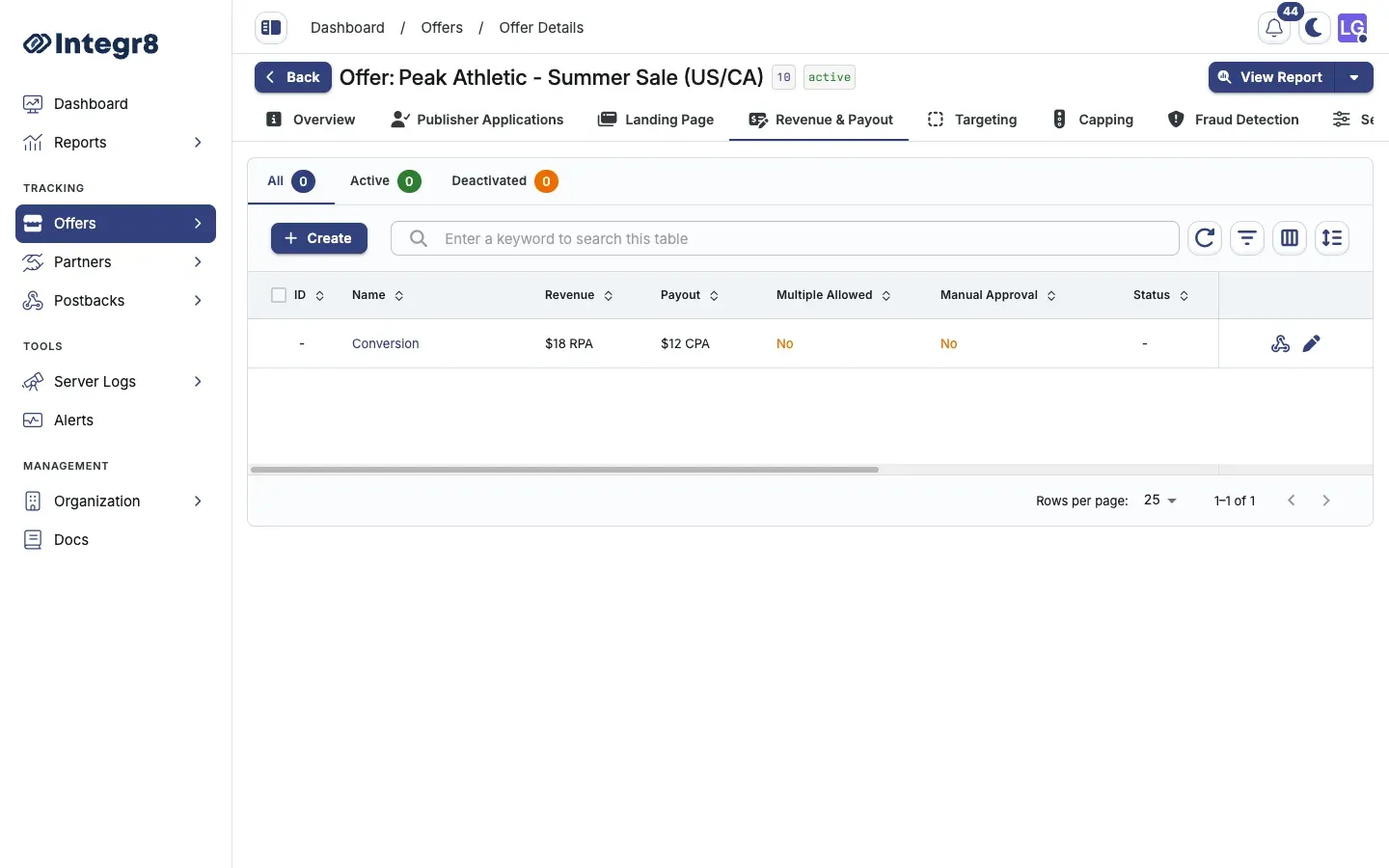
- Select the Revenue & Payout tab.
- The default Conversion row shows the offer-level payout. Click the edit (pen) icon to change it.
- Click Create to add post-conversion events.
Configure the default conversion
Section titled “Configure the default conversion”| Field | Required | Description |
|---|---|---|
| Revenue Type | Yes | How the advertiser pays you |
| Revenue Value | Depends on type | Fixed amount or percent |
| Payout Type | Yes | How you pay the publisher |
| Payout Value | Depends on type | Fixed amount or percent |
| Currency | Yes | Offer-level currency |
| Allow Multiple Conversions | No | More than one conversion per transaction_id |
| Manually Accept Conversions | No | Conversions stay pending until approved in Reports |
Revenue types
Section titled “Revenue types”How the advertiser pays you:
| Type | Label | Value field |
|---|---|---|
| RPA | Revenue Per Action | Fixed amount |
| RPS | Revenue Per Sale | Percent of sale |
| RPC | Revenue Per Click | Fixed amount |
| RPM | Revenue Per Impression | Fixed amount |
| RPAxRPS | Revenue Per Action and Sale | Fixed amount and percent |
Payout types
Section titled “Payout types”How you pay publishers:
| Type | Label | Value field |
|---|---|---|
| CPA | Cost Per Action | Fixed amount |
| CPS | Cost Per Sale | Percent of sale |
| CPC | Cost Per Click | Fixed amount |
| CPM | Cost Per Impression | Fixed amount |
| CPAxCPS | Cost Per Action and Sale | Fixed amount and percent |
| PRV | Percentage of Revenue | Percent of revenue |
Currency
Section titled “Currency”Each offer has its own currency. Publisher payouts convert to the publisher’s account currency at the rate configured in your account settings.
Post-conversion events
Section titled “Post-conversion events”Events track actions after the initial conversion, for example a first purchase after a free-trial registration or an in-app purchase after an install. Events require a conversion to exist first. They cannot fire without a matching transaction_id from an earlier click.
How events work
Section titled “How events work”Events use the same postback mechanism as conversions, with two additional parameters:
event_id: the numeric ID of the event in Integr8.event_name: the name of the event as defined in Integr8.
Either parameter alone is sufficient, or you can pass both. The values must match exactly what was defined when the event was created.
Example postback URLs:
https://your.domain.com/?secure=TOKEN&event_id=5&transaction_id=REPLACEhttps://your.domain.com/?secure=TOKEN&event_name=purchase&transaction_id=REPLACECreate an event
Section titled “Create an event”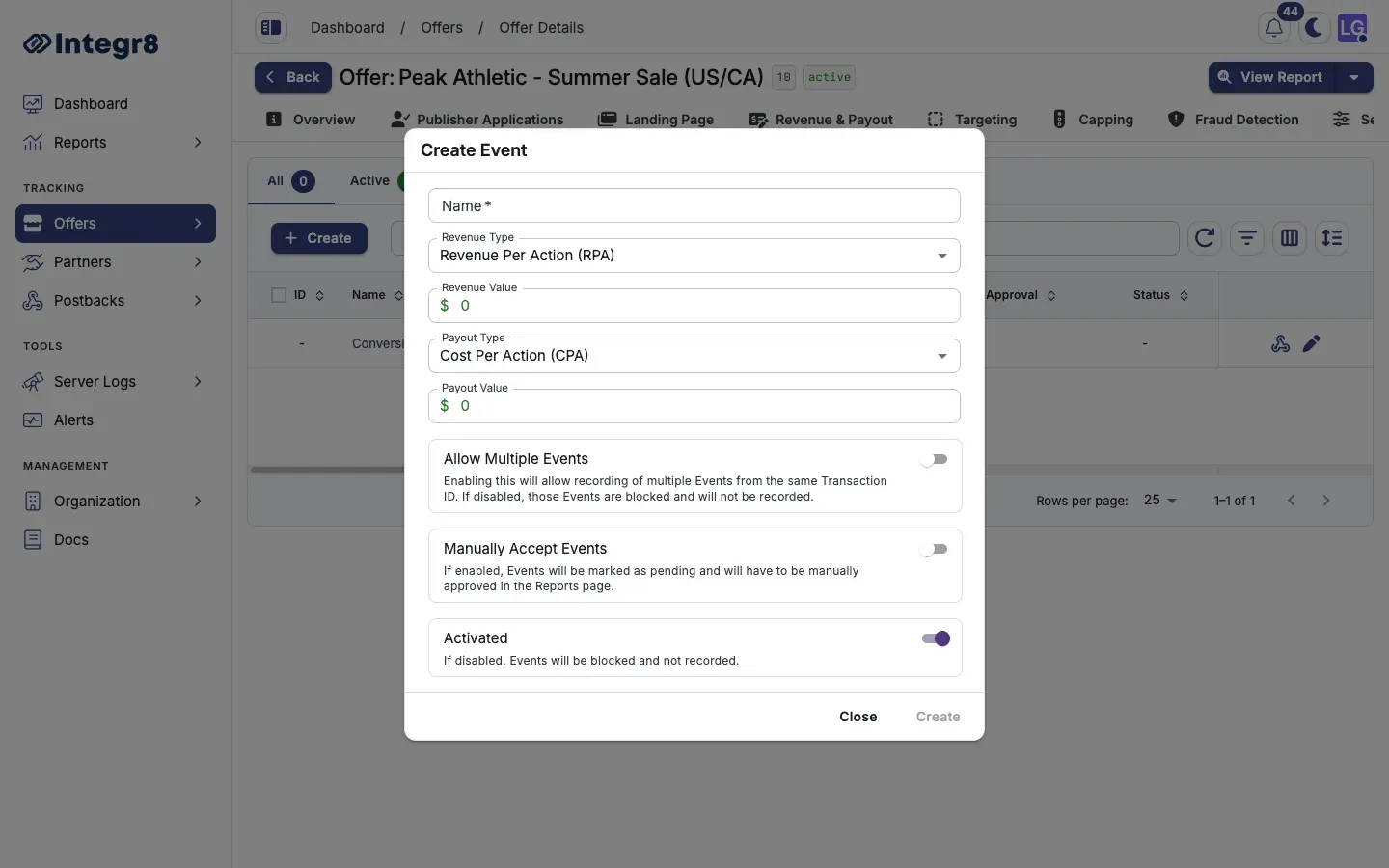
- On the Revenue & Payout tab, click Create.
- In the Create Event dialog, set:
- Name: must match the name the advertiser passes in their postback. For AppsFlyer integrations, use the exact event name from the AppsFlyer dashboard.
- Revenue Type and Revenue Value (or Revenue Percent for RPS and RPAxRPS).
- Payout Type and Payout Value (or Payout Percent for CPS, PRV, and CPAxCPS).
- Allow Multiple Events: enable if the same user can trigger this event more than once per click.
- Manually Accept Events: mark events as pending until approved in Reports.
- Activated: disable to block recording for this event.
- Click Create.
Event field reference
Section titled “Event field reference”| Field | Required | Description |
|---|---|---|
| Name | Yes | Must match the name the advertiser sends in the postback |
| Revenue Type | Yes | RPA, RPS, RPC, RPM, or RPAxRPS |
| Revenue Value / Revenue Percent | Yes | Amount or percent based on revenue type |
| Payout Type | Yes | CPA, CPS, CPC, CPM, CPAxCPS, or PRV |
| Payout Value / Payout Percent | Yes | Amount or percent based on payout type |
| Allow Multiple Events | No | Multiple events per transaction_id |
| Manually Accept Events | No | Events stay pending until approved |
| Activated | No | Disable to stop recording |
Get the event postback URL
Section titled “Get the event postback URL”After creating the event, open the postback dialog from the Revenue & Payout tab using the webhook icon on the event row.
You can also use the global postback URL from Offers > Global Tracking by appending &event_id= or &event_name=.
Next steps
Section titled “Next steps”- View event performance in Reports > Event Report.
- Override payouts per publisher for top performers or test sources.
- Forward events to publishers so they receive the same notification.
- Set offer caps to limit volume and spend.