

Global Tracking Settings
Global tracking settings define the defaults that apply to all offers in your account. Configure them once during setup and adjust only when your infrastructure changes.
Access global tracking settings
Section titled “Access global tracking settings”- Log in to your Integr8 account at app.integr8.co.
- Go to Offers > Global Settings.
- Select the Settings tab to view and edit global tracking defaults.
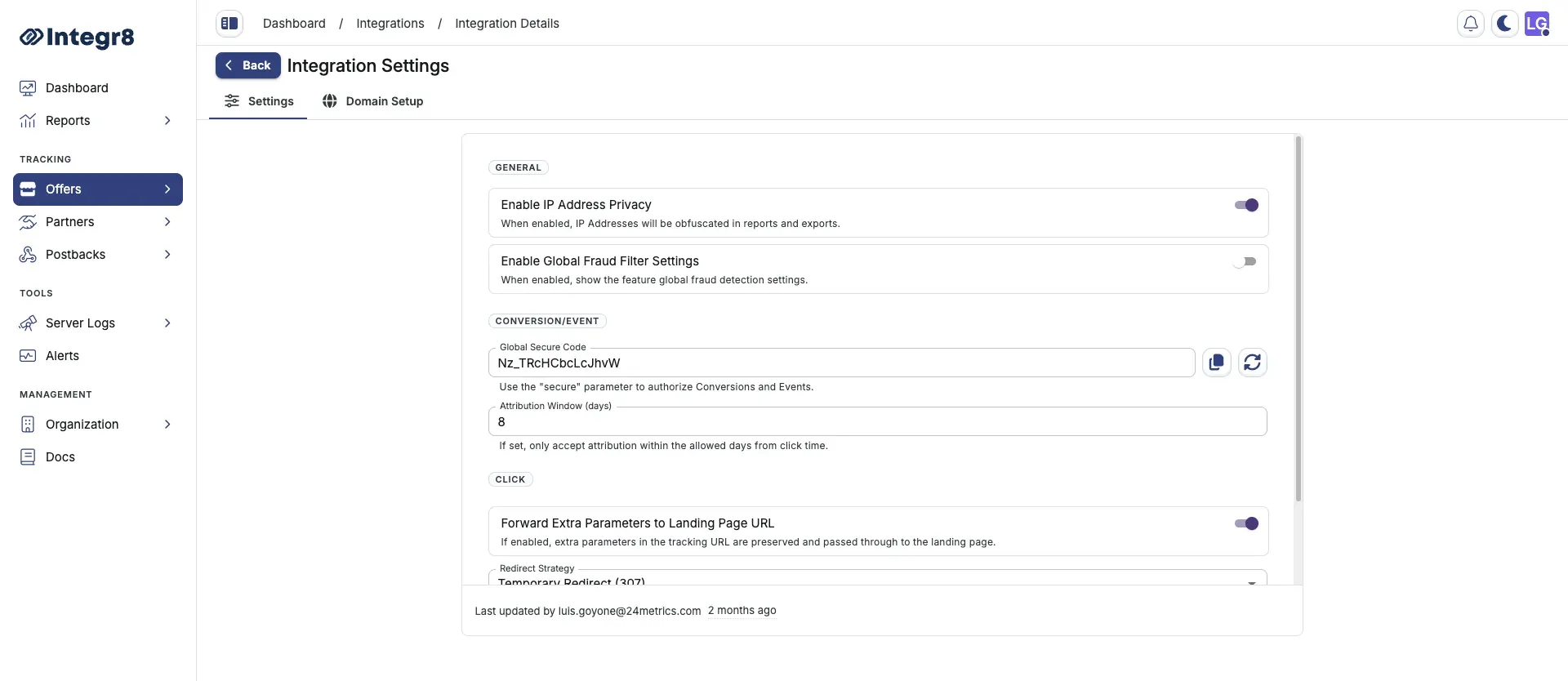
General
Section titled “General”| Field | Description |
|---|---|
| Enable IP Address Privacy | Turn this on to obfuscate IP addresses in reports and exports (e.g., 192.168.x.x) |
| Enable Global Fraud Filter Settings | Turn this on to enable global fraud detection settings. Go to Offers > Fraud Detection Groups to configure global fraud filter settings. |
Conversion and event
Section titled “Conversion and event”| Field | Description |
|---|---|
| Global Secure Code | Use this value with the secure parameter to authorize conversions and events. Click Copy to copy the generated code or click Renew to regenerate it |
| Attribution Window (days) | Set how many days after a click Integr8 accepts attribution. Clicks outside this window do not convert |
| Field | Description |
|---|---|
| Forward Extra Parameters to Landing Page URL | Turn this on to preserve extra parameters from the tracking URL and pass them through to the landing page |
| Redirect Strategy | Choose how clicks redirect to the landing page |
| Redirect Cache Expiry (seconds) | Set how long click redirect responses are cached. Use 0 to disable caching |
| Option | Description |
|---|---|
| Temporary Redirect (307) | Sends an HTTP 307 response. The browser follows the redirect to the landing page while preserving the request method |
| Temporary Redirect (302) | Sends an HTTP 302 response. The browser follows the redirect to the landing page |
| Permanent Redirect (301) | Sends an HTTP 301 response. Browsers and caches may store this redirect long term. Use only when the destination URL is stable |
| Single Meta Refresh | Returns an HTML page that redirects via a meta refresh tag. Use when HTTP redirects are stripped or blocked by the traffic source |
| Double Meta Refresh | Returns a two-step meta refresh chain. Hides the referrer from the landing page and works around stricter browser or ad network redirect policies |
Custom tracking domain
Section titled “Custom tracking domain”You can replace the default Integr8 tracking domain with your own subdomain (e.g., track.yourdomain.com). This improves deliverability and brand trust.
- From Offers > Global Settings, select the Domain Setup tab.
- Enter your subdomain (e.g.,
track.yourdomain.com). - Copy the CNAME record shown and add it to your DNS provider.
- Wait for DNS propagation (typically 5–30 minutes), then click Verify.
SSL is provisioned automatically once the CNAME record is verified. Do not add an A record — CNAME only.