

Sub IDs
Sub IDs let you split a publisher’s traffic into named segments - email, social, a specific placement, a media buy - without creating a separate publisher account for each one. Every click and conversion is recorded with the sub ID that was used, so you can analyze, cap, or block each source independently.
Before you begin
Section titled “Before you begin”- Add the publisher you want to manage sub IDs for.
- Know the identifier you want to use. Sub ID values appear in tracking links and reports, so choose something short and meaningful (e.g.
ig-reel-may,email-q2).
Create a sub ID
Section titled “Create a sub ID”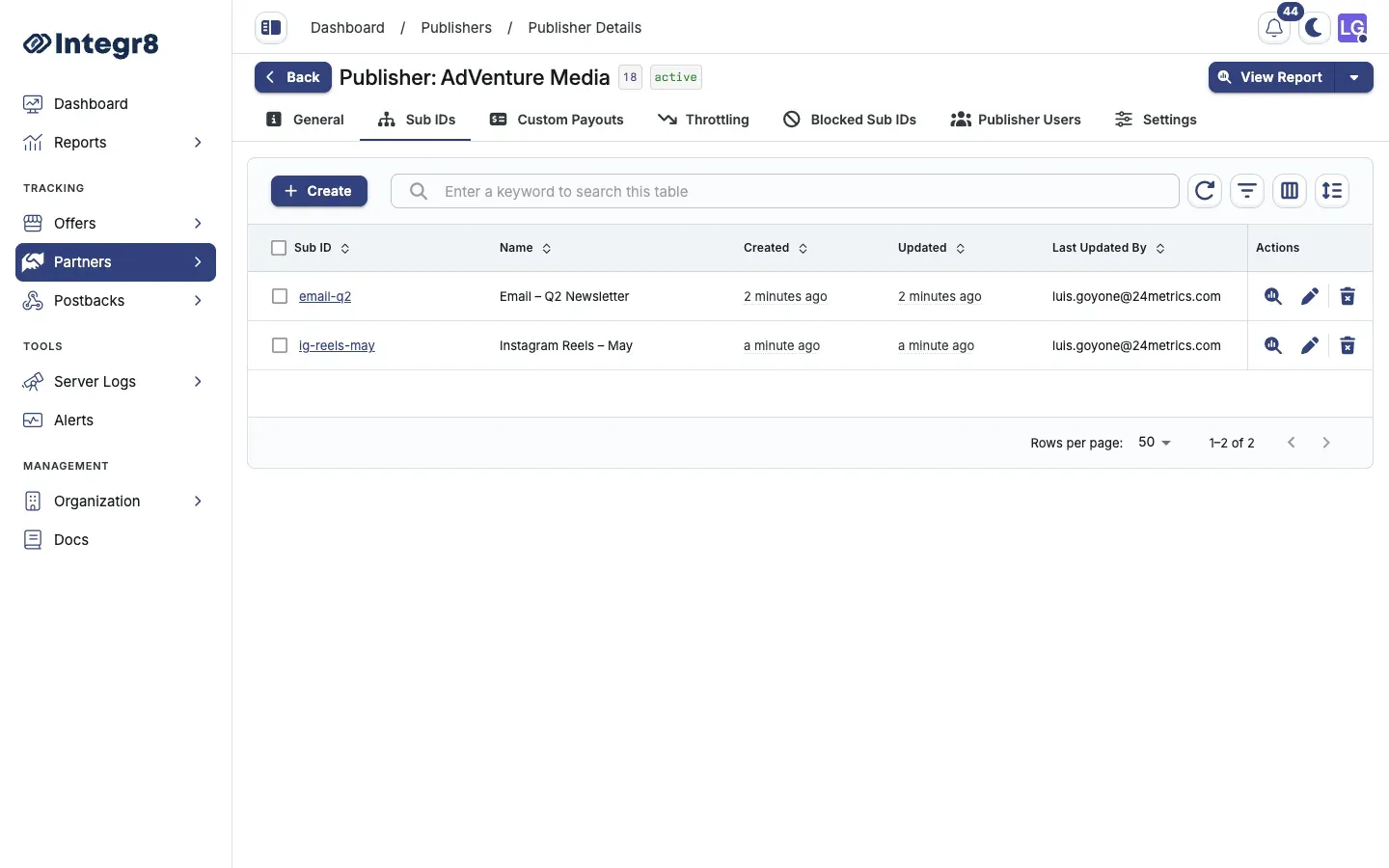
- Go to Partners > Publishers Management and open the publisher.
- Select the Sub IDs tab.
- Click Create.
- Fill in the sub ID details (see Field reference below).
- Click Save.
The sub ID is available immediately in tracking links, reports, and filter dropdowns across the platform.
Edit a sub ID
Section titled “Edit a sub ID”Click the edit icon on any row, update the fields, and click Save. The Sub ID identifier itself can be changed, but note that any tracking links already using the old value will no longer match.
Delete a sub ID
Section titled “Delete a sub ID”Click the delete icon on a row and confirm. To remove several at once, check the rows you want and use the bulk delete action from the toolbar.
Historical data for deleted sub IDs is preserved in reports. Deleting a sub ID only prevents new traffic from using that identifier going forward.
Search and filter
Section titled “Search and filter”Use the search bar to find a sub ID by its identifier. For multi-field lookups, open the filter panel to filter by Sub ID and Name at the same time.
View reports for a sub ID
Section titled “View reports for a sub ID”Click the View Report icon on a row to open the reports page pre-filtered for that sub ID. This scopes clicks, conversions, and fraud metrics to that source only.
Field reference
Section titled “Field reference”| Field | Required | Description |
|---|---|---|
| Sub ID | Yes | The identifier appended to tracking links and stored with every event. Max 50 characters. Letters, numbers, hyphens, underscores, and dots only. |
| Name | Yes | Human-readable label shown in the management table. Not used in tracking. |
| Description | No | Internal notes about what this sub ID represents. Shown as a tooltip in the table. |
| External Link | No | URL to an external reference such as a campaign brief or landing page. Shown alongside the description tooltip. |
Next steps
Section titled “Next steps”- Block a sub ID on a specific offer if it starts sending low-quality traffic.
- Configure fraud detection to automate blocking based on fraud signals.