

Throttling
Throttling lets you cap how many conversions from a publisher are accepted on an offer. Use it to control volume, test traffic gradually, or contain sources that convert too aggressively. Rules can apply to all offers by default, to a single offer, or to individual sub IDs.
Before you begin
Section titled “Before you begin”- Add the publisher you want to throttle.
- Know which offer and, if needed, which sub IDs the rule should target.
Open throttling
Section titled “Open throttling”- Go to Partners > Publishers Management and open the publisher.
- Select the Throttling tab.
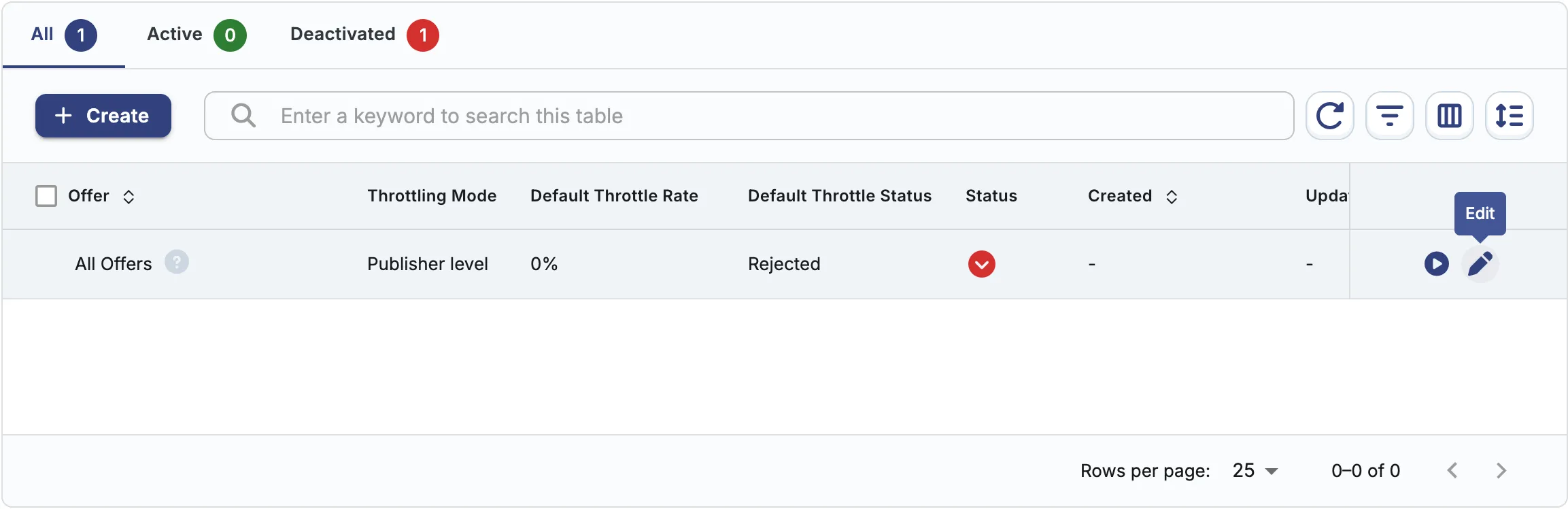
The table includes an All Offers row at the top. This is the publisher-wide default. It applies unless a more specific rule exists for an offer.
Configure default throttling (All Offers)
Section titled “Configure default throttling (All Offers)”- On the All Offers row, open the row action menu and click Edit.
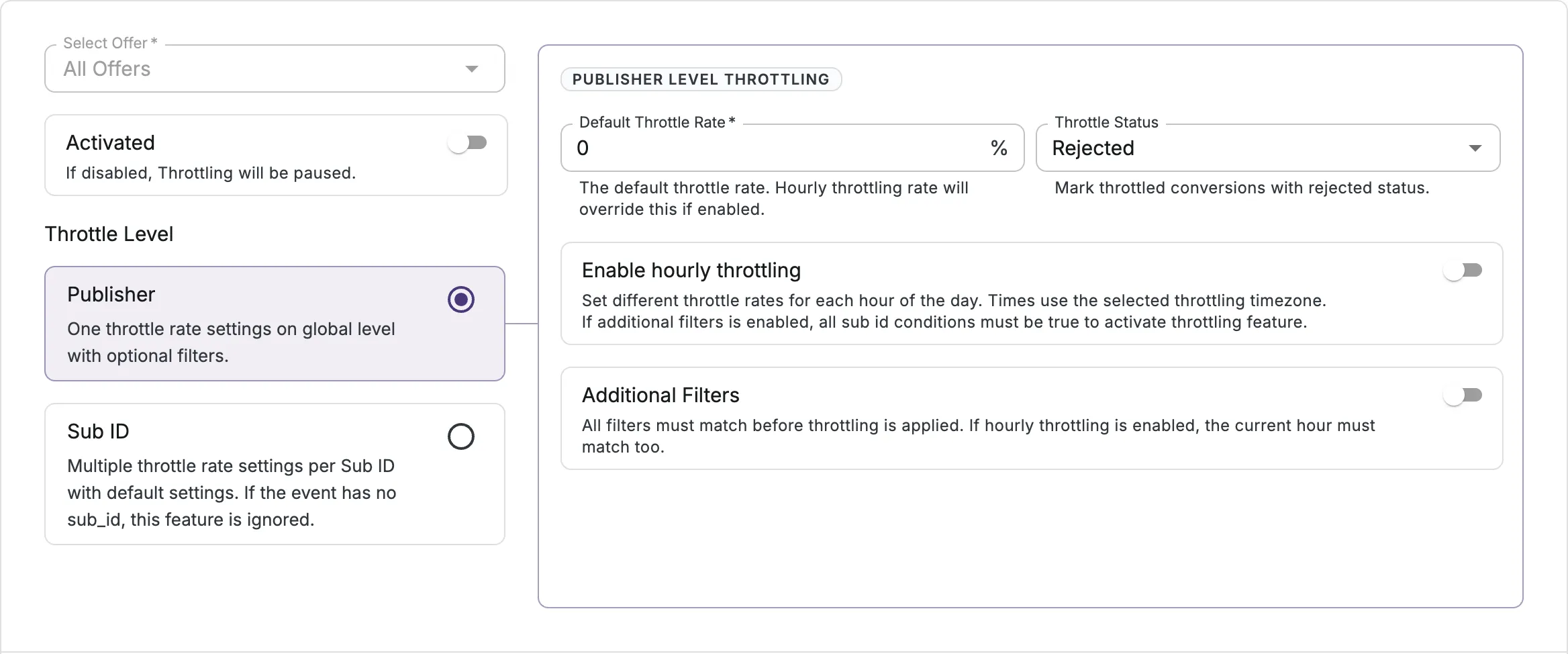
- Set Throttle Level:
- Publisher: one throttle rate for the publisher on this scope.
- Hourly Throttling: optionally vary the rate by hour of day.
- Additional Filters: optionally narrow the traffic by
sub_id_2throughsub_id_6.
- Sub ID: throttle each sub ID independently.
- Publisher: one throttle rate for the publisher on this scope.
- Set Throttle Rate (0-100%). This is the percentage of conversions that pass through. The rest are throttled.
- Set Throttle Status:
- Rejected: throttled conversions are marked rejected.
- Pending: throttled conversions are held as pending and excluded from report stats until approved.
- Click Save.
Create an offer-specific throttle rule
Section titled “Create an offer-specific throttle rule”- On the Throttling tab, click Create.
- Select the Offer.
- Choose Throttle Level, Throttle Rate, and Throttle Status as above.
- Turn Activated on and click Save.
Each offer can have only one custom throttle rule. Offers that already have a rule are marked in the offer dropdown.
Sub ID custom throttling
Section titled “Sub ID custom throttling”When you set Throttle Level to Sub ID, you can throttle each sub ID independently instead of applying one rate across the publisher. If an event has no sub_id, this throttle is ignored.
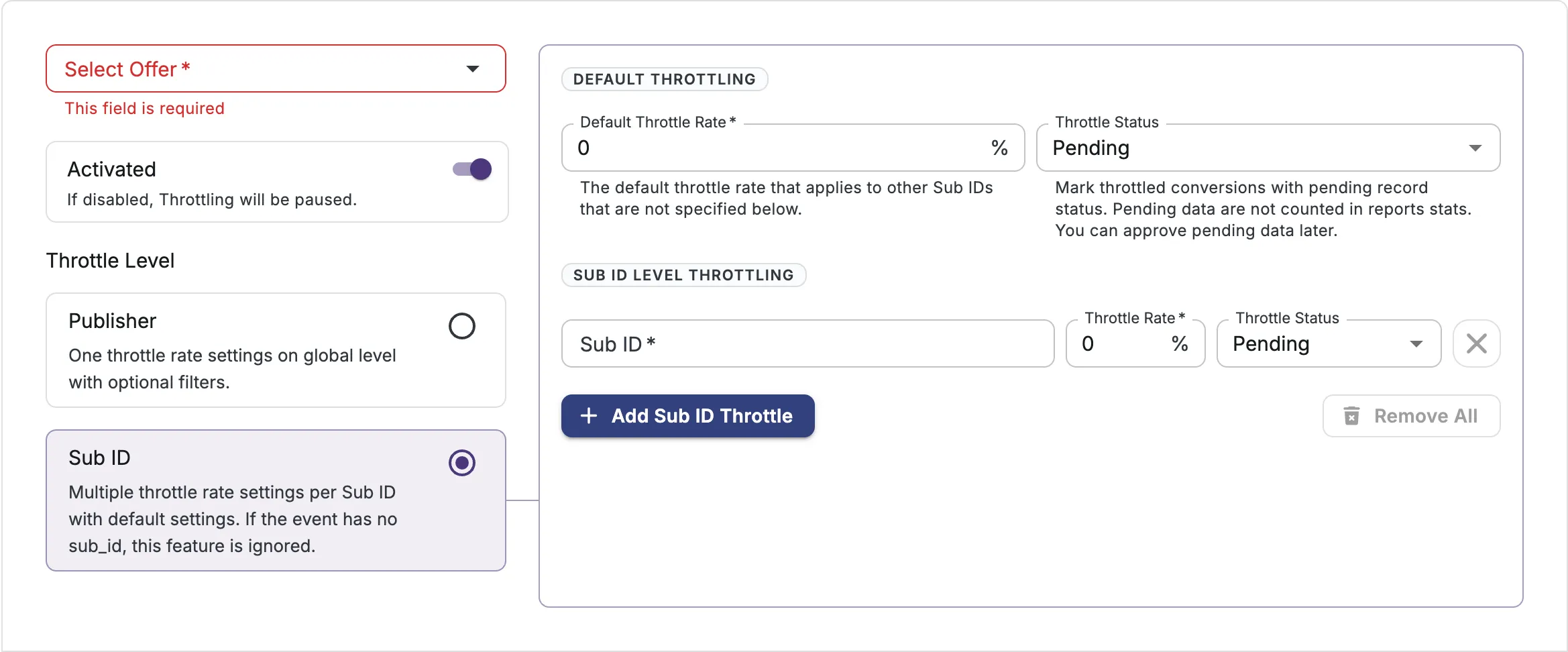
Two sets of settings appear:
Default Throttling — the fallback that applies to any sub ID not listed below.
- Default Throttle Rate (0-100%): the percentage of conversions accepted for unlisted sub IDs.
- Throttle Status: Pending or Rejected for those throttled conversions.
Sub ID Level Throttling — per-sub-ID overrides. For each entry, set:
- Sub ID (required): the sub ID to throttle.
- Throttle Rate (0-100%): the percentage of conversions accepted for this sub ID.
- Throttle Status: Pending or Rejected.
Click Add Sub ID Throttle to add another sub ID, or Remove All to clear the list.
Manage existing rules
Section titled “Manage existing rules”From the row action menu on any rule:
- Activate / Deactivate: pause or resume the rule without deleting it.
- Edit: change throttle settings.
- Clone: copy settings into a new rule for a different offer.
- Delete: remove the offer-specific rule. Traffic falls back to the All Offers default.
Use the All, Active, and Deactivated tabs to filter the list. Bulk activate, deactivate, and delete are available from the toolbar when multiple rows are selected.
Field reference
Section titled “Field reference”| Field | Required | Description |
|---|---|---|
| Offer | Yes | The offer this rule applies to. Use All Offers for the publisher default. |
| Activated | Yes | Pauses throttling when off |
| Throttle Level | Yes | Publisher or Sub ID |
| Throttle Rate | Yes | Percentage of conversions to accept (0-100) |
| Throttle Status | Yes | Rejected or Pending |
| Hourly Throttling | No | Different rates by hour of day |
| Additional Filters | No | Filter by sub_id_2 through sub_id_6 |
Next steps
Section titled “Next steps”- Block a sub ID if a source should be stopped entirely on an offer.
- Set offer caps for volume limits at the offer level.