

Fraud detection
Offer-level fraud detection applies a filter group to all clicks, conversions, or impressions on the offer. Filter groups define the specific rules (IP reputation, fingerprint matching, device anomalies, and more) that Integr8 evaluates against each event. Create the group once, then assign it to as many offers as you want.
Before you begin
Section titled “Before you begin”- Create an offer you want to protect.
- Decide which traffic kinds need filtering: clicks, conversions, impressions, or all three.
Create a fraud detection group
Section titled “Create a fraud detection group”- Go to Offers > Fraud Detection Groups in the main menu.
- Click Create.
- Set a Name and Description.
- In Assigned Offers, pick the offers where this group will apply. You can leave empty and assign later.
- Click Next.
- Configure filters for Clicks, Conversions, and Impressions:
- Toggle individual filters on or off.
- Use a Pre-Set configuration as a starting point. Pre-sets apply best-practice settings for common campaign types.
- Click Save.
Assign a group to an offer
Section titled “Assign a group to an offer”- Go to Offers > Offers Management and open the offer.
- Select the Fraud Detection tab.
- Click Assign A Fraud Detection Group Now, pick the group from the dropdown, and click Save. You can also create a new group from this dialog.
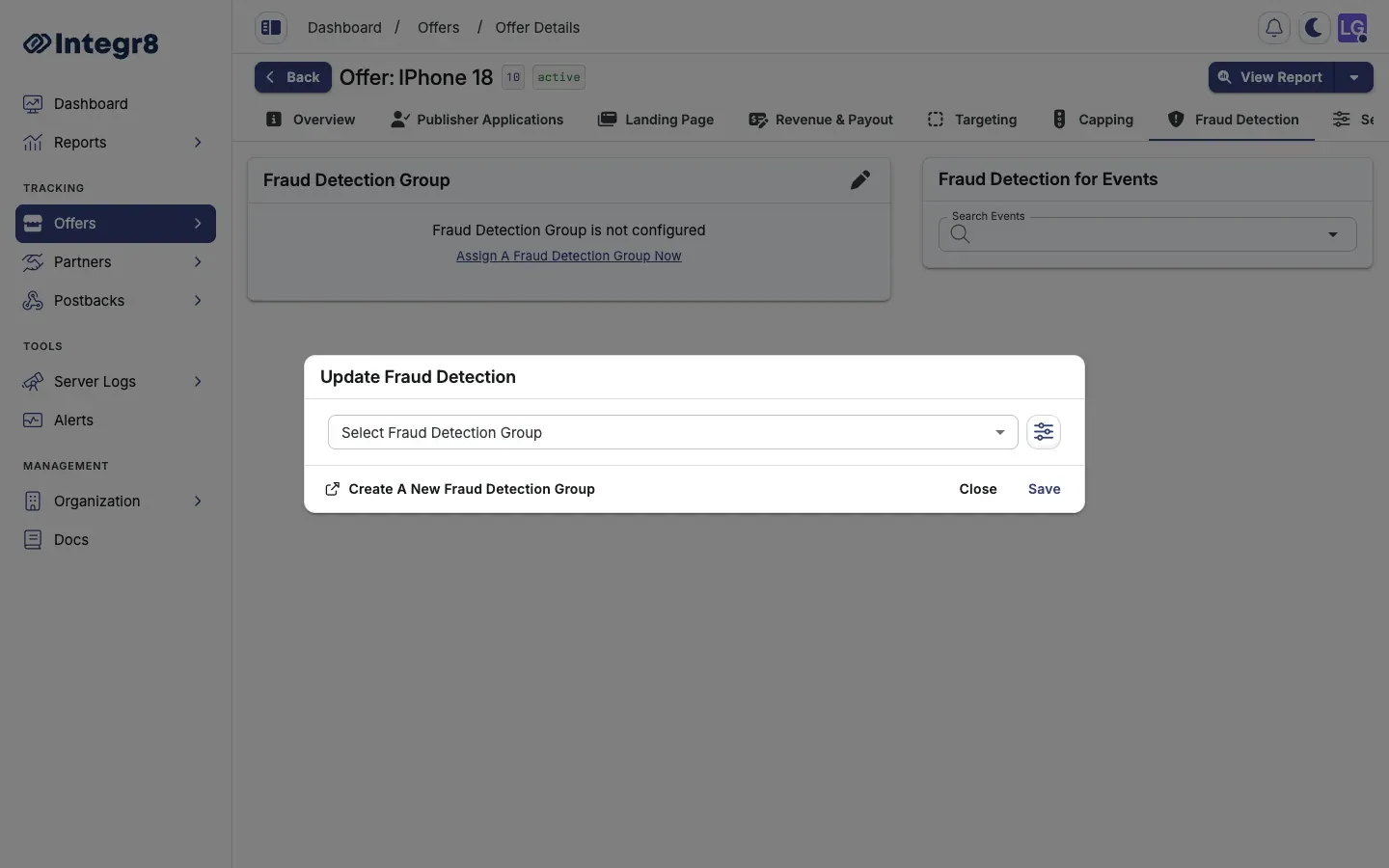
You can also assign offers from inside the group’s General Settings tab.
Per-offer event filters
Section titled “Per-offer event filters”Post-conversion event filters (for events tracked after the initial conversion) are configured individually per offer from the Fraud Detection tab. They are not part of the group-level configuration.
Fingerprint requirement
Section titled “Fingerprint requirement”For fingerprint-based detection to work, publishers must use the JavaScript tracking link instead of the standard link. Fingerprints are collected at click time and used by duplicate-click and bot-scoring rules.
Next steps
Section titled “Next steps”- Enable JavaScript tracking so fingerprint signals are available.
- Browse the Fraud Prevention guide for platform-wide fraud detection details.