

Landing pages
Each offer has a default landing page set during creation. You can add additional landing pages to support A/B testing, language variants, or different promotion angles. The active landing page can be selected per tracking link or rotated automatically.
Before you begin
Section titled “Before you begin”- Create an offer with a default landing page.
- Have the additional preview and redirect URLs ready, including the macros your advertiser uses.
Add a landing page
Section titled “Add a landing page”- Go to Offers > Offers Management and open the offer.
- Select the Landing Page tab.
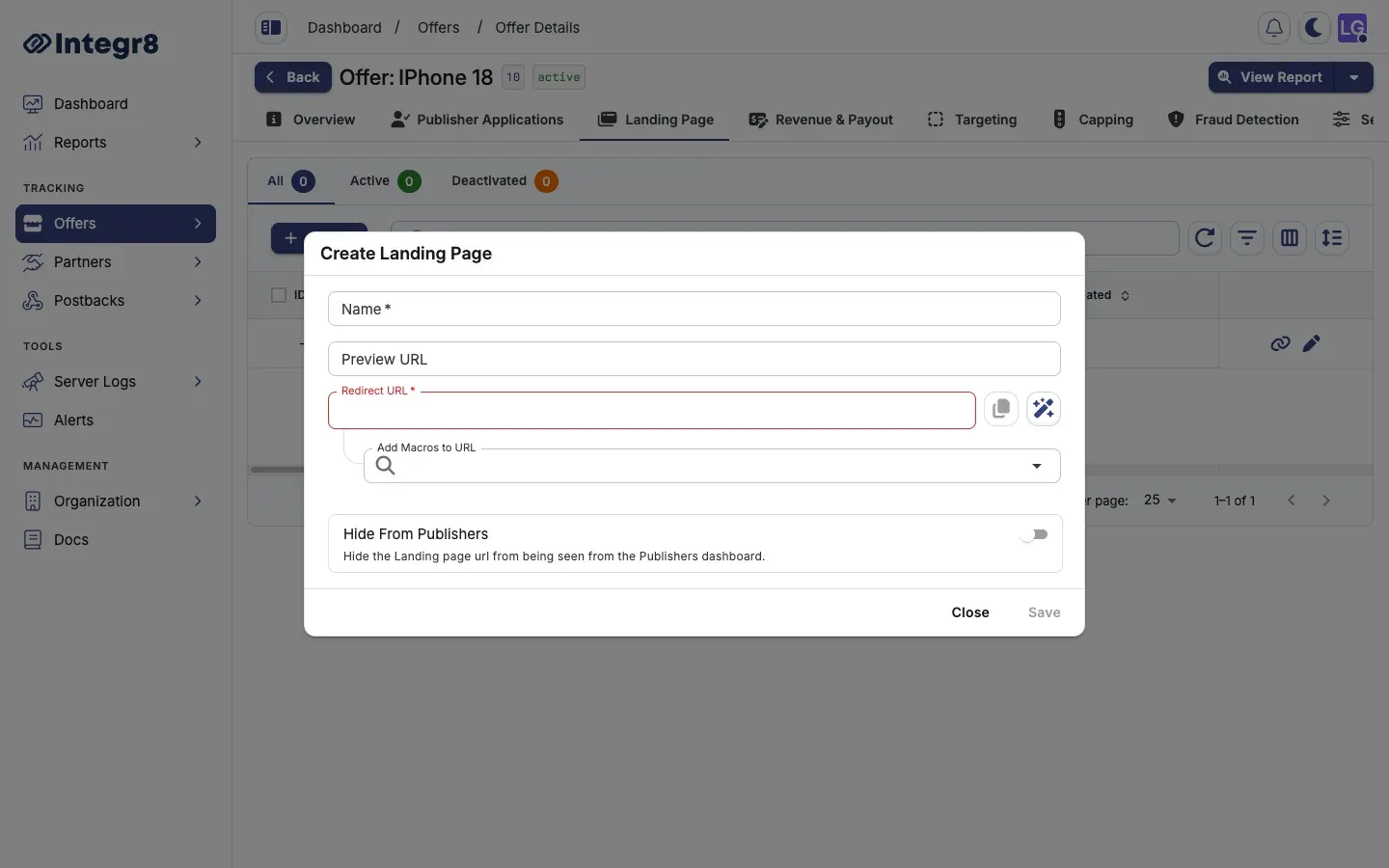
- Click Create.
- Fill in the fields:
- Name: an internal label for the landing page.
- Preview URL: the page URL for manual preview (not tracked).
- Redirect URL: the actual destination URL with parameter macros.
- Hide From Publishers (optional): hide this landing page URL from the publisher dashboard.
- Click Save.
Parameter mapping
Section titled “Parameter mapping”Landing page redirect URLs support the same parameter macros as the main offer URL. Include {transaction_id} so conversion tracking continues to work:
https://yourdomain.com/landing-variant-b?cid={transaction_id}&source={sub_id}Assign a landing page to a tracking link
Section titled “Assign a landing page to a tracking link”When generating a tracking link, select the landing page from the Landing Page dropdown. If none is selected, the offer’s default landing page is used.
Rotate landing pages
Section titled “Rotate landing pages”Integr8 supports weighted rotation across multiple landing pages. To configure rotation, contact support@integr8.co to enable it for your account.
Use descriptive names for landing pages, for example EN Discount Banner or FR Standard. With multiple pages active, clear names prevent mistakes when assigning pages to tracking links.
Next steps
Section titled “Next steps”- Generate a tracking link and pick the landing page variant.
- Map redirect URL parameters when extracting macros from advertiser URLs.