

Targeting rules
Targeting rules define which clicks are eligible to reach an offer. Clicks that do not match the active rules are blocked and redirected to the offer’s fallback URL. You can configure targeting per offer or share a single set of rules across multiple offers using a targeting group.
Before you begin
Section titled “Before you begin”- Create an offer.
- Decide whether the rules will be unique to this offer (per-offer) or shared across multiple offers (targeting group).
Available targeting dimensions
Section titled “Available targeting dimensions”| Dimension | Options |
|---|---|
| Geolocation | Country, city, and state |
| Device Properties | Device type (computer, phone, tablet), operating system, browser |
| IP | Allow or block specific IP ranges |
| Language | Browser language |
Set targeting on a single offer
Section titled “Set targeting on a single offer”- Go to Offers > Offers Management and open the offer.
- Select the Targeting tab.
- Turn on the dimension you need (Geolocation, Device Properties, IP, Language), then add the values to allow or block.
- Click Save.
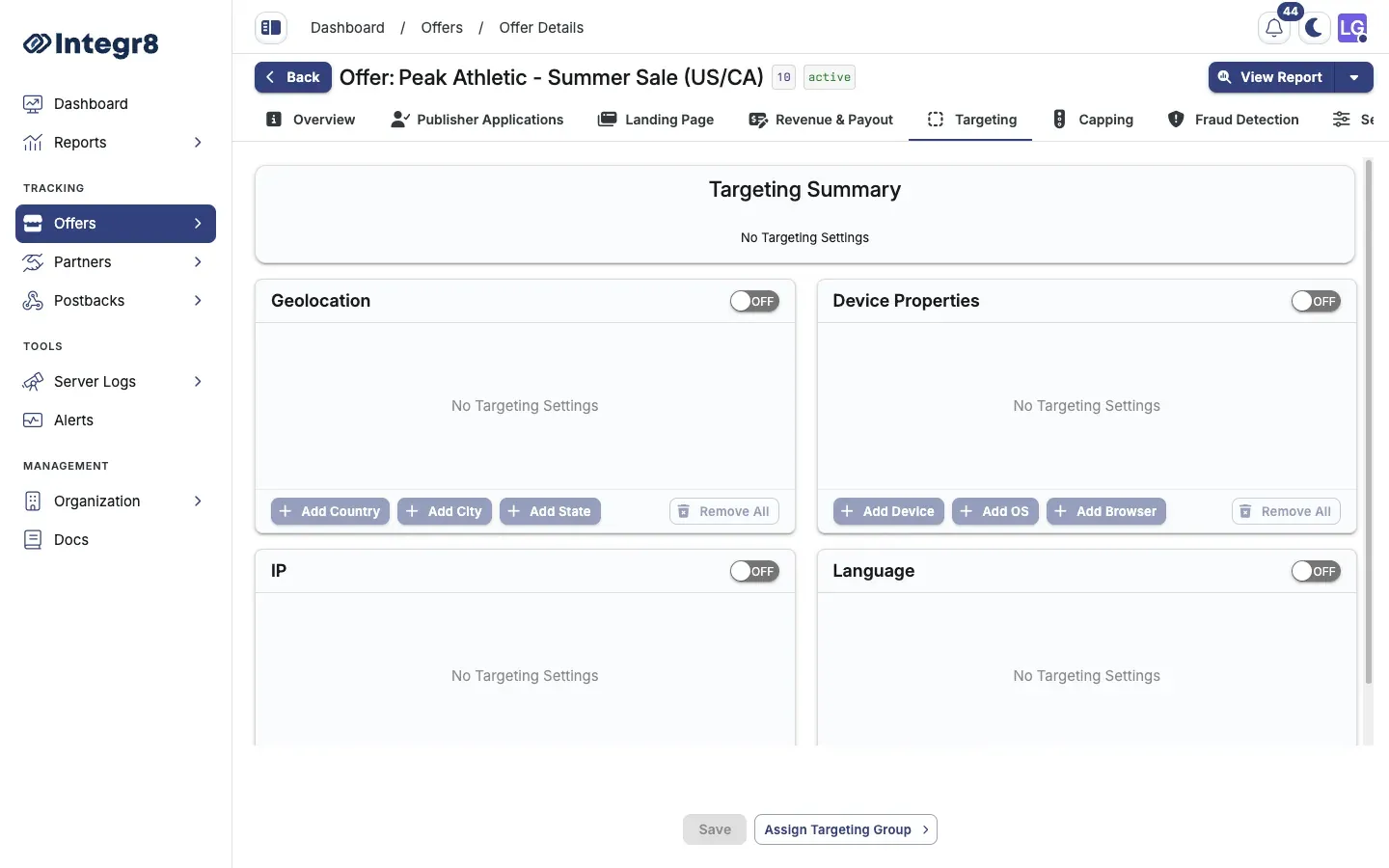
Targeting applies to both clicks and conversions unless configured otherwise.
Use a shared targeting group
Section titled “Use a shared targeting group”If multiple offers share the same targeting rules, create a targeting group to manage them in one place.
Create the group:
- Go to Offers > Targeting Groups in the main menu.
- Click Create.
- Enter a Name and Description.
- In Assign Offers, pick the offers this group applies to. You can skip and assign later.
- Click Next.
- Configure targeting rules for Clicks and Conversions.
- Click Save.
Assign a group to an offer:
You have two paths.
From the targeting group: open the group, go to General Settings, and add offers to the Assigned Offers list.
From the offer: open the offer, select the Targeting tab, click Assign Targeting Group, and pick the group from the dropdown.
When a targeting group is assigned, the group’s rules override any individual targeting rules set on the offer directly.
Next steps
Section titled “Next steps”- Set offer caps so allowed traffic stays inside your volume limits.
- Add fraud detection for filtering beyond geo and device targeting.